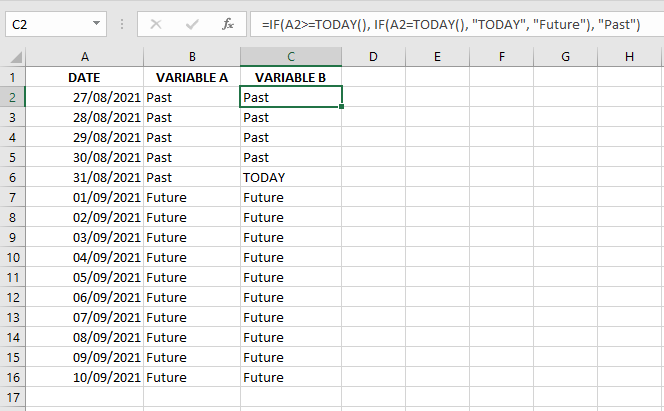
The IF function performs a logical test and returns one value for a TRUE result and another for a FALSE result.
Syntax:
=IF(condition, value_if_true, value_if_false)
Where:
■ condition: A value or logical expression that can be evaluated as TRUE or FALSE.
■ value_if_true (optional): The value to return if the condition is TRUE.
■ value_if_false (optional): The value to return if the condition is FALSE.
An IF statement therefore has two possible outcomes: the first result is applied if the condition is met (TRUE), otherwise the second result is applied.
Example:
IF(C2="Yes", 1, 2) means:
If C2 = « Yes », return 1; otherwise return 2.
Use the IF Function to Compare Columns and Return a Specific Result
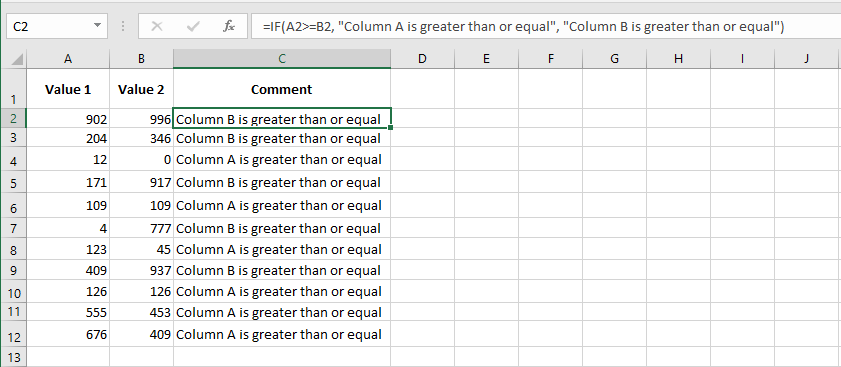
This example compares two columns and displays the result in column C.
To return specific text after comparing values:
- Enter values between 0 and 1,000 in range A2:A12.
- Enter values between 0 and 1,000 in range B2:B12.
- Select cells C2:C12 and type the following formula:
=IF(A2>=B2, "Column A is greater or equal", "Column B is greater or equal") - Press Ctrl+Enter.
Use the IF Function to Check for Greater, Equal, or Lesser Values
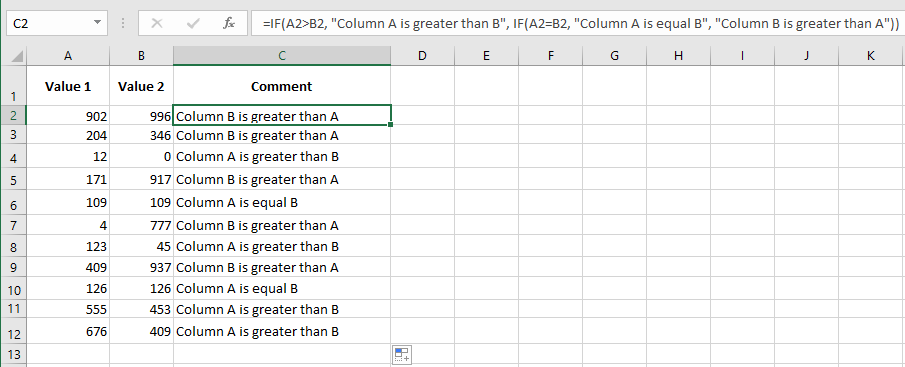
In the previous example, two different messages were returned.
To check for three outcomes— »Column A is greater », « Equal », or « Column A is smaller »—proceed as follows:
- Copy the previous example.
- Select cells C2:C12 and type:
=IF(A2>B2, "Column A is greater", IF(A2=B2, "Equal", "Column A is smaller")) - Press Ctrl+Enter.
Combine IF with AND to Check Multiple Conditions
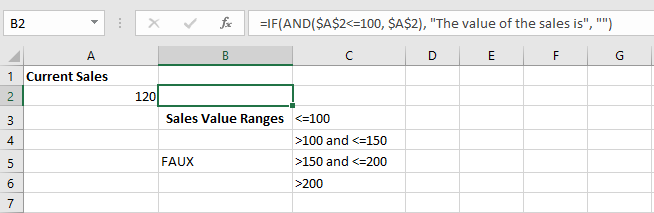
In this example, Excel evaluates conditions and returns the result on the same row.
To combine IF and AND:
- Copy the content of cells C2:C5 from the figure into your Excel sheet.
- Format the table as shown.
- In cell A2, enter a sales amount (e.g., 120).
- In cell B2, enter:
=IF(AND($A$2<=100, $A$2), "Sales value is", "") - In cell B3, enter:
=IF(AND($A$2>100, $A$2<=150), "Sales value is", "") - In cell B4, enter:
=IF(AND($A$2>150, $A$2<=200), "Sales value is", "") - In cell B5, enter:
=IF($A$2>200, "Sales value is", "")
Use the IF Function to Determine the Quarter of the Year
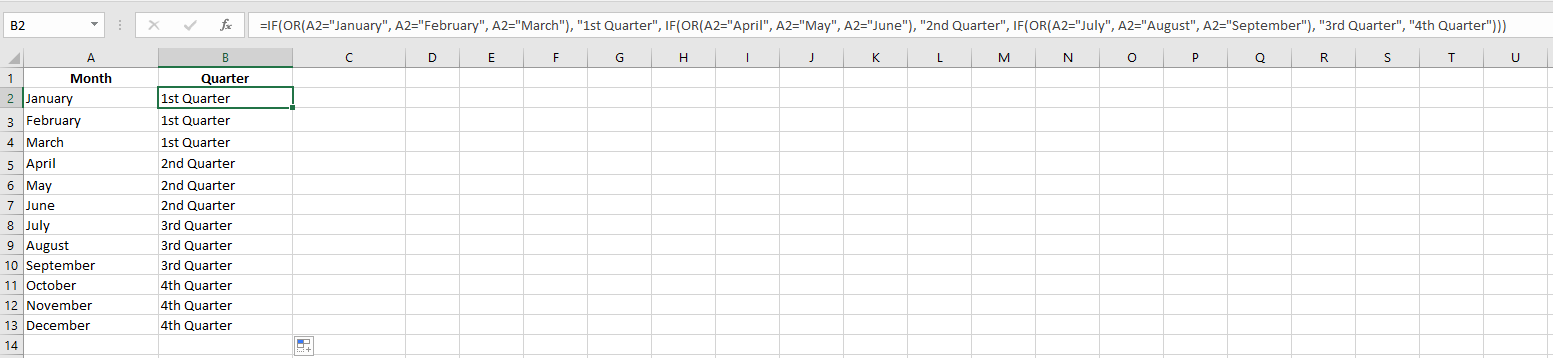
After typing a start value, Excel can auto-fill cells with months.
In a new worksheet, type « January » in A2, then drag down to A13.
To show which months belong to which quarter:
- Select cells B2:B13 and enter:
=IF(OR(A2="January", A2="February", A2="March"), "Q1", IF(OR(A2="April", A2="May", A2="June"), "Q2", IF(OR(A2="July", A2="August", A2="September"), "Q3", "Q4"))) - Press Ctrl+Enter.
Use the IF Function Across Worksheets and Workbooks
To use IF in another worksheet or linked workbook, start typing the formula (e.g. =IF(), then navigate to the other sheet or file, select the cell, and return to finish.
For referencing another worksheet:
=IF(Sheet8!A2="January", "Bad", "OK")
For referencing another workbook:
=IF('C:\Chancelin\Formulas\Files\[Formulas.xls]Sheet35'!$A$1<>1, "Bad", "OK")
NOTE: For this to work, the referenced sheet or file must exist. It can be tested by changing the sheet or file name.
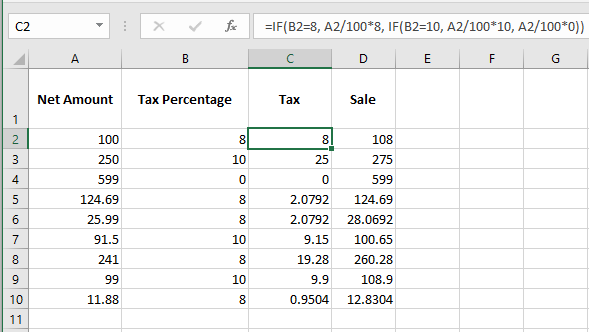
Use the IF Function to Calculate with Different Tax Rates
To handle different tax rates in calculations, use nested IF functions.
- In column A, enter item prices.
- In column B, enter tax rates (0, 8, or 10).
- Select cells C2:C10 and type:
=IF(B2=8, A2*8/100, IF(B2=10, A2*10/100, A2*0/100)) - Press Ctrl+Enter.
- In D2:D10, type:
=A2+C2 - Press Ctrl+Enter.
Use the IF Function to Calculate Sales Commissions
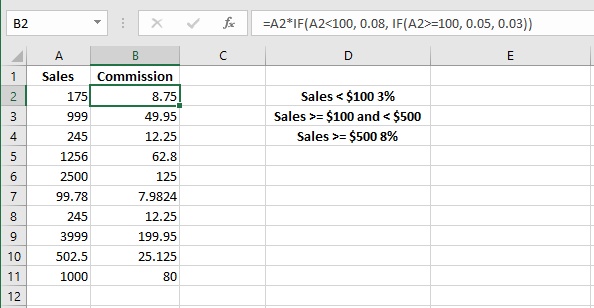
A company uses different commission rates:
- Sales < $100 → 3%
- Sales ≥ $100 and < $500 → 5%
- Sales ≥ $500 → 8%
- Enter different sales amounts in column A.
- In cells B2:B12, enter:
=A2*IF(A2>=500, 0.08, IF(A2>=100, 0.05, 0.03)) - Press Ctrl+Enter.
Use the IF Function to Compare Two Cells
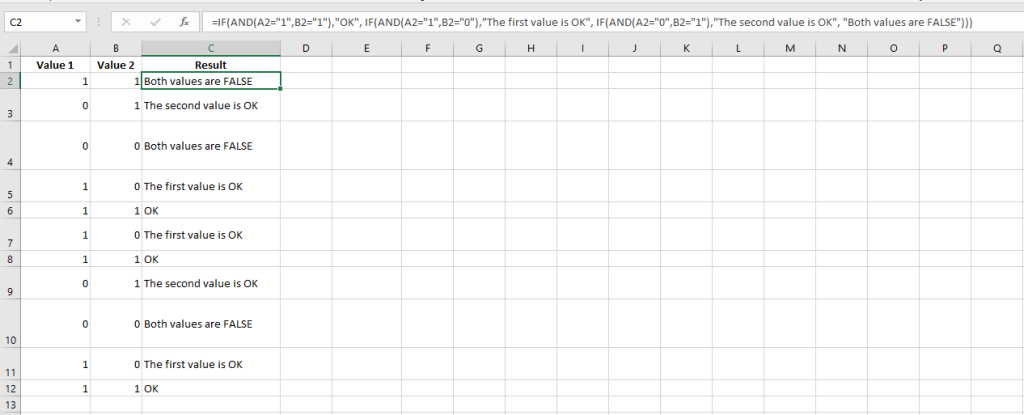
This trick compares two cells row by row. Prepare a new sheet with 0s and 1s in columns A and B.
- In cells C2:C11, enter:
=IF(A2&B2="11", "OK", IF(A2&B2="10", "First value OK", IF(A2&B2="01", "Second value OK", "Both values are FALSE"))) - Press Ctrl+Enter.
Use the INT Function with IF to Test Integer Divisibility
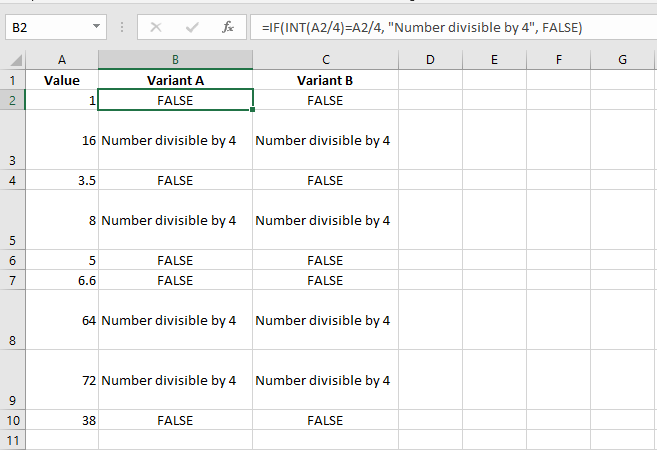
To check if a number is divisible by 4:
- In B2:B10, type:
=IF(INT(A2/4)=A2/4, "Integer divisible by 4", FALSE) - Press Ctrl+Enter
OR
- In C2:C10, type:
=IF(A2/4-INT(A2/4)=0, "Integer divisible by 4", FALSE) - Press Ctrl+Enter
Use TYPE with IF to Check for Invalid Values
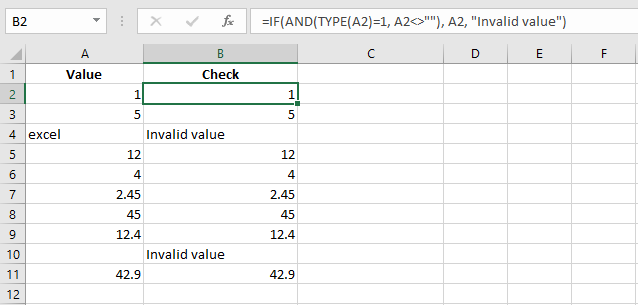
Excel may misinterpret imported values. To detect invalid values, combine IF with TYPE.
This example returns « invalid value » in column B if the entry in A is not numeric.
- Enter numbers or text in column A.
- In B2:B10, enter:
=IF(AND(TYPE(A2)=1, A2<>""), A2, "invalid value") - Press Ctrl+Enter
Use IF More Than Seven Times in One Cell
Excel’s documentation says you can’t nest IF more than seven times. That’s not true:
- In cell A2, enter
12. - In B2, enter:
=IF(A2=1,A2,IF(A2=2,A2*2,IF(A2=3,A2*3,IF(A2=4,A2*4,IF(A2=5,A2*5,IF(A2=6,A2*6,IF(A2=7,A2*7,""))))))+IF(A2=8,A2*8,IF(A2=9,A2*9,IF(A2=10,A2*10,"")))+IF(A2=11,A2*11,IF(A2=12,A2*12,""))

Use the IF Function to Check if a Date is in the Past or Future
To check whether a date is in the past or future, use TODAY() with IF.
Variant A:
- In B2:B16, enter:
=IF(NOT(A2>TODAY()), "Past", "Future") - Press Ctrl+Enter
Variant B:
- In B2:B11, enter:
=IF(A2>=TODAY(), IF(A2=TODAY(), "Today", "Future"), "Past") - Press Ctrl+Enter