
You may sometimes want to print a workbook to view and share your data offline. Once you’ve chosen your page layout settings, it’s easy to preview and print a workbook from Excel using the Print pane.
To access the Print pane:
- Click the File tab. The Backstage view will appear.
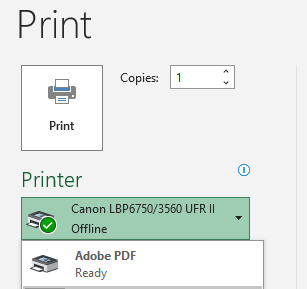
- Select Print. The Print pane will appear.
 Click the buttons in the interactive figure below to learn more about using the Print pane.
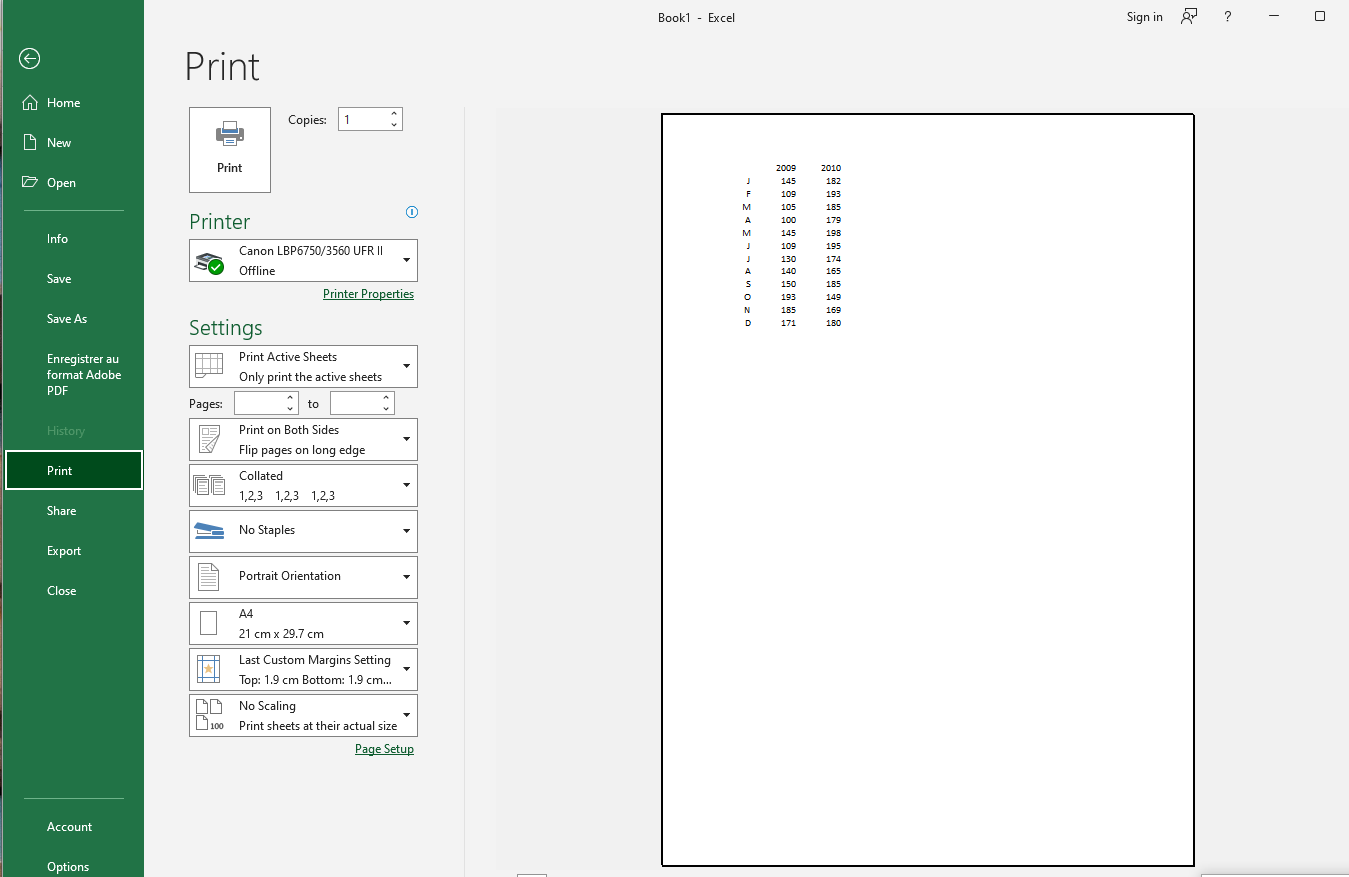
To print a workbook:
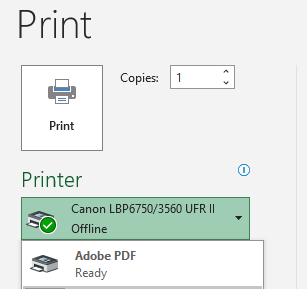
- Go to the Print pane, then select the printer you want to use.
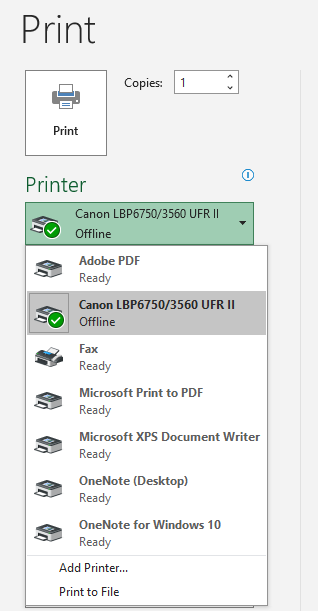
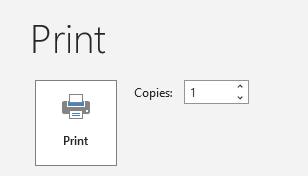
- Enter the number of copies you want to print.
- Select additional settings if needed (see interactive figure above).
- Click Print.
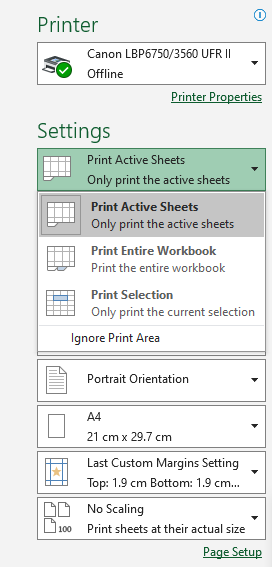
Before printing an Excel workbook, it’s important to decide exactly what information you want to print. For instance, if your workbook contains multiple worksheets, you’ll need to decide whether to print the entire workbook or only the active sheets. You may also wish to print only a specific selection of content from your workbook.
To print active sheets:
Worksheets are considered active when they are selected.
- Select the worksheet you want to print. To print multiple worksheets, click the first sheet, then hold down the Ctrl key on your keyboard and click the other sheets you want to select.

- Go to the Print pane.
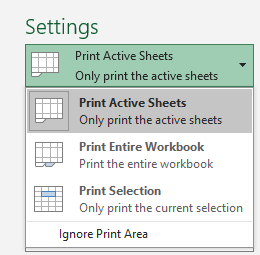
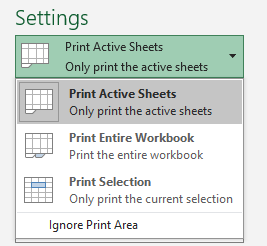
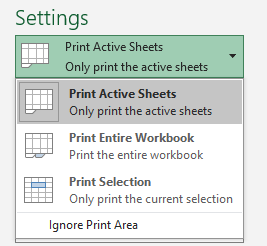
- In the Print Range dropdown, select Print Active Sheets.
- Click the Print button.
To print the entire workbook:
- Go to the Print pane.
- In the Print Range dropdown, select Print Entire Workbook.
- Click the Print button.
To print a selection:
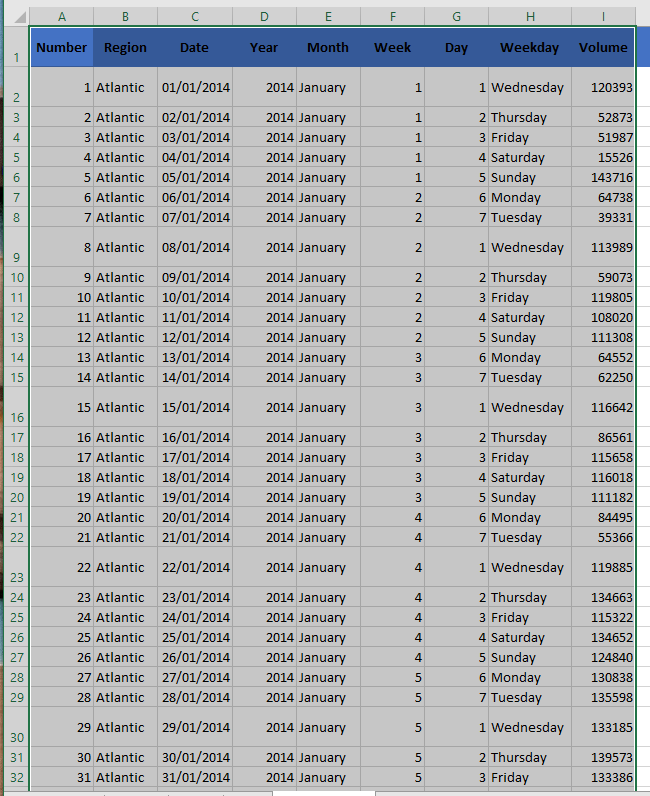
In this example, we will print the first 40 rows of the worksheet.
- Select the cells you want to print.
- Go to the Print pane.
- In the Print Range dropdown, select Print Selection.
- A preview of your selection will appear in the Preview pane.
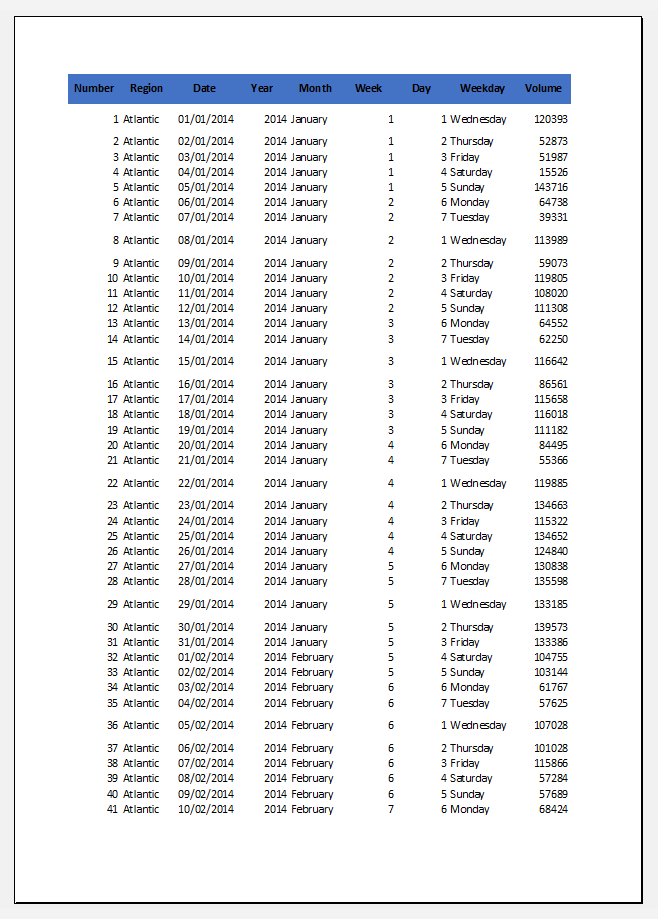
- Click the Print button to print the selection.