
The following program reads all paragraphs from a Word document and stores each paragraph into a cell in an Excel worksheet. Ensure that the Word document is not open in Word before running this VBA program:
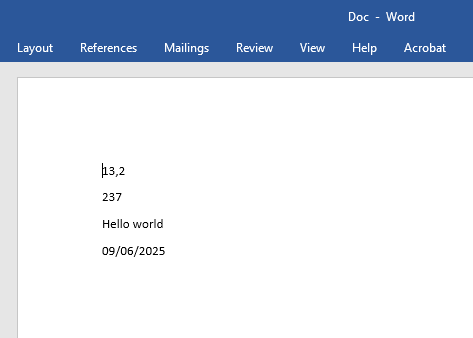
Sub ReadWordParagraphs()
    Dim appWord As Word.Application
    Dim document As Word.Document
    Dim i As Integer
    Dim paragraphText As String
    Dim numberValue As Double
    Dim dateValue As Date
    ThisWorkbook.Worksheets("Sheet1").Activate
    ' Create Word application object
    Set appWord = CreateObject("Word.Application")
    ' Open the Word document
    Set document = appWord.Documents.Add(ThisWorkbook.Path & "C:\Users\POPOLY\Desktop\Doc.docx")
    ' Loop through all paragraphs
    For i = 1 To document.Paragraphs.Count
        ' Get the text of the paragraph including paragraph mark
        paragraphText = document.Paragraphs(i).Range.Text
        ' Remove the paragraph end character (last character)
        paragraphText = Left(paragraphText, Len(paragraphText) - 1)
        ' Determine the data type and write to Excel cells
        If IsNumeric(paragraphText) Then
            If InStr(paragraphText, ".") > 0 Then
                dateValue = CDate(paragraphText)
                Cells(i + 12, 1).Value = dateValue
                Cells(i + 12, 2).Value = "Date"
            Else
                numberValue = CDbl(paragraphText)
                Cells(i + 12, 1).Value = numberValue
                Cells(i + 12, 2).Value = "Number"
            End If
        Else
            Cells(i + 12, 1).Value = paragraphText
            Cells(i + 12, 2).Value = "String"
        End If
    Next i
    ' Close the document and quit Word
    document.Close
    appWord.Quit
    Set document = Nothing
    Set appWord = Nothing
End Sub
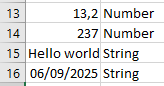
The result of this code is shown in next Figure.
Explanation:
- The Add() method of the Documents object, when called with a file path parameter, opens the specified Word document and returns a reference to it.
- A loop iterates over all paragraphs in the document.
- Using the Paragraphs collection and the Range property, the full text of each paragraph (including the paragraph mark) is accessed.
- The paragraph mark, which is part of the text, is removed by using the string functions Left() and Len() to exclude the last character.
- The data type of the remaining text is determined, as explained in Section 8.4.1, « Converting Strings. » Based on this, the text is converted into a number, date, or left as a string.
- The converted values are written to the Excel worksheet, starting from row 13 (i + 12), with the value in column 1 and its data type in column 2.