
The Loop instruction is used to repeat the execution of VBA code blocks a predetermined number of times. Three types of structures can be created with the Loop instruction:
■ Do…Loop;
■ Do While…Loop;
■ Do Until…Loop.
Do…Loop
The Do…Loop structure uses the keyword While to indicate that a set of instructions will run as long as a condition is true or the keyword Until to indicate that a set of instructions will run as long as a condition is false. The syntax of this structure is as follows:
Do {While | Until} Condition
    Instructions
Exit Do
    Instructions
Loop
This structure is divided into two parts:
■ Condition (optional): A numeric or string expression equal to True or False (Null conditions are treated as False).
■ Instructions: One or more instructions that will be executed repeatedly while the condition is True or until it becomes True.
We can use the Exit Do statement to stop the flow of the Do…Loop structure. In this case, execution continues from the line following the Loop statement. In the case of nested Do … Loop structures, an Exit Do statement transfers execution to the immediately higher level structure.
Do While…Loop
The Do While loop structure allows a set of instructions to be executed while a condition is true. This structure has two possible syntaxes.
Condition tested at the beginning of the loop
With the syntax illustrated below, the instructions are executed only if the condition is true (if the condition is false, execution starts at the line following the Loop instruction):
Do While condition
    Instructions
Loop
Let’s take an example of a counter from 0 to 10:
Sub BoucleDoWhile()
    Dim n As Long
    Do While n <= 10
        MsgBox n
        n = n + 1
    Loop
End Sub
Comments
■ The variable n is declared as type Long (Integer) as it is used as a counter.
■ The Do While loop structure counts from 0 to 10 as long as n is less than or equal to 10.
■ The MsgBox function is the fastest, simplest, and most used method to display a message.
Let’s consider the following worksheet, which should calculate the total number of car sales for the brand TOYOTA:
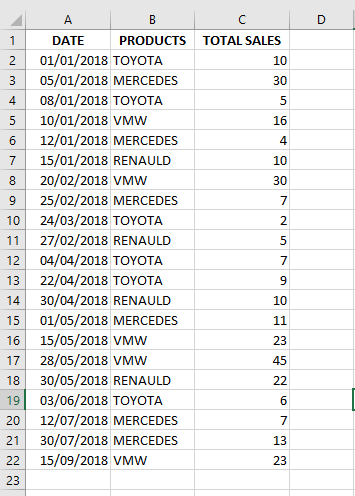
The following code describes the procedure that will start in cell B2 and execute the instructions within the Do While loop as long as the active cell is filled, i.e., not empty. In each selected cell, it will check whether the content equals TOYOTA and, if so, the corresponding value (in the adjacent column C) will be added to the variable toy. Regardless of whether the cell contains TOYOTA, the pointer moves to the next row to repeat the process.
The loop ends only when the active cell (in column B) is empty. Example:
Sub ExempleBoucleDoWhile()
    Dim toy As Integer
    Range("B2").Select
    Do While ActiveCell <> ""
        If ActiveCell = "TOYOTA" Then
            toy = toy + ActiveCell.Offset(0, 1)
        End If
        ActiveCell.Offset(1, 0).Select
    Loop
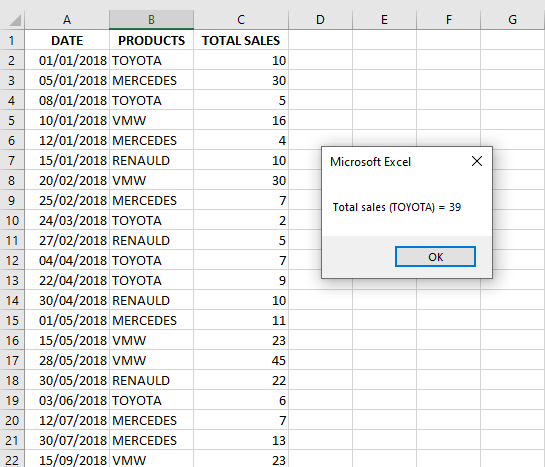
    MsgBox "Total sales (TOYOTA) = " & toy
End Sub
Comments
■ The Select method is used to select cell B2, which is then considered the active cell.
■ The ActiveCell property returns a Range object representing the active cell in the active workbook.
■ As long as the active cell is not empty, if it contains « TOYOTA », the value from the adjacent column is added to the variable toy.
■ The Offset property shifts a cell or range. For example, ActiveCell.Offset(0, 1) shifts the active cell one column to the right.
■ It then moves to the next cell down (ActiveCell.Offset(1, 0).Select) to check for TOYOTA again.
When the macro is executed, the following result is obtained:
Condition tested after the instructions
The following syntax executes all instructions first, then tests the condition. As long as the condition is true, the loop repeats:
Do
    Instructions
Loop While Condition
In the example below, the commands in the Do structure will be executed at least once because the instructions are executed before checking the condition.
Sub BoucleDoWhile2()
    Dim n As Long
    n = 10
    Do
        MsgBox n
        n = n + 1
    Loop While n <= 20
End Sub
Comments
■ A message with the value of n is displayed, and 1 is added to n, making it 11.
■ As long as n is less than or equal to 20, the loop continues.
Do Until…Loop
The Do Until…Loop structure executes instructions when a condition is false.
Like the Do While…Loop, this structure has two possible syntaxes:
Condition tested at the beginning
Do Until Condition
    Instruction
Loop
As in the previous example using the Do…While structure, the example below counts from 0 to 10. Here, the condition is n > 10, i.e., the loop runs until n exceeds 10.
Sub BoucleDoUntil()
    Dim n As Long
    Do Until n > 10
        MsgBox n
        n = n + 1
    Loop
End Sub
Using Do..Until, let’s revisit the car sales example already demonstrated with Do..While. Note that the condition in Do..Until is the opposite of that in Do..While, but both codes produce the same result.
Sub ExempleBoucleDoUntil()
    Dim toy As Integer
    Range("B2").Select
    Do Until ActiveCell = ""
        If ActiveCell = "TOYOTA" Then
            toy = toy + ActiveCell.Offset(0, 1)
        End If
        ActiveCell.Offset(1, 0).Select
    Loop
    MsgBox "Total sales (TOYOTA) = " & toy
End Sub
Comments
■ Until the active cell (B2) is empty, the value next to it is added to the variable toy.
Condition tested at the end
Do
    Instruction
Loop Until Condition
Example:
Sub BoucleDoUntil()
    Dim n As Byte
    n = 8
    Do
        MsgBox n
        n = n + 1
    Loop Until n > 10
End Sub
Comments
■ The loop continues until n exceeds 10.
While … Wend
The While … Wend structure is similar to Do While…, except the condition is tested only at the beginning, as in:
While Condition
    Instruction
Wend
Example:
Sub WhileWend()
    Dim n As Long
    While n <= 10
        MsgBox n
        n = n + 1
    Wend
End Sub
Comments
■ The condition is repeatedly checked, and instructions are executed while it’s True.
■ If False, execution resumes after the Wend instruction.
For…Next and For Each…Next
The For…Next loop defines the number of repetitions for a set of instructions. It uses a counter variable with a start value, end value, and step:
For counter = start To end [ Step step ]
    [ statements ]
    [ Exit For ]
    [ statements ]
Next [ counter ]
Comments
■ counter: Numeric variable used as the loop counter.
■ start: Initial value.
■ end: Final value.
■ step: Increment (default is 1).
■ statements: Instructions to be executed.
Each time the code between For and Next runs, the counter increases by step. For example, from 10 to 20 with step 2:
Sub BoucleForNext()
    Dim n As Long
    For n = 10 To 20 Step 2
        MsgBox n
    Next
End Sub
Comments
■ If step is omitted, it defaults to 1.
Example for counting TOYOTA sales:
Sub ExempleBoucleForNext()
    Dim toy, ligne As Integer
    Range("B2").Select
    For ligne = 2 To 22
        Cells(ligne, 2).Select
        If ActiveCell = "TOYOTA" Then
            toy = toy + ActiveCell.Offset(0, 1)
        End If
    Next
    MsgBox "Total sales (TOYOTA) = " & toy
End Sub
For Each…Next works similarly but iterates through a collection or array:
For Each element In group
    [ statements ]
    [ Exit For ]
    [ statements ]
Next [ element ]
Comments
■ element: Variable for each item in the group. Must be Variant or Object.
■ group: A collection or array (not user-defined types).
■ statements: Executed for each element.
You can nest For Each…Next loops, but each loop variable must be unique.
Example: highlight all cells containing « TOYOTA » in red:
Sub BoucleForEach()
    Dim CelluleX As Object
    For Each CelluleX In Range("B2:B22")
        If CelluleX.Value = "TOYOTA" Then
            CelluleX.Interior.ColorIndex = 3
        End If
    Next
End Sub
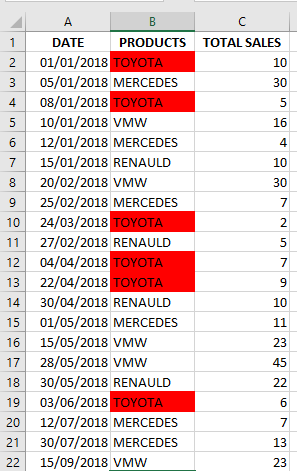
Comments
■ The ColorIndex property sets the color of borders, fonts, or interior fill.
■ Use xlColorIndexAutomatic or xlColorIndexNone for automatic or no fill.
GoTo
The GoTo instruction jumps to a line labeled with a name, skipping others. You define a label using an alphanumeric name followed by a colon (:).
Example:
Sub GoToTest()
    Dim NomUtilisateur As String
    NomUtilisateur = InputBox("Enter your name: ")
    If NomUtilisateur <> "eliechan" Then
        GoTo ErreurLogin
    End If
    MsgBox ("Hello, Elie!")
    Exit Sub
ErreurLogin:
    MsgBox "Access denied. Only Elie Chancelin is authorized."
End Sub
Comments
■ If the name entered is not “eliechan”, the code jumps to ErreurLogin:.
■ If the name is correct, the first message is shown and the sub ends.
■ Excessive use of GoTo can make code hard to read. Use it only when necessary, such as for error handling.