Find or Replace Text and Numbers in a Worksheet
The Find and Replace functions in Excel are used to search for a number or a string of text within a worksheet or an entire workbook. You can use them either to locate the item for reference purposes or to replace it with another value. You can include wildcards such as question marks (?), tildes (~), asterisks (*), or numbers in your search terms. Searches can be performed across rows and columns, within comments or cell values, and across worksheets or entire workbooks.
Basic Find
To find an occurrence of a specific value in a worksheet:
Click on the Find & Select icon (located in the Editing group on the Home tab of the Excel ribbon), then select the Find option.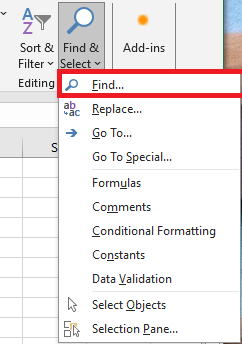
NOTE:
The keyboard shortcut for this is Ctrl + F.
The Find and Replace dialog box will appear with the Find tab selected, as shown below: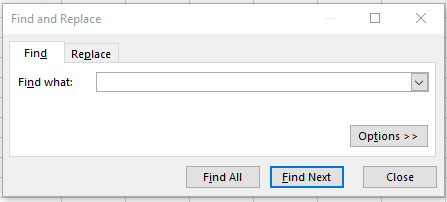
-
In the dialog box:
-
Type the text or numeric value you want to find in the Find what field.
-
Click the Find Next button.
This will take you to the next occurrence of the desired value in the current worksheet.
Find All
If you want to locate all occurrences of a specific value, click the Find All button in the Find and Replace dialog box. This displays a list of all instances of your search term, as shown in Figure.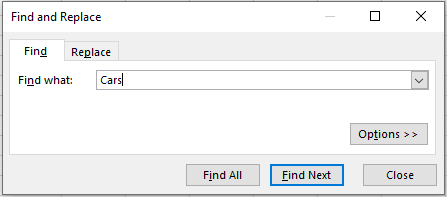
Clicking any value in the list will take you to the corresponding cell in your worksheet.
Basic Replace
To replace one or more occurrences of a specific value in an Excel worksheet:
Click the Find & Select button (located in the Editing group on the Home tab), then choose the Replace… option.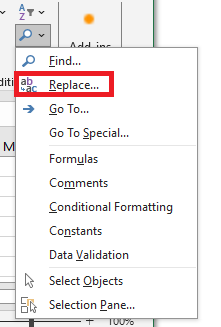
The Find and Replace dialog box will open with the Replace tab selected, as illustrated below: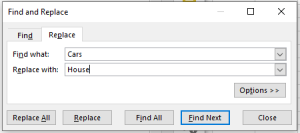
NOTE:
The keyboard shortcut to access this feature is Ctrl + H.
In the dialog box:
a. Type the text you want to find in the Find what field.
b. Type the text you want to replace it with in the Replace with field.
c. Click the Find Next button. This will take you to the first occurrence of the search text.
d. To replace the current instance of the search text with the specified replacement text, click the Replace button. The text will be replaced, and you will be taken to the next occurrence.
NOTE:
You can leave the Replace with field empty if you simply want to remove all instances of the search text (i.e., replace them with nothing).
If you’re certain that you want to replace all occurrences of the search text with the replacement text (without reviewing each case individually), simply click Replace All in the dialog box.
NOTE:
You can use wildcard characters (question mark ?, asterisk *, tilde ~) in your search criteria.
-
Use the question mark (?) to find any single character. For example,
s?twill match “sat” and “set”. -
Use the asterisk (*) to find any number of characters. For example,
t*s*will match “triste” and “saturé”. -
Use the tilde (~) followed by
?,*, or~to search for actual question marks, asterisks, or tildes. For example,fy91~?will find “fy91?”.
Advanced Search Options
The Find and Replace command can be refined using several options, which can be displayed by clicking the Options button in the Find and Replace dialog box.
Clicking the Options button expands the dialog box, as shown below: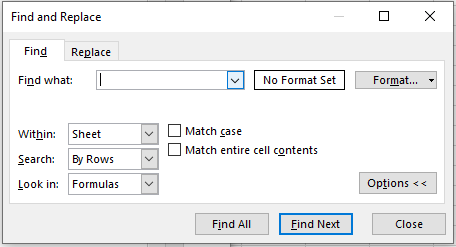
Most of these options are also available in the Replace tab of the dialog box.
Each option is explained below:
-
Within: Allows the user to choose whether the search should be performed in the active worksheet only, or throughout the entire current workbook.
-
Search: Determines the direction Excel uses to perform the search:
-
If set to By Rows, Excel searches each row before moving to the next row.
-
If set to By Columns, Excel searches each column before continuing to the top of the next column.
-
-
Look in: Lets the user decide what Excel should search:
-
Formulas: If a cell contains a formula, Excel searches the formula text—not the result.
-
Values (not available in the Replace tab): Excel searches the result of the formula, not the formula itself.
-
Comments (not available in the Replace tab): Only cell comments are searched; cell contents are ignored.
-
-
Match case: Allows the user to make the search case-sensitive.
-
If unchecked (default), the search is not case-sensitive.
-
If checked, the search will distinguish between uppercase and lowercase letters.
-
-
Match entire cell contents: Lets the user specify whether to match the entire content of a cell or just part of it.
-
If unchecked (default), Excel will find the search term even if it’s just part of a cell’s content.
-
If checked, Excel will only return matches where the entire cell exactly matches the search term.
-
Find and Replace a Formatting Style
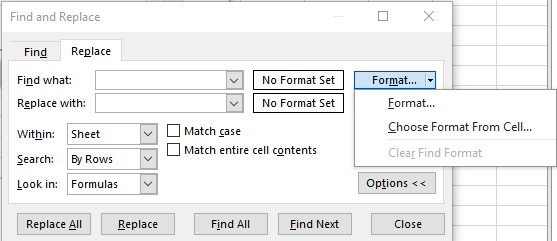
In the Find and Replace dialog box, you’ll also find the Format… button. This allows you to specify a format you want to search for, and optionally, a format to replace it with.
Note: If you specify both a format and a text search value, Excel will only find cells that match both the specified format and text.
In the Find Format dialog, you can define formatting based on:
-
Number
-
Alignment
-
Font
-
Border
-
Fill
-
Protection
To search for specific formatting:
-
In the Find tab of the Find and Replace dialog box, click Format, then click Choose Format From Cell under the dialog box.
-
When the pointer turns into an eyedropper, click on the cell you want to base your search on.
-
In the Find and Replace dialog box, click Find Next.
How to Clear a Formatting Style from Find and Replace
If you want to remove a previously specified formatting style from the Find and Replace dialog box:
Click the arrow next to the Format… button and select Clear Find Format.