
Selecting Cells Using the Range Object in VBA
In Excel VBA, the Range object allows you to select both contiguous (connected) and non-contiguous (disconnected) ranges of cells. You define a cell or range by specifying the column letter(s) followed by the row number(s).
Examples of Basic Range Selection (Table 2.1)
| VBA Code Example | Description |
| Range(« A3 »).Select | Selects a single cell A3 |
| Range(« A3:F7 »).Select | Selects a rectangular, contiguous range |
| Range(« A3, C5, E2 »).Select | Selects multiple, non-contiguous cells |
| Range(« A8, B2:C4, E2 »).Select | Selects a combination of disconnected individual cells and blocks |
These expressions allow flexible selection across the worksheet. However, Range isn’t limited to individual cells or blocks—it can also refer to entire columns or entire rows.
Selecting Full Columns and Rows (Table 2.2)
| VBA Code Example | Description |
| Range(« A:A »).Select | Selects the entire column A |
| Range(« C:E »).Select | Selects three adjacent columns: C, D, E |
| Range(« B:D, F:F, H:I »).Select | Selects multiple non-adjacent columns |
| Range(« 3:3 »).Select | Selects the entire row 3 |
| Range(« 3:5 »).Select | Selects rows 3 through 5 |
| Range(« 3:5, 8:9, 12:12 »).Select | Selects multiple non-adjacent rows |
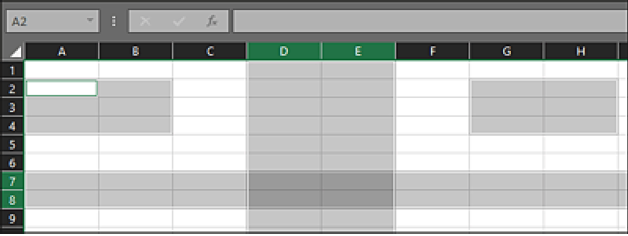
| Range(« A2:B4, 7:8, D:E, G2:H4 »).Select | Selects a combination of rectangular blocks, entire rows, and entire columns |
⚠️ Important: Even though some of these range expressions are long, they must each be written in a single line of code.
In the last example:
Range(« A2:B4, 7:8, D:E, G2:H4 »).Select
A total of four non-contiguous regions are selected:
- Two rectangular areas: A2:B4 and G2:H4
- Two entire rows: 7 and 8
- Two entire columns: D and E
The active cell—the one that appears with a bold outline—is always the top-left cell of the first range listed. So here, the active cell would be A2.
Example Procedure: Selecting Multiple Ranges and Reading Active Cell Address
The following VBA subroutine activates a worksheet and then selects several different cell ranges, each time displaying the address of the active cell using a message box:
Sub SelectCellsWithRange()
    ThisWorkbook.Worksheets("Sheet1").Activate
    ' Select A2 and show active cell address
    Range("A2").Select
    MsgBox ActiveCell.Address
    ' Select a rectangular range and show active cell
    Range("C4:G7").Select
    MsgBox ActiveCell.Address
    ' Select two non-contiguous areas; order affects active cell
    Range("A5, C3:G7").Select
    MsgBox ActiveCell.Address
    ' Same cells as above, but different order
    Range("C3:G7, A5").Select
    MsgBox ActiveCell.Address
    ' Select entire columns C and D
    Range("C:D").Select
    MsgBox ActiveCell.Address
End Sub
Explanation of the Procedure
- The procedure begins by activating the worksheet named « Sheet1 » in the current workbook.
- For each selection, the Range(…).Select method highlights the specified cells.
- The ActiveCell object represents the currently active cell—this is usually the top-left cell in the first range selected.
- The .Address property is used to return the address of the active cell (e.g., $A$2).
Note: Even if the selected cells are the same, the order in which they are listed in the Range() expression will determine which cell becomes active. For instance:
- Range(« A5, C3:G7 ») → active cell is A5
- Range(« C3:G7, A5 ») → active cell is C3