
Usually, you’ll often need to make small adjustments from the Print pane to perfectly fit your workbook’s contents onto a printed page. The Print pane includes several tools to help you adjust and scale your content, such as scaling, page margins, and sheet orientation.
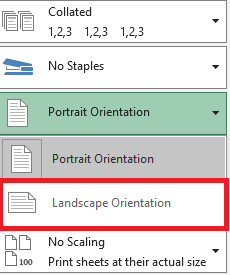
To change the page orientation, Excel offers two options: Landscape and Portrait. Landscape orients the page horizontally, while Portrait orients it vertically. In our example, we will set the page orientation to Landscape.
- Go to the Print pane.
- Select the desired orientation from the Page Orientation drop-down menu. In our example, we will select Landscape Orientation.
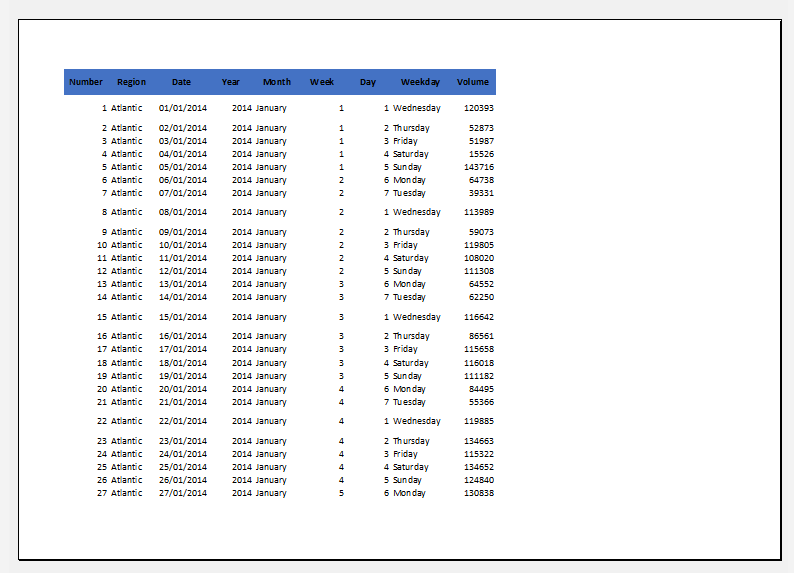
- The new page orientation will be displayed in the Preview pane.
Adjusting Content Before Printing
If part of your content is cut off by the printer, you can use scaling to automatically fit your workbook to the page.
- Go to the Print pane. In our example, we can see in the Preview pane that part of the content will be cut off when printed.
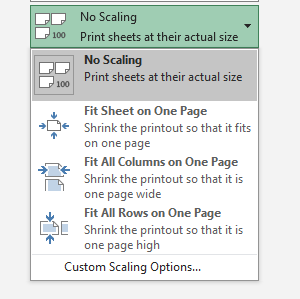
- Select the desired option from the Scaling drop-down menu. In our example, we’ll choose Fit All Columns on One Page.
- The worksheet will be condensed to fit on a single page.
Keep in mind that worksheets become harder to read as they are reduced in size, so you may want to avoid this option when printing a sheet with a lot of data.
- Click the Page Break Preview command to switch to Page Break mode.

- The dotted blue vertical and horizontal lines indicate page breaks. Click and drag one of these lines to adjust the page break.
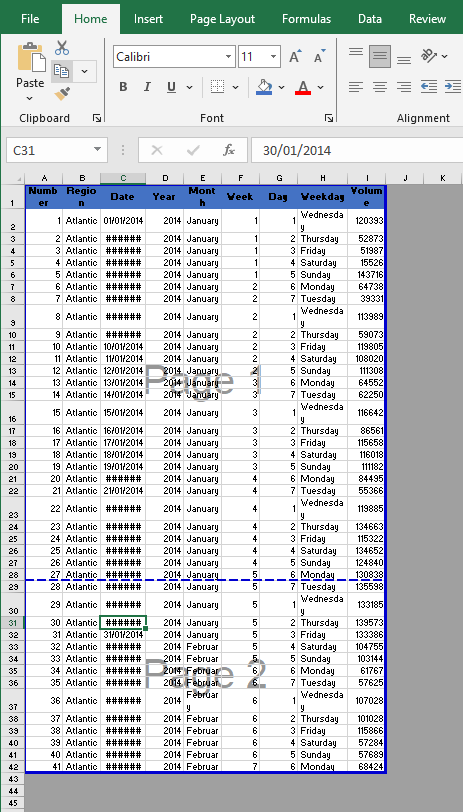
- In our example, we set the horizontal page break between rows 21 and 22.
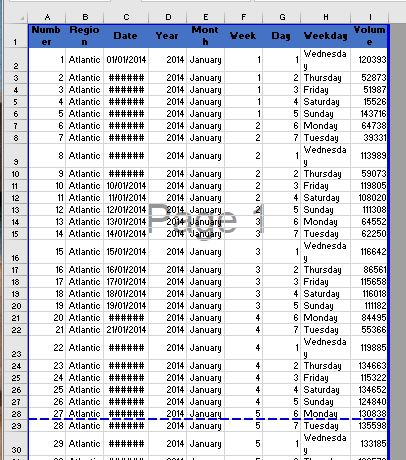
- In our example, all pages now display the same number of rows because of the page break adjustment.

Adjust margins in the Preview pane
A margin is the space between your content and the edge of the page. Sometimes, you may need to adjust the margins to make your data more readable. You can change the page margins from the Print pane.
- Go to the Print pane.
- Select the desired margin size from the Page Margins drop-down menu. In our example, we’ll select Narrow.
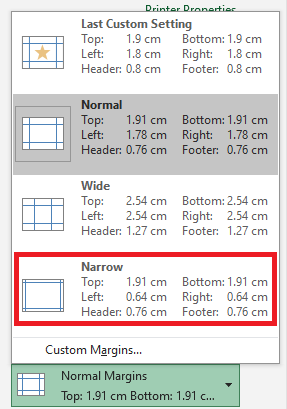
- The new page margins will be displayed in the Preview pane.
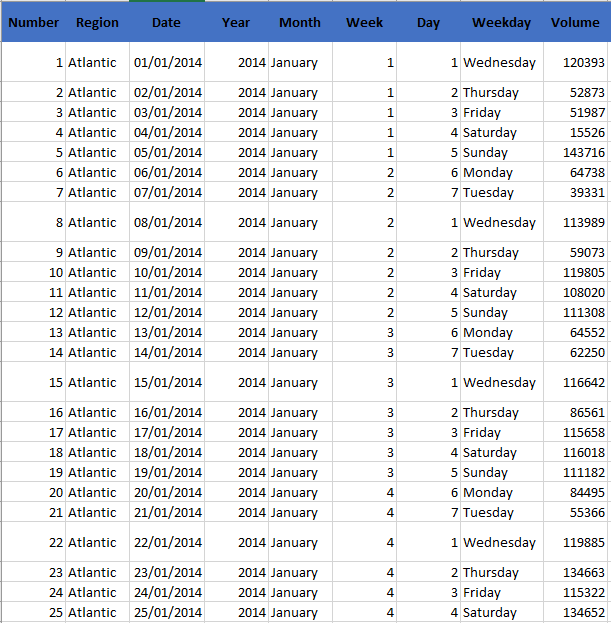
You can manually adjust the margins by clicking the Show Margins button in the lower-right corner and then dragging the margin markers in the Preview pane.
