
You can run a program in single-step mode to examine the current contents of variables and controls after each individual instruction. As an example, consider the previously discussed procedure OnErrorInstruction(). For the first debug run, ensure cells contain the numbers 12 and 3.
Sub OnErrorInstruction()
    Dim x As Integer, y As Integer, z As Integer
    ThisWorkbook.Worksheets("Sheet1").Activate
    On Error GoTo Error  ' Set error handler
    x = Range("A1").Value
    y = Range("A2").Value
    z = x / y
    Range("A3").Value = z
    Range("A4").Value = "Done"
    Exit Sub  ' Exit before error handler
Error:  ' Error handler label
    MsgBox Err.Description
    Resume Next  ' Continue execution with next statement
End Sub
Starting Single-Step Debugging:
- In the VBA Editor (VBE), select the menu Debug > Step Into or press F8.
- A yellow arrow marks the current line where execution is paused, highlighted in yellow. The program waits here for your next action.
Observing Variables:
After stepping through several lines (using F8 repeatedly), you will arrive at a specific line, such as shown in
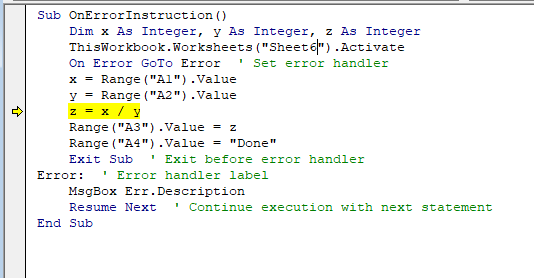
, where the arrow points.
- Hover the cursor over a variable (e.g., x) to see its current value (e.g., 12 for x).
- You will also notice that variable z still has the value 0 because the highlighted statement has not executed yet.
- After the next step, variable z will update to 4.
Using the Immediate Window:
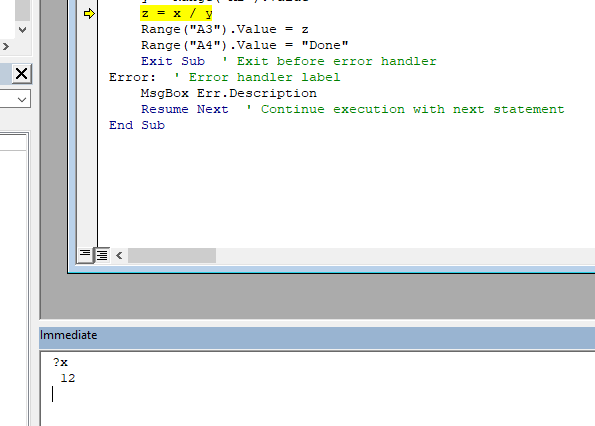
You can also inspect variable values in the Immediate Window, accessible via View > Immediate Window.
- Type ?VariableName and press Enter to see the current value .
Observing Worksheet Changes:
Alongside variables, you can watch how worksheet cells change after each single step. Changes only appear after the respective line in the code executes.
Benefits:
This simple example demonstrates how single-step debugging lets you follow the program execution step-by-step, making it easier to locate the source of logical errors.
Second Debug Run with Error:
For the second debug run, set the cell values to 12 and the text « abc ».
- While stepping through the code, you will clearly see the program jump twice to the error handler:
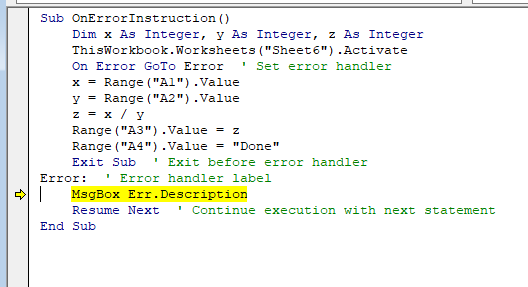
-
- When assigning the text « abc » to the numeric variable y.
- When performing the division.
After each jump, the procedure continues after handling the error.