
It is possible to format a range of cells using either a two-color or three-color scale. Here is an example using a two-color scale:
Sub TwoColorScale()
    Dim Rg As Range
    ThisWorkbook.Worksheets("Sheet6").Activate
    Set Rg = Range("A2:A11")
    ' Remove any existing conditional formats
    Rg.FormatConditions.Delete
    ' Add a two-color scale conditional formatting
    Rg.FormatConditions.AddColorScale 2
    ' Modify the two-color scale settings
    With Rg.FormatConditions(1)
        .ColorScaleCriteria(1).Type = xlConditionValueLowestValue
        .ColorScaleCriteria(1).FormatColor.Color = vbYellow
        .ColorScaleCriteria(2).Type = xlConditionValueHighestValue
        .ColorScaleCriteria(2).FormatColor.Color = vbRed
    End With
    Set Rg = Nothing
End Sub
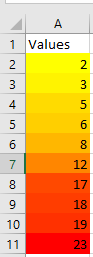
Explanation:
First, any existing conditional formats in the specified range are deleted.
The method AddColorScale() creates a ColorScale object, which is a conditional formatting rule using a color gradient. The first parameter (ColorScaleType) determines whether the scale is two-colored or three-colored.
Additional formatting criteria can be set on a ColorScale object via its ColorScaleCriteria collection.
For the first criterion, the lowest value in the range is assigned the color yellow. This is done by setting the Type property to xlConditionValueLowestValue (from the xlConditionValueTypes enumeration) and assigning the desired color to the FormatColor.Color property.
For the second criterion, the highest value is assigned the color red, using the xlConditionValueHighestValue enumeration.