There are several ways to run a procedure. One of them is to have it run automatically through events. Events are « triggers » for macros, meaning you can assign VBA code to execute when an event is triggered either by the user (workbook opening, value change in a cell, etc.) or by Excel itself (refreshing PivotTables, etc.).
Characteristics of Events
An event is always associated with a specific object or collection of objects. Suppose you have a worksheet-level event attached to the first sheet of the workbook. If you want that event to trigger when the user selects new cells on any sheet in the workbook, you must create a workbook-level event that applies to all sheets. The worksheet here is the object associated with the event. It can be either an existing object created by the user or one created through programming.
In Excel, five main types of objects are associated with events:
- Worksheet
- Chart sheet
- Workbook
- Application (Excel instance)
- Dialog box (UserForm)
The first four types are specific to Excel, while UserForms can be used in other applications (Access, Word, etc.) that integrate VBA.
To these object types, you can add those created and defined by programming using class modules.
Why Write an Event?
Suppose you have a workbook in which you enter values in column A. Your manager tells you he needs to know when each number was entered. Entering data is an event, specifically an event called Worksheet_Change. You can write a macro that responds to this event.
NOTE
The Worksheet_Change event does not occur when cells are changed during a recalculation. Use the Calculate event for sheet recalculation.
This macro will be triggered each time the worksheet is modified. If the change occurs in column A, it will write the date and time in column B, right next to the modified cell. Here is an example of what such a macro might look like:
Private Sub Worksheet_Change(ByVal Target As Range)
  If Target.Column = 1 Then
     Target.Offset(0, 1) = Now
  End If
End Sub
Comments
- As mentioned, the
Worksheet_Changeevent occurs when a user modifies worksheet cells. Its syntax is:
Private Sub Worksheet_Change(ByVal Target As Range)
    ' Code here
End Sub
- If the target is column A (
Target.Column = 1), in other words, if the changes occur in column A, then column B (Target.Offset(0, 1)) is updated with the date and time of the change (Now).
NOTE
Macros that respond to events are very sensitive to where they are placed. For example, this Worksheet_Change macro must be placed in the code module associated with the worksheet. Place it elsewhere, and it won’t work.
Workbook Events
The Workbook_Open event is commonly used in practice to display messages, set up user-defined work environments, perform checks, or execute various preparatory tasks.
To enable the Workbook_Open event:
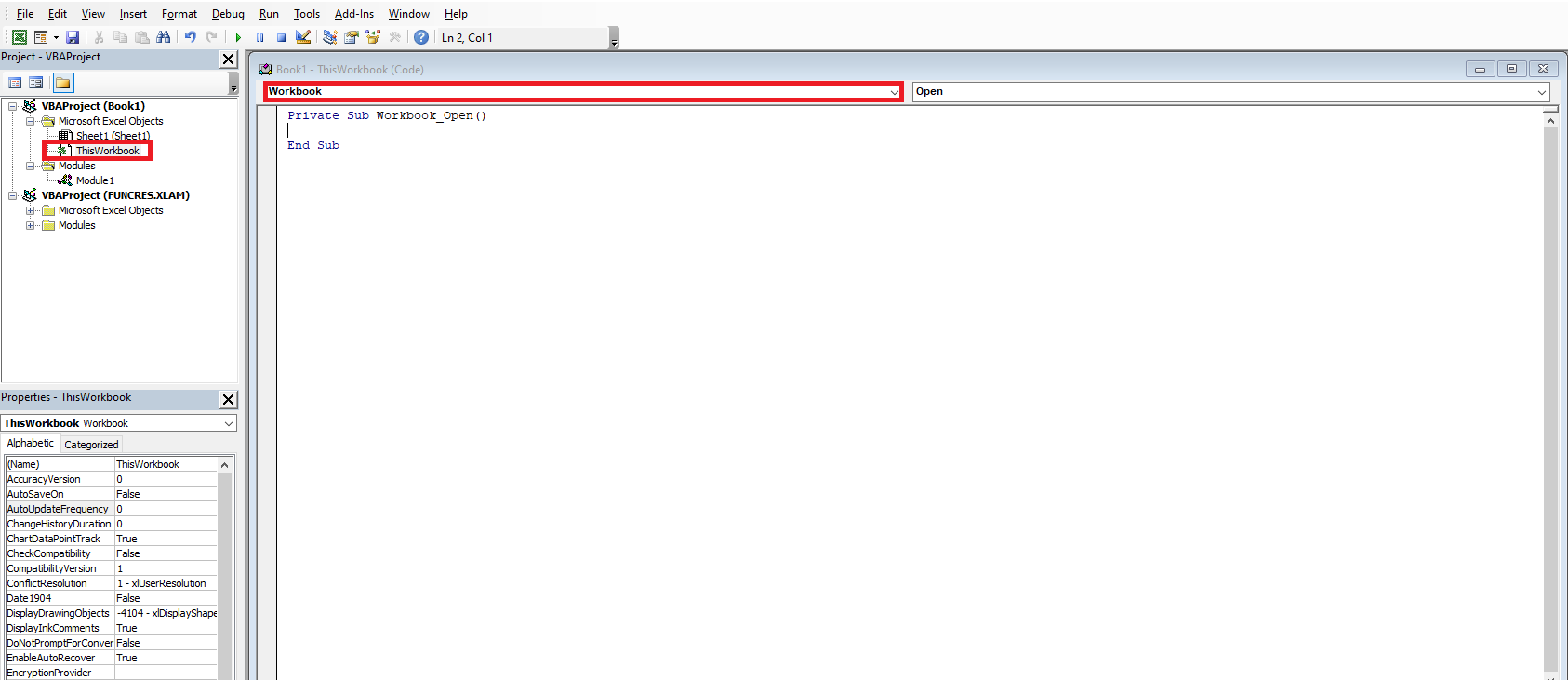
- Press Alt + F11 to open the VBA editor.
- In the Project Explorer, double-click
ThisWorkbook. - In the code window, click the left dropdown list and select
Workbook. Excel will automatically create a ready-to-use event macro for you:
Private Sub Workbook_Open()
End Sub
In the second dropdown, you will see all available events that can be used with the workbook. You just need to fill in the empty macro with commands that will be executed immediately when the workbook opens.
Commonly used Workbook events:
| Event | When It Is Triggered |
|---|---|
| Workbook_Activate | When the workbook is activated |
| Workbook_BeforeClose | Before the workbook is closed |
| Workbook_BeforePrint | Before the workbook is printed |
| Workbook_BeforeSave | Before the workbook is saved |
| Workbook_Deactivate | When the workbook is deactivated |
| Workbook_NewSheet | When a new sheet is added |
| Workbook_Open | When the workbook is opened |
| Workbook_SheetActivate | When a sheet is activated |
| Workbook_SheetBeforeRightClick | Right-click on a sheet |
| Workbook_SheetBeforeDoubleClick | Double-click on a sheet |
| Workbook_SheetCalculate | When a sheet is recalculated |
| Workbook_SheetChange | When a sheet cell is changed |
| Workbook_SheetDeactivate | When a sheet is deactivated |
| Workbook_SheetFollowHyperlink | When a hyperlink is clicked |
| Workbook_SheetSelectionChange | When a cell selection is changed |
| Workbook_WindowActivate | When the workbook window is activated |
| Workbook_WindowDeactivate | When the workbook window is deactivated |
| Workbook_WindowResize | When the workbook window is resized |
Workbook_Open Example:
Private Sub Workbook_Open()
    Dim Message As String
    If Weekday(Now) = 6 Then
        Message = "Today is Friday."
        Message = Message & " Don’t forget to save your work."
        MsgBox Message
    End If
End Sub
Comments
- The
Workbook_Openfunction runs automatically each time the workbook opens. - It uses the
Weekdayfunction to check the day. If it’s Friday (day 6 in Anglo-Saxon systems), a reminder appears. - The
&operator is used to concatenate strings.
Workbook_BeforeClose Event:
This procedure runs just before the workbook closes. It is located in the ThisWorkbook code window:
Private Sub Workbook_BeforeClose(Cancel As Boolean)
   Dim Message As String
   Dim Response As Integer
   Dim FName As String
   Message = "Would you like to save a backup of this file?"
   Response = MsgBox(Message, vbYesNo)
   If Response = vbYes Then
       FName = "F\BACKUPS\" & ThisWorkbook.Name
       ThisWorkbook.SaveCopyAs FName
   End If
End Sub
Comments
- This routine asks if the user wants to save a backup copy of the workbook.
- If the user clicks Yes, the code uses
SaveCopyAsto save it to the F drive (you must adapt this to your environment).
Even if the user cancels the Excel closing process, this event will still have run — which is a limitation of Workbook_BeforeClose.
Workbook_BeforeSave Event:
Triggered before the workbook is saved. It occurs when using Save or Save As commands.
Example to increment a counter in cell A1 of Sheet1:
Private Sub Workbook_BeforeSave(ByVal SaveAsUI As Boolean, Cancel As Boolean)
 Sheets("Sheet1").Range("A1").Value = _
 Sheets("Sheet1").Range("A1").Value + 1
End Sub
To prevent users from saving under a different name:
Private Sub Workbook_BeforeSave(ByVal SaveAsUI As Boolean, Cancel As Boolean)
  If SaveAsUI Then
    MsgBox "You cannot save a copy of this workbook!"
    Cancel = True
  End If
End Sub
Comments
- Disabling macros bypasses these restrictions, which is logical since event procedures are also macros.
Worksheet Events
To define a worksheet event:
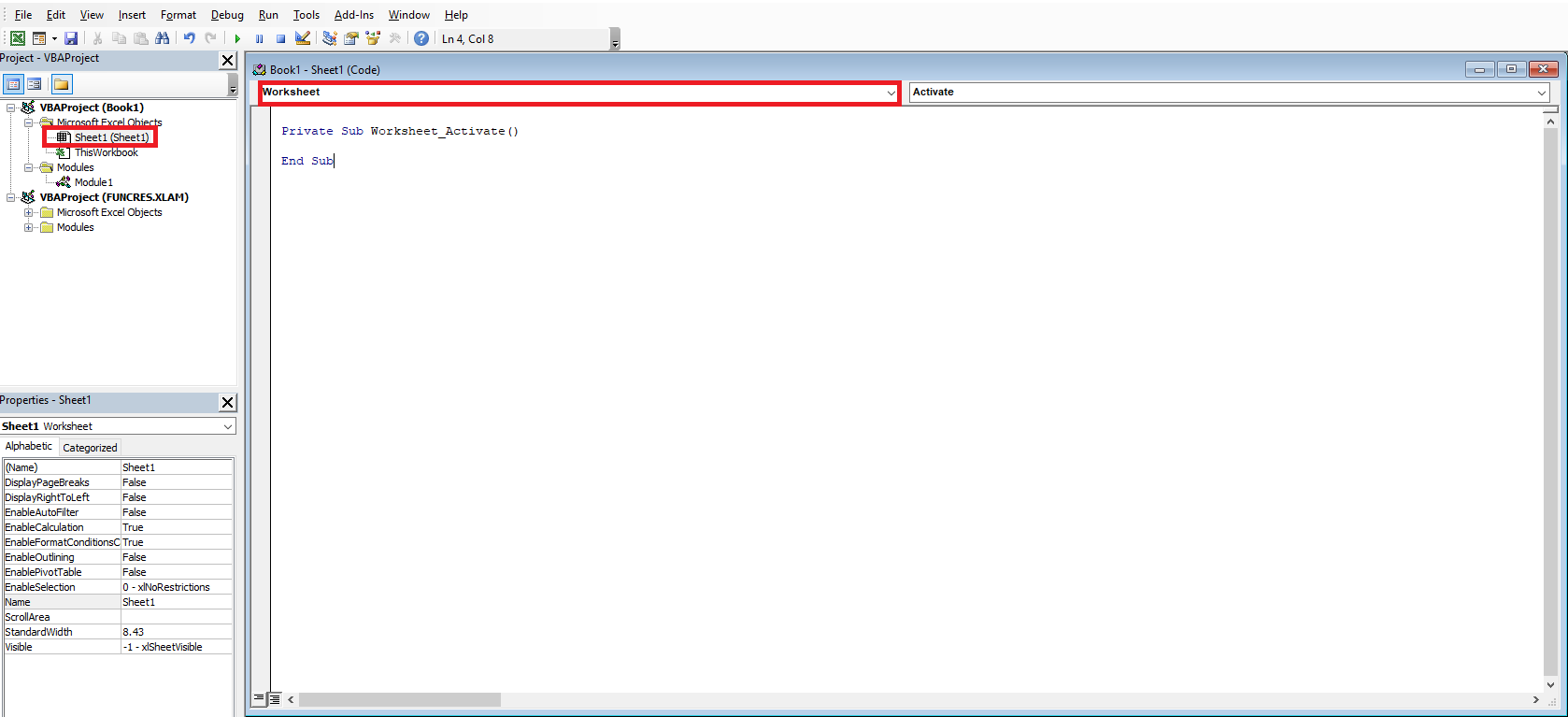
- Press Alt + F11 to open the VBA editor.
- In the Project Explorer, double-click the desired sheet.
- In the code window, select
Worksheetfrom the left dropdown and the desired event from the right.
Commonly used Worksheet events:
| Event | When It Is Triggered |
|---|---|
| Worksheet_Activate | When the sheet is activated |
| Worksheet_BeforeRightClick | On right-click |
| Worksheet_BeforeDoubleClick | On double-click |
| Worksheet_Deactivate | When the sheet is deactivated |
| Worksheet_Calculate | When the sheet is recalculated |
| Worksheet_Change | When a cell is changed |
| Worksheet_SelectionChange | When the selection changes |
Worksheet_BeforeDoubleClick Example:
Private Sub Worksheet_BeforeDoubleClick(ByVal Target As Range, Cancel As Boolean)
   Target.Font.Bold = Not Target.Font.Bold
   Cancel = True
End Sub
Worksheet_Activate Example:
Private Sub Worksheet_Activate()
   MsgBox "You just activated the sheet " & ActiveSheet.Name
End Sub

Private Sub Worksheet_Activate()
   Range("A1").Activate
End Sub
To prevent navigating away from Sheet1:
Private Sub Worksheet_Deactivate()
   MsgBox "You must stay on Sheet1."
   Sheets("Sheet1").Activate
End Sub
Warning: Avoid using such macros to block Excel’s default behavior. It’s frustrating for users and easily bypassed by disabling macros.
Worksheet_Change Event Example:
Preventing non-numeric input in A1:
Private Sub Worksheet_Change(ByVal Target As Range)
  If Target.Address = "$A$1" Then
    If Not IsNumeric(Target) Then
      MsgBox "Please enter a number in cell A1."
      Range("A1").ClearContents
      Range("A1").Activate
    End If
  End If
End Sub
Accessing Properties, Methods, and Events More Easily
Welcome to the world of objects, properties, methods, and events. You will learn more in the following chapters. Meanwhile, three tools can help:
- VBA Help System
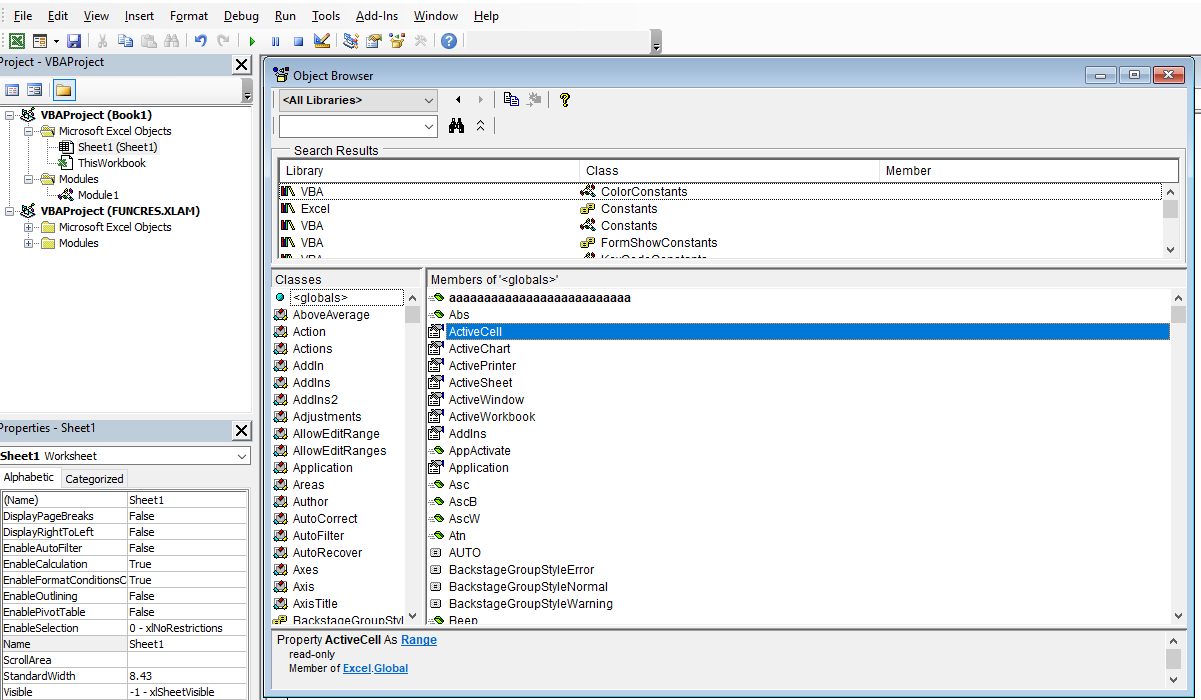
- Object Browser
- Auto List Members
The VBA Help System explains every object, property, and method. Press F1 on a keyword in the editor to get help instantly.
The Object Browser, accessible via the View menu or by pressing F2, shows all available VBA commands. You can identify objects, properties, methods, or events by their icons. You can also filter by libraries.