
Using Constants in Excel VBA
A constant is a named element that remains fixed throughout the execution of a program. Unlike variables, constants do not change their values. A constant can be a number, a string, or any other value. Each application has its own set of constants, and new constants can be defined by a user. Once you declare a constant, it can be used anywhere in the program instead of the actual value. VBA supports two types of constants: built-in constants and user-defined constants.
Built-in Constants
Each application has its own predefined built-in constants. These constants are assigned values. You can use these values to refer to the constants instead of their names. However, using names is preferable because it is difficult to remember the value of each constant. The names of built-in (or intrinsic) constants begin with two letters indicating the application name. For example, constants for Word objects begin with wd, constants for PowerPoint begin with pp, and constants for Excel begin with xl (e.g., xlSaveChanges or xlDoNotSaveChanges), etc. Similarly, in VBA, objects are referenced by prefixing the constants with vb.
Microsoft Excel and VBA have a long list of predefined constants that do not need to be declared. These built-in constants can be found using the Object Browser window. Here is how to access this window:
-
In the Visual Basic Editor window, choose View / Object Browser.
-
In the Project / Library dropdown list, click the arrow and select Excel.
-
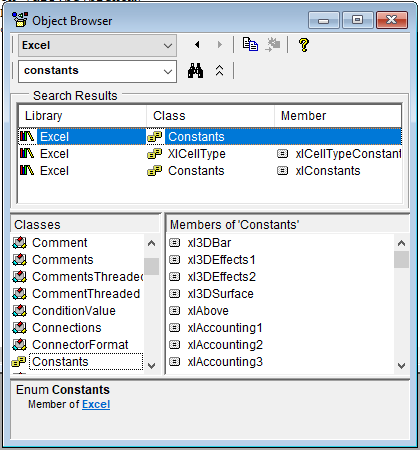
Enter keywords like constants in the search box and press Enter or click the Search button. Visual Basic will display the search results in the Search Results area.
-
Scroll through the Classes list to locate and then select Constants, as shown in the following figure. The right-hand side of the Object Browser window displays a list of all built-in constants available in the Microsoft Excel object library.
-
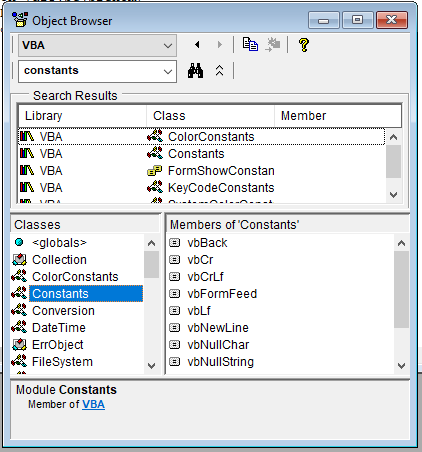
To search for VBA constants, choose VBA in the Project / Library dropdown list.
User-Defined Constants
In addition to built-in constants, VBA allows you to create your own constants. These are called user-defined constants. Constants are helpful in situations where you need to use a literal value multiple times. To declare constants, you must use the Const statement. The syntax of the Const statement is as follows:
[Public | Private] Const ConstantName [As type] = expression
Remarks
-
Public | Privatespecifies the scope of the constant. A constant declared inside a procedure is local to that procedure. This part is optional. -
Constis the keyword used to declare user-defined constants. -
ConstantNamespecifies the name of the constant. The name must follow standard variable naming conventions. -
typespecifies the data type of the constant. A separateAs typeclause must be specified for each constant declaration. However, specifying the type is optional. -
expressionspecifies the value of the constant.
For example, the following statement declares a constant MaConst and initializes it with the value 95:
Const Private MaConst As Integer = 95
You can specify multiple constants in a single statement. However, the data type for each constant must be included. For example:
Const Public rti_no As Integer = 520, stud_nom As String = "Elie"
Although declaring a constant resembles declaring a variable, there is a slight difference between the two. You initialize a constant at the time of its declaration, unlike variables which may or may not be initialized upon declaration. Once a constant is initialized, you cannot change its value during program execution.
Here are some typical constant declarations:
Const myWorkbook = "Workbook1.xls"
Const StartDate = #1/1/1999#
Const ErrorMessage1 = "Error during printing!"
Const VAT = 1.19
What can be improved here?
What applies to variables also has implications for constants. The examples above have not yet specified which data types should be used. The Variant data type is currently used in all four examples. To save memory space, we should declare the constant type explicitly:
Const myWorkbook As String = "Workbook1.xls"
Const StartDate As Date = #1/1/1999#
Const ErrorMessage1 As String = "Error during printing!"
Const VAT As Single = 1.19