
A variable can simply be a single number, a piece of text, or a series of information that the program needs to retain and refer to during its execution. The program can change the value of a variable during its execution. That is why it is called a variable. If a variable has been defined as a given type, data specified as a different type will not be accepted. For example, if you define a variable as an integer, you cannot insert text into it.
Variable Declaration
To create a variable, you must declare it, that is, assign it a name that can then be reused to operate on the value stored in it. Variable declaration in VBA can be implicit or explicit. In other words, VBA programs can recognize a new variable without it being previously created in a declaration statement. You can also configure the Visual Basic Editor to require explicit variable declaration before use.
You can assign any name you like to a variable, as long as it follows these rules:
- It must begin with a letter.
- It cannot contain more than 255 characters.
- Periods, exclamation points, spaces, and the characters @, &, $, and # are not allowed.
- The variable name must not be a reserved word, meaning a word recognized as part of the Visual Basic language (function name, object, property, argument, etc.).
NOTE
Uppercase and lowercase letters are considered identical in variable names.
Implicit Declaration
It is not necessary to declare a variable before using it. You can simply include the statement:
DeclaVaria = 10
A variable will automatically be created for DeclaVaria as a Variant type (default type) and will have the value 10.
Variable types will be presented later in this chapter.
However, the problem is that this can lead to subtle errors in your code if you misspell the variable name in a later statement. For example, if you refer to DeVaria instead of DeclaVaria, you know what you mean, but VBA does not. It assumes DeVaria is a new variable and assigns it as such. The old variable DeclaVaria still exists but is no longer used. You now have two different variables, although you think you only have one. This can cause major issues that may take a long time to correct in your code.
Explicit Declaration
To avoid the issue of incorrect variable names, you can require VBA to always generate an error message whenever it encounters an undeclared variable.
To force variable declaration before use, add the Option Explicit statement. Its use helps prevent errors due to typos in variable names. To do this, place yourself in the Declarations section of the module’s Code window and type the Option Explicit statement, as shown in the following figure.

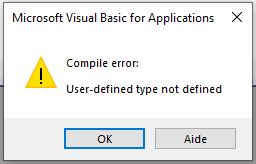
From now on, the appearance of variable names not previously declared using the Dim statement will generate an error, as in the figure.
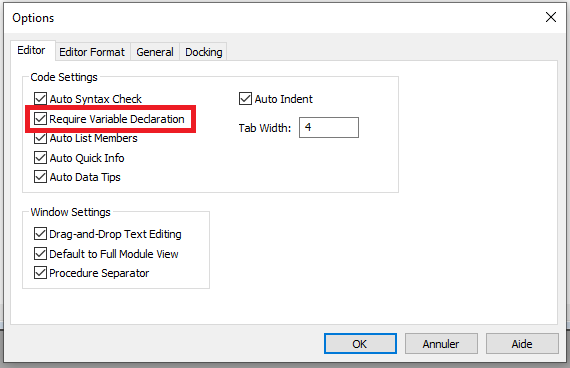
You can also configure the Visual Basic Editor to automatically insert the Option Explicit statement in the Declarations section of every new module. Here’s how:
- Select the Options command from the Tools menu and go to the Editor tab.
- Check the box Require Variable Declaration, then click OK, as shown in the figure.
The method you use (implicit or explicit) depends on your personal preferences. Coding is often much faster with implicit declaration because you don’t need to define your variables beforehand. You can simply use them, and VBA will handle the rest. However, as mentioned earlier, this can lead to errors unless you have a good memory for the variables you use and the experience to know exactly what you are doing. Implicit declaration can also make it harder for someone else to understand your code. Using Option Explicit is the best practice and helps prevent runtime errors.
Declaring a Variable with the Dim Statement
Variable declaration is done using the Dim statement with the following syntax:
Dim VariableName As Type
Comments
- The
Dimstatement (short for Dimension) defines a name as a variable and allocates storage space for it. VariableNameis the name chosen for this variable.- The
Askeyword declares the data type. - The
Typeargument represents the data type and can be values likeLong(integer),Double(decimal),String(text type)… It is optional, but specifying a type often saves memory and improves program performance.
You can declare several variables on a single line:
Dim MyVar1, MyVar2, MyVar3 As Long
In this example, MyVar1 and MyVar2 are declared as Variant (the default type in VBA), and only MyVar3 is declared as Long. Why? Because Excel VBA requires that each variable’s type be declared explicitly, even if they’re on the same line (unlike C or many other languages). To declare all three variables as Long, the correct syntax is:
Dim MyVar1 As Long, MyVar2 As Long, MyVar3 As Long
Variable Scope and Lifetime
All procedures, functions, variables, and constants in VBA have their own scope. This means they can only be used in a specific area of the program’s code, precisely where they are defined.
For example, if variable A is defined in the body of a procedure named Procedure1(), then that procedure is its scope. So, if another procedure Procedure2() exists, you cannot use the same variable name in it. If you try, you will either get an error (if Option Explicit is active), or you will simply have another variable with the same name, unrelated to the first one.
There are three types of variable scope:
- Procedure-level scope: Variables declared with
DimorStaticinside a procedure are recognized only within that procedure. These are called local variables. - Module-level scope: Variables declared using
DimorPrivateoutside of any procedure, in the declarations area of a module, can be used throughout that module only. - Project-level scope: Variables declared with the
Publickeyword at the module level are available to all procedures in the project. These are called public variables.
A variable declared with Private retains its value only during the execution of the procedure where it is defined. After the procedure ends, its value is lost. When the procedure runs again, the variable is reinitialized. However, variables declared with Static retain their value after the procedure ends and while the program continues running.
Let’s examine the scope of procedures and functions.
Procedures and functions only have two levels of scope: module-level and project-level. The default is project-level. Therefore, a procedure or function can be called by any other procedure or function in the project. The optional Public keyword can also be used for project-level procedures. Its presence or absence has no effect on behavior.
If you want a procedure to be used only within the current module, use the Private keyword. Note that this not only restricts the procedure’s scope but also prevents it from being used as an independent procedure—it can only be called from another procedure.
Finally, the Static keyword can be used with procedures or functions. It does not affect the scope but affects all variables declared within it. In this case, all local variables retain their values after the procedure ends and preserve them when called again.
Example:
Public B1 As String
Private B2 As Integer
Dim B3 As Single
Sub Procedure1()
   Dim B4 As Integer
   Static B5 As Integer
   B1 = "Un texte"
   B2 = 2
   B3 = 3.14
   B4 = B4 + 4
   B5 = B5 + 5
   MsgBox B4
   MsgBox B5
End Sub
Sub Procedure2()
   Procedure1
   MsgBox B1
   MsgBox B2
   MsgBox B3
   MsgBox B4
   MsgBox B5
   Procedure1
End Sub
Comments
- In this example,
B1is defined at the project level (withPublic),B2andB3at the module level,B4at the procedure level (inProcedure1()), andB5is defined asStaticwithinProcedure1(). - When
Procedure2()is called, it first callsProcedure1(), which assigns values to all five variables and displays the values ofB4andB5. - Once
Procedure1()ends,Procedure2()displays the current values of all five variables. VariablesB1,B2, andB3retain their values since they are declared at the project or module level. VariablesB4andB5, having procedure scope, are empty—each procedure uses its own variables even if they share names. - When
Procedure1()is called again, the values ofB4andB5are updated and displayed.B4is reset to 4, since it is reinitialized with each call, butB5, being static, retains its previous value, and is incremented to 10.