
Although Microsoft Excel does not provide a specific weighted average function, it has several other functions that can be used to perform this calculation, as shown in the examples below.
What is a Weighted Average?
A weighted average is a type of arithmetic average where some elements in the data set carry more importance than others. In other words, each value being averaged is assigned a certain weight.
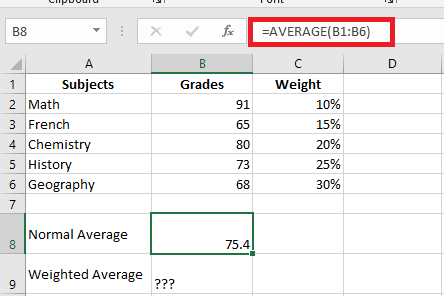
Student grades are often calculated using a weighted average. For example, a regular average is easily calculated using Excel’s AVERAGE() function. However, when we need the average to account for the weight of each activity listed in column C, a weighted average formula is necessary.
In mathematics and statistics, the weighted average is calculated by multiplying each value in the set by its respective weight, then adding these products together and dividing the sum of the products by the sum of all the weights.
For instance, to calculate the weighted average (overall grade), you multiply each score by its corresponding percentage (converted to decimal form), sum the 5 products, and then divide by the sum of the 5 weights:
((91*0.1)+(65*0.15)+(80*0.2)+(73*0.25)+(68*0.3)) / (0.1+0.15+0.2+0.25+0.3) = 73.5
As you can see, the regular average (75.4) and the weighted average (73.5) are different values.
Calculating the Weighted Average
In Microsoft Excel, you can calculate the weighted average using the same approach but with much less effort, as Excel’s functions will do most of the work for you.
Example 1: Calculating the Weighted Average Using the SUM() Function
If you are familiar with the basic SUM() function in Excel, the formula below will require little explanation:
=SUM(B2*C2, B3*C3, B4*C4, B5*C5, B6*C6) / SUM(C2:C6)
Essentially, it performs the same calculation as described above, but using cell references instead of numbers.
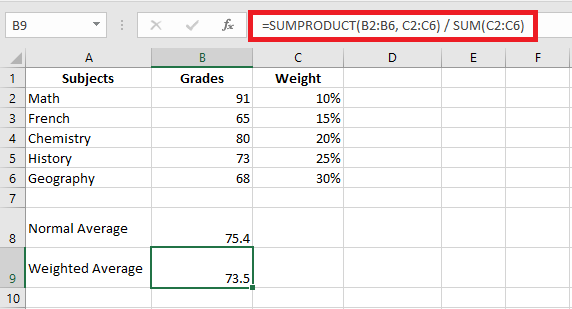
As shown in the screenshot, the formula returns exactly the same result as the previous manual calculation. Notice the difference between the regular average (calculated using AVERAGE() in C8) and the weighted average (calculated in C9).
Although the SUM() formula is simple and easy to understand, it’s not the best choice if you have a large number of elements to average. In this case, you should use the SUMPRODUCT() function as shown in the next example.
Example 2: Finding a Weighted Average with the SUMPRODUCT() Function
Excel’s SUMPRODUCT() function is perfect for this task as it is designed to sum products, which is exactly what we need. Instead of multiplying each value by its weight individually, you provide two arrays in the SUMPRODUCT() formula (in this context, an array is a continuous range of cells), then divide the result by the sum of the weights:
=SUMPRODUCT(values_range, weights_range) / SUM(weights_range)
Assuming the values to be averaged are in cells B2:B6 and the weights are in cells C2:C6, our SUMPRODUCT() formula for the weighted average looks like this:
=SUMPRODUCT(B2:B6, C2:C6) / SUM(C2:C6)
To view the actual values behind an array, select it in the formula bar and press the F9 key. The result will look something like this:
=SUMPRODUCT(91*0.1 + 65*0.15 + 80*0.2 + 73*0.25 + 68*0.3)
What the SUMPRODUCT() function does is multiply the 1st value in array1 by the 1st value in array2 (910.1 in this example), then multiply the 2nd value in array1 by the 2nd value in array2 (650.15), and so on. After all multiplications are done, the function adds the products and returns that sum.
To ensure the SUMPRODUCT() function gives the correct result, you can compare it to the SUM() formula from the previous example, and you’ll find the numbers are identical.
Excel’s SUM() or SUMPRODUCT() for Weighted Averages
- The weights don’t necessarily need to add up to 100%, and they don’t have to be expressed as percentages.
- For example, you can create a priority scale and assign a certain number of points to each item, just like in the example above.
With these formulas, you can easily calculate a weighted average in Excel without manually multiplying and adding each value. Excel’s functions will handle most of the heavy lifting for you.