
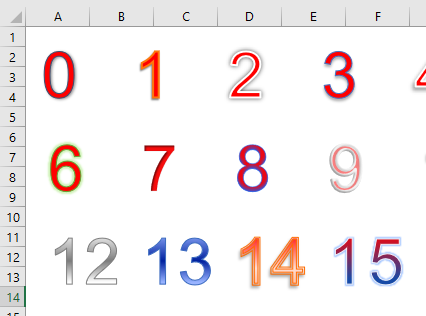
WordArt allows you to create decorative text effects, such as shadowed or mirrored text. Using the method AddTextEffect(), the following example displays an overview of the 30 different predefined effect types available up to Excel 2010. Since Excel 2013, 20 additional effect types have been introduced. Each resulting object is of the class Shape.
Code:
Sub DisplayAllWordArt()
    Dim Sh As Shape
    Dim i As Integer, lf As Integer, tp As Integer
    ' Select the worksheet
    ThisWorkbook.Worksheets("Sheet5").Activate
    ' Hide gridlines for clearer display
    ActiveWindow.DisplayGridlines = False
    ' Delete all existing shapes
    For Each Sh In ActiveSheet.Shapes
        Sh.Delete
    Next Sh
    ' Initial position values
    lf = 5
    tp = 5
    ' Create all available WordArt presets
    For i = 0 To 49
        Set Sh = ActiveSheet.Shapes.AddTextEffect( _
            i, CStr(i), "Arial", 48, False, False, lf, tp)
        Sh.TextFrame.Characters.Font.Color = RGB(255, 0, 0)
        ' Calculate position for next WordArt object
        lf = lf + 70
        If i Mod 6 = 5 Then
            lf = 10
            tp = tp + 70
        End If
    Next i
    Set Sh = Nothing
End Sub
Explanation:
As in the previous program, gridlines on the worksheet are hidden, and any existing shapes are deleted.
After setting the initial position, the loop calls the method AddTextEffect(), which has eight mandatory parameters:
- Type of predefined text effect
- Text to display
- Font name
- Font size
- Bold: True/False
- Italic: True/False
- Left position
- Top position
The font color of the text inside the shape’s text frame is set to red.
At the end of each loop iteration, the position for the next WordArt object is calculated.
The effect can be further customized using the parameters.
Figure shows a small excerpt displaying WordArt types.