
The size and position of controls can be easily adjusted using the mouse. When you do this, the following properties change accordingly:
- Width: the width of the control
- Height: the height of the control
- Left: the distance from the left edge of the container (e.g., the UserForm)
- Top: the distance from the top edge of the container
Alternatively, you can modify the size and position by entering exact values directly in the Properties Window.
To achieve a uniform size or consistent alignment of multiple controls, you can use the various commands available under the FORMAT menu. However, before using these commands, you need to select at least two controls simultaneously. This is done by clicking the controls one by one while holding down the Ctrl key.
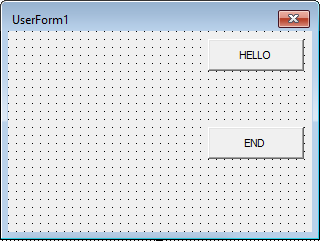
Controls can also be copied and pasted using familiar keyboard shortcuts such as Ctrl + C and Ctrl + V. This saves you time if you have already set many properties on the original control.
Detecting Control Values and Responding to Changes
Retrieving the value of a control (for example, the content of a text box) and reacting to it can occur at different times, depending on the application’s purpose:
- Immediately after an event occurs on the control, such as:
- After the content of a text box has been changed
- After a checkbox has been checked or unchecked
- After a specific list item has been selected
- Later, when the user confirms or submits the selected or entered values to another part of the application
The timing for processing these values depends entirely on the intended use case of the application.