
You are already familiar with variables of basic data types such as Integer, Double, and others. Object variables, however, do not store numbers or text; instead, they hold references (pointers) to objects. These objects can be existing ones you want to refer to with a shorter or more convenient name, or they can be new objects you create yourself.
Here is an example:
Sub ObjectVariableExample()
    Dim Rg1 As Range
    Dim Rg2 As Range
    Set Rg1 = ThisWorkbook.Worksheets("Sheet1").Range("B1:B3")
    Set Rg2 = Rg1
    Rg1.Value = 18.2
    Rg1.NumberFormat = "0.000"
    Rg2.Font.Size = 24
    ApplyBorder Rg2
    Set Rg1 = Nothing
    Set Rg2 = Nothing
End Sub

Sub ApplyBorder(x As Range)
    x.Borders.Weight = xlThick
End Sub
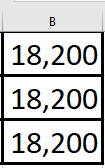
Explanation:
- The variables Rg1 and Rg2 are declared as references to objects of the Range type using the As Range syntax.
- Alternatively, they could be declared more generally as Object type (e.g., Dim Rg1 As Object), but declaring them with the specific type Range is clearer and allows for faster execution and better IntelliSense support.
- Assigning an object reference to a variable requires the Set keyword. Here, Rg1 is assigned a range object corresponding to the cell range « B1:B3 » on worksheet « Sheet1 ».
- Rg2 is then assigned the same reference as Rg1, so both variables point to the same range object.
- You can access and modify this range using either variable. In the example, the cell values, number format, and font size are changed.
- Object references can also be passed as parameters to procedures or functions. Here, the procedure ApplyBorder receives a Range parameter x and sets the border weight for the range.
- After finishing with the object variables, assigning Nothing to Rg1 and Rg2 releases their references, meaning they no longer point to any object.
Additional Notes:
- After declaring the variable Rg1 as a Range, the VBA editor provides IntelliSense: when you type Rg1. it shows a list of properties and methods available for the Range object. This feature is not available if you use an expression like Range(« B1:B3 »)..
- Pressing the F1 key opens the help documentation related to the selected property or method for the appropriate object type, providing quick access to detailed information.