
If you have text that is too wide to fit within the column but you don’t want it to spill over into adjacent cells, you can use the Wrap Text option to fit the text within the cell.
The Wrap Text option displays the content across multiple lines within the same cell, if necessary. Use this option to display long headings without having to widen columns or reduce text size.
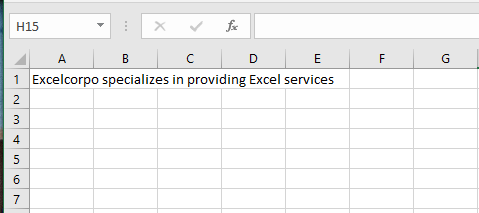
- For example, look at the long string of text in cell A1 below. Cell B1 is empty.
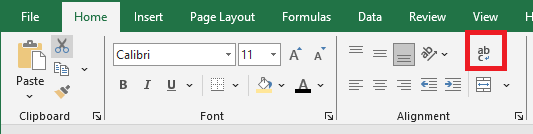
- On the Home tab, in the Alignment group, click Wrap Text.
Result:
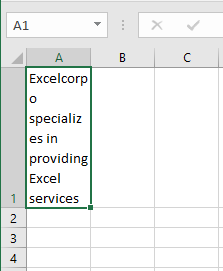
- Click the right border of column header A and drag the separator to increase the column width.
- Double-click the bottom border of row header 1 to automatically adjust the row height.
To insert a manual line break, follow these steps:
- For example, double-click in cell A1.
- Place your cursor at the position where you want the line to break.

- Press Alt + Enter.