
The Excel table data are written into a text file using the following program:
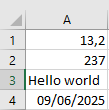
Sub WriteLines()
    Dim i As Integer
    ThisWorkbook.Worksheets("Sheet1").Activate
    On Error GoTo ErrorHandler
    ' Open the file for writing
    Open ThisWorkbook.Path & "C:\Users\POPOLY\Desktop\Document.txt" For Output As #1
    ' Alternative paths commented out:
    ' Open ThisWorkbook.Path & "C:\Users\POPOLY\Desktop\Document.txt" For Output As #1
    ' Open ThisWorkbook.Path & "C:\Users\POPOLY\Desktop\Document.txt" For Output As #1
    ' Open "C:\Users\POPOLY\Desktop\Document.txt" For Output As #1
    For i = 1 To 4
        ' Write each line
        Print #1, Cells(i, 1).Value
    Next i
    ' Close the file
    Close #1
    Exit Sub
ErrorHandler:
    MsgBox Err.Description
End Sub
The result in the text file is illustrated in Figure.
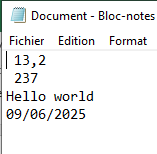
Explanation:
The Open statement is used to open files. In this example, the file lines.txt is opened. Both the Excel workbook containing this export program and the text file with the data reside in the same directory.
Following the keyword For is the mode in which the file is opened. For text files, some common modes include:
- Input (for reading),
- Output (for overwriting),
- Append (for adding content to the end),
- Random (for random access).
After the keyword As, a file number is specified, which you can assign arbitrarily. In the rest of the program, the opened file is referenced by this unique file number prefixed with the symbol #.
Whether or not the file already exists, the new content will be written to the file. Existing contents are completely overwritten without any warning.
If you use the mode Append instead of Output, new content would be added to the end of the file rather than replacing the existing content.
The Print statement outputs a line to the file. Its first argument is the file number preceded by #, and the second argument is an expression whose value is written to the file. After writing, Print automatically adds a newline.
After writing, the file is closed with the Close statement.
In the three commented-out lines, the file is alternatively opened in different directories:
- In a subfolder named Additional within the directory containing the export program,
- In the directory above the one containing the export program,
- In the absolute path C:\Temp.