
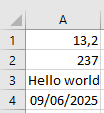
The contents of the cells shown in Figure of an Excel worksheet are to be written as individual paragraphs into the Word document Doc.docx.
Sub WriteWordParagraphs()
    Dim appWord As Word.Application
    Dim document As Word.document
    Dim i As Integer
    ThisWorkbook.Worksheets("Sheet1").Activate
    ' Start Word application
    Set appWord = CreateObject("Word.Application")
    ' Create a new Word document
    Set document = appWord.Documents.Add
    For i = 1 To 4
        ' Add a new paragraph
        document.Paragraphs.Add
        ' Fill the paragraph with text from the Excel cell
        document.Paragraphs(i).Range.Text = Cells(i, 1).Value
    Next i
    ' Save the Word document with the given filename and close it
    document.SaveAs ThisWorkbook.Path & "C:\Users\POPOLY\Desktop\Doc.docx"
    document.Close
    ' Quit Word application and release memory
    appWord.Quit
    Set document = Nothing
    Set appWord = Nothing
End Sub
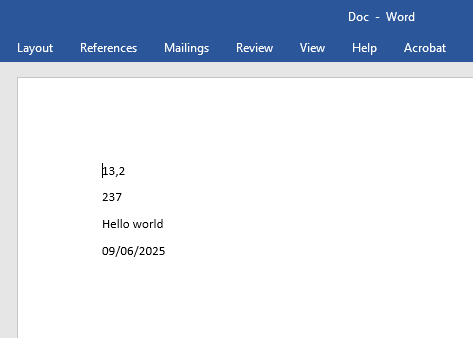
The result of the code is shown in next Figure.
Explanation:
- The variable appWord is declared as a reference to an object of type Word.Application (the Word application). This object type (along with other Word-specific object types) is available only if the Word library is referenced, as explained in Section 9.6.1, « Word Object Model. »
- The function CreateObject() creates an object of type Word.Application and returns a reference to it. This reference is used subsequently to control the Word application.
- The method Add() of the Documents object, when called without parameters, opens a new Word document and returns a reference to a Document object. This reference is then used to interact with the Word document.
- Inside the loop, a new paragraph is added using the Add() method of the Paragraphs collection.
- Each paragraph is filled with the content of an Excel cell.
- The new Word document is saved using the method SaveAs(), under the name paragraphs.docx in the same folder as the Excel workbook that contains this VBA code.
- Afterwards, the Word document is closed using the Close() method, and the Word application is terminated with the Quit() method.
- For exporting larger amounts of data, an alternative approach is to concatenate all the data into a single string variable, including necessary line breaks (using the constant vbCrLf), and output this variable in one operation at the end.