
SOME TRENDING OPTIONS
1 Representing forecasts in your components
You are often asked to display actual data and forecast data as a single trend component. When showing both sets, you need to make sure your audience can clearly distinguish where the data ends and the forecast begins.
The best way to achieve this effect is to start with a data structure similar to the one shown in the figure. As you can see, sales and forecasts are in separate columns. So, when you chart, you end up with two separate data series. Also note that the value in cell B14 is actually a formula referencing C14. This value is used to ensure a continuous trend line when the two data series are grouped together.
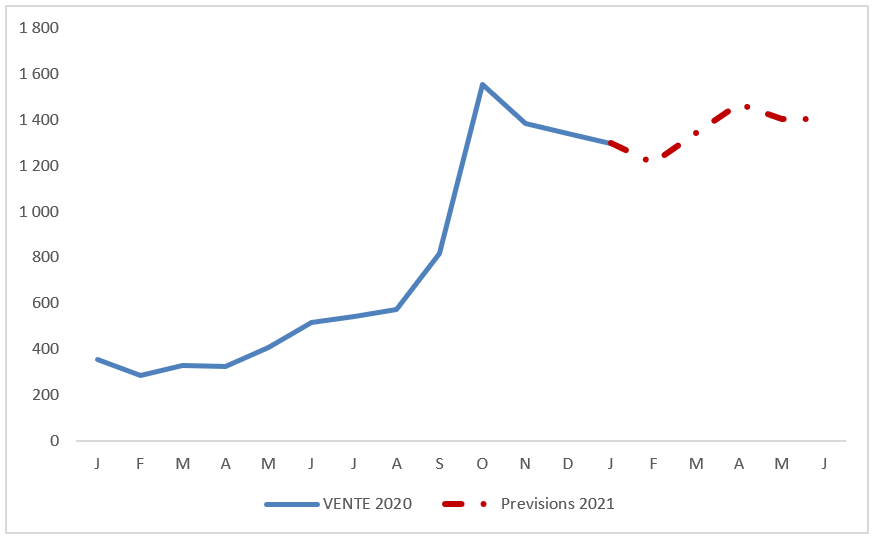
Start with a table that places your actual data and forecasts in separate columns.
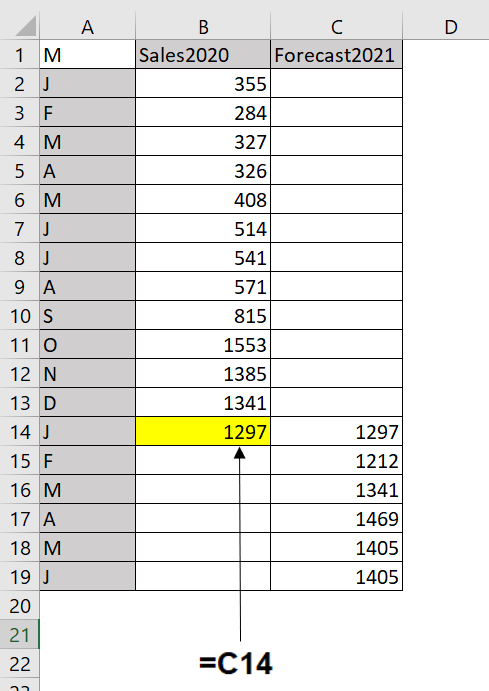
Once you have the data set structured correctly, you can create a line chart. At this point, you can apply special formatting to the 2021 Forecast data series by following these steps:
1. Click the data series representing the 2021 forecast.
This step places points on all data points in the series. 2. Right-click and select Format Data Series from the menu that appears. This step opens the
Format Data Series dialog box .
3. In this dialog box, you can adjust the properties to format the color, weight, and style of the series.
2 Highlighting Time Periods
Some trend components may contain specific time periods during which a special event occurred, causing an anomaly in the trend pattern. For example, you may have an unusually large spike or drop in the trend caused by an occurrence in your organization. Or perhaps you need to combine actual data with forecasts in your chart component. In such cases, it can be helpful to emphasize specific periods in your trend with special formatting.
Formatting Specific Periods
Imagine you just created the chart component shown in the following figure and you want to explain the spike in March. You could, of course, use a footnote somewhere, but that would force your audience to look elsewhere on your dashboard for an explanation.
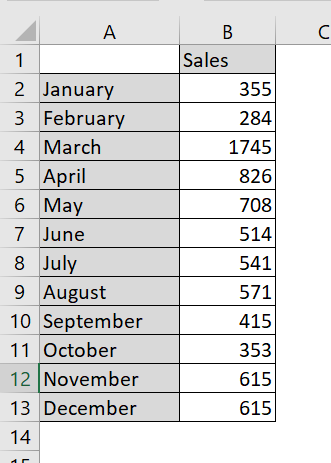
Drawing attention to an anomaly directly on the chart helps give your audience context without having to look away from the chart.
The spike in March is worth noting.
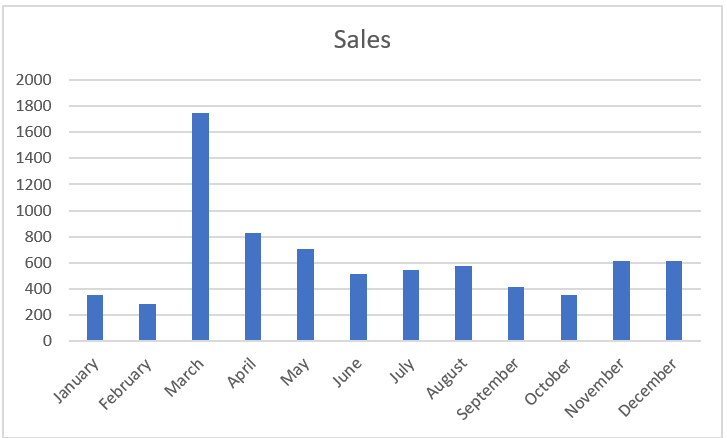
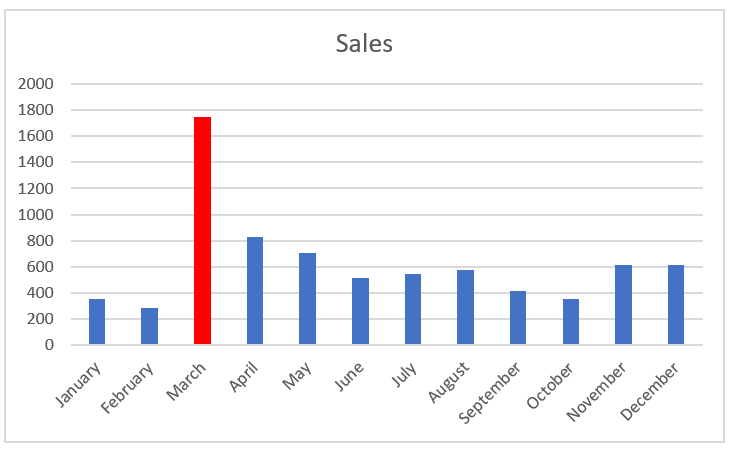
A simple solution is to format the March data point to appear in a different color, and then add a simple text box explaining the spike. To format a single data point:
1. Click the data point once.
This step places dots on all data points in the series.
2. Click the data point again to ensure Excel knows you’re formatting only that single data point.
The dots disappear from everything except the target data point.
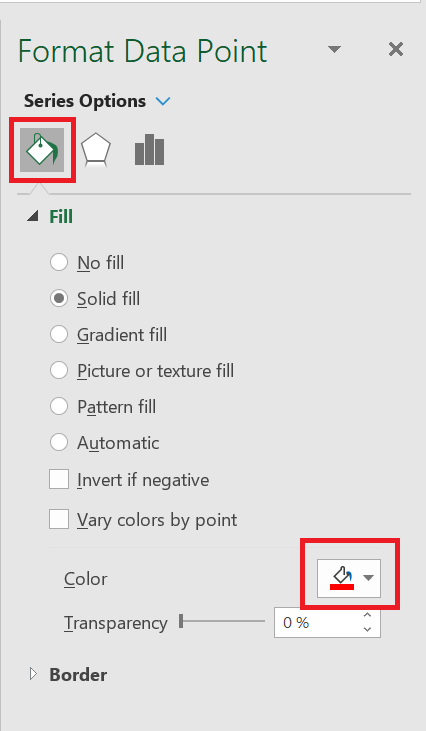
3. Right-click and select Format Data Point from the menu that appears. This step opens the
Format Data Point dialog box , shown in the following figure. The idea is to adjust the formatting properties of the data point as follows:
The Format Data Point dialog box is for a column chart. Different chart types have different options in the Format Data Point dialog box. However, the idea remains the same in that you can adjust the properties in the Data Point Formatting dialog box to change the formatting of a single data point.
The Format Data Point dialog box gives you formatting options for a single data point.
Once you change the fill color of the March data point and add a text box with some context, the chart explains the spike well, as shown in the following figure
The chart now draws attention to the spike in October and provides instant context via a text box.
To add a text box to a chart, click the Insert tab on the ribbon and select the Text Box icon. Then click the chart to create an empty text box that you can fill with your words.
Using Dividers to Mark Significant Events
Every now and then, a particular event permanently changes the paradigm of your data. A good example is a sales increase. The trend shown in the following figure was permanently affected by a sales increase implemented in March. As you can see, a divider line (along with labeling) provides a distinct indicator of rising prices, separating the old trend from the new.
Use a simple line to mark particular events along a trend.
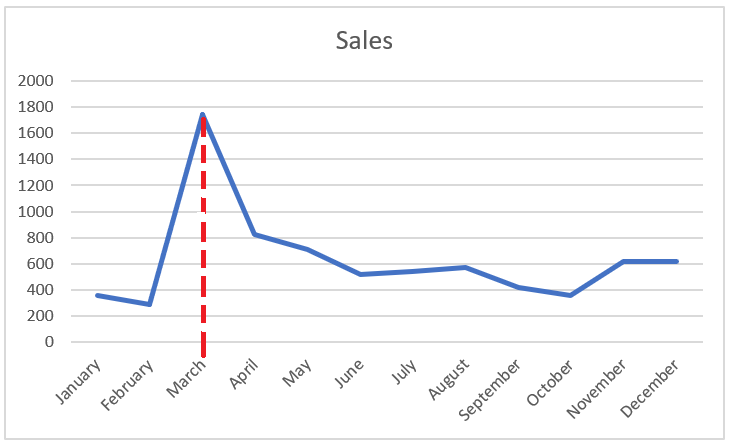
While there are many ways to create this effect, you rarely need to find a more sophisticated solution than manually drawing a line yourself. To draw a dividing line inside a chart, follow these steps:
1. Click the chart to select it.
2. Click the Insert tab on the ribbon and click the Shapes button , located on the Illustration item .
3. Select the desired line shape, navigate to your chart, and draw the line where you want it.
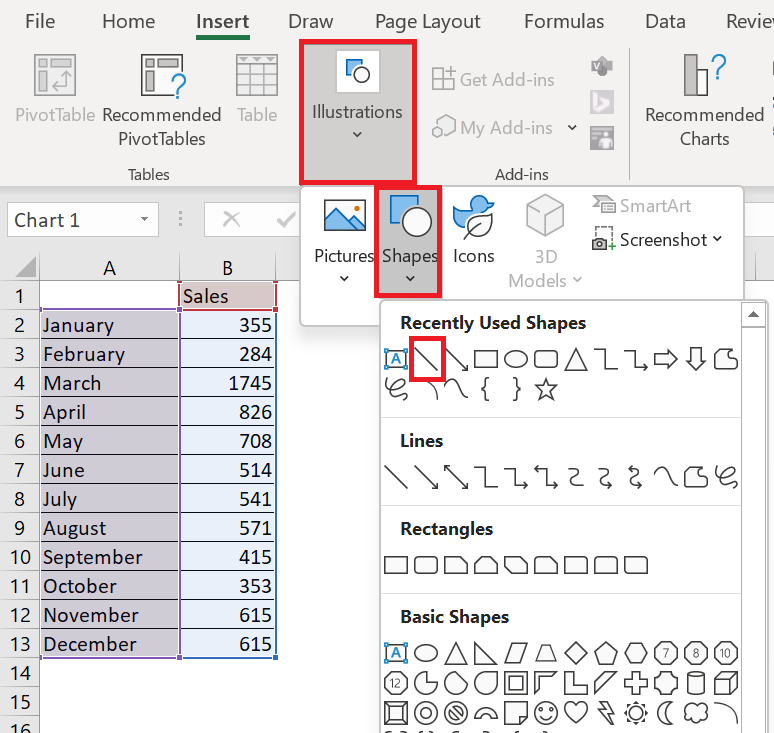
4. Right-click your new line and select Format Object from the menu that appears.
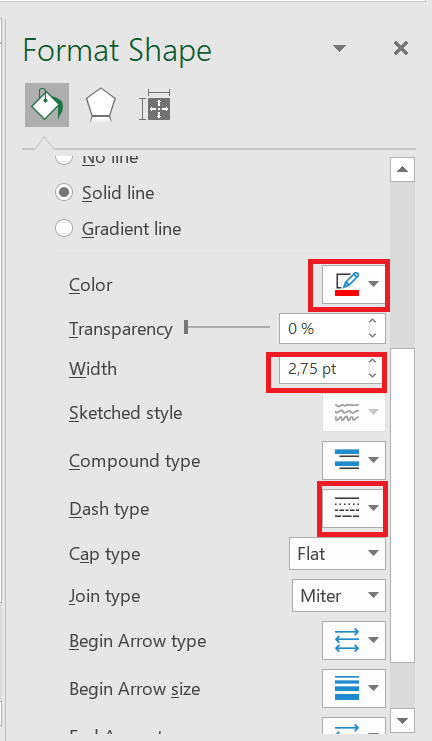
5. Use the Format Object dialog box to format your line’s color, thickness, and style.
3 Separate pre- and post-merger performance
Let’s say your company merged with another company on January 10, 2021, and you’re calculating daily sales. You might want to insert a vertical line into your chart to indicate the merger date. If you draw the vertical line with the Excel Shapes function and the chart is moved, the line will be in the wrong place. To fix this, start by selecting the range E 10: F32 ; create a scatter plot with lines (third option). In the range B 15: C16 , enter the merger date and the lower and upper limits on the y-coordinates of your vertical line. In this case, the lower limit = 0 and the upper limit = 120. Copy the range B 15: C16 and right-click on your chart to select Paste Option , which will insert the vertical line on the date January 10.
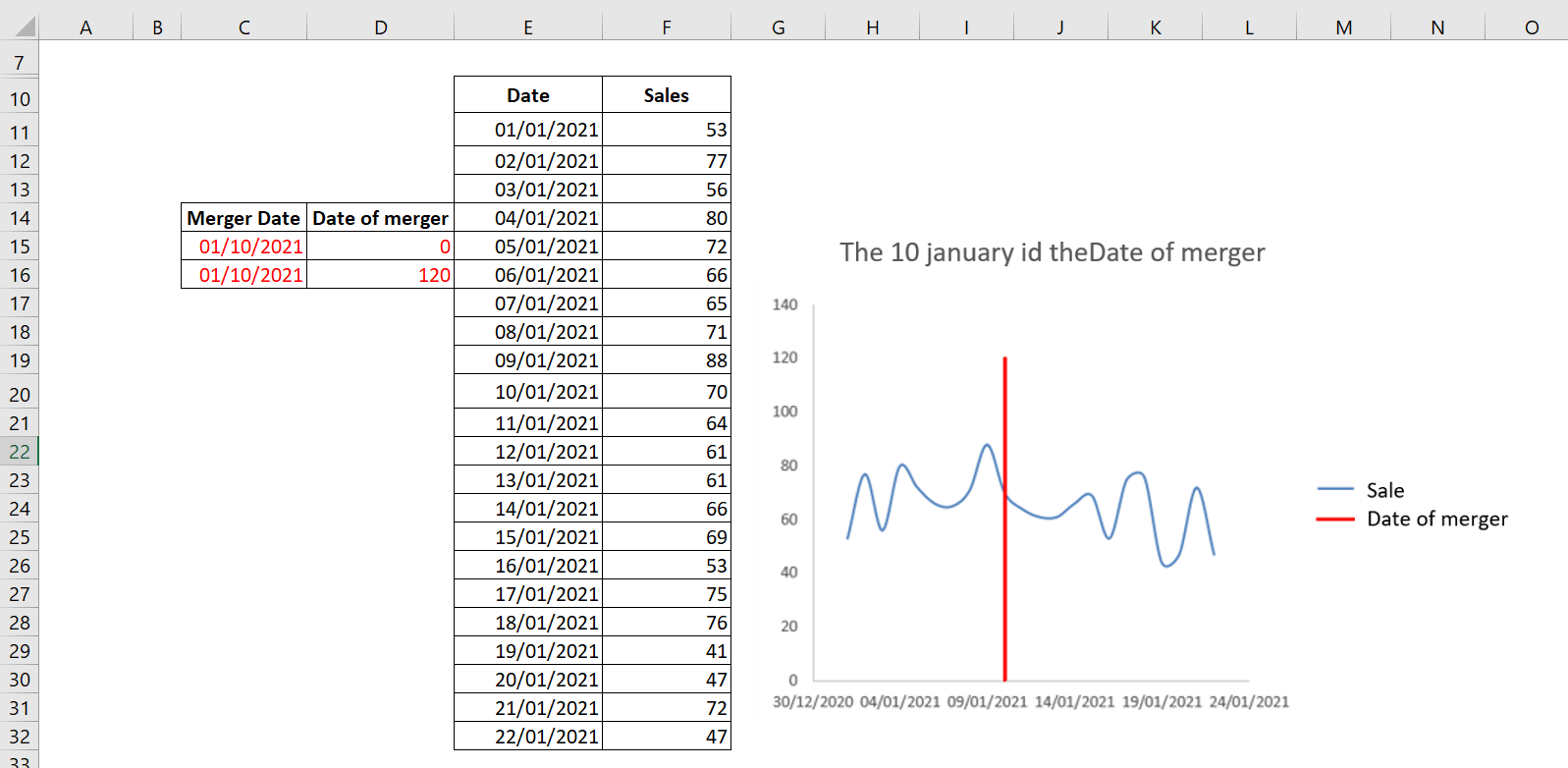
The vertical line indicates that January 10, 2021 was the merger date.
To change the legend to Merge Date , right-click the legend and select Select Data . A dialog box appears as shown in the following figure.
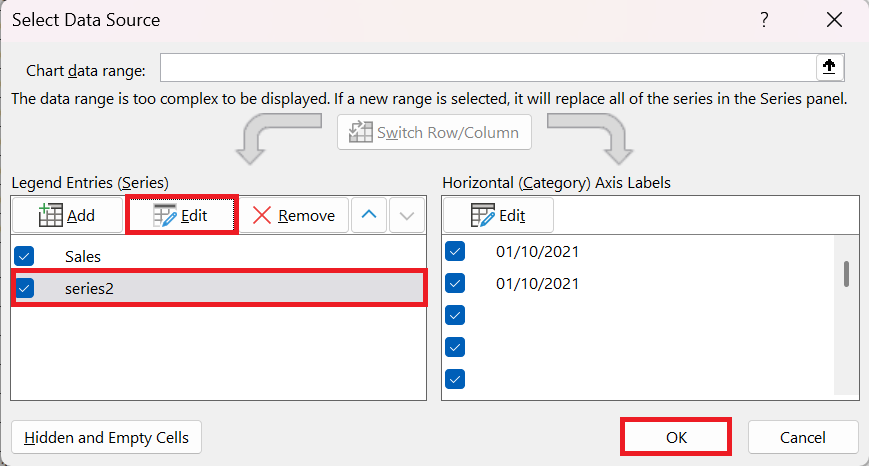
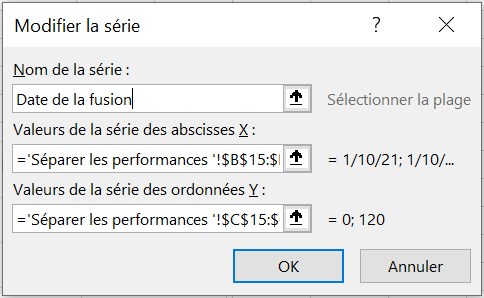
In this dialog box, select Series2 and click Edit to change the name Series2 to Merge Date , as shown in the following figure.
4 Trend with a Secondary Axis
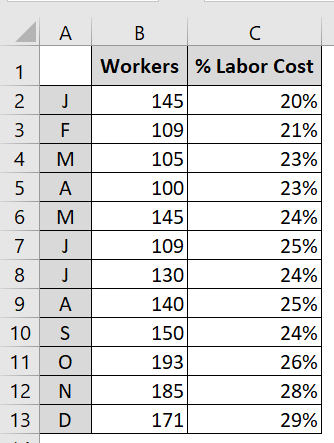
In some trend components, you have series that have two different units of measurement. For example, the chart in the following figure shows a trend for the number of workers and a trend representing the percentage of labor cost.
You often need to plot two different units of measurement, such as percentages.
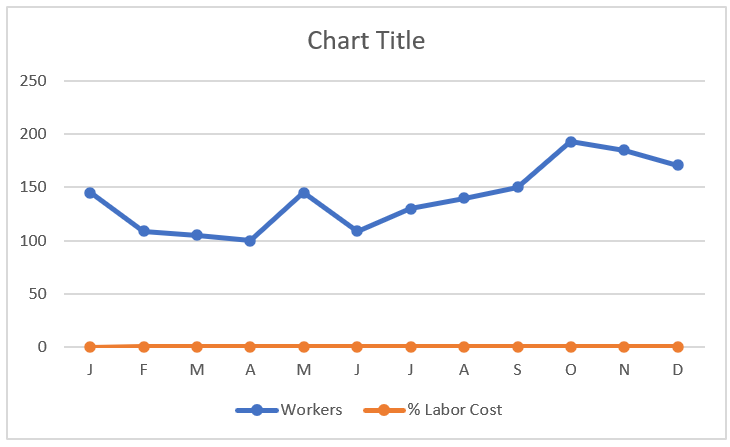
These are two different units of measurement that, when mapped, produce the unimpressive chart you see in the following figure. Because Excel constructs the vertical axis to accommodate the larger number, the percentage change in labor costs gets lost at the bottom of the chart. Even a logarithmic scale doesn’t help in this scenario. Since
the default vertical axis (or primary axis) doesn’t work for both series, the solution is to create another axis to accommodate the series that doesn’t fit on the primary axis. This other axis is the secondary axis.
The trends for the percentage of labor cost get lost at the bottom of the chart.
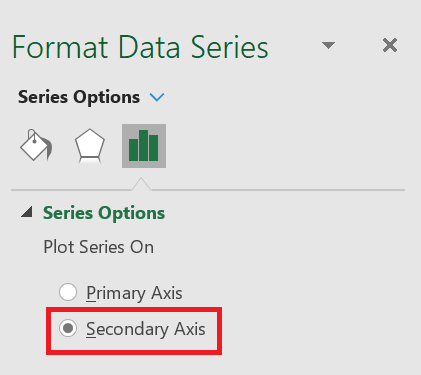
To place a data series on the secondary axis, follow these steps:
1. Right-click the data series in question and select Format Data Series from the menu that appears. This opens the
Format Data Series dialog box . 2. In the
Format Data Series dialog box , expand the Series Options section, and then click the Secondary Axis radio button.
Placing a Data Series on the Secondary Axis.
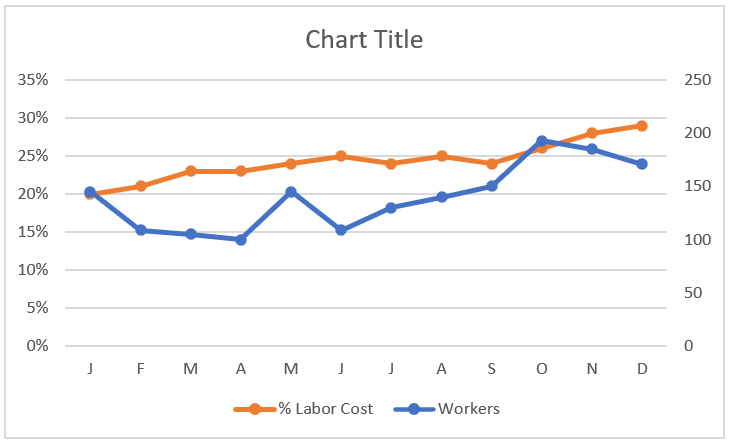
The following figure shows the newly added axis on the right side of the chart. All data series on the secondary axis have their vertical axis labels displayed on the right side.
5 Create a bar chart to check if the inventory is within a set range
Often, you need to track a quantity (inventory, cash, number of accidents) and you want to know if the quantity remains between historical upper and lower limits. A bar chart provides a useful tool for monitoring the evolution of a process over time. The following figure shows an example of a bar chart.
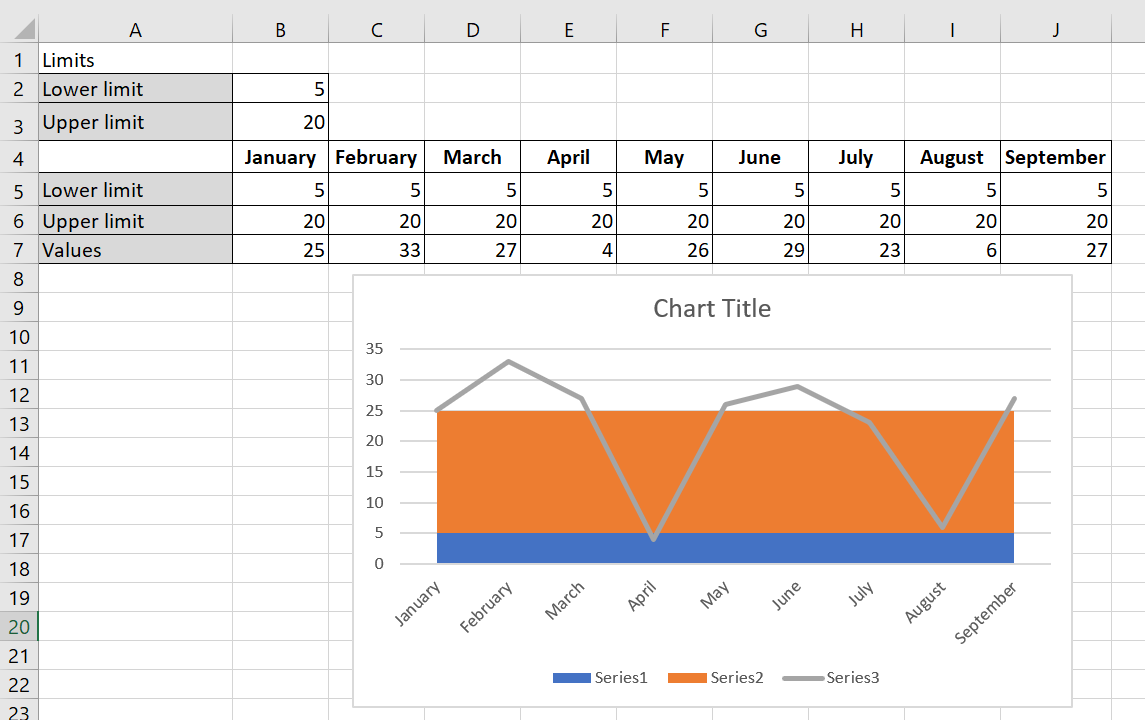
A bar chart summarizes inventory levels.
To create the bar chart, follow these steps:
1. You entered your lower limit on inventory (5) in B2 and your upper limit (25) on inventory in B3.
2. In line 5, you enter the lower limit for each month by copying the formula = $B$2 from B5 to C 5:J 5.
3. Copying the formula = $B $3 – $B$2 from B6 to C 6:J 6 calculates the upper limit – lower limit, as shown in the following figure.
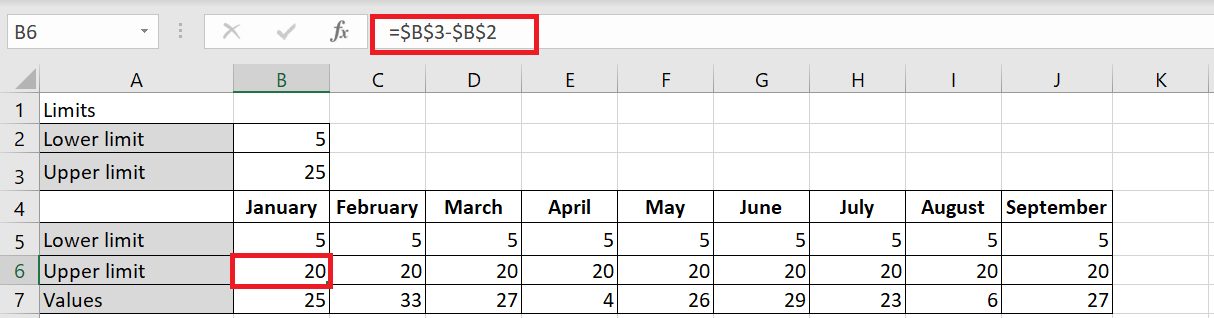
Name this row Upper Limit , as this row will be used to generate the row representing your upper inventory limit of 25 units.
4. Select the range B 5: J7 and select a stacked area chart (the second 2D area option), from the Insert tab of the ribbon.
Values data series on the chart that appears, right-click Change Chart Type Data Series and choose the first Line chart option, as shown in the following figure.
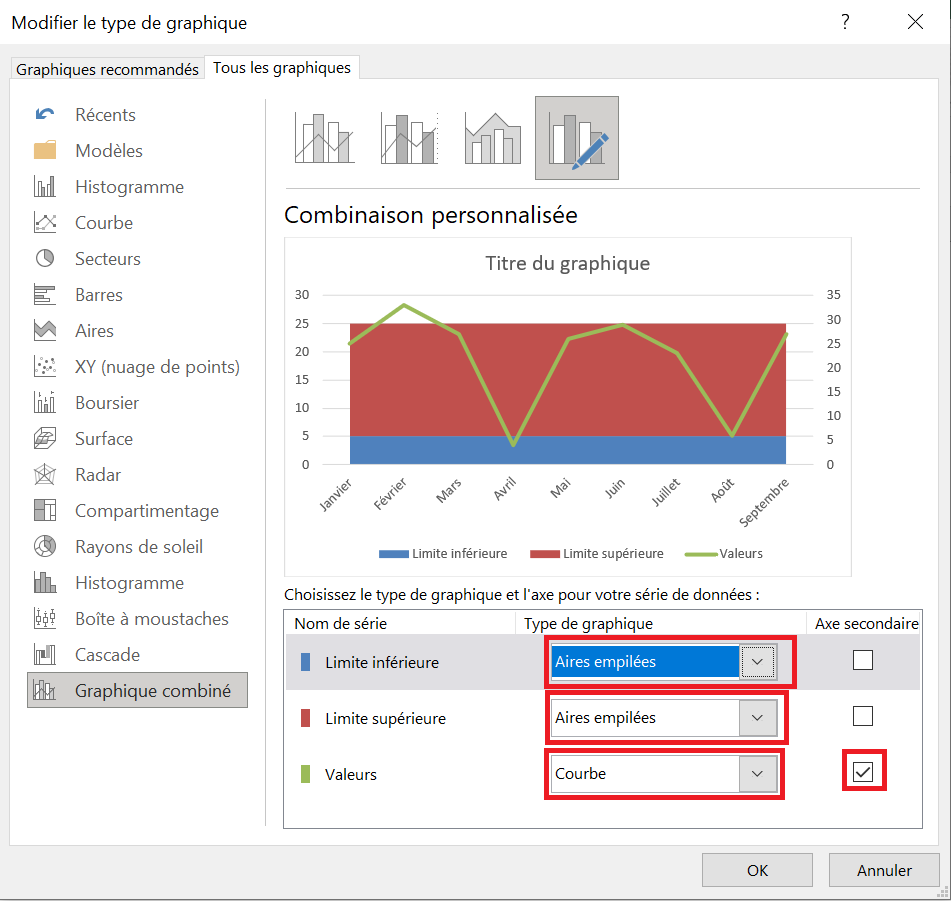
6. Add a secondary axis to the Values series, which you would later remove from the chart.
7. Right-click the Upper Limit and Lower Limit series and select Stacked Areas. Click OK to close the dialog box.
8 On the chart that appears, right-click the Lower Bounds data series and select Format Data Series . In the dialog box that appears, click the Fill category and select No Fill.
Your bar chart shows that you are having great difficulty maintaining inventory levels between your desired lower and upper limits.
6 Comparative Trends
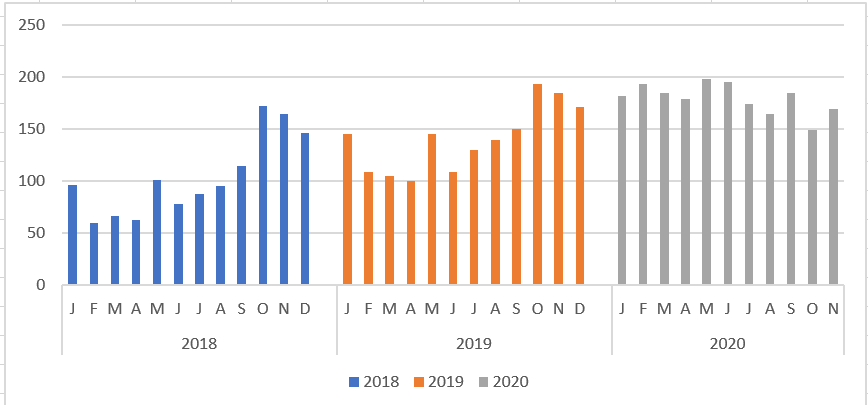
The following figure shows a chart that presents a side-by-side comparison of three periods. With this technique, you can display periods of different colors without breaking the continuity of the overall trend.
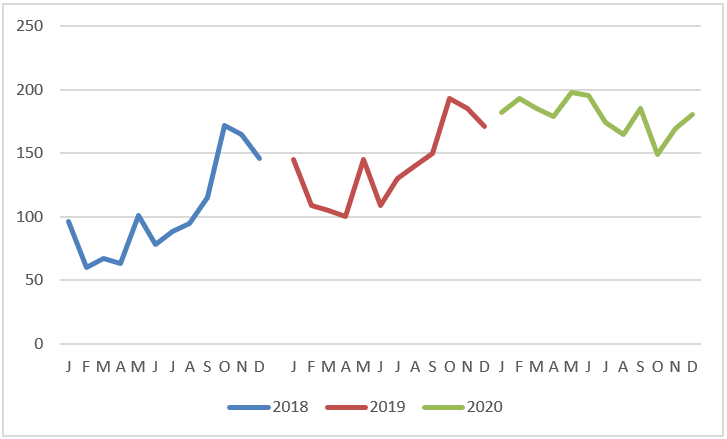
Here’s how to create this type of chart:
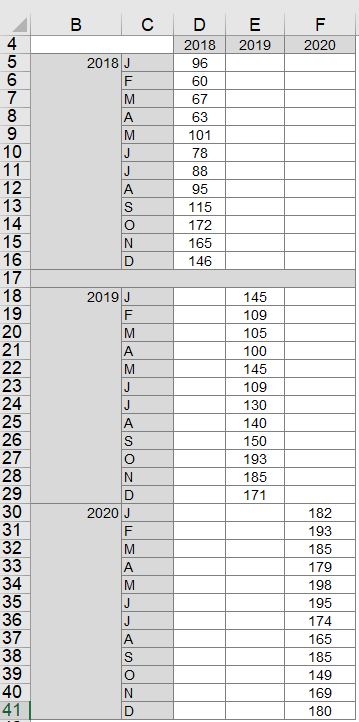
1. Structure your source data similarly to the structure shown in the following figure.
Notice that instead of placing all the data in one column, you are displaying the data in the respective years. This tells the chart to create three separate lines, taking into account the three colors.
2. Select the entire table and create a line chart.
This step creates the chart shown earlier. 3. If you want to get fancy, click on the chart to select it, then right-click and select Change Chart Type from the context menu that opens.
4. When the Change Chart Type dialog box opens, select Stacked Column Tables.
As you can see in the following figure, the chart now shows the trends for each year in columns.
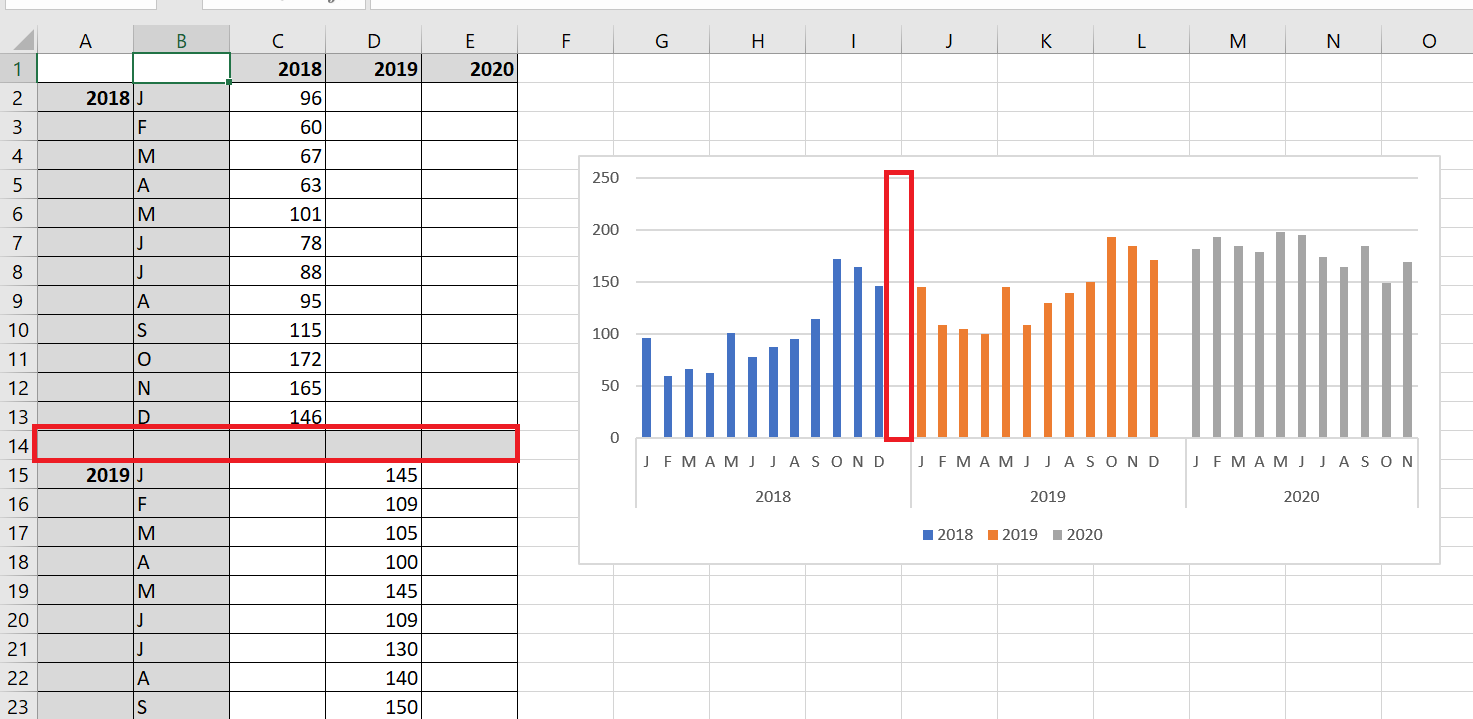
Do you want a gap between the years? Adding a gap in the source data (between each 12-month sequence) adds a gap in the chart, as shown in the following figure.
7 Create Combo Charts
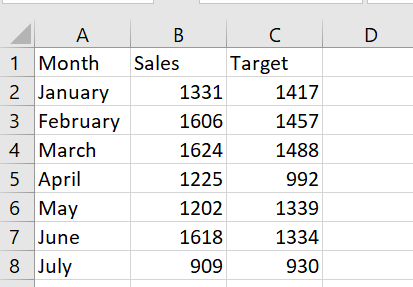
You want to create a chart that shows actual and target sales for each month. The histogram in the following figure is created from the figure’s database. To create it, select the range A1 : C8 and, on the Insert tab, select Histogram and choose the first 2D column chart, shown in the following figure.
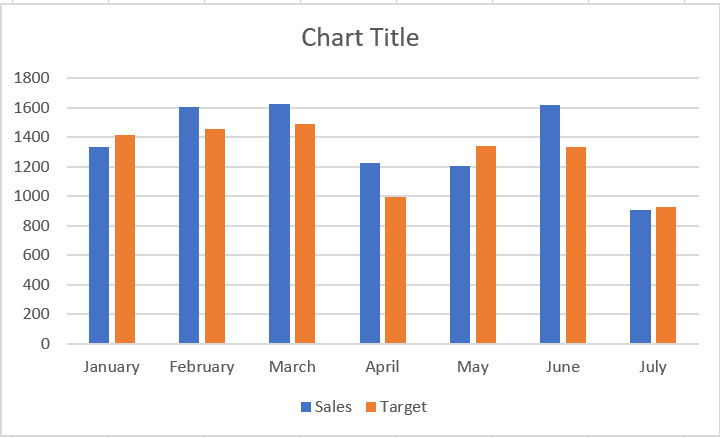
Using two columns makes it difficult to see the contrast between actual and target sales, so use a combination chart in which one series is plotted as a line and the other as a column.
To create a combination chart, follow these steps:
1. Right-click one of the series in the following figure and select Change Chart Type.
2. In the dialog box that appears, select Grouped Column – Row . This gives the combination graph shown in the following figure.
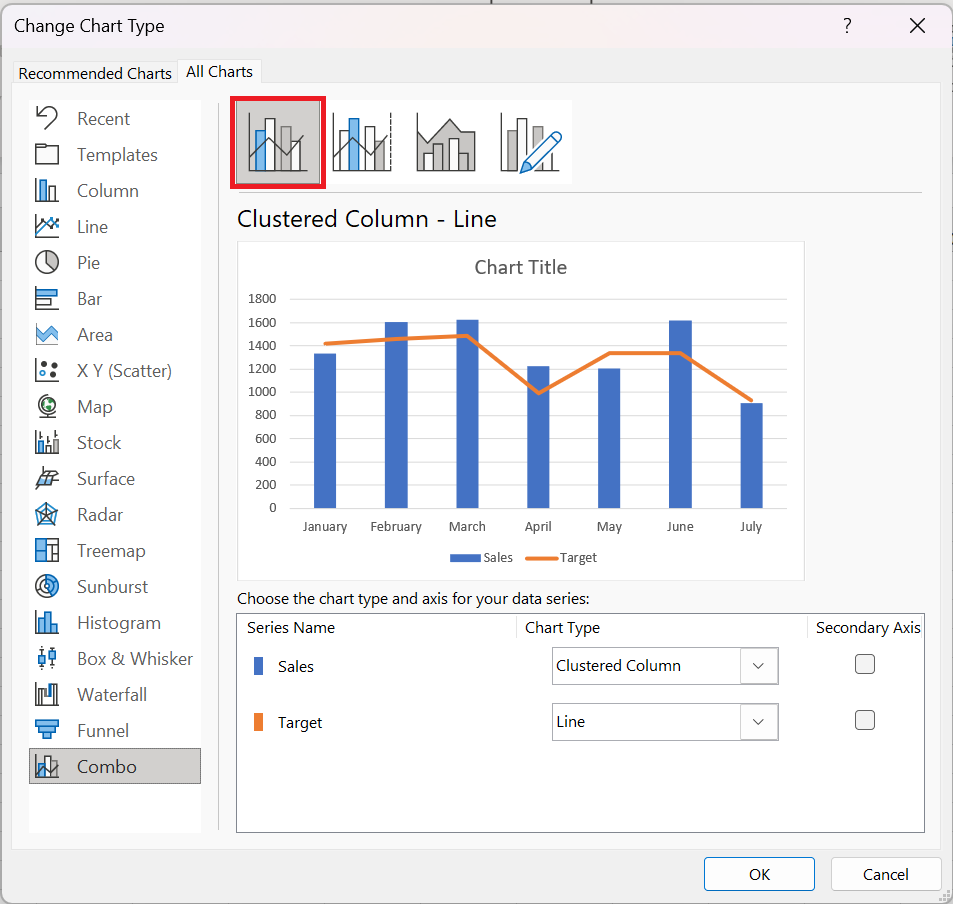
This technique works well with two time series.
8 The importance of the logarithmic scale
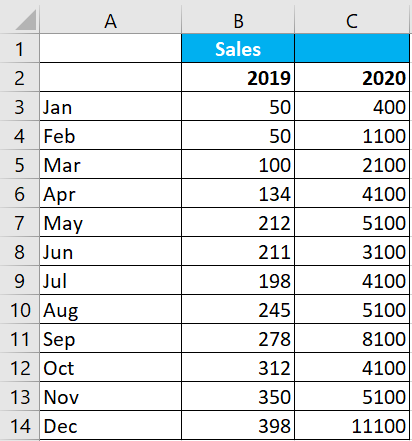
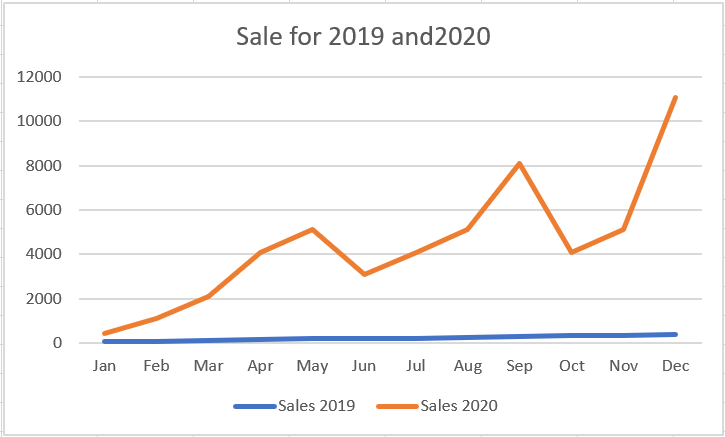
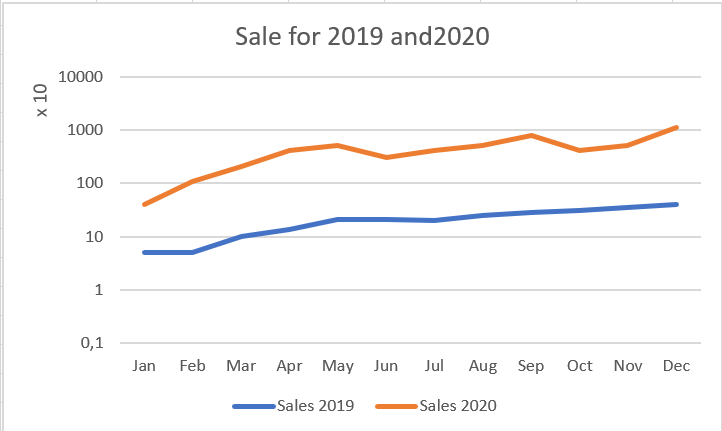
In some situations, your trends may start with very small numbers and end with very large numbers. In these cases, you end up with graphs that don’t accurately represent the actual trend. In the following figure, for example, you see the unit trends for 2019 and 2020. As you can see from the source data, 2019 started with a modest 50 units. As the months went by, the monthly unit count increased to 11,100 units by December 2010.
Because the two years are on different scales, it is difficult to discern a comparative trend for the two years.
The solution is to use a logarithmic scale instead of a standard linear scale. A logarithmic scale allows the axis to jump from 1 to 10; to 100 to 1000; and so on without changing the spacing between the axis points. In other words, the distance between 1 and 10 is the same as the distance between 100 and 1000. The following figure shows the same graph as the previous figure, but on a logarithmic scale. Notice that the trends for both years are now clear and accurately represented.
To change the vertical axis of a chart to logarithmic scaling, follow these steps:
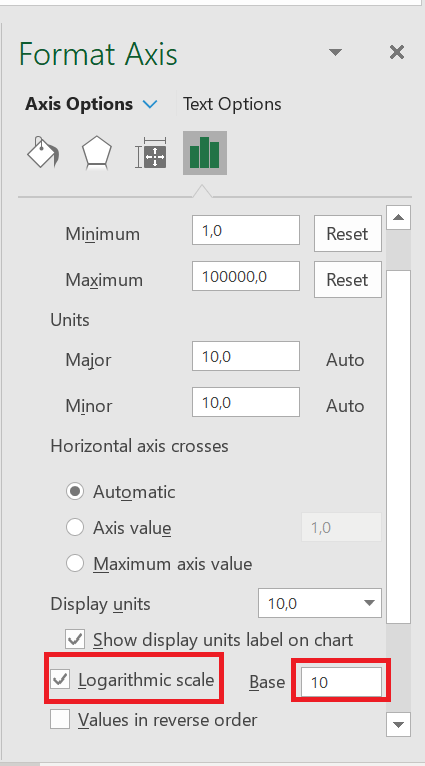
1. Right-click the vertical axis and choose Format Axis from the menu that appears. The
Format Axis dialog box appears.
2. Expand the Axis Options section and select the Logarithmic Scale check box , as shown in the following figure.
Logarithmic scales only work with positive numbers.
9 Reset the vertical axis to zero
The vertical axis on a trend chart should normally start at zero. In these situations (negative values or fractions), it’s usually best to keep Excel’s default scaling. However, if you only have positive whole numbers, make sure the vertical axis starts at zero.
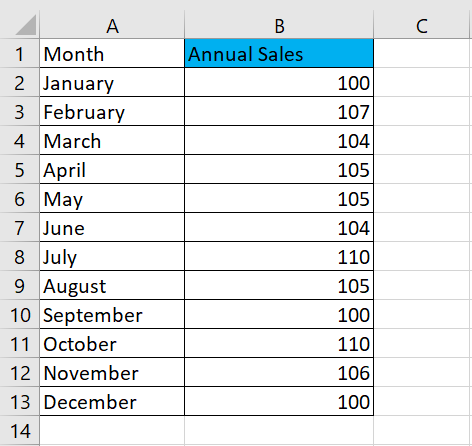
Indeed, the vertical scale of a chart can have a significant impact on the representation of a trend. For example, compare the two charts shown in the following figure. Both charts contain the same data. The only difference is that in the upper chart, I did nothing to correct the vertical scale assigned by Excel (it starts at 96), but in the lower chart, I corrected the scale so that it starts at zero.
Figure: Vertical scales should always start at zero.
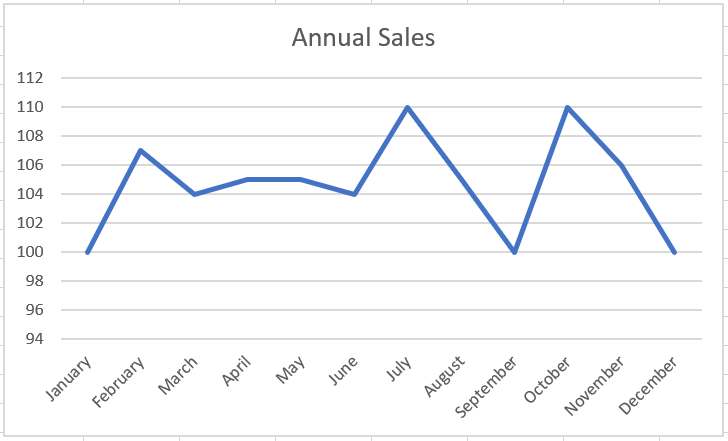
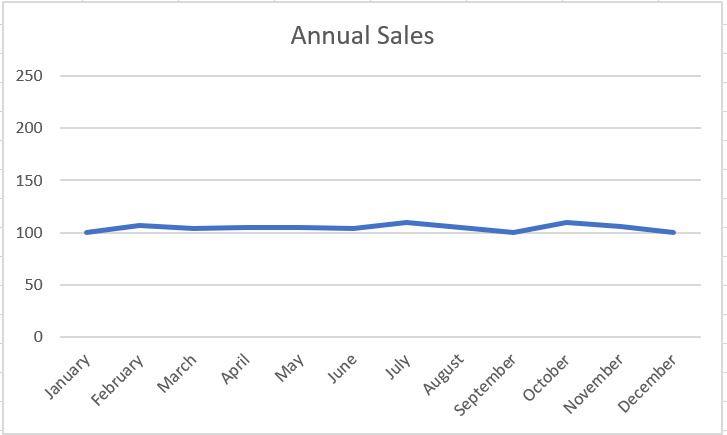
Now, you might think the top chart is more accurate because it shows the ups and downs of the trend. However, if you look at the numbers closely, you’ll see that the units represented have increased from 100 to 110 in 12 months. This isn’t exactly a significant change, and there’s no doubt that such a picture is unjustifiable. In truth, the trend is relatively flat, but the chart shows that the trend is upward.
The lower graph more accurately reflects the true nature of the trend. I achieved this effect by locking the Minimum value on the vertical axis to zero.
To adjust the scale of the vertical axis, follow these simple steps:
1. Right-click the vertical axis and choose « Format Axis » from the menu that appears.
The Format Axis dialog box appears.
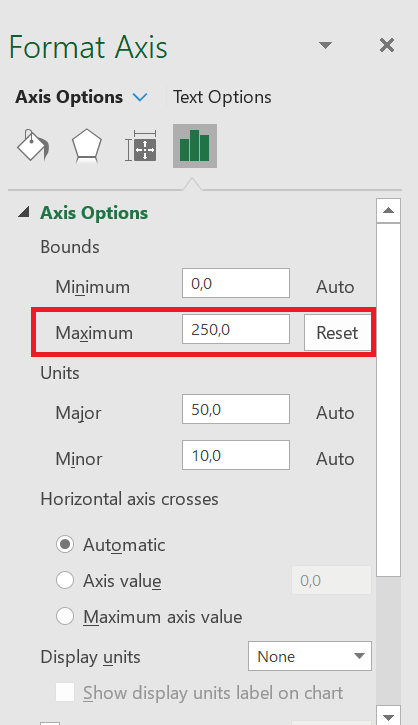
2. In the Format Axis dialog box, expand the Axis Options section and set the value in the Minimum box to 0.
3. Set the value in the Maximum box to 250 (double the actual value). This ensures that the trend line is placed in the middle of the chart.
4. Click Close to apply your changes.
Many would argue that the lower chart obscures small-scale trends that may be important. In other words, a difference of 7 units can be significant in some companies.