Votre panier est actuellement vide !
Étiquette : macro_game
Snake Game Board Setup in Excel VBA
In the class module ThisWorkbook, you will find the procedure Workbook_Open(). This procedure sets up the game board immediately after opening the file.
Private Sub Workbook_Open()
    ThisWorkbook.Worksheets("Sheet1").Activate
    Cells.Delete
    Cells.RowHeight = 20
    Cells.ColumnWidth = 3.5
    ' Borders for the game board
    Range("B2:K2").Borders(xlEdgeTop).Weight = xlThick
    Range("B11:K11").Borders(xlEdgeBottom).Weight = xlThick
    Range("B2:B11").Borders(xlEdgeLeft).Weight = xlThick
    Range("K2:K11").Borders(xlEdgeRight).Weight = xlThick
    ' Start button cell
    Range("M2").Value = "Start"
    With Range("M2:O2")
        .Interior.Color = RGB(192, 192, 192)
        .MergeCells = True
        .HorizontalAlignment = xlCenter
        .VerticalAlignment = xlCenter
    End With
    ' Direction control cells with neutral cell in the center
    Range("N4, M5, O5, N6").Interior.Color = RGB(192, 192, 192)
    Range("N5").Activate
    ' Counter cell
    Range("N8").Value = 0
    With Range("N8")
        .Interior.Color = vbYellow
        .HorizontalAlignment = xlCenter
        .VerticalAlignment = xlCenter
    End With
    ' Info button cell
    Range("M11").Value = "Info"
    With Range("M11:O11")
        .Interior.Color = RGB(192, 192, 192)
        .MergeCells = True
        .HorizontalAlignment = xlCenter
        .VerticalAlignment = xlCenter
    End With
End Sub
Explanation:
- The worksheet Sheet1 is activated.
- Using the Delete method on all Cells, the sheet is cleared.
- The row height and column width of all cells are set to create square-shaped cells (row height = 20, column width = 3.5).
- The game board is defined by the range B2:K11, and thick borders are applied around its edges. This border defines the game boundary the snake must not collide with.
- The cells for the START button (range M2:O2) are merged into one large cell, filled with a gray background color, and text is centered horizontally and vertically.
- Similarly, the INFO button cells (M11:O11) are merged and formatted the same way.
- The four cells used to control the snake’s movement direction (N4, M5, O5, N6) are shaded gray.
- The cell N5 in the center of these direction controls is activated. This activation happens after every click to ensure the SelectionChange event fires on the next click; otherwise, clicking the same cell twice would not trigger the event.
- The counter cell (N8) is initialized to zero and colored yellow, with centered text both horizontally and vertically.
Operating the Game in Excel VBA
In the class module for Sheet1, you will find two module-level variables and the procedure Worksheet_SelectionChange(). These are used to handle user interaction with the game.
Dim row1 As Integer, col1 As Integer
Private Sub Worksheet_SelectionChange(ByVal Target As Range)
    Dim row As Integer, col As Integer
    Dim startTime As Single
    ' Start and Info buttons
    If Target.Address = "$I$2:$K$2" Then
        StartGame
    ElseIf Target.Address = "$I$7:$K$7" Then
        MsgBox "Find 18 pairs of symbols." & vbCrLf & _
               "Select two cells one after another." & vbCrLf & _
               "You will see the symbol in each cell." & vbCrLf & _
               "One second after selecting the 2nd cell, both symbols are covered again.", , "Game Description"
    ' Memory game cells
    Else
        ' Determine row and column numbers from the cell address
        row = Val(Mid(Target.Address, 4, 1))
        col = Asc(Mid(Target.Address, 2, 1)) - 64
        ' If outside the game board, exit
        If row < 2 Or row > 7 Or col < 2 Or col > 7 Then Exit Sub
        ' If the symbol is already found (empty), exit
        If Symbols(row, col) = "" Then Exit Sub
        ' Second symbol selection
        If FirstSymbolVisible Then
            FirstSymbolVisible = False
            ' Show second symbol
            Cells(row, col).Value = Symbols(row, col)
            Cells(row, col).Interior.Color = xlNone
            ' Wait one second
            startTime = Timer
            Do While Timer < startTime + 1
                DoEvents
            Loop
            ' Clear both cells
            Cells(row, col).Value = ""
            Cells(row1, col1).Value = ""
            ' Check if pair found
            If Symbols(row, col) = Symbols(row1, col1) Then
                ' Remove pair from the game visually
                Cells(row, col).Interior.Color = xlNone
                Cells(row1, col1).Interior.Color = xlNone
                Symbols(row, col) = ""
                Symbols(row1, col1) = ""
                ' Increase found count
                PairsFound = PairsFound + 1
                ' Check for game end
                If PairsFound = 18 Then
                    GameStarted = False
                    MsgBox "Game Over", , "End"
                End If
            Else
                ' Hide symbols again by coloring gray
                Cells(row, col).Interior.Color = RGB(192, 192, 192)
                Cells(row1, col1).Interior.Color = RGB(192, 192, 192)
            End If
        ' First symbol selection
        Else
            FirstSymbolVisible = True
            Cells(row, col).Value = Symbols(row, col)
            Cells(row, col).Interior.Color = xlNone
            row1 = row
            col1 = col
        End If
    End If
End Sub
Explanation:
- The module-level variables z1 and s1 store the row and column numbers of the first selected cell.
- The event procedure Worksheet_SelectionChange() is triggered whenever the user clicks a new cell. Variables z and s extract the row and column numbers from the clicked cell’s address.
- The variable Startzeit stores the time at which a waiting loop starts.
- The Target object represents the selected range. Its .Address property returns the address string of the clicked cell or merged cell range.
- If the user clicks the START button cell (address $I$2:$K$2), the Starten procedure is called to initialize the game.
- If the user clicks the INFO button cell (address $I$7:$K$7), a message box with the game instructions is displayed.
- For other clicked cells, the row (z) and column (s) are determined by extracting parts of the address string with the functions Mid(), Val(), and Asc().
- Mid() extracts substrings.
- Val() converts a string to an integer.
- Asc() returns the ASCII code of a character; subtracting 64 converts column letters (A=1, B=2, etc.) to numeric indices.
- If the clicked cell lies outside the game board (rows or columns outside 2 to 7), the procedure exits immediately.
- If the symbol at the clicked cell has already been found (empty string), the procedure also exits. This enforces synchronization between the symbol array and the worksheet cells.
- The procedure distinguishes whether the clicked cell is the first or second in a pair selection by checking the Boolean ErstesZeichenSichtbar.
- When the second cell is selected:
- The second symbol is shown.
- The code waits for one second (using a loop checking the system timer).
- Then, both cells are cleared.
- If the symbols match, both cells are visually removed (background cleared), the symbol array entries cleared, and the count of found pairs incremented.
- If all 18 pairs are found, the game ends, and the Gestartet flag is reset so a new game can be started.
- If no match, both cells are covered again with the gray background.
- When the first cell is selected:
- Its symbol is revealed and background cleared.
- The row and column indices are saved for later comparison.
Enjoy playing the game, exploring the code, and programming your own extensions! For example, instead of 18 pairs with no background color, you could use 6 pairs with 3 different background colors. Then the player must remember not only the symbol but also the background color it appeared on.
Starting the Game in Excel VBA
In Module1, you will find several variables and an array declared with workbook-wide scope, along with the procedure Starten(). These serve to initialize the game and control its state.
Variables:
Public Symbols(2 To 7, 2 To 7) As String
Public Started As Boolean
Public FirstSymbolVisible As Boolean
Public Found As Integer
Explanation:
- These variables and the array are declared at the module (workbook) level because they need to be accessed by multiple procedures in different modules or different calls of the same procedure.
- The two-dimensional array Zeichen has 6 rows and 6 columns (indices 2 to 7 for both dimensions). It holds the 18 pairs of matching symbols distributed randomly on the game board.
- The Boolean variable Gestartet prevents the game from being started more than once if it is already running.
- The Boolean variable ErstesZeichenSichtbar indicates whether the first symbol is currently visible. This helps determine if the user has just clicked the first or the second cell.
- The Integer variable Gefunden counts how many pairs have been found so far. When it reaches 18, the game is over.
The procedure Starten():
' Global variables
Dim Symbols(1 To 8, 1 To 8) As String
Dim Started As Boolean
Dim FirstSymbolVisible As Boolean
Dim Found As Integer
Sub StartGame()
    Dim row As Integer, col As Integer
    Dim i As Integer
    ' Variables for shuffling
    Dim row1 As Integer, col1 As Integer
    Dim row2 As Integer, col2 As Integer
    Dim temp As String
    ' Prevent restarting if already started
    If Started Then Exit Sub
    Started = True
    ' Fill array with pairs of characters (A to R, each appears twice)
    row = 2
    col = 2
    For i = 1 To 18
        Symbols(row, col) = Chr(i + 64)         ' ASCII code for letters A to R
        Symbols(row, col + 1) = Chr(i + 64)
        col = col + 2
        If col > 7 Then
            row = row + 1
            col = 2
        End If
    Next i
    ' Initialize random number generator
    Randomize
    ' Shuffle array elements by swapping pairs 180 times
    For i = 1 To 180
        row1 = Int(Rnd * 6 + 2)
        col1 = Int(Rnd * 6 + 2)
        row2 = Int(Rnd * 6 + 2)
        col2 = Int(Rnd * 6 + 2)
        temp = Symbols(row1, col1)
        Symbols(row1, col1) = Symbols(row2, col2)
        Symbols(row2, col2) = temp
    Next i
    ' Cover all game board cells and fill with gray background
    For row = 2 To 7
        For col = 2 To 7
            Cells(row, col).Value = ""
            Cells(row, col).Interior.Color = RGB(192, 192, 192)
        Next col
    Next row
    ' Set initial states
    FirstSymbolVisible = False
    Found = 0
End Sub
Explanation:
- The integer variables z, s, and i are used for filling the two-dimensional array.
- The variables z1, s1, z2, and s2 plus the string variable Tausch are used for swapping elements during the shuffle.
- The Boolean variable Gestartet is checked to prevent restarting the game if it is already running; if it’s the first start, it is set to True.
- The array is filled row-wise: first two elements with the letter « A » (ASCII 65), then two elements with « B » (ASCII 66), and so on. After placing three pairs in one row, it moves to the next row.
- The Randomize statement initializes the random number generator.
- The shuffle process swaps pairs of elements 180 times at random positions to thoroughly mix the array contents.
- All cells of the game board are cleared and filled with a gray background color.
- Initial values are set: no symbol is visible yet, and the number of found pairs is zero.
Game Board Setup in Excel VBA
In the class module ThisWorkbook, you will find the procedure Workbook_Open(). This procedure initializes the game board right after the workbook is opened:
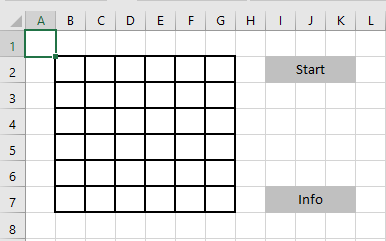
Private Sub Workbook_Open()
    ' Clear all cells and set them to square shape
    ThisWorkbook.Worksheets("Sheet1").Activate
    Cells.Delete
    Cells.RowHeight = 20
    Cells.ColumnWidth = 3.5
    ' Add borders and formatting to the game board area
    With Range("B2:G7")
        .Borders.Weight = xlMedium
        .HorizontalAlignment = xlCenter
        .VerticalAlignment = xlCenter
        .Font.Size = 14
    End With
    ' Setup START button cell
    Range("I2").Value = "Start"
    With Range("I2:K2")
        .Interior.Color = RGB(192, 192, 192)
        .MergeCells = True
        .HorizontalAlignment = xlCenter
        .VerticalAlignment = xlCenter
    End With
    ' Setup INFO button cell
    Range("I7").Value = "Info"
    With Range("I7:K7")
        .Interior.Color = RGB(192, 192, 192)
        .MergeCells = True
        .HorizontalAlignment = xlCenter
        .VerticalAlignment = xlCenter
    End With
End Sub
Explanation:
- The worksheet Sheet1 is first activated.
- Using the Delete method on Cells, all cell contents are cleared.
- The row height and column width of all cells are set to create square-shaped cells (row height = 20, column width = 3.5).
- The game board area, defined as the range from B2 to G7, is formatted with medium-weight borders. Cell content is centered horizontally and vertically, and the font size is set to 14.
- The cells for the START button (range I2:K2) are merged into one large cell, filled with a gray background color, and the text is horizontally and vertically centered.
- The same setup is applied for the INFO button in cells I7:K7.