Votre panier est actuellement vide !
Étiquette : useform
Text Box (TextBox) in a Custom UserForm, Excel VBA
The TextBox control is mainly used for user input, which is then used in the program, or to display the program’s calculation results.
The text entered in a TextBox can be converted into numbers or formulas in the code. The main event associated with the TextBox is the Change event.
Table 1: Basic TextBox Properties
Property Description NameSets the name of the text box TextReturns the text contained in the text box MultilineBoolean setting that defines whether the text box supports multiple lines ScrollBarsSets the display mode of scroll bars in the text box SelLength,SelStart,SelTextThese properties describe the selected text fragment within the TextBox MaxLengthSets the maximum number of characters allowed in the text box PasswordCharDefines the character displayed when entering a password Adding Two Numbers
As an example using text boxes, let’s create a project where the sum of two numbers entered in two TextBoxes is calculated and the result is shown in a third TextBox, as shown in the figure below.

Create a UserForm with three Labels, three TextBoxes, and two CommandButtons. Use the Properties Window to set their values as shown.
Table 2: Property values defined in the Properties Window
Object Property Value UserForm Caption c = a + b Label Caption A TextBox Name txtA Label Caption B TextBox Name txtB Label Caption C TextBox Name txtC CommandButton Name cmdOK Caption OK CommandButton Name cmdANNULER Caption CANCEL In the form module, type the following code:
Private Sub cmdOK_Click()
    Dim a As Double, b As Double, c As Double
    a = txtA.Text
    b = txtB.Text
    c = a + b
    txtC.Text = c
End Sub

Private Sub cmdANNULER_Click()
    Unload Me
End Sub
Comments:
- The two numbers are entered into TextBoxes
txtAandtxtB, and the sum is calculated intxtCwhen the OK button is clicked. - The syntax
Unload Mecloses the form when the CANCEL button is pressed.
Keyboard Shortcut Button
The Accelerator property of a control specifies a letter or number key that, when pressed along with the
<Alt>key, triggers the control’s click event. This key must be part of the Caption string and appears underlined.
For example, to associate<Alt> + Owith OK and<Alt> + Awith CANCEL:Private Sub UserForm_Initialize() cmdOK.Accelerator = "O" cmdANNULER.Accelerator = "A" End Sub<Enter> and <Esc> Keys
- The Default property set to
Truedesignates the button triggered by pressing<Enter>. - The Cancel property set to
Truedesignates the button triggered by pressing<Esc>.
This means
<Enter>finds the sum and<Esc>closes the form.Private Sub UserForm_Initialize() cmdOK.Default = True cmdCancel.Cancel = True End SubLocking the Result TextBox
- The Enabled property set to
Falsedisables the control completely (no focus). - The Locked property set to
Trueprevents editing while still displaying content.
Example:
Private Sub UserForm_Initialize()
    txtC.Enabled = False
End Sub
Prevent Button from Taking Focus
By default, clicking a button gives it focus. To keep focus on the current control, set TakeFocusOnClick to
False:Private Sub UserForm_Initialize() cmdOK.TakeFocusOnClick = False End SubMove Focus with <Enter>
Use the KeyDown event to detect when the
<Enter>key is pressed and move focus accordingly usingSetFocus.Private Sub txtA_KeyDown(ByVal KeyCode As MSForms.ReturnInteger, _ ByVal Shift As Integer) If KeyCode = vbKeyReturn Then txtB.SetFocus End If End Sub Private Sub txtB_KeyDown(ByVal KeyCode As MSForms.ReturnInteger, _ ByVal Shift As Integer) If KeyCode = vbKeyReturn Then cmdOK_Click txtA.SetFocus End If End Sub Private Sub UserForm_Initialize() txtC.Locked = True End SubComments:
- The KeyDown event occurs when a key is pressed.
- The KeyUp event occurs when the key is released.
Syntaxes:
Private Sub Object_KeyDown(ByVal KeyCode As MSForms.ReturnInteger, ByVal Shift As fmShiftState)
Private Sub Object_KeyUp(ByVal KeyCode As MSForms.ReturnInteger, ByVal Shift As fmShiftState)
Parameters:
Element Description ObjectRequired. A valid object name KeyCodeRequired. Integer representing the key code ShiftRequired. Shift, Ctrl, Alt state during the event Table 4: Shift Key Parameters
Constant Value Description fmShiftMask1 Shift key pressed fmCtrlMask2 Ctrl key pressed fmAltMask4 Alt key pressed Common KeyCode Constants:
Constant Value Description vbKeyReturn0xD Enter key vbKeyEscape0x1B Escape key vbKeyTab0x9 Tab key vbKeyBack0x8 Backspace vbKeyLeft0x25 Left arrow vbKeyUp0x26 Up arrow vbKeyRight0x27 Right arrow vbKeyDown0x28 Down arrow … (and many others) To move focus, use
Object.SetFocus.ToolTip Text
Controls can have ToolTips using the ControlTipText property, which displays help text when the mouse hovers over the control.
Example:Private Sub cmdOK_Click() Dim a As Double, b As Double, c As Double a = txtA.Text b = txtB.Text c = a + b txtC.Text = c End Sub Private Sub cmdANNULER_Click() Unload Me End Sub Private Sub UserForm_Initialize() txtA.ControlTipText = "Value of a" txtB.ControlTipText = "Value of b" txtC.ControlTipText = "Value of c" cmdOK.ControlTipText = "Sum of a + b" cmdANNULER.ControlTipText = "Cancel operation" End Sub- The two numbers are entered into TextBoxes
The Label in a UserForm or Custom Form, Excel VBA
The Label control is used to display information or captions. The user cannot modify the text displayed in the caption during program execution. The main property of the Label is the Caption property, which defines the text that is displayed.
A label does not display values from data sources or expressions; it is always unbound and does not change when you move from one record to another.
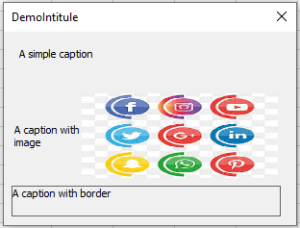
The following example shows different types of Labels: simple, with an image, and with a border. To implement this project, create a form in which you place three Labels. The image file
D:\chiennoir.jpgis used. In the form module, type the following code:Private Sub UserForm_Initialize() Me.Caption = "DemoLabel" Label1.Caption = "A simple caption" Label2.Caption = "A caption with image" Label2.Picture = LoadPicture("logo.jpg") Label2.PicturePosition = fmPicturePositionRightCenter Label3.Caption = "A caption with border" Label3.BorderStyle = fmBorderStyleSingle Label3.WordWrap = True End SubComments
■ In the Property window of
Label2, the image is loaded using the Picture property. The PicturePosition property determines the relative position of the image and the text.■ In the Property window of
Label3, the BorderStyle property defines whether the text box is displayed with or without a border.■ The WordWrap property returns or sets a Boolean value that specifies whether the contents of a control automatically wrap at the end of a line, or whether the control expands to fit the text size.
Custom Form or UserForm with a Tiled Background, Excel VBA
An image in a form can be displayed not only as a whole image but also as a tiled background. In this case, the PictureTiling property must be set to
True. You also need to take care of the PictureAlignment property, which sets the location of the initial image, from which the entire tiling pattern is constructed.Form properties can be set using the Properties Window or in code. In the latter case, this is typically done within the Initialize event procedure of the form, which is triggered when the form is initialized but before it is displayed on the screen.
As an example, let’s build a form with a tiled background and set its properties in code during the form’s initialization phase.
Now, create a form and type the following code into the form’s module. Also, make sure the default folder that Excel uses contains the image file you want to display as a tiled background.
Private Sub UserForm_Initialize()
    Me.Caption = "Tiled"
    Me.BorderStyle = fmBorderStyleNone
    Dim imageA As String
    imageA = "image1.jpg"
    If Len(Dir(imageA)) > 0 Then
        Me.Picture = LoadPicture(imageA)
        Me.PictureAlignment = fmPictureAlignmentTopLeft
        Me.PictureTiling = True
    Else
        MsgBox "No file found at " & CurDir & "\" & imageA
    End If
End Sub
Remarks
- To find out which directory is currently set as default, go to the File tab on the ribbon and click the Options button. In the Excel Options window that opens, select the Save category on the left. On the right, in the Save Workbooks section, the Default local file location field will show the current working directory. You can change it if needed.
- This application checks for the existence of a bitmap file in the given directory using the
Dir()function. If the file is not in the working directory, the form will launch without a tiled background. - The
Dir()function returns the name of a directory or file that matches the pattern passed as its argument. - If no matching directory or file is found,
Dir()returns an empty string. Therefore, checking for the existence of a file simply involves checking whether the length of the string returned byDir()is zero. If it is zero, the file does not exist.
Creating a Custom Form or UserForm with a Changeable Background, Excel VBA
A background image can be incorporated into a form using the Picture property. This property displays the image at its original dimensions. If you want the image to fill the entire client area of the form or to stretch across its full width or height, use the PictureSizeMode property. The PictureAlignment property places the image within the form’s client area—for example, centered or aligned to specific sides of the form.
Let’s build a project with a form where an image is displayed as the background. When you click the form, two images will alternate.
To implement the project, you need two images. In this case:
C:\image1.jpgandC:\image2.jpg.Now, create a form and use the Properties Window to set its property values as shown in the table below:
Table: Property Values Set in the Properties Window
Object Property Value Form/UserForm Picture Link to bitmap file C:\image1.jpgPictureSizeMode FmPictureSizeModeStretchCaption Changeable Backgrounds Then, double-click on the left mouse button inside the form, and in the opened UserForm module, type the following code:
Private Sub UserForm_Click()
    Static flag As Boolean
    Dim filename As String
    If Not flag Then
        filename = "C:\image1.jpg"
        Me.Picture = LoadPicture(filename)
        Me.PictureSizeMode = fmPictureSizeModeStretch
        Me.Caption = "Changeable Background Images " & filename
    Else
        filename = "C:\image2.jpg"
        Me.Picture = LoadPicture(filename)
        Me.PictureSizeMode = fmPictureSizeModeZoom
        Me.PictureAlignment = fmPictureAlignmentTopLeft
        Me.Caption = "Changeable Background Images " & filename
    End If
    Me.Repaint
    flag = Not flag
End Sub
Remarks
Now, when you click the form, the images
C:\image1.jpgandC:\image2.jpgwill alternate as background images.- The image is loaded from a file using the
LoadPicturefunction, whose parameter is the source filename. - Since the value of the PictureSizeMode property for image
C:\image1.jpgisfmPictureSizeModeStretch, it will stretch or shrink without keeping proportions to fill the form’s client area. - The PictureSizeMode value for image
C:\image2.jpgisfmPictureSizeModeZoom, so it will stretch or shrink proportionally to fit either the width or height of the client area. - The PictureAlignment property set to
fmPictureAlignmentTopLeftaligns the top-left corner of the image with the top-left corner of the form’s client area. - In the Properties window, you can remove the image by placing the cursor in the Picture field and pressing the Delete key.
- In code, the image is removed by assigning an empty value to the Picture property, like this:
Me.Picture = LoadPicture("")- The image is loaded from a file using the
Confirming the Closing of a Window in a Custom Form UserForm, Excel VBA
In projects, a situation often arises where user confirmation is required before closing a form. This behavior can be handled by using the QueryClose event procedure, which is triggered just before the window closes. This procedure has two parameters. If the first parameter is set to
-1, the closing does not occur; if it is set to0, the window closes. The second parameter identifies the reason that caused the window to close.For example, in the following code, when you try to close the UserForm, a dialog box appears with two buttons: Yes and No, requiring user confirmation. If the user clicks Yes, the window closes; if No, it does not close.
Private Sub UserForm_QueryClose(Cancel As Integer, CloseMode As Integer) Select Case MsgBox("Close the window?", vbYesNo + vbQuestion) Case vbYes: Cancel = 0 Case vbNo: Cancel = -1 End Select End SubUsing Multiple Custom Forms or UserForms (Modal Window), Excel VBA
Modal Window
A modal window is a window that cannot be closed without interacting with it first. By default, a custom window in VBA is modal. You can define the window type (modal or modeless) using the optional style parameter of the Show method.
Show Style
The
styleparameter has two valid values:vbModalor1for a modal form,vbModelessor0for a modeless form.
For example, with the following statement, the form window is displayed on the worksheet in modeless mode, and therefore, when the window is open, the user has access to the worksheet cells:
UserForm1.Show vbModeless
When the window is launched with the following statement, it is in modal mode, and therefore the worksheet cells are inaccessible to the user until the window is closed:
UserForm1.Show vbModal
Using Multiple Custom Forms
There can be multiple custom forms in a project. When switching from one form to another, it’s important to consider the mode (modal or modeless) in which the form is opened.
For example, add two forms—UserForm1 and UserForm2—to your project. Create a button on the worksheet and set its
Nameproperty tocmdForm1. When you press this button, the first form window will appear on screen.The two macros below show how the code to invoke the second form when the first is clicked must differ depending on whether the window type is modal or modeless.
In Modal Mode
Before displaying the second form, you must close the first one in the code. In this case, only one form is ever shown on screen—either the first or the second.
Worksheet Module Code:
Private Sub cmdForm1_Click()
    UserForm1.Show vbModal
End Sub
UserForm1 Module Code:
Private Sub UserForm_Click()
    Unload UserForm1
    UserForm2.Show
End Sub
In Modeless Mode
It is not necessary to close the first form, and after clicking on the first form, both forms will be displayed on screen. To ensure both forms are visible at the same time, the second form is positioned slightly offset from the first.
Worksheet Module Code:
Private Sub cmdForm1_Click()
    UserForm1.Show vbModeless
End Sub
UserForm1 Module Code:
Private Sub UserForm_Click() UserForm2.StartUpPosition = 0 UserForm2.Top = UserForm1.Top + 20 UserForm2.Left = UserForm1.Left + 20 UserForm2.Show End SubDisplaying a Custom Form or UserForm in Excel VBA
To display a UserForm, you execute the Show method in a statement using the syntax
FormName.Show. For example, if you followed the same steps as shown in the previous sections to create the UserForm frmEmployees, you could have a simple macro like this to call the UserForm:Sub EmployeeForm() frmEmployees.Show End SubIf you want to see what the UserForm looks like when it is called in the actual worksheet environment, without having to write a formal macro yourself, you can type
frmEmployees.Showin the Immediate Window and press Enter. The following figure shows how you and your users will see the example UserForm.
Closing, Unloading, and Hiding a Custom Form or UserForm in Excel VBA
You have two ways to close a UserForm. One way is with the Unload method and the other with the Hide method. Although both methods make the UserForm appear to disappear, they each perform different actions. This can be a point of confusion for beginner programmers, so it’s important to understand the distinction between Unload and Hide.
Unloading a UserForm
When you unload a UserForm, the form closes and its contents are cleared from memory. In most cases, this is what you want: that the entered data is saved in some way or passed to public variables, and then the form is closed. The instruction that unloads a UserForm is simply
Unload Me, and it is usually associated with a CommandButton for that purpose—such as the Cancel button placed on the example UserForm in this lesson.Suppose you want to unload the UserForm when you click the Cancel button. A quick and easy way to do this is to double-click the command button in the UserForm design view, as shown in Figure.

When you double-click the command button, you see these lines of code in the UserForm module:
Private Sub CommandButton2_Click()
End Sub
To complete the Click procedure, type
Unload Me. When you click the Cancel button, the UserForm is unloaded—that is, it closes and clears from memory the data that had been entered—using this Click event for that button:Private Sub CommandButton2_Click() Unload Me End SubNOTE
The keywordMerefers to the name of the active window.Hiding a UserForm
The Hide method makes the UserForm invisible, but the data that was in the UserForm remains in memory and can be displayed again when the form is shown once more. In some situations, this is exactly what you want—for example, when you are interacting with two or more UserForms and you want the user to focus on only one form at a time.
The instruction to hide a UserForm is:Me.Hide
Where does the code go in a custom form or UserForm? Excel VBA
A UserForm is a VBA object class that has its own module. Similar to the concept that each worksheet has its own module, each UserForm you add to your workbook is automatically created with its own module. Accessing the module of a UserForm is easy: in the VBE, you can double-click the UserForm itself in the design pane; or in the Project Explorer, you can right-click on the UserForm name and select View Code, as shown in the following figure.

Closing a Custom Form or UserForm by Pressing the Escape Key, Excel VBA
It is possible to close a custom form by pressing any key, such as . To do this, you simply need to write code that handles the
KeyDownevent, explicitly identify the required key, and close the form using theUnloadorEndstatement. TheKeyDownevent has two parameters: the first returns the code of the pressed key, and the second identifies the modifier key pressed. VBA has a special constantvbKeyEscapefor the Escape key code. The following code, placed in the custom form’s module, closes the window when the Escape key is pressed:Private Sub UserForm_KeyDown(ByVal KeyCode As MSForms.ReturnInteger, _ ByVal Shift As Integer) If KeyCode = vbKeyEscape Then Unload Me End If End SubComments
- The
KeyDownandKeyUpevents occur sequentially when you press and then release a key.- The
KeyDownevent occurs when a key is pressed. - The
KeyUpevent occurs when a key is released.
- The
Syntax:
Private Sub Object_KeyDown(ByVal KeyCode As MSForms.ReturnInteger, ByVal Shift As fmShiftState)
Private Sub Object_KeyUp(ByVal KeyCode As MSForms.ReturnInteger, ByVal Shift As fmShiftState)
These event syntaxes include the following elements:
Element Description ObjectRequired. The name of a valid object. KeyCodeRequired. Integer representing the code of the pressed or released key. ShiftRequired. State of the Shift, Ctrl, and Alt keys.
Table: Shift Parameter Constants
Constant Value Description fmShiftMask1 The Shift key was pressed fmCtrlMask2 The Ctrl key was pressed fmAltMask4 The Alt key was pressed You can use the following KeyCode constants anywhere in your code instead of numeric values:
Constant Value Description vbKeyLButton0x1 Left mouse button vbKeyRButton0x2 Right mouse button vbKeyCancel0x3 Cancel key vbKeyMButton0x4 Middle mouse button vbKeyBack0x8 Backspace key vbKeyTab0x9 Tab key vbKeyClear0xC Clear key vbKeyReturn0xD Enter key vbKeyShift0x10 Shift key vbKeyControl0x11 Ctrl key vbKeyMenu0x12 Menu key vbKeyPause0x13 Pause key vbKeyCapital0x14 Caps Lock key vbKeyEscape0x1B Escape key vbKeySpace0x20 Spacebar vbKeyPageUp0x21 Page Up key vbKeyPageDown0x22 Page Down key vbKeyEnd0x23 End key vbKeyHome0x24 Home key vbKeyLeft0x25 Left arrow key vbKeyUp0x26 Up arrow key vbKeyRight0x27 Right arrow key vbKeyDown0x28 Down arrow key vbKeySelect0x29 Select key vbKeyPrint0x2A Print Screen key vbKeyExecute0x2B Execute key vbKeySnapshot0x2C Snapshot key vbKeyInsert0x2D Insert key vbKeyDelete0x2E Delete key vbKeyHelp0x2F Help key vbKeyNumlock0x90 Num Lock key - The