Votre panier est actuellement vide !
Étiquette : cube-function
How to use the CUBEVALUE function in Excel
This function returns the value of a member (cell) from a cube.
Syntax
CUBEVALUE(connection; member_expression1; member_expression2; …)
Arguments
- connection (required): A string representing the name of the workbook connection to the cube, enclosed in quotation marks. After you type the first quotation mark, existing context-sensitive data connections will be displayed.
- member_expression1 (required) and member_expression2 (optional): You must provide at least one and up to 255 expressions that define the position of a member in the cube based on a Multidimensional Expression (MDX). The expression can be entered directly or referenced from a cell. Tuples can also be used in expressions. Alternatively, a member_expression can be a set defined with the CUBESET() function. If no measure is specified in a member_expression, the default measure for that cube is used. Because this argument can be repeated, you can define intersections. You can also use tuples.
Background
When you use CUBEVALUE() as an argument for another cube function, the MDX expression (rather than the displayed value) is used in the argument.
Error values and messages provide information about incorrect or missing entries:
- If the connection name is not a valid workbook connection, the CUBEVALUE() function returns the #NAME? error.
- If the OLAP server (or the offline cube) is unavailable, an error message will appear, but the content of the affected cell will not change.
- If at least one member within the arguments or the tuple is invalid, the CUBEVALUE() function returns the #VALUE!.
- If a member_expression is longer than 255 characters, the CUBEVALUE() function returns the #VALUE!.
- CUBEVALUE() returns the #N/A error when:
- The member_expression syntax is incorrect.
- The member specified in the MDX query does not exist in the cube.
- The tuple is invalid because there is no intersection for the specified values.
- The set contains at least one member with a different dimension from the other members.
- CUBEVALUE() might also return the #N/A error when the connection to the data source is interrupted and cannot be re-established.
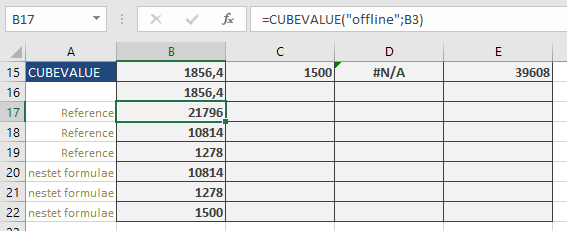
The formula: =CUBEVALUE(« offLine », »[Measures].[GrossSales] », »[Stores].[Store].[All].[NorthEast] », »[Years].[Year].[All].[2009] », »[Products].[Product].[All].[Cookies] ») calculates the gross sales for cookies in the « NorthEast » store in the year 2009, which is $1,856.40. You will get the same result if you use a tuple (where the arguments of the previous formula are enclosed in parentheses): =CUBEVALUE(« offline », »([Measures].[GrossSales],[Stores].[Store].[All].[NorthEast],[Years].[Year].[All].[2009],[Products].[Product].[All].[Cookies]) »)
If you enter the formula =CUBEMEMBER(« offLine », »[Products].[Product].[All].[Cookies] ») in cell B3, then the formula =CUBEVALUE(« offline »,B3) returns the total sales for cookies: $21,796.
You can also use examples from the CUBEKPIMEMBER() function. For instance, the formula: =CUBEVALUE(« offline »,CUBERANKEDMEMBER(« offline »,CUBESET(« offline », »[Stores].[Store].Children », »all store sales »,2; »[Measures].[Sale] »),1)) returns $10,814 for the total sales of the best-performing store (« NorthEast »).
How to use the CUBESETCOUNT function in Excel
This function returns the number of members in a set.
Syntax
CUBESETCOUNT(set)
Argument
- set (required): A set defined using the CUBESET() function, or a reference to a cell that contains members of the cube.
Background
The result of this function is an integer. If the argument causes an error, that error will also be returned as the result.
Example
If you reference a cell in the CUBESETCOUNT() function that returns the sorted set of stores, such as with the formula:
=CUBESET(« offline », »[Stores].[Store Name].Children »; « all sales »;2; »[Measures].[Sale] »)

the result will be 4. You’ll get the same result if you pass this entire formula as an argument directly to CUBESETCOUNT(). Note that the keyword Children is not context-sensitive.
How to use the CUBESET function in Excel
This function returns a calculated set of members by sending a set expression to the cube on the server, which then creates and returns that set to Excel. Note that the displayed content of the cell and its actual value will differ.
Syntax
CUBESET(connection; set_expression; caption; sort_order; sort_by)
Arguments
- connection (required): A string that specifies the name of the workbook connection to the cube, enclosed in quotation marks. As you type the first quotation mark, existing context-sensitive data connections will be displayed.
- set_expression (required): Defines the number of elements in the cube based on a Multidimensional Expression (MDX). You can enter the expression directly or reference a cell containing the expression. Tuples can also be used in expressions.
- caption (optional): A string to be displayed in the cell instead of the member’s caption from the cube. If a tuple is used, the function returns the caption of the last member in the tuple.
- sort_order (optional): This integer value determines the type of sorting and affects how the fifth argument, sort_by, is treated (see Table 1). The available options are context-sensitive.
Table 1. Integers for the Fourth Argument of the CUBESET() Function
lnteger Description lmpact on the Fifth Argument 0
Leaves the set in the existing order in the cube
Ignored
1
Sorts the set in ascending order by
sort_by
Required
2
Sorts the set in descending order by
sort_by
Required
3
Sorts the set in ascending alphabetical order
Ignored
4
Sorts the set in descending alphabetical order
Ignored
5
Sorts the set in natural ascending order
Ignored
6
Sorts the set in natural descending order
Ignored
The default value for the fourth argument is 0. Alphabetical sorting for a set of tuples is based on the last element in the tuple. You can find more information about different sort orders in the SQL Analysis Services Help documentation.
- sort_by (optional): This argument depends on the fourth argument (sort_order) and defines the values within the set that will be sorted. If sort_by is not provided but sort_order requires it, the function returns the #VALUE! error.
Background
When you use CUBESET() as an argument for another cube function, the set itself (not its displayed value) is used in the argument.
Error values and messages provide information about incorrect or missing entries:
- If the connection name is not a valid workbook connection, the CUBESET() function returns the #NAME? error.
- If the OLAP server (or the offline cube) is unavailable, an error message will appear, but the content of the affected cell will not change.
- If set_expression is longer than 255 characters, the CUBESET() function returns the #VALUE! error.
- CUBESET() returns the #N/A error when:
- The set_expression syntax is incorrect.
- The set specified in the MDX query does not exist in the cube.
- The set contains at least one member with a different dimension from the other members.
- CUBESET() might also return the #N/A error when the connection to the data source is interrupted and cannot be re-established.
Example
The formula =CUBESET(« offline », »[Stores].[Store Name].Children », « all sales »,2, »[Measures].[Sale] ») returns the sorted set of all stores based on their sales (across all products and years). The store with the largest sale will be listed first.
You can use the cell containing the formula to create cell labels. The actual content of the cell becomes more informative when it refers to cells containing CUBESET() entries.

How to use the CUBERANKEDMEMBER function in Excel
This function returns the n-th member in a set.
Syntax
CUBERANKEDMEMBER(connection; set_expression; rank; caption)
Arguments
- connection (required): A string representing the name of the workbook connection to the cube. After you type the first quotation mark, existing context-sensitive data connections are displayed.
- set_expression (required): Defines the number of members in the cube based on a Multidimensional Expression (MDX). The expression can be entered directly or referenced from a cell. Tuples can also be used in expressions.
- rank (required): An integer indicating the position of a member within the set.
- caption (required): A string to be displayed in the cell instead of the member’s caption from the cube. If a tuple is used, the function returns the caption of the last member in the tuple.
Background
Error values and messages provide information about incorrect or missing entries:
- If the connection name is not a valid workbook connection, the CUBERANKEDMEMBER() function returns the #NAME? error.
- If the OLAP server (or the offline cube) is not available, an error message will appear, but the content of the affected cell will not change.
- If set_expression is longer than 255 characters, the CUBERANKEDMEMBER() function returns the #VALUE! error.
- CUBERANKEDMEMBER() returns the #N/A error when:
- The set_expression syntax is incorrect.
- The set specified in the MDX query does not exist in the cube.
- CUBERANKEDMEMBER() might also return the #N/A error when the connection to the data source is interrupted and cannot be re-established.
Example
If you reference a cell in the formula =CUBERANKEDMEMBER(« offline »,B9,1) that returns the store set with =CUBESET(« offline », »[Stores].[Store].Children », « all store sales »,2, »[Measures].[Sale] »), the result is NorthEast. This store has the most sales for all products and in all years.
The nested formula =CUBERANKEDMEMBER(« offLine »,CUBESET(« offLine », »([Stores].[Store].[All].[NorthEast], [Years].Children) », »all sales »,2; »[Measures].[Sales] »),3) calculates the year with the least sales for this store (position 3): 2011.

How to use the CUBEMEMBERPROPERTY function in Excel
This function returns the property of a member from the cube. Use CUBEMEMBERPROPERTY() to validate that a member exists within the cube and to return the property for this member as a value.
Syntax
CUBEMEMBERPROPERTY(connection; member_expression; property)
Arguments
- connection (required): A string representing the name of the workbook connection to the cube. After you type the first quotation mark, existing context-sensitive data connections are displayed.
- member_expression (required): Defines the position of a member in the cube based on a Multidimensional Expression (MDX). The expression can be entered directly or referenced from a cell. Tuples can also be used in expressions.
- property (required): The name of the property for which you want to return the value.
Background
In the example in this section, the stores have the « Group » property with possible values of « North » or « South ».
While the data is being queried, the message #GETTING_DATA temporarily appears in the cell containing the function.
Error values and messages provide information about incorrect or missing entries:
- If the connection name is not a valid workbook connection, the CUBEMEMBERPROPERTY() function returns the #NAME? error.
- If the OLAP server (or the offline cube) is unavailable, an error message will appear, but the content of the affected cell will not change.
- If the member_expression syntax is incorrect, or if the member specified by member_expression does not exist in the cube, the CUBEMEMBERPROPERTY() function returns the #N/A error.
- CUBEMEMBERPROPERTY() might also return the #N/A error when the connection to the data source is interrupted and cannot be re-established.
Example
As previously mentioned, the stores in the PivotTable have the « Group » properties « North » and « South. »
The formula =CUBEMEMBERPROPERTY(« offline », »[Stores].[Store Name].[All].[NorthEast] », »group Name ») returns North.
The formula =CUBEMEMBERPROPERTY(« offline », »[Stores].[Store].&[3] », »group ») returns South.
This example uses the position number of the store in the list instead of the store name.

CUBEMEMBER()
Syntax
CUBEMEMBER(connection; member_expression; caption)
Definition
This function returns a member (cell) from a cube. Use CUBEMEMBER() to validate the existence of a member and to pass that member to other functions via a cell reference.
Arguments
- connection (required): The text string name of the workbook connection to the cube, enclosed in quotation marks. As you begin typing the connection (after the first quotation mark). member_expression (required): Defines the position of a member in the cube based on a multidimensional expression (MDX). This expression can be entered directly or referenced from a cell. You can also use tuples within these expressions.
- caption (optional): A string to be displayed in the cell instead of the member’s caption from the cube. If a tuple is used, the function returns the caption of the last member in the tuple.
Background
When you use CUBEMEMBER() as an argument for another cube function, the MDX expression, rather than the displayed value, is utilized in the argument.
Error values and messages provide information about incorrect or missing entries:
- If the connection name is not a valid workbook connection, the CUBEMEMBER() function returns the #NAME? error.
- If the OLAP server (or the offline cube) is unavailable, an error message will appear, but the content of the affected cell will not change.
- If at least one member within the tuple is invalid, the CUBEMEMBER() function returns the #VALUE! error.
- If member_expression is longer than 255 characters, the CUBEMEMBER() function returns the #VALUE! error.
- CUBEMEMBER() returns the #N/A error when:
- The member_expression syntax is incorrect.
- The member specified in the MDX query does not exist in the cube.
- The tuple is invalid because there is no intersection for the specified values.
- The set contains at least one member with a different dimension from the other members.
- CUBEMEMBER() may also return the #N/A error if the connection to the data source is interrupted and cannot be re-established.
Example
To better understand the use of the functions in this section, let’s examine the PivotTable in Figure below closely.
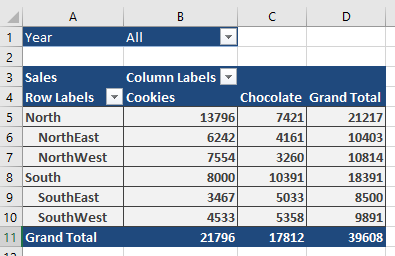
The formula =CUBEMEMBER(« offLine »; »[Products].[Product].[All].[Cookies] »)

searches for a single cell and returns the « Cookies » member, which has the caption we were looking for.
If you use the tuple: =CUBEMEMBER(« offLine »; « ([Stores].[Store].[All].[NorthEast],[Products].[All].[Cookies],[Years].[2008]) ») the result is 2008 (representing the cookie sales in the year 2008 in the NorthEast store).
If you use: =CUBEMEMBER(« offLine »; « ([Stores].[Group].[All].[North],[Stores].[Store].[All].[NorthEast] ») to find an empty intersection, you will get the #N/A error.
To display the word « total », enter: =CUBEMEMBER(« offLine », »[Products].[Product].[All] », »total »)
You can use the cell containing the formula to create cell captions. The actual content of the cell is more informative if it refers to the cells with the CUBEMEMBER() entries.
How to use the CUBEKPIMEMBER function in Excel
This function returns a Key Performance Indicator (KPI) property and displays the KPI name within the cell.
Syntax
CUBEKPIMEMBER(connection; kpi_name; kpi_property; caption)
Arguments
- connection (required): A string representing the name of the workbook connection to the cube. Upon entering the first quotation mark, existing context-sensitive data connections will be displayed.
- kpi_name (required): Specifies the name of the KPI in the cube.
- kpi_property (required): A KPI is composed of several components, specified using an integer (see below).
Integers for the Third Argument of the CUBEKPIMEMBER() Function
lnteger MDX expression Description
1 [KPIValue] Actual value
2 [KPIGoal] Target value
3 [KPIStatus] State of the KPI at a specific moment in time
4 [KPITrend] Measure of the value over time
5 [KPIWeight] Relative importance assigned to the KPI
6 [KPICurrentTimeMember] Temporal context for the KPI
Background
Error values and messages provide information regarding incorrect or missing entries:
- If the connection name is not a valid workbook connection, the CUBEKPIMEMBER() function returns the #NAME? error.
- If the OLAP server (or the offline cube) is unavailable, an error message will appear, but the content of the affected cell will not change.
- CUBEKPIMEMBER() returns the #N/A error value when kpi_name or kpi_property is invalid.
- CUBEKPIMEMBER() might return the #N/A error if the connection to the data source is interrupted and cannot be re-established.
You can combine CUBEKPIMEMBER() with CUBEVALUE(). To do so, specify CUBEKPIMEMBER() as the second argument or a reference for CUBEVALUE().
Example
In this example, a KPI named « average » is stored in the cube. This cube calculates the average of sales and the total number of sales as integers. Both values are also saved as measures in the cube but cannot be used to calculate fields in the PivotTable. The target value (goal) is $1,500. Figure below shows the example for cookies.
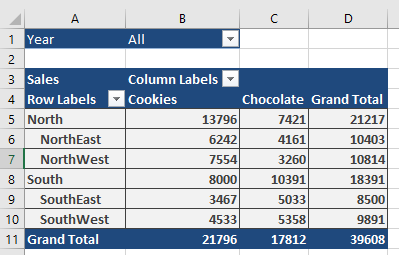
The formula =CUBEKPIMEMBER(« offline », »average »,1) displays the word « average ».

The formula =CUBEVALUE(« offline »,CUBEKPIMEMBER(« offline », »average »,1)) returns 1453 (the rounded average of all sales). In the second formula, you can also enter a reference to the cell containing the first formula as the second argument.
To get the target value of the average, use the formula =CUBEVALUE(« offline »,CUBEKPIMEMBER(« offline », »average »,2)). The value 2 in the last argument is important because, in this case, it indicates the target value.
You can use the cell containing the formula to create cell captions. The actual content of the cell becomes more informative when displayed using the CUBEVALUE() function.