Votre panier est actuellement vide !
Étiquette : macro_external_data
Writing CSV Files in Excel VBA
When writing CSV files, the individual parts of each record are combined into a single string with delimiters using the Join() function.
Sub WriteCsv()
    Dim i As Integer, k As Integer
    Dim T(1 To 5) As String
    ThisWorkbook.Worksheets("Sheet2").Activate
    On Error GoTo ErrorHandler
    ' Open the file for writing
    Open ThisWorkbook.Path & "C:\Users\POPOLY\Desktop\DocumentCsv.txt" For Output As #1
    For i = 1 To 3
        ' Collect each cell value of the row into array T
        For k = 1 To 5
            T(k) = Cells(i, k).Value
        Next k
        ' Write the concatenated line with "#" as delimiter
        Print #1, Join(T, "#")
    Next i
    ' Close the file
    Close #1
    Exit Sub
ErrorHandler:
    MsgBox Err.Description
End Sub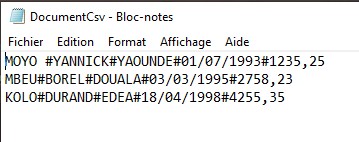
Explanation:
All parts of a record are stored within an array. Using the Join() function along with a delimiter character—in this example, the # symbol—a single string is created for each record.
This concatenated string is then output as a line in the CSV file named linesCsv.txt.
This process is repeated for all records in the Excel table.
Reading Simple Text Files in Excel VBA
The following example demonstrates how to read all lines from a text file. In this case, the file document.txt is read. Each value is recognized as a date, number, or string and written into Excel cells.

Sub ReadLines()
    Dim lineContent As String
    Dim i As Integer
    Dim numberValue As Double
    Dim dateValue As Date
    ThisWorkbook.Worksheets("Sheet1").Activate
    On Error GoTo ErrorHandler
    ' Open the file for reading
    Open ThisWorkbook.Path & "C:\Users\POPOLY\Desktop\Document.txt" For Input As #1
    i = 7
    ' Loop until end of file is reached
    Do Until EOF(1)
        ' Read one line from the file
        Line Input #1, lineContent
        ' Check if the line content is numeric
        If IsNumeric(lineContent) Then
            ' Check if the numeric string contains a decimal point
            If InStr(lineContent, ".") > 0 Then
                ' Convert to Date type
                dateValue = CDate(lineContent)
                Cells(i, 1).Value = dateValue
                Cells(i, 2).Value = "Date"
            Else
                ' Convert to Double type (number)
                numberValue = CDbl(lineContent)
                Cells(i, 1).Value = numberValue
                Cells(i, 2).Value = "Number"
            End If
        Else
            ' Treat as a text string
            Cells(i, 1).Value = lineContent
            Cells(i, 2).Value = "String"
        End If
        i = i + 1
    Loop
    ' Close the file
    Close #1
    Exit Sub
ErrorHandler:
    MsgBox Err.Description
End Sub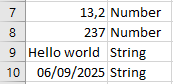
Explanation:
The file is opened for reading using the Open statement with the Input mode.
A Do Until loop runs repeatedly until the EOF() function returns True. EOF stands for « End Of File, » and the function detects when the end of the file is reached. This approach is crucial because the number of lines in the file is typically unknown in advance. Therefore, the loop processes all lines in the file dynamically.
Within the loop, the Line Input statement reads one entire line from the file (file number 1) and stores it as a string in the variable lineContent.
The IsNumeric() function checks whether the string represents a numeric value. If it does, the InStr() function determines if the string contains a decimal point:
- If a decimal point is found, the string is interpreted as a date. It is converted to the Date data type using the CDate() function and stored in the dateValue variable. This date value is then output to the worksheet.
- If no decimal point is present, the string is treated as a numeric value without decimals and converted to a Double using CDbl(). The numeric value is stored in numberValue and output accordingly.
If the string does not represent a numeric value, it is treated as plain text and written as-is to the worksheet.
The variable i is incremented in each loop iteration to write each line to the next row in Excel, ensuring the data appears in successive cells vertically.
Finally, the file is closed using the Close statement to free the resource.
Writing Simple Text Files in Excel VBA
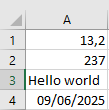
The Excel table data are written into a text file using the following program:
Sub WriteLines()
    Dim i As Integer
    ThisWorkbook.Worksheets("Sheet1").Activate
    On Error GoTo ErrorHandler
    ' Open the file for writing
    Open ThisWorkbook.Path & "C:\Users\POPOLY\Desktop\Document.txt" For Output As #1
    ' Alternative paths commented out:
    ' Open ThisWorkbook.Path & "C:\Users\POPOLY\Desktop\Document.txt" For Output As #1
    ' Open ThisWorkbook.Path & "C:\Users\POPOLY\Desktop\Document.txt" For Output As #1
    ' Open "C:\Users\POPOLY\Desktop\Document.txt" For Output As #1
    For i = 1 To 4
        ' Write each line
        Print #1, Cells(i, 1).Value
    Next i
    ' Close the file
    Close #1
    Exit Sub
ErrorHandler:
    MsgBox Err.Description
End Sub
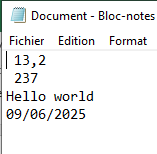
The result in the text file is illustrated in Figure.
Explanation:
The Open statement is used to open files. In this example, the file lines.txt is opened. Both the Excel workbook containing this export program and the text file with the data reside in the same directory.
Following the keyword For is the mode in which the file is opened. For text files, some common modes include:
- Input (for reading),
- Output (for overwriting),
- Append (for adding content to the end),
- Random (for random access).
After the keyword As, a file number is specified, which you can assign arbitrarily. In the rest of the program, the opened file is referenced by this unique file number prefixed with the symbol #.
Whether or not the file already exists, the new content will be written to the file. Existing contents are completely overwritten without any warning.
If you use the mode Append instead of Output, new content would be added to the end of the file rather than replacing the existing content.
The Print statement outputs a line to the file. Its first argument is the file number preceded by #, and the second argument is an expression whose value is written to the file. After writing, Print automatically adds a newline.
After writing, the file is closed with the Close statement.
In the three commented-out lines, the file is alternatively opened in different directories:
- In a subfolder named Additional within the directory containing the export program,
- In the directory above the one containing the export program,
- In the absolute path C:\Temp.
Overview in Excel VBA
First, several methods for accessing text files are introduced:
Accessing simple text files where each line can vary in length. Each line contains a single piece of information—for example, a single cell value in an Excel worksheet. These lines can only be written or read sequentially, meaning it is not possible to directly access an arbitrary line within the file.
Accessing CSV (Comma-Separated Values) files, where each line also varies in length. Each line represents a related group of information, commonly known as a record or dataset. In an Excel worksheet, such a record might span multiple cells within the same row. Like simple text files, CSV files are accessed sequentially; direct random access to a specific record is not available.
Random access to files with lines of uniform length is also discussed. Each line corresponds to a record based on a user-defined data type and fixed-length strings. This structure allows both reading and writing access to any record in the file directly, without the need to process the file sequentially.
Following this, the process of retrieving information about files and directories is explained, along with performing various file operations.
Next, the creation of paragraphs and tables within Microsoft Word documents is covered. Similarly, methods for reading the contents of paragraphs and tables from Word files are presented.
Subsequently, the text addresses the creation and sending of emails in different formats, including their integration with Microsoft Outlook. It also describes how to retrieve the contents of email folders, individual emails, and attachments.
The management of contacts, appointments, and recurring appointment series is also incluexternal_dataded, with instructions on how to create and read these items.
Finally, accessing Microsoft Access databases through queries is explored, covering both reading and modifying records within individual tables.
In practical scenarios, runtime errors frequently occur when reading from or writing to external data sources. For instance, an incorrect file path might be specified, or write permissions may be lacking for the targeted directory. Therefore, special attention is given in the programs throughout this chapter to effectively handle and prevent such runtime errors.