Votre panier est actuellement vide !
Étiquette : macro_table_pivot_table
Clearing or Releasing Arrays In Excel VBA
The Erase statement in VBA serves the following purposes:
- For static arrays, it resets all elements to their default values, but the array itself still exists in memory and continues to occupy space.
- For dynamic arrays, it releases the entire memory allocated for the array, making the memory available for other variables or arrays.
Example: Clearing a Static Array
Sub ClearStaticArray()
    Dim T(1 To 5) As Integer
    T(1) = 10
    MsgBox T(1)       ' Displays 10
    Erase T           ' Resets all elements to default values
    MsgBox T(1)       ' Displays 0 (default for Integer)
End Sub
Explanation:
- The static array T has 5 elements.
- The first element is assigned and displayed as 10.
- After the Erase T statement, the array elements are reset to their default values.
- The first element now displays 0, the default initial value for an Integer.
Note:
Elements of string arrays are reset to « » (empty string).Example: Releasing a Dynamic Array
Sub ReleaseDynamicArray()
    Dim T() As Integer
    On Error GoTo ErrorHandler
    ReDim T(1 To 5)
    T(1) = 10
    MsgBox T(1)       ' Displays 10
    Erase T           ' Releases the dynamic array's memory
    MsgBox T(1)       ' Causes a runtime error since array no longer exists
    ReDim T(1 To 5)   ' Re-dimension array to reuse it
    T(1) = 10
    MsgBox T(1)       ' Displays 10
    Exit Sub
ErrorHandler:
    MsgBox Err.Description
    Resume Next
End Sub
Explanation:
- The dynamic array T is declared without size.
- ReDim sets its size to 5.
- The first element is assigned and displayed as 10.
- The Erase T statement releases the array’s memory.
- Attempting to access T(1) after Erase causes a runtime error, caught by the error handler.
- Later, the array is resized again with ReDim and can be reused normally.
Dynamic Arrays In Excel VBA
If the number of variables to be stored in an array is unknown at the start of the program, you can use dynamic arrays. These arrays allow their size to be changed during runtime, which is especially useful when processing a large and unknown amount of data (e.g., reading from a text file) and displaying it in a worksheet.
Resizing Dynamic Arrays with ReDim and Preserve:
- The array size can be changed multiple times using the ReDim statement.
- Using Preserve keeps the existing data intact while resizing.
- Without Preserve, resizing will clear all existing data.
Example:
Sub DynamicArrayExample()
    Dim T() As Integer
    Dim i As Integer
    ThisWorkbook.Worksheets("Sheet1").Activate
    Randomize
    ' Initial size
    ReDim T(1 To 3)
    For i = 1 To 3
        T(i) = Rnd * 10 + 20
        Cells(i, 5).Value = T(i)
    Next i
  ' Increase size with Preserve
    ReDim Preserve T(1 To 6)
    For i = 4 To 6
        T(i) = Rnd * 10 + 20
    Next i
    For i = 1 To 6
        Cells(i, 6).Value = T(i)
    Next i
    ' Increase size without Preserve
    ReDim T(1 To 9)
    For i = 7 To 9
        T(i) = Rnd * 10 + 20
    Next i
    For i = 1 To 9
        Cells(i, 7).Value = T(i)
    Next i
End Sub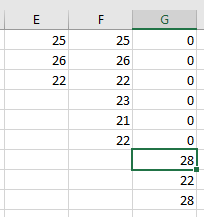
Explanation:
- The array T is initially declared without size.
- ReDim sets its size to 3; the first three elements are assigned random values and output in column 5.
- The array is resized to 6 elements with Preserve; new elements 4 to 6 get values, and the entire array (elements 1 to 6) is output in column 6. Existing values are retained.
- Finally, the array is resized to 9 elements without Preserve; elements 7 to 9 get new values, but elements 1 to 6 lose their previous values (reset to 0), and the full array is output in column 7.
VBA Array() Function
The Array() function creates a one-dimensional array of type Variant that can hold values of different data types and even objects.
Example:
Sub ArrayFunctionExample()
    Dim T() As Variant
    T = Array(2, -14, 3.5, "abc", Range("A2"))
    MsgBox T(2)  ' Displays 3.5, the third element
End Sub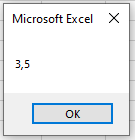
Notes:
- The array created by Array() must be declared as type Variant.
- Using Variant arrays is generally discouraged because they require more memory and offer less type safety, but they are useful for heterogeneous data collections.
Multidimensional Arrays In Excel VBA
If you have not only seven temperature values to store but also measurements taken at three different locations, a two-dimensional array is suitable.
Elements of such an array are addressed via two indices:
- The first index represents the measurement number.
- The second index represents the location where the measurement was taken.
The following procedure demonstrates this, displaying the values for each location in separate columns:
Sub MultiDimensionalArray()
    Dim T(1 To 7, 1 To 3) As Integer
    Dim i As Integer, k As Integer
    ThisWorkbook.Worksheets("Sheet1").Activate
    Randomize
    For i = 1 To 7
        For k = 1 To 3
            T(i, k) = Rnd * 10 + 20
            Cells(i, k).Value = T(i, k)
        Next k
    Next i
End Sub
Explanation:
- The statement Dim T(1 To 7, 1 To 3) As Integer declares a two-dimensional array with 7 rows and 3 columns of type Integer. Both indices start at 1.
- The procedure uses two nested For loops:
- The outer loop variable i runs from 1 to 7 (measurement number).
- The inner loop variable k runs from 1 to 3 (location index).
- The inner loop completes its full cycle for each single iteration of the outer loop, allowing access to all 21 elements.
- Each element T(i, k) is assigned a random value between 20 and 30.
- The entire array is displayed on the worksheet, with each location’s measurements in its own column.
Extending to Higher Dimensions:
- If you have 7 measurements per day at 3 locations for 31 days, you need a 3-dimensional array:
- Dim T(1 To 7, 1 To 3, 1 To 31) As Integer ‘ Or better, As Single
This array has 7 × 3 × 31 elements.
- Further, if you measure not only temperature but also wind direction, wind speed, and humidity, you would need a 4-dimensional array:
- Dim T(1 To 7, 1 To 3, 1 To 31, 1 To 4) As Single
- Arrays provide great flexibility to store and process large amounts of data temporarily during execution.
Persistent Storage Note:
For permanent storage, you need to save data to files (see Section 9.2, Simple Text Files) or better, databases.
Sorting an Array In Excel VBA
The following procedure fills a one-dimensional static integer array with values, sorts it using the popular and relatively efficient Bubble Sort algorithm, and then outputs the sorted array:
Sub SortArray()
    Dim T(1 To 7) As Integer
    Dim i As Integer
    Dim Swapped As Boolean
    Dim Temp As Integer
    ThisWorkbook.Worksheets("Sheet1").Activate
    Randomize
    ' Fill the array with random values
    For i = 1 To 7
        T(i) = Rnd * 10 + 20
    Next i
    ' Sort the array using Bubble Sort
    Do
        Swapped = False
        For i = 1 To 6
            If T(i) > T(i + 1) Then
                Temp = T(i)
                T(i) = T(i + 1)
                T(i + 1) = Temp
                Swapped = True
            End If
        Next i
    Loop While Swapped
    ' Output the sorted array
    For i = 1 To 7
        Cells(i, 1).Value = T(i)
    Next i
End Sub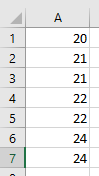
Explanation:
- The Bubble Sort algorithm repeatedly traverses the array from the first to the penultimate element.
- Each element is compared to its immediate next element.
- If two adjacent elements are out of order (in this case, if the current element is greater than the next), they are swapped using a temporary variable.
- This causes smaller elements to « bubble up » toward the start of the array, like air bubbles rising in water—hence the name.
- Here the sorting is ascending, so smaller values rise to the top.
- To sort in descending order, simply change the condition in the If statement to T(i) < T(i + 1).
- When a full pass through the array completes with no swaps, the boolean variable Swapped remains False and the loop ends, indicating the array is sorted.
One-Dimensional Arrays In Excel VBA
The following procedure stores seven temperature measurement values in a one-dimensional static array of type Integer. For better visualization, the values are then output into worksheet cells:
Sub OneDimensionalArray()
    Dim T(1 To 7) As Integer
    Dim i As Integer
    ThisWorkbook.Worksheets("Sheet1").Activate
    Randomize
    For i = 1 To 7
        T(i) = Rnd * 10 + 20     ' Generates values between 20 and 30
        Cells(i, 1).Value = T(i)
    Next i
End Sub
Explanation:
- Values are generated by a random number generator, initialized with Randomize.
- The statement Dim T(1 To 7) As Integer declares a one-dimensional array with seven elements.
- Each element acts like an individual Integer variable.
- Arrays can be declared for any known data type.
- Each element is distinguished by an index, which runs from 1 to 7 in this case.
- Elements are accessed via the syntax T(i) inside a For loop where i is the loop variable.
- The array elements are displayed vertically in cells.
Important Notes:
- Using Dim T(7) As Integer would declare an array with eight elements indexed from 0 to 7 by default.
- To start the array index at 1 by default, you can include Option Base 1 at the top of the module.
- Then Dim T(7) As Integer declares an array with seven elements indexed 1 through 7.
Variable Scopes In Excel VBA
Variables should preferably be declared as local, i.e., within a procedure, so that each procedure can work as independently as possible from others. However, there are situations where variables must be declared with broader scopes.
Types of Scopes:
- Local variables:
Declared inside a procedure (using Dim), these variables are only valid within that procedure. Outside the procedure, neither their name nor value is known. After the procedure finishes, their values are lost. Each time the procedure is called, the variables are newly declared and initialized. - Static variables:
Declared inside a procedure with the keyword Static instead of Dim. They are also only valid inside the procedure, but retain their values between calls to the procedure. - Module-level variables:
Declared at the top of a module (above all procedures) with Dim. These variables are valid throughout the entire module. Their values persist for the duration of the project and can be accessed or modified by any procedure within the module. - Project-level variables:
Declared at the top of a module with Public. These variables are valid throughout the entire VBA project. Their values can be accessed or modified by any procedure in any module during the project runtime.
Naming Conflicts and Shadowing:
- Local or static variables with the same name in the same procedure are not allowed.
- A module-level variable is hidden inside a procedure by a local variable with the same name.
- A project-level variable is hidden inside a module by a module-level or local variable with the same name.
Example: Different Scopes in Practice
Content of Module1:
Option Explicit
Public Px As Integer          ' Project-level variable
Dim Mx As Integer             ' Module-level variable
Sub Scope1()
    Static Sx As Integer      ' Static variable local to this procedure
    Dim Lx As Integer         ' Local variable
    Px = Px + 10
    Mx = Mx + 10
    Sx = Sx + 10
    Lx = Lx + 10
    MsgBox "Project-level Px = " & Px & vbCrLf & _
           "Module-level Mx = " & Mx & vbCrLf & _
           "Static Sx = " & Sx & vbCrLf & _
           "Local Lx = " & Lx
End Sub
Sub Scope2()
    Px = Px + 1
    Mx = Mx + 1
    MsgBox "Project-level Px = " & Px & vbCrLf & _
           "Module-level Mx = " & Mx
End Sub
Sub Scope3()
    Dim Mx As Integer
    Mx = Mx + 1
    MsgBox "Local Mx = " & Mx
End Sub
Content of Module2:
Sub Scope4()
    Px = Px + 5
    MsgBox "Project-level Px = " & Px
End Sub
Explanation:
- Px is project-level, accessible and modifiable from any module or procedure. Its value depends on how often and in what order procedures are called.
- Mx is module-level in Module1, accessible and modifiable by procedures within Module1 only. In Module2, it is unknown.
- In Scope3, the local variable Mx hides the module-level Mx.
- Lx is local to Scope1, recreated with each call, initialized to zero and incremented to 10.
- Sx is static local to Scope1, retains its value between calls, but is unknown outside that procedure.
Best Practices:
- Declare variables as local and non-static whenever possible to avoid unexpected dependencies on procedure call order.
- When broader scopes are necessary, ensure your program flow enforces a clear sequence .
Scope Rules for Constants and Enumerations:
- These same scope rules apply to constants and enumerations.
- Use Public Const for project-wide constants.
- Use Public Enum to define project-wide enumerations.
- Local variables: