Votre panier est actuellement vide !
Étiquette : practical_excel
Creating a Workbook in Excel
Creating a Workbook
To start a new task in Excel, you must first create a new blank Excel workbook. When you launch Excel, it prompts you to create a new workbook, and you can click on Blank Workbook to start with an empty file containing a blank worksheet. However, for subsequent files, you must use the File tab to create a new blank workbook.
If you prefer to create a workbook based on one of Excel’s templates, refer to the next section, “Create a new workbook from a template.”
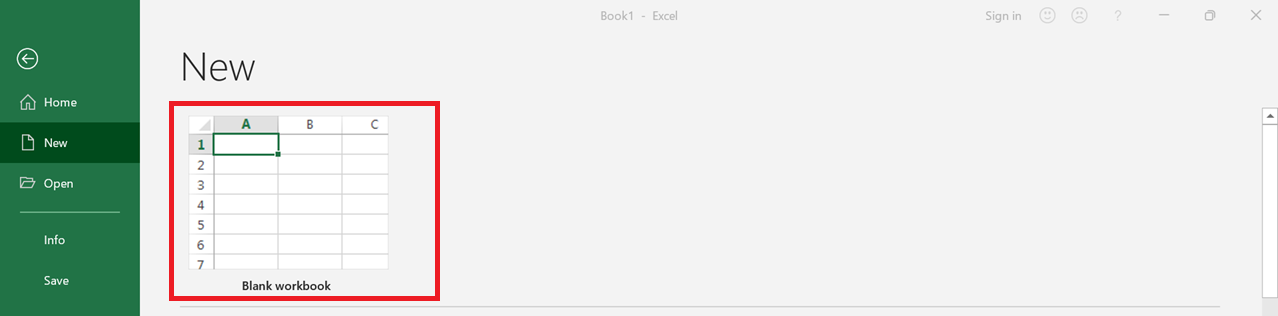
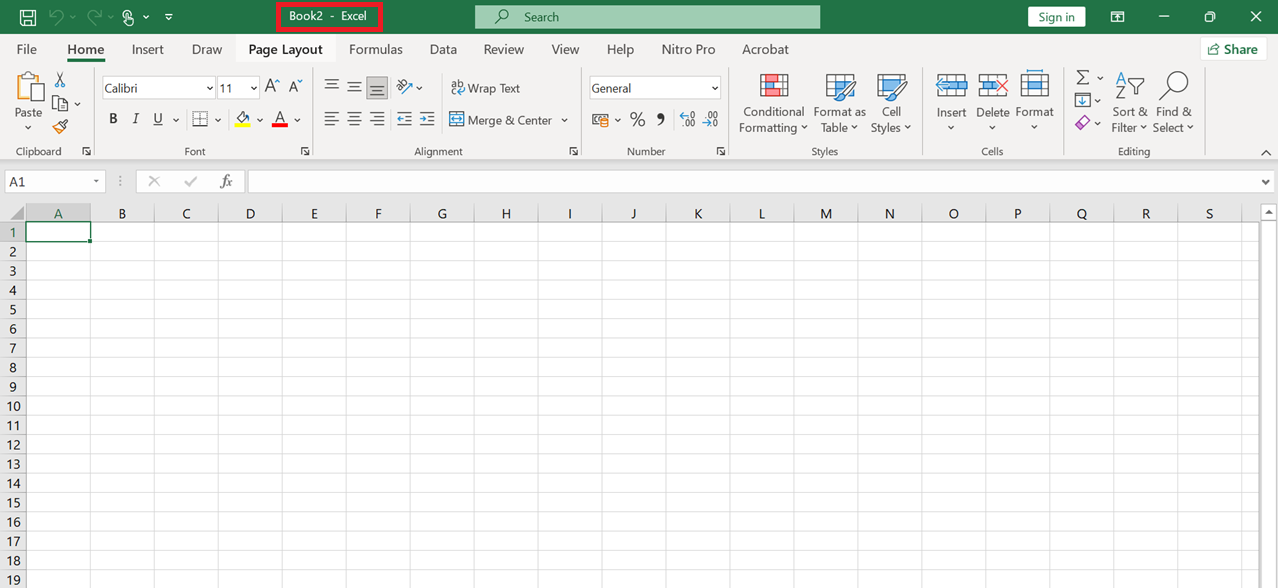
Excel creates the blank workbook and displays it in the Excel window.
NOTE:
Excel offers a keyboard shortcut for quicker workbook creation. From the keyboard, press Ctrl + N.Creating a New Workbook from a Template
You can save time and effort by creating a new workbook based on one of Excel’s template files. Each template includes a working spreadsheet layout that contains predefined headers, labels, formulas, and preformatted colors, fonts, styles, borders, etc. In many cases, you can use the new workbook as is and simply fill in your own data.
Excel provides more than two dozen templates, and many more are available through Microsoft Office Online.
To create a new workbook from a template: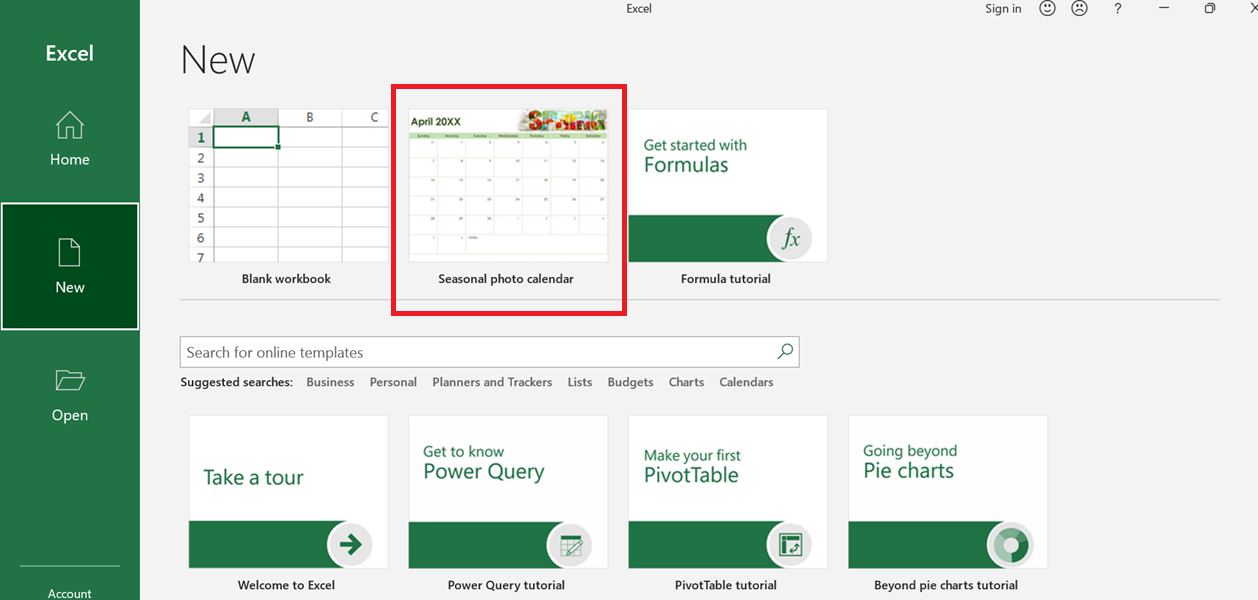
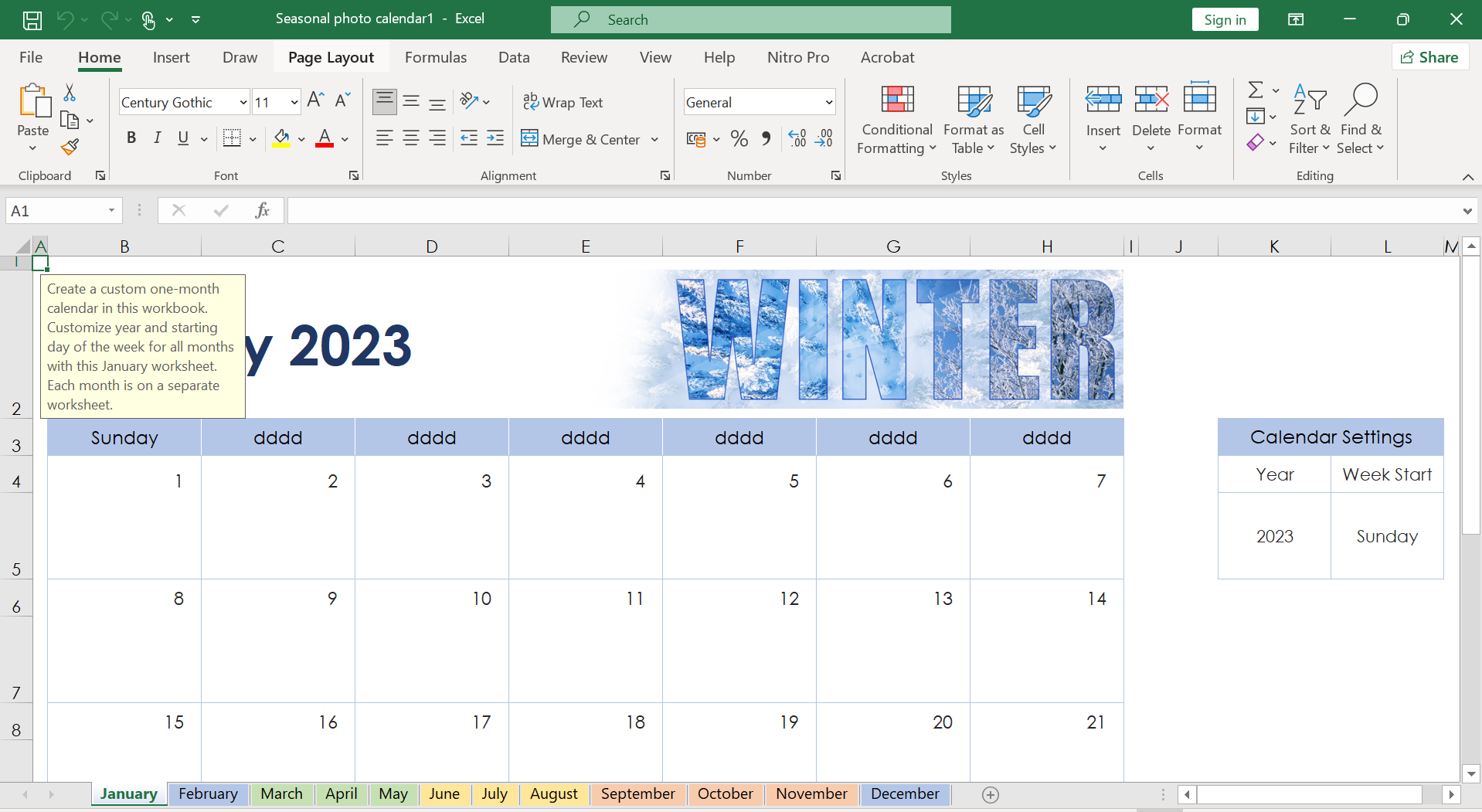
Excel then creates the new workbook and displays it in the Excel window.
NOTE:
If you have a specific workbook structure that you use frequently, you should save it as a template so you don’t have to recreate the same structure from scratch each time.
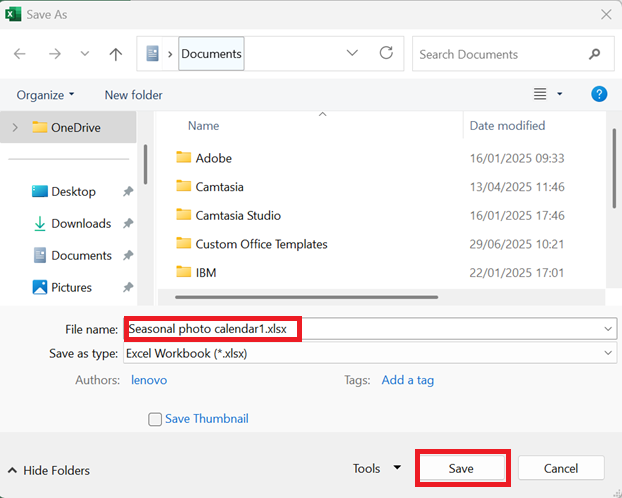
Open the workbook, click on File, then Save As. In the Save As dialog box, click on Computer, then Browse.
Click the arrow in the Save as type drop-down list, then select Excel Template.
Type a name in the File name text box, then click Save.
To use the template, click on File and then Open; in the Open dialog box, click on Computer, then Browse, and finally click on your template file.Saving an Excel Workbook
After creating a workbook in Excel and making changes to it, you can save the document to preserve your work. When you edit a workbook, Excel stores the changes in your computer’s memory, which is erased whenever you shut down your computer. Saving the document preserves your changes to the computer’s hard drive.
To avoid losing your work in the event of a computer crash or Excel freeze, you should save your work frequently—at least every few minutes.
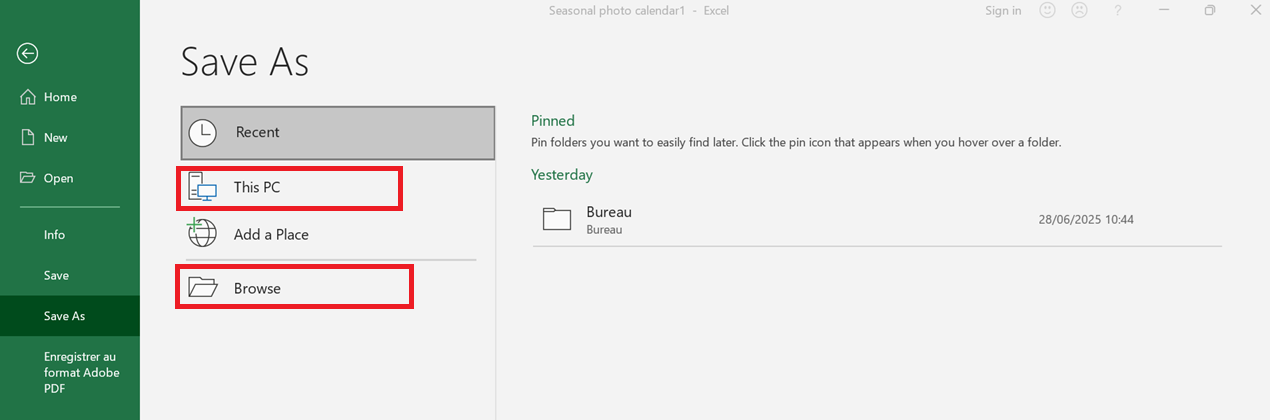
Select a folder where the file will be stored; click in the File name text box and type the name you wish to use for the document; click Save. Excel saves the file.
NOTE:
Excel provides a keyboard shortcut for faster workbook saving. From the keyboard, press Ctrl + S.
If you have previously saved the document, your changes are now preserved, and you do not need to follow the remaining steps in this section.Opening an Excel Workbook
To view or make changes to an Excel workbook that you previously saved, you must open the workbook in Excel. To do this, first locate it in the folder where it was initially saved.
If you used the workbook recently, you can save time by opening it from Excel’s Recent Workbooks menu, which lists the 25 most recently used workbooks.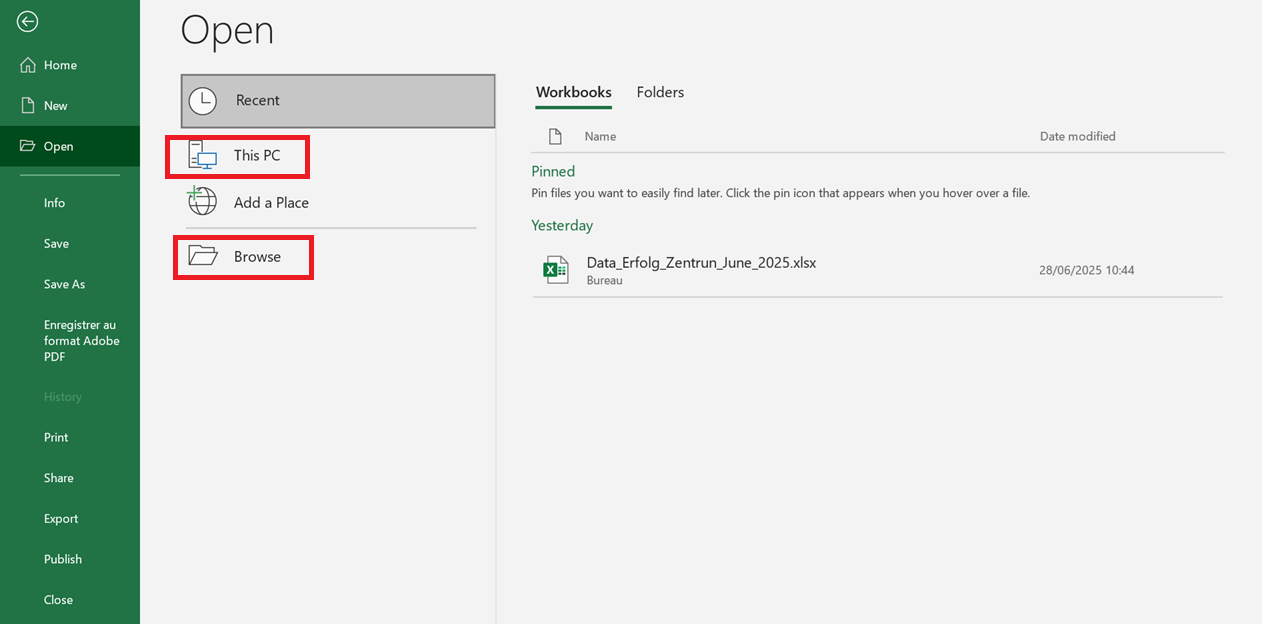
The Open tab appears. Click Browse or press Ctrl + O.
The Open dialog box appears. Select the folder containing the workbook you wish to open, then click on the workbook and finally click Open.
The workbook appears in a window.NOTE:
You can click on Recent Workbooks to view a list of your recently used workbooks.
If you see the desired file, click on it and skip the rest of these steps.Automatically Opening Workbooks at Startup
You may often need to open the same few workbooks every time you start Excel. The Recent Workbooks list can help you access these files quickly, but an even simpler method is to configure Excel to open them automatically at startup.
To do this, move the workbooks into a folder that contains no other workbooks, then configure Excel to automatically open each workbook in that folder at startup.
This task assumes you’ve already created such a folder and moved into it the workbooks you want to open automatically.
To do this: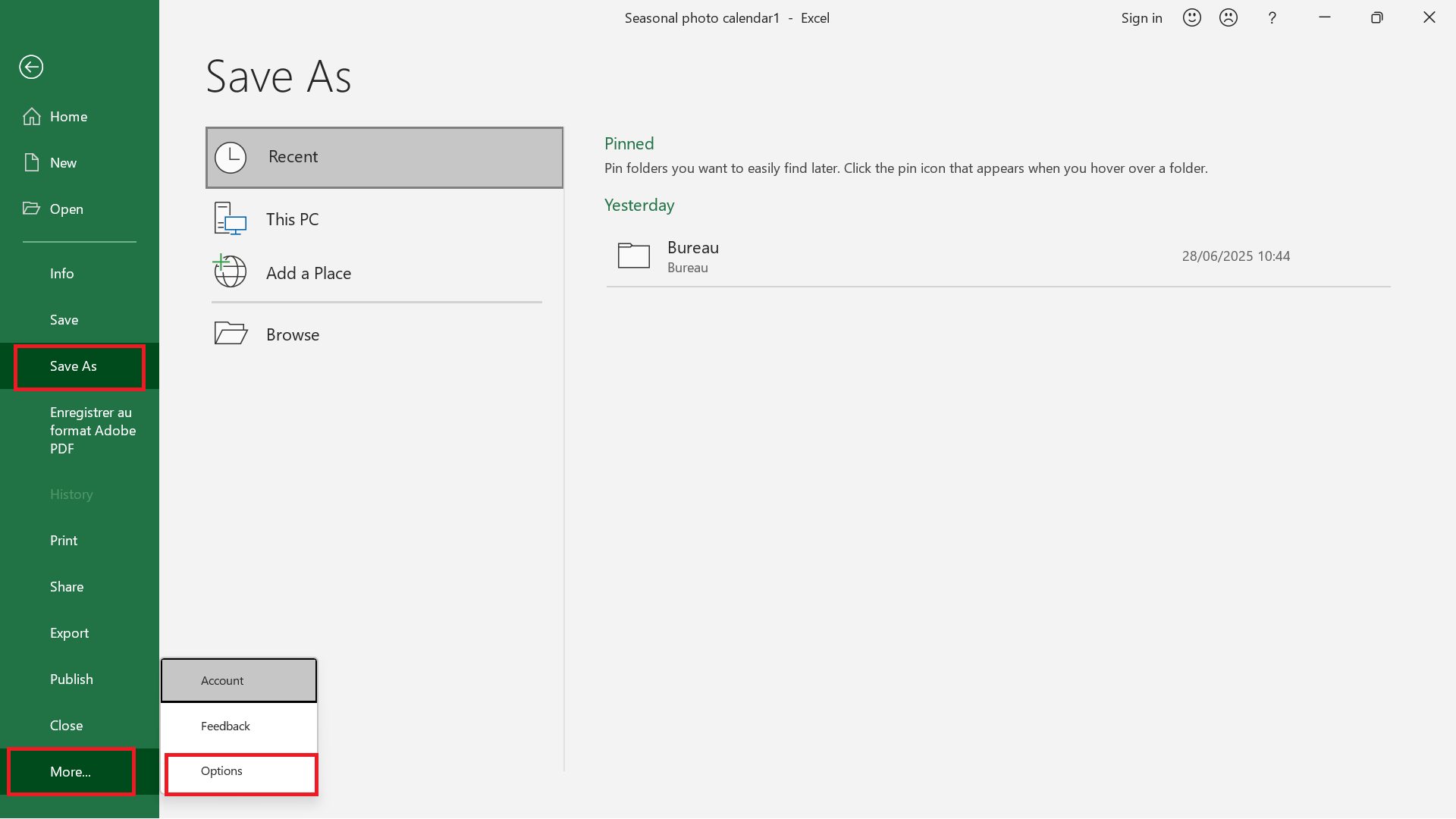
Click on Options. The Excel Options dialog box appears.
Click on Advanced, and in the General section, use the field “At startup, open all files in:” to enter the path to the folder containing the workbooks you want Excel to open. Click OK.
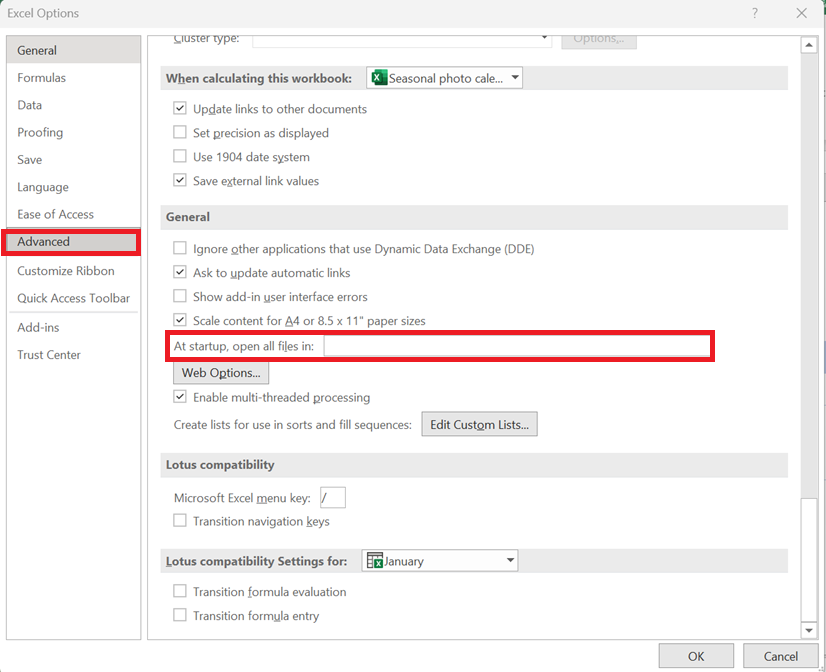
The next time you launch Excel, it will automatically open all workbooks in the folder you specified.
NOTE:
If you are not sure of the exact location of the folder you want to use, open File Explorer in Windows 8 or Windows Explorer in earlier versions of Windows and navigate to the folder.
In Windows 8, 7, or Vista, right-click the Address bar, then click Copy address; in Windows XP, select the text in the Address bar and press Ctrl + C.
You can then follow steps 1 through 3, click in the At startup, open all files in text box, and paste the address by pressing Ctrl + V.