Votre panier est actuellement vide !
Étiquette : macro-sheets
Setup in Excel VBA
When preparing a worksheet for printing, you need to configure its page setup settings. If you’re working with an existing worksheet, you’ll typically adjust these settings directly from the sheet. However, if you’re dealing with a new worksheet that will only later be filled with data via VBA, you can programmatically define the page setup using the PageSetup object in VBA.
The following procedure demonstrates how to configure various common page setup options for a worksheet using VBA:
Sub SetupWorksheetPage()
    ThisWorkbook.Activate
    ' Set page orientation to landscape
    Worksheets("Sheet1").PageSetup.Orientation = xlLandscape
    ' Include gridlines and row/column headings in the printout
    Worksheets("Sheet1").PageSetup.PrintGridlines = True
    Worksheets("Sheet1").PageSetup.PrintHeadings = True
    ' Set scaling: disable Zoom and fit to 1 page wide and 99 pages tall
    Worksheets("Sheet1").PageSetup.Zoom = False
    Worksheets("Sheet1").PageSetup.FitToPagesWide = 1
    Worksheets("Sheet1").PageSetup.FitToPagesTall = 99
    ' Center the content horizontally on the page
    Worksheets("Sheet1").PageSetup.CenterHorizontally = True
    ' Add a left-aligned header and a centered footer with page numbering
    Worksheets("Sheet1").PageSetup.LeftHeader = _
        "This is the header"
    Worksheets("Sheet1").PageSetup.CenterFooter = _
        "Page &P of &N"
End Sub
Explanation of the Procedure:
- Orientation: This property sets the print orientation. It accepts two values: xlPortrait for vertical (default) and xlLandscape for horizontal printing.
- PrintGridlines and PrintHeadings: These properties control whether the cell gridlines and row/column headers (A, B, C… and 1, 2, 3…) are printed. Set them to True to include them in the printout, or False to omit them.
- Zoom: This controls the scaling factor for printing. You can assign a percentage (e.g., 80 for 80%) to shrink the sheet, or a value over 100 to enlarge it. Setting this to False allows you to scale the sheet based on the number of pages instead.
- FitToPagesWide and FitToPagesTall: These properties specify how many pages wide and tall the printed output should be. For example, setting FitToPagesWide = 1 and FitToPagesTall = 99 ensures the content fits on one page horizontally, while the height can span up to 99 pages.
- CenterHorizontally: Setting this to True centers the printed content horizontally on the page. Similarly, CenterVertically = True would center it vertically.
- Header and Footer settings:
- You can use LeftHeader, CenterHeader, RightHeader for the header, and similarly LeftFooter, CenterFooter, RightFooter for the footer.
- These text properties support dynamic placeholders such as:
- &P: Current page number
- &N: Total number of pages
- &D: Current date
- &T: Current time
- &Z: File path
- &F: File name
- &A: Worksheet name
In the example above, a static header is added on the left, and the footer dynamically displays the page number and total number of pages in the center.
Tip: If a line of code in VBA is too long, you can split it into multiple lines using the underscore _ character for readability, as shown in the header and footer assignments.
Gridlines, Row and Column Headings With Excel VBA
Both the fine gridlines separating individual cells and the row and column headings in an Excel worksheet can be shown or hidden. While these are technically display settings associated with the window rather than the worksheet itself, they are presented here because they are closely related to the visual layout of the worksheet.
Below is a VBA procedure that hides both the gridlines and the headings:
Sub HideGridAndHeadings()
    ThisWorkbook.Activate
    Worksheets("Sheet3").Activate
    ActiveWindow.DisplayGridlines = False
    ActiveWindow.DisplayHeadings = False
End Sub
Explanation:
- First, the macro ensures that the correct workbook and worksheet are active using ThisWorkbook.Activate and Worksheets(« Sheet3 »).Activate.
- Once the target sheet is active, ActiveWindow refers to the window that displays this sheet.
- The property DisplayGridlines controls whether the gridlines between the cells are visible. Setting it to False hides the gridlines.
- The property DisplayHeadings controls whether the row numbers and column letters (A, B, C… and 1, 2, 3…) are visible. Setting it to False hides these headings.
- As illustrated in Figure 2.15 (not shown here), the result is a clean sheet view without gridlines or headers.
To reverse the effect:
If you want to make the hidden elements visible again, simply change the values of the properties from False to True in the procedure. For example:ActiveWindow.DisplayGridlines = True
ActiveWindow.DisplayHeadings = True
This will restore both the gridlines and the row/column headers to their default visible state.
Formatting a Worksheet With Excel VBA
The following VBA procedure demonstrates how to apply font formatting to all cells of a specific worksheet:
Sub FormatSheet()
    ThisWorkbook.Activate
    Worksheets("Sheet3").Cells.Font.Name = "Arial"
    Worksheets("Sheet3").Cells.Font.Size = 10
End Sub
Explanation:
- Activate the current workbook
- Activate
Ensures that all operations are performed within the workbook where the macro resides.
Access and format all cells on a worksheet
Worksheets(« Sheet3 »).Cells.Font.Name = « Arial »
Worksheets(« Sheet3 »).Cells.Font.Size = 10
-
- Worksheets(« Sheet3 ») refers to the specific worksheet to be formatted.
- .Cells refers to all cells in that sheet (the entire grid).
- .Font accesses the font formatting settings of those cells.
- .Name = « Arial » sets the font to Arial.
- .Size = 10 sets the font size to 10.
Understanding the Object Hierarchy:
This example shows a clear VBA object hierarchy:
Worksheet ➝ Cells ➝ Font ➝ Name / Size
Each level refines what part of the worksheet you’re addressing:
- Cells accesses all the cells.
- Font accesses their font formatting.
- Name and Size are properties that define font appearance.
What Else Can Be Formatted with .Font?
The .Font object includes many other customizable properties:
- .Bold = True — makes text bold
- .Italic = True — applies italics
- .Color = RGB(255, 0, 0) — sets font color (in this case, red)
- .Underline = xlUnderlineStyleSingle — adds underline
Example:
With Worksheets("Sheet3").Cells.Font .Bold = True .Color = RGB(0, 0, 255) End WithActivating a Worksheet With Excel VBA
The following VBA procedure demonstrates how to activate two specific worksheets in sequence within the same workbook:
Sub ActivateSheets()
    ThisWorkbook.Activate
    Worksheets("Sheet3").Activate
    MsgBox ActiveSheet.Name
    Worksheets("Sheet1").Activate
    MsgBox ActiveSheet.Name
End Sub
Explanation:
- Ensure the correct workbook is active
- Activate
This ensures that the code operates within the workbook containing the macro. This is essential when multiple workbooks are open in the Excel session.
Activate a specific worksheet
Worksheets(« Sheet3 »).Activate
MsgBox ActiveSheet.Name
-
- The Activate method is used to make « Sheet3 » the currently active sheet.
- Once activated, any subsequent operations (like writing to a cell or selecting a range) will affect this sheet.
- A message box displays the name of the newly active sheet as confirmation.
Activate another worksheet
Worksheets(« Sheet1 »).Activate
MsgBox ActiveSheet.Name
-
- The macro then switches focus to « Sheet1 » using the same method.
- Again, a message box confirms the name of the active sheet.
Why use .Activate?
Using .Activate is helpful when:
- You want to ensure that the user sees a specific worksheet.
- You plan to run commands that operate on the active sheet (like selecting ranges or pasting values).
- You’re creating a guided process that walks users through different sheets.
⚠️ Important Note:
Before running this macro, make sure that the sheets « Sheet3 » and « Sheet1 » (or « Tabelle3 » and « Tabelle1 » in the original German workbook) exist in the workbook. Otherwise, Excel will throw a runtime error.
✅ Optional: Add error handling
You can make the procedure more robust by adding a check to ensure the sheets exist before attempting to activate them:
Sub ActivateSheetsSafely()
    ThisWorkbook.Activate
    If SheetExists("Sheet3") Then
        Worksheets("Sheet3").Activate
        MsgBox ActiveSheet.Name
    End If
    If SheetExists("Sheet1") Then
        Worksheets("Sheet1").Activate
        MsgBox ActiveSheet.Name
    End If
End Sub
Function SheetExists(sheetName As String) As Boolean On Error Resume Next SheetExists = Not Worksheets(sheetName) Is Nothing On Error GoTo 0 End FunctionDeleting Worksheets With Excel VBA
The following VBA procedure deletes two worksheets from the current workbook:
Sub DeleteSheets()
    ThisWorkbook.Activate
    Worksheets("New").Delete
    Worksheets("Sheet1_Copy").Delete
End Sub
Explanation:
- Ensure the correct workbook is active
- Activate
This guarantees that the macro operates within the workbook containing the code, especially important when multiple workbooks are open.
Delete worksheets by name
Worksheets(« New »).Delete
Worksheets(« Sheet1_Copy »).Delete
-
- The Delete method is used to permanently remove the worksheets named « New » and « Sheet1_Copy ».
- Both sheets are accessed by their exact names.
- Once deleted, these sheets and their contents cannot be recovered unless the workbook is closed without saving or the action is undone.
⚠️ Important Warning (Excel 2016 and newer):
- No confirmation prompt is shown by default when deleting sheets via VBA.
- This is unlike the usual manual deletion in Excel, where a warning asks if you’re sure you want to delete the sheet.
- Because of this, data loss can happen unintentionally if you delete the wrong sheet or don’t verify first.
✅ Best Practice Suggestion:
To avoid accidental deletion, especially in automated processes, it’s wise to:
- Check if the worksheet exists before deleting.
- Display a confirmation prompt before executing the Delete command.
- Temporarily disable the alert prompt and restore it afterward:
Sub SafeDeleteSheets()
    Application.DisplayAlerts = False
    If WorksheetExists("New") Then Worksheets("New").Delete
    If WorksheetExists("Sheet1_Copy") Then Worksheets("Sheet1_Copy").Delete
    Application.DisplayAlerts = True
End Sub
Function WorksheetExists(sheetName As String) As Boolean On Error Resume Next WorksheetExists = Not Worksheets(sheetName) Is Nothing On Error GoTo 0 End Function
This version avoids runtime errors if a sheet doesn’t exist and prevents Excel from displaying the default warning for each deletion.
Moving a Worksheet in Excel VBA
The following VBA procedure moves an existing worksheet to a new position within the same workbook:
Sub MoveSheet()
    ThisWorkbook.Activate
    Worksheets("Sheet2copy").Move Before:=Worksheets("Sheet2")
End Sub
Explanation:
- Activate the current workbook
- Activate
This ensures that the macro applies to the workbook where the VBA code resides, which is important when more than one workbook is open.
Move the worksheet
Worksheets(« Sheet2copy »).Move Before:=Worksheets(« Sheet2 »)
-
- The Move method is used to relocate the worksheet named « Sheet2copy ».
- It is inserted before the worksheet named « Sheet2 ».
- After moving, the sheet becomes the active worksheet.

Working of the Move Method:
- Just like the Copy method, Move supports named parameters:
- Before:=… inserts the sheet before the specified worksheet.
- After:=… inserts it after a specific sheet.
- If no parameter is provided, the sheet is moved to a new workbook.
Comparison with the Copy Method:
Method Action With parameters Without parameters Copy Duplicates a sheet Inserts in same workbook Inserts in a new workbook Move Moves a sheet Inserts in same workbook Moves to a new workbook Key Takeaway:
The Move method offers fine control over the positioning of a worksheet within the workbook or across workbooks. Using named parameters like Before and After not only improves clarity but also prevents unexpected behavior.
Copying a Worksheet in Excel VBA
Copying a Worksheet
The following VBA procedure creates a copy of an existing worksheet in the same workbook:
Sub CopySheet()
    ThisWorkbook.Activate
    Worksheets("Sheet2").Copy After:=Worksheets("Sheet2")
    ActiveSheet.Name = "Sheet2copy"
End Sub
Explanation:
- Ensure the correct workbook is active
- Activate
This makes sure that the code targets the workbook containing the macro, especially important when multiple workbooks are open.
Copy a specific worksheet
Worksheets(« Sheet2 »).Copy After:=Worksheets(« Sheet2 »)
-
- The Copy method is used to duplicate the worksheet named « Sheet2 ».
- The After:= parameter specifies that the copy should be placed immediately after the original sheet within the same workbook.
- The copied sheet becomes the active sheet once created.
Rename the copied worksheet
Name = « Sheet2copy«
-
- After the copy is made and activated, it’s renamed to « Sheet2copy ».
About the Copy Method Parameters:
- After:=Worksheets(« Sheet2 »)
This is an example of a named parameter, where the parameter name (After) is explicitly stated, followed by := (colon-equals) and the value. - Alternatively, you can use Before:=… to insert the copied sheet before a specific sheet.
- If neither After nor Before is specified, Excel creates the copied sheet in a new workbook instead of the current one.
Why Use Named Parameters?
- They make your code clearer by explicitly stating which argument you are assigning.
- You don’t have to specify all parameters—just the ones relevant to your case.
- They reduce confusion, especially when multiple optional parameters are involved.
Important Note:
If you try to run the macro again without deleting or renaming the copied sheet, you’ll get a runtime error because worksheet names must be unique within the same workbook.
Creating a New Worksheet in Excel VBA
The following VBA procedure adds a new worksheet to the current workbook:
Sub CreateNewSheet()
    ThisWorkbook.Activate
    MsgBox Worksheets.Count
    Worksheets.Add
    ActiveSheet.Name = "New"
    MsgBox Worksheets.Count
End Sub
Explanation:
Activate the current workbook
Although not strictly required in all contexts, ThisWorkbook.Activate ensures that the macro is explicitly working within the workbook containing the macro itself — especially useful if multiple workbooks are open.Display the initial number of worksheets
MsgBox Worksheets.Count
This line uses the Count property of the Worksheets collection to determine how many sheets currently exist in the workbook, then displays that number in a message box for control.
Add a new worksheet
Add
This line creates a new worksheet using the Add method. By default, the new sheet is inserted before the currently active sheet and becomes the new active sheet.
- Rename the newly created worksheet
- Name = « New »
After creation, the newly active sheet is renamed to « New » using the Name property.
- Display the updated number of worksheets
- MsgBox Worksheets.Count
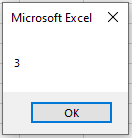
The message box now confirms that the total number of worksheets has increased by 3.

Important Note:
If you run the CreateNewSheet() macro a second time, Excel will attempt to rename the new worksheet to « New » again. Since sheet names must be unique, this will result in a runtime error if a sheet named « New » already exists.
To avoid this, you can:
- Manually delete or rename the existing « New » sheet before running the macro again, or
- Add logic to the code to check for existing sheet names before renaming.
Working with Worksheets in Excel VBA
Working with Worksheets
In Excel VBA, the Worksheets object is a collection that contains all the worksheets of a given workbook.
When you want to manipulate a specific worksheet, there are several ways to refer to it:
- ActiveSheet
- This refers to the worksheet that is currently active (i.e., the one the user is currently viewing).
- It’s useful when you’re performing actions based on the user’s current selection, but less reliable for automated routines where you need to target a specific sheet.
Example:
ActiveSheet.Name = "CurrentSheet"
- Worksheets(Index)
- You can refer to a worksheet by its position number in the workbook.
- The index starts at 1 for the first sheet and goes up to Worksheets.Count, which is the total number of sheets.
Example:
Worksheets(1).Name = "FirstSheet"
⚠️ Be cautious: If the index number is out of bounds (e.g., 5 when only 3 sheets exist), you will get a runtime error.
- Worksheets(« SheetName »)
- This is the most precise method. You access the worksheet by its name, provided as a string in double quotes.
- This is the recommended method when the sheet name is known and fixed.
Example:
Worksheets("Tabelle1").ActivateNotes:
- In all the upcoming examples that use Worksheets, it’s assumed that the correct workbook is first activated to ensure commands are applied to the intended workbook. This is especially important when multiple workbooks are open.
- To test these examples effectively, make sure your workbook contains at least three worksheets named:
- Tabelle1
- Tabelle2
- Tabelle3
You can rename or create sheets to match these names before running the code.