Votre panier est actuellement vide !
Étiquette : macro_error_handling
Breakpoints In Excel VBA
If stepping through a program line-by-line takes too long, you can use breakpoints to pause execution at a specific point. The program runs normally until it reaches a breakpoint, where it pauses and allows you to inspect the state.
Set a breakpoint near where you suspect the origin of an error.
How to Set a Breakpoint:
- Place the cursor on the line where you want the program to pause.
- Select Debug > Toggle Breakpoint from the menu or press F9.
- A breakpoint is set on the current line.
Running with Breakpoints:
- Start the program by pressing F5 (Run).
- Execution continues until the program reaches the breakpoint and pauses before executing that line.
- From this point, you can resume stepping through the code line-by-line using F8, and inspect variable values as previously described.
Managing Breakpoints:
- You can set multiple breakpoints in your code.
- To remove a breakpoint, place the cursor on its line and press F9 again.
- You can also remove all breakpoints at once via Debug > Delete All Breakpoints.
- Alternatively, click in the gray margin (gutter) to the left of the code line to toggle a breakpoint on or off.
Single-Step Debugging In Excel VBA
You can run a program in single-step mode to examine the current contents of variables and controls after each individual instruction. As an example, consider the previously discussed procedure OnErrorInstruction(). For the first debug run, ensure cells contain the numbers 12 and 3.
Sub OnErrorInstruction()
    Dim x As Integer, y As Integer, z As Integer
    ThisWorkbook.Worksheets("Sheet1").Activate
    On Error GoTo Error  ' Set error handler
    x = Range("A1").Value
    y = Range("A2").Value
    z = x / y
    Range("A3").Value = z
    Range("A4").Value = "Done"
    Exit Sub  ' Exit before error handler
Error:  ' Error handler label
    MsgBox Err.Description
    Resume Next  ' Continue execution with next statement
End Sub
Starting Single-Step Debugging:
- In the VBA Editor (VBE), select the menu Debug > Step Into or press F8.
- A yellow arrow marks the current line where execution is paused, highlighted in yellow. The program waits here for your next action.
Observing Variables:
After stepping through several lines (using F8 repeatedly), you will arrive at a specific line, such as shown in
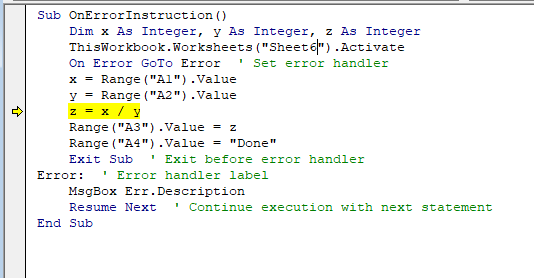
, where the arrow points.
- Hover the cursor over a variable (e.g., x) to see its current value (e.g., 12 for x).
- You will also notice that variable z still has the value 0 because the highlighted statement has not executed yet.
- After the next step, variable z will update to 4.
Using the Immediate Window:
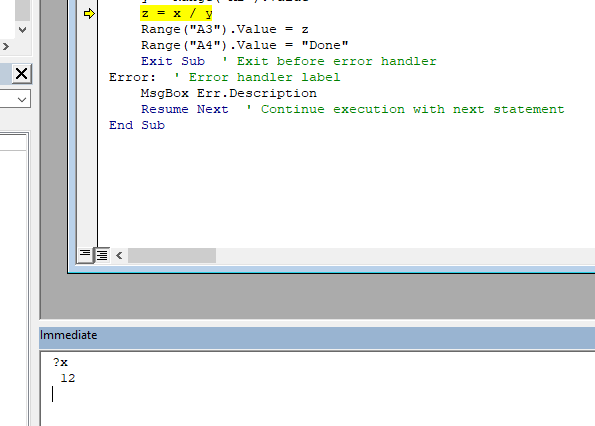
You can also inspect variable values in the Immediate Window, accessible via View > Immediate Window.
- Type ?VariableName and press Enter to see the current value .
Observing Worksheet Changes:
Alongside variables, you can watch how worksheet cells change after each single step. Changes only appear after the respective line in the code executes.
Benefits:
This simple example demonstrates how single-step debugging lets you follow the program execution step-by-step, making it easier to locate the source of logical errors.
Second Debug Run with Error:
For the second debug run, set the cell values to 12 and the text « abc ».
- While stepping through the code, you will clearly see the program jump twice to the error handler:
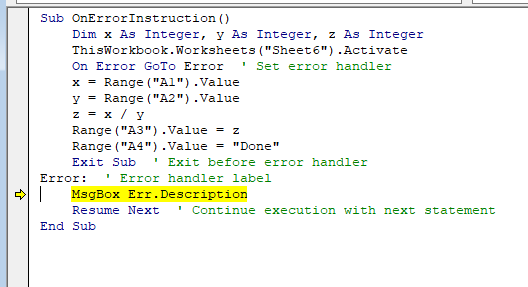
-
- When assigning the text « abc » to the numeric variable y.
- When performing the division.
After each jump, the procedure continues after handling the error.
Catching Runtime Errors: The On Error Statement In Excel VBA
The procedure OnErrorInstruction() is an improved version of the previous RuntimeError() procedure, featuring error handling:
Sub OnErrorInstruction()
    Dim x As Integer, y As Integer, z As Integer
    ThisWorkbook.Worksheets("Sheet1").Activate
    On Error GoTo Error  ' Set error handler
    x = Range("A1").Value
    y = Range("A2").Value
    z = x / y
    Range("A3").Value = z
    Range("A4").Value = "Done"
    Exit Sub  ' Exit before error handler
Error:  ' Error handler label
    MsgBox Err.Description
    Resume Next  ' Continue execution with next statement
End Sub
The output in the case of 12 and 0 ist:
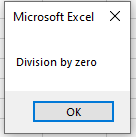
Explanation:
- The statement On Error GoTo Fehler instructs VBA to jump to the line labeled Fehler: if a runtime error occurs anywhere in the procedure.
- The label Fehler: is defined by the name followed by a colon.
- When an error happens, the Err object is populated with information about the error.
- You can display Err.Description to show the error message in a message box.
- Unlike the previous example, the program does not terminate upon encountering the error and continues running.
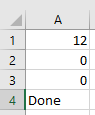
Additional Details:
- The statement Exit Sub is used to exit the procedure early, so the error handler code is not executed unless an error occurs. Without it, the code after the label Fehler: would always run, even if no error happened.
- The statement Resume Next causes execution to continue with the statement immediately after the one that caused the error.
Example of cascading errors:
- If cell A2 contains the text « abc », the first error is a Type Mismatch because the text cannot be assigned to the integer variable y. The error message appears, but due to Resume Next, the program continues with the next line.
- Since y retains its default value of 0, the subsequent division triggers a Division by Zero error, which is also caught and displayed.
Program with Runtime Errors In Excel VBA
The following procedure causes a runtime error. It divides the value in cell A1 by the value in cell A2, and outputs the result in cell A3:
Sub RuntimeError()
    Dim x As Integer, y As Integer, z As Integer
    ThisWorkbook.Worksheets("Sheet6").Activate
    x = Range("A1").Value
    y = Range("A2").Value
    z = x / y
    Range("A3").Value = z
    Range("A4").Value = "Done"
End Sub
Normal case:
If cells A1 and A2 contain the numbers 12 and 3, respectively, the result appears as expected .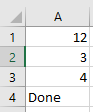
Runtime error case:
If cells A1 and A2 contain 12 and 0, the program crashes with a runtime error. Neither the result nor the text « Done » is output. Instead, a dialog box appears with an error message.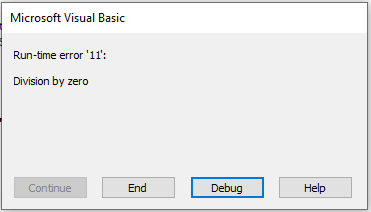
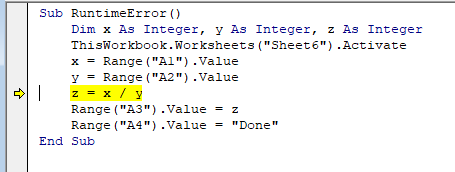
You can choose to either End or Debug. Clicking Debug highlights the line causing the error . In this case, it is the line:
z = x / y
where the division by zero occurs. This helps you locate and fix the problem.
Type mismatch error:
If cells A1 and A2 contain 12 and the text « abc », the program crashes with a different error message .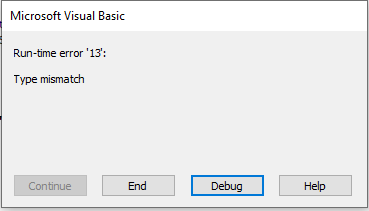
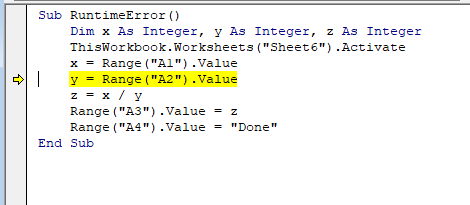
Clicking Debug highlights the line:
y = Range(« A2 »).Value
. This happens because assigning the text « abc » to the integer variable y is incompatible.
After an error occurs:
- Make sure to stop debugging if it hasn’t been stopped yet.
- If debugging is still active, some options and information will not be available, and restarting the program won’t be possible.
- You can stop debugging by selecting Run > Reset in the VBA editor menu or by clicking the corresponding reset button in the toolbar.
Developing an Application In Excel VBA
When developing your own applications with VBA and Excel, it is best to proceed step-by-step, especially if your application consists of more than just a few lines of code in a single procedure.
Start by planning on paper:
Consider how the entire application should be structured. Break it down into parts or modules to be developed sequentially. Avoid the common mistake of trying to write the entire complex application all at once—this often leads to confusion and errors, especially for beginners (and sometimes even advanced programmers).Build incrementally:
- First, write a simple version of the initial part of your application.
- Test this part thoroughly.
- Only after successful testing, add the next part.
- After each addition, test again.
- If an error appears, you will know it arose from the latest change.
By following this process, you will gradually create a basic version of your entire application.
Add complexity gradually:
Next, begin refining parts of your application by making them more complex, step by step, until your application fully matches your original design on paper.Adapt as needed:
Sometimes practical programming reveals the need for adjustments to your initial design. This is normal, as long as the overall structure remains intact. If the structure must change significantly, take a moment to revise your design on paper. This does not mean deleting all your work, but rather making necessary modifications and reorganizing parts.Write clear and readable code:
If you find yourself trying to perform three or four steps at once, split them into individual statements executed sequentially. This makes debugging easier.Facilitate future maintenance:
Clear code structure helps both you and others who might want to modify or expand your application later, making it easier to understand and work with.Use debugging aids:
- Use the MsgBox() function to check values and identify logical errors during development.
- Comment out sections of your code to isolate and identify which parts work correctly and which contain errors.