Votre panier est actuellement vide !
Étiquette : macro_modal_windows
Selecting a Background Pattern for a Cell Range in Excel VBA
After selecting a range of cells—either programmatically or by the user—you can prompt the user to choose a background pattern or fill color for that range.
Example:
Sub SelectBackgroundPattern()
    Dim success As Boolean
    ' Select the cell range A1:C3 on the worksheet "Sheet1"
    ThisWorkbook.Worksheets("Sheet1").Range("A1:C3").Select
    ' Show the built-in Excel "Patterns" dialog for fill formatting
    success = Application.Dialogs(xlDialogPatterns).Show
    ' If the user cancels without selecting a pattern, show a message
    If Not success Then MsgBox "No pattern was selected"
End Sub
Explanation:
- The constant xlDialogPatterns opens Excel’s built-in dialog box for cell fill patterns and colors, found under the Fill tab in the Format Cells dialog.
- If the user clicks OK, the selected cells are formatted with the chosen background pattern or fill color.
- If the user cancels the dialog, the variable success is False and a message box informs the user that no pattern was applied.
Save File As Dialog in Excel VBA
When displaying a « Save As » dialog, you can preset a default filename for the user.
Example:
Sub SaveFileAsDialog()
    Dim success As Boolean
    Workbooks.Add ' Create a new workbook
    ' Show the built-in Excel "Save As" dialog with a preset filename
    success = Application.Dialogs(xlDialogSaveAs).Show(arg1:="C:\Users\POPOLY\Desktop\Doc\Document.txt")
    ' If the user cancels the dialog, show a message box
    If Not success Then MsgBox "Save operation was cancelled"
End Sub
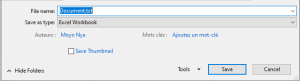
Explanation:
- The constant xlDialogSaveAs calls the built-in Excel « Save As » dialog box.
- The argument « C:\Users\POPOLY\Desktop\Doc\Document.txt » sets the default filename shown in the dialog.
- If the user clicks Save, the new workbook is saved with the given name.
- If the user cancels the dialog, the variable success is set to False and a message box informs the user that the save was cancelled.
Opening a File in Excel VBA
When displaying a file-open dialog, you can preset a default filename or even use wildcards as a filter.
Example:
Sub OpenFileDialog()
    Dim success As Boolean
    ' Show the built-in Excel "Open File" dialog with a preset filter
    success = Application.Dialogs(xlDialogOpen).Show(arg1:="C:\Users\POPOLY\Desktop\Doc\Document.txt")
    ' If the user cancels the dialog, show a message box
    If Not success Then MsgBox "No file was opened"
End Sub

Explanation:
- The constant xlDialogOpen specifies the built-in Excel dialog for opening files.
- The argument « C:\Users\POPOLY\Desktop\Doc\Document.txt » is a filter pattern: it shows only files whose names start with the letter « M » and have the .xlsx extension.
- The user can override this filter and select any file.
- After clicking Open, the selected file(s) are opened in Excel.
- If the user clicks Cancel, the variable success is set to False, and a message box notifies the user that no file was opened.