Votre panier est actuellement vide !
Étiquette : userform
ScrollBar and SpinButton with Excel VBA
The ScrollBar control is used to set a numeric value, but it can only assign non-negative integer values.
The main event of the ScrollBar control is the Change event, and its main properties are Value, Min, and Max, which set the current, minimum, and maximum values, respectively.The SpinButton control is functionally similar to the ScrollBar, but it does not have a slider.
Synchronized operation of a text box and a spin button
A spin button allows you to set an integer value, which can then be displayed in a text box.
How can we make the operation of the text box and spin button synchronized, so that the current value of the spin button appears in the text box, and a number entered in the text box becomes the value of the spin button?In this case, both the spin button and the text box must have their Change events handled in coordination.

So, create a form containing a text box and a spin button.
In the form module, type the necessary code.When reading data from the text box, before assigning it to the Value property of the spin button, you must verify whether the data is numeric. This can be done using the IsNumeric() function.
In addition, you must check whether the number lies within the valid range of values for the spin button, i.e., within the interval defined by the Min and Max properties of the spin button.
In this example, the values of these properties are set to 1 and 5 during form initialization.
OptionButton (Radio Button) with Excel VBA
The OptionButton control (radio button) allows you to select one from several mutually exclusive alternatives.
Option buttons are usually displayed in groups according to the alternatives available. Grouping is carried out using a Frame control or the GroupName property of the OptionButton object.The main events of an option button are the Click and Change events, and its main property is the Value property, which returns or sets its state.
If the property value equals True, the option button is selected; if False, it is cleared.Option button and choosing the resulting operation
As an example of using option buttons, let’s slightly modify the project from the section “Addition of two numbers” earlier in this chapter.
Now, instead of calculating the sum, we will determine the result of the selected operation: addition or subtraction.
The operation to be performed is set by choosing the corresponding option button.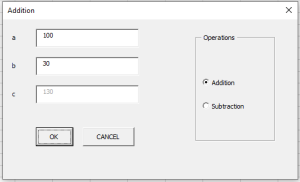
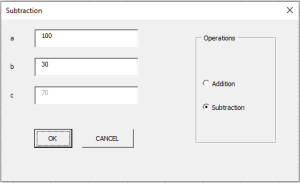
So, create a form that contains three labels, three text boxes, and a button, as well as a frame, which will serve as a container for two option buttons.
Then, using the Properties window, assign the property values shown in Table3.Table. Property values set in the Properties window
Object Property Value Label Caption a TextBox Name txtA Label Caption b TextBox Name txtB Label Caption c TextBox Name txtC Button Name cmdOK Caption OK Button Name cmdCancel Caption Cancel Frame Caption Operations OptionButton Name optAdd Caption Addition OptionButton Name optSub Caption Subtraction In the form module, type the code.
In the Click event procedure of the button, the selected option button is identified, and the calculation is carried out using the corresponding formula.
The Click event procedures of the option buttons display the name of the selected operation in the form’s title bar.CheckBox and ToggleButton with Excel VBA
A checkbox and a toggle button give the user the ability to make a choice.
The main property of these controls is the Value property, which returns their state.
These controls usually have two states:- Checked (the Value property equals True)
- Unchecked (the Value property equals False)
However, they can be configured to allow three alternatives using the TripleState property.
Controlling the visibility of controls
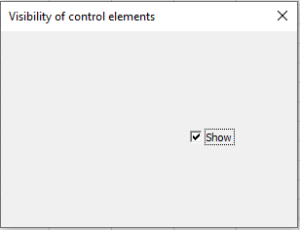
The Visible property controls the visibility of a control. If its value is True, the control is visible, and if it is False, the control is invisible.The following example demonstrates how a checkbox can be used to control the visibility of a control (in this case, a text box).
So, create a form and in the code module of the form, type the code.
If the Show checkbox is checked, the text box is displayed; if unchecked, it is hidden.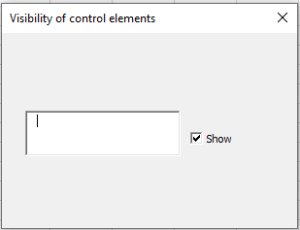
Controlling the availability of controls for the user
The Enabled property controls the availability of controls for the user.
If the property value is True, the control can receive focus and be accessible to the user.
If the value is False, the control cannot.The following example shows how a checkbox can be used to control the availability of a control (in this case, a button).
So, create a form and enter the necessary code in the module.
If the Lock checkbox is checked, the Press button is disabled; if unchecked, it is available.

TextBox (Input Field) with Excel VBA
The TextBox control (input field) is primarily used for user text input, which can later be processed in the program, or to display calculation results from the program.
The text entered into the field can be converted in code into numbers or formulas.
The main event associated with the TextBox is the Change event.
Table. Main Properties of TextBox
Property Description Text Returns the text contained in the field Multiline Boolean parameter that enables multiline text input ScrollBars Defines scroll bar mode. Values: fmScrollBarsNone (none), fmScrollBarsHorizontal, fmScrollBarsVertical, fmScrollBarsBoth SelLength, SelStart, SelText Define the length, starting point, and content of the selected text MaxLength Sets the maximum allowed number of characters. If 0, no limit PasswordChar Specifies the character displayed when entering passwords (instead of actual input) Example: Adding Two Numbers
As a demonstration, let’s create a project where the sum of two numbers entered into TextBoxes is displayed in a third TextBox.
Create a form with three labels, three TextBoxes, and two buttons.

Set their properties in the Properties window as shown in Table.Table. Property Values
Object Property Value Form Caption c = a + b Label Caption a TextBox Name txtA Label Caption b TextBox Name txtB Label Caption c TextBox Name txtC Button Name cmdOK Caption OK Button Name cmdCancel Caption Cancel In the form module, enter the code.
- Clicking OK calculates the sum of a and b and displays it in c.
- Clicking Cancel closes the form.
Button with a « Hot Key »
The Accelerator property assigns a key (letter or digit) that, when pressed with , triggers the button’s Click event.
The key must appear in the button’s Caption and will be underlined.
Example:
Private Sub UserForm_Initialize()
    cmdOK.Accelerator = "O"
    cmdCancel.Accelerator = "C"
End Sub
Now pressing +O = clicking OK, and +C = clicking Cancel.
Keys and
- Setting Default = True on a button assigns it to .
- Setting Cancel = True assigns it to .
Example:
Private Sub UserForm_Initialize()
    cmdOK.Default = True
    cmdCancel.Cancel = True
End Sub
Here, triggers OK, and closes the form.
Blocking the Result Field
- Enabled = False → disables the control completely (no focus).
- Locked = True → prevents editing, but allows focus (so content can be copied).
Example:
Private Sub UserForm_Initialize()
    txtC.Enabled = False
End Sub
Preventing Button from Taking Focus
By default, clicking a button shifts focus to it.
To keep focus on the previous control, set TakeFocusOnClick = False.Example:
Private Sub UserForm_Initialize()
    cmdOK.TakeFocusOnClick = False
End Sub
Moving Focus Bet ween Fields with
To move focus when is pressed, handle the KeyDown event.
Example:
Private Sub txtA_KeyDown(ByVal KeyCode As MSForms.ReturnInteger, _
                         ByVal Shift As Integer)
    If KeyCode = vbKeyReturn Then
        txtB.SetFocus
    End If
End Sub

Private Sub txtB_KeyDown(ByVal KeyCode As MSForms.ReturnInteger, _
                         ByVal Shift As Integer)
    If KeyCode = vbKeyReturn Then
        cmdOK_Click
        txtA.SetFocus
    End If
End Sub

Private Sub UserForm_Initialize()
    txtC.Locked = True
End Sub
Tooltips
The ControlTipText property defines tooltips.
When the mouse hovers over a control, the text appears in a small window.Example: tooltips are added to the three TextBoxes and two buttons.

Password Input Field
TextBox can be used as a password field.
- The displayed echo characters are set by PasswordChar.
Example: a form with a password field and a button.
- The button is locked by default.
- If the correct password (laru) is entered, the button unlocks; otherwise, it locks again.
- Case-insensitivity is achieved using LCase().

Table. Property Values
Object Property Value Form Caption Password TextBox Name txtPass Button Name cmdMsg Caption Press Multiline TextBox
To enable multiline input, set Multiline = True.
Example: Currency Conversion Project
- One TextBox is used for input (amount in rubles).
- One multiline TextBox is used for output (converted to USD).
- Input value is entered, triggers calculation, result displayed in multiline TextBox.
- The multiline box is locked to prevent editing.

Table. Property Values
Object Property Value TextBox Name txtMoney TextBox Name txtResult Exchanging Values Between Forms
If a project contains multiple forms, they can share values using public variables declared in a standard module.
Example:
- Form1: two TextBoxes + button
- Form2: one TextBox
- Button in Form1 → reads values, adds them, closes Form1, opens Form2, and shows the result.
Module of Form1
Private Sub CommandButton1_Click()
    res = CDbl(TextBox1.Text) + CDbl(TextBox2.Text)
    Unload Me
    UserForm2.Show
End Sub
Module of Form2
Private Sub UserForm_Initialize()
    TextBox1.Text = res
End Sub
Standard Module
Public res As Double
Label in Excel VBA
The Label control is used to display text captions — for example, titles for controls that do not have a Caption property.
The user cannot change the text displayed in a label during program execution.
The main property of the Label is Caption, which sets the text displayed inside it.

Example: Different Types of Labels
The following example demonstrates different types of labels:
- a simple label,
- a label with a picture,
- a label with a border,
- and a label with word wrapping.
Steps to implement the project:
- Create a form and place three labels on it.
- Prepare an image file. In this case: D:\flags.jpg.
- In the form module, type the code, which will set the label parameters during form initialization.
Key Properties of Label
- Picture → loads an image into the label.
- PicturePosition → defines the relative position of the image and the text.
- BorderStyle → specifies whether the label is displayed with or without a border.
Controls in Excel VBA
VBA provides a wide range of built-in controls that can be used on a form.
By using these controls, it is easy to create any user interface that meets all the requirements of a Windows environment.Controls are created using the Toolbox, which is displayed either by selecting the View | Toolbox command or by clicking the Toolbox button on the Standard toolbar.
The Toolbox contains buttons for creating controls. All Toolbox buttons, except Select Objects, are used to create new controls. By clicking Select Objects, you can select an already created control on the form in order to edit it (resize or move).
NOTE
The Controls Toolbar in MS Excel (used to create controls on a worksheet) has a smaller set of objects compared to the Toolbox in the Visual Basic Editor. For example, it does not include frames, multipages, or tab strips.Creating Controls
Creating controls on a worksheet or form usually occurs at the initial stage of application design.
Sometimes, controls are created programmatically during runtime — but this approach is used less frequently.Toolbox Controls
Table. Controls from the Toolbox
Control Name (VBA) TextBox 
Label 
CommandButton 
ListBox 
ComboBox 
ScrollBar 
SpinButton 
OptionButton 
CheckBox 
ToggleButton 
Frame 
Image 
MultiPage 
Tab Strip 
Placing a Control on a Form
To place a control on a form:
- Click the corresponding button on the Toolbox.
- Using the mouse, drag the control’s frame to the desired location on the form.
After that, the control can be:
- moved,
- resized,
- copied to the clipboard,
- pasted from the clipboard,
- or deleted from the form.
First Project with a Form with Excel VBA
As the first project with a form, let’s create a UserForm that appears on the screen when a button on the worksheet is clicked.

Step 1. Create the Form
Using the Properties window, set the form’s properties as shown in Table.
Table. Form Properties
Object Property Value Form Name frmFirst Caption First Form Step 2. Create the Button
On the worksheet, create a button and, using the Properties window, set its properties as shown in Table.
Table. Button Properties
Object Property Value Button Name cmdDemoForm Caption Press Step 3. Add the Code
In the Sheet1 module, type the following code.
First Form – Worksheet Module
Private Sub cmdDemoForm_Click()
    frmFirst.Show
End Sub
Now, when you click the button, the form will appear on the screen.
How to Run the Project
A form can be linked to any control placed on the worksheet, as shown in the previous example.
In later examples (where the main objects are the form itself and its embedded controls), we will not repeat how the form is integrated with the worksheet — that task is left to the reader.
⚡ Tip: To test the code associated with the form, it is not actually necessary to place controls on the worksheet and link the form to them. After creating the form and writing the code in its module, simply:
- Select Run | Run Sub/UserForm, or
- Press F5, or
- Click Run Macro on the Standard toolbar.
The form will then be displayed on top of the active worksheet.
The Keyword Me
In code, the keyword Me is often used. It returns a reference to the currently active object (the form itself).
For example, instead of writing:
UserForm1.Caption = "Example"
Unload UserForm1
it is common to write:
Me.Caption = "Example"
Unload Me
Form with a Refreshable Background Image
You can set a picture as a form’s background using the Picture property. By default, the picture is displayed at its original size.
If you want the picture to stretch to fill the client area of the form, or scale proportionally to its width/height, you use the PictureSizeMode property. The PictureAlignment property defines the picture’s alignment within the client area (e.g., centered or aligned to the top-left).
Project: Background Image Switching
Let’s build a project where a form displays a background picture. When you click the form, the picture alternates between two images.
Step 1. Requirements
You need two bitmap images, e.g.:
- D:\1.jpg
- D:\2.jpg
Step 2. Form Properties
Create a form and set its properties as shown in Table.
Table. Form Properties
Object Property Value Form Picture Link to bitmap D:\1.jpg PictureSizeMode fmPictureSizeModeStretch Caption Background Switching Pictures Step 3. Add the Code
Double-click the form and enter the following code in the form’s module.
Form with Refreshable Background Image
Private Sub UserForm_Click()
    Static flag As Boolean
    Dim filename As String
    If Not flag Then
        filename = "D:\1.jpg"
        Me.Picture = LoadPicture(filename)
        Me.PictureSizeMode = fmPictureSizeModeStretch
        Me.Caption = "Background Switching Pictures " & filename
    Else
        filename = "D:\2.jpg"
        Me.Picture = LoadPicture(filename)
        Me.PictureSizeMode = fmPictureSizeModeZoom
        Me.PictureAlignment = fmPictureAlignmentTopLeft
        Me.Caption = "Background Switching Pictures " & filename
    End If
    Me.Repaint
    flag = Not flag
End Sub
Explanation:
- The Static flag variable tracks which picture is currently displayed.
- The LoadPicture function loads an image file.
- PictureSizeMode = fmPictureSizeModeStretch stretches/shrinks the first image (possibly distorting proportions).
- PictureSizeMode = fmPictureSizeModeZoom scales the second image while preserving proportions.
- PictureAlignment = fmPictureAlignmentTopLeft aligns the image to the form’s top-left corner.
Note
It wasn’t strictly necessary to set the form’s Picture and PictureSizeMode properties in advance.
Alternatively, you could add the following initialization code:
Private Sub UserForm_Initialize()
    UserForm_Click
End Sub
This automatically triggers the Click procedure when the form loads, displaying the first image immediately.
Deleting a Picture
In the Properties window, a picture can be deleted by placing the cursor in the Picture field and pressing .
In code, this is achieved by assigning the Picture property to LoadPicture(« »).
Example:Me.Picture = LoadPicture("")Form with a Tiled Background and Setting Properties at Initialization
An image can be displayed on a form not only as a single picture, but also as a tile.
In this case, the property PictureTiling must be set to True.
Naturally, you should also set the PictureAlignment property, which defines the placement of the initial image from which the tiled background is created.Form property values can be set either in the Properties window or in code.
In the latter case, this is usually done in the Initialize event procedure, which is generated when the form is initialized but before it is displayed.Example:
Build a form with a tiled background, with its properties set in code during initialization.- Create the form.cel.
NOTE
- In the form’s module, enter the code.
- Ensure the required bitmap file is located in the default folder used by MS Ex
To check which folder is your default:
- Go to the File tab → Options.
- In the Excel Options dialog box, choose Save on the left.
- On the right, under Save workbooks, check the Default file location field.
The project checks for the existence of the image file in that folder using the Dir() function.
- If the file does not exist, the form will open without a tiled background.
- Dir() returns the name of a file or folder that matches the pattern passed to it (wildcards * and ? allowed).
- If no match is found, Dir() returns an empty string.
Thus, checking whether a file exists is done by checking if Len(Dir(…)) = 0.
Closing a Form with
Clicking the Close button in the form’s upper-right corner closes it.
Question: Is it possible to close the form by pressing a key, such as ?
Answer: Yes.You need to:
- Write code for the KeyDown event,
- Check for the required key code,
- Close the form using Unload or End.
The KeyDown event has two parameters:
- the key code,
- the modifier key identifier.
The constant for the key is vbKeyEscape.
Closing a form with
Private Sub UserForm_KeyDown(ByVal KeyCode As MSForms.ReturnInteger, _
                             ByVal Shift As Integer)
    If KeyCode = vbKeyEscape Then
        Unload Me
    End If
End Sub
Confirming Form Closure
In many projects, it’s useful to request user confirmation before closing a form.
This can be done using the QueryClose event, which is triggered just before a form closes.
It has two parameters:
- Cancel → if set to –1, closure is canceled; if 0, the form closes.
- CloseMode → identifies the reason for closure.
Example:
Private Sub UserForm_QueryClose(Cancel As Integer, CloseMode As Integer)
    Select Case MsgBox("Close window?", vbYesNo + vbQuestion)
        Case vbYes : Cancel = 0
        Case vbNo : Cancel = -1
    End Select
End Sub
Setting Form Position
The initial location of a form is set by the StartUpPosition property.
Table. StartUpPosition Values
Value Description 0 Top-left corner set by Top and Left properties 1 Centered within the Excel window 2 Centered on the screen 3 Top-left corner of the screen Example:
Displays the form with its top-left corner at (100,100):Private Sub UserForm_Initialize() Me.StartUpPosition = 0 Me.Top = 100 Me.Left = 100 End Sub
Modal and Modeless Forms
- A modal window is one that must be closed before the user can access another window.
- By default, UserForms in VBA are modal.
The Show method accepts an optional parameter style:
- vbModal (1) → modal
- vbModeless (0) → modeless
Example:
UserForm1.Show vbModeless   ' User can still interact with the worksheet
UserForm1.Show vbModal      ' Worksheet locked until form closes
Using Multiple Forms
A project may contain multiple forms.
- If one form replaces another in modal mode, the first must be closed before the second appears.
- In modeless mode, both forms can remain open, with the second slightly offset.
Modal – Worksheet Module
Private Sub cmdForm1_Click()
    UserForm1.Show vbModal
End Sub
Modal – UserForm1 Module
Private Sub UserForm_Click()
    Unload UserForm1
    UserForm2.Show
End Sub
Modeless – Worksheet Module
Private Sub cmdForm1_Click()
    UserForm1.Show vbModeless
End Sub
odeless – UserForm1 Module
Private Sub UserForm_Click()
    UserForm2.StartUpPosition = 0
    UserForm2.Top = UserForm1.Top + 20
    UserForm2.Left = UserForm1.Left + 20
    UserForm2.Show
End Sub
“Easter Egg”
An “easter egg” is a hidden dialog in an application — usually a programmer’s joke, often found in games.
Example:
- The easter egg appears only if the user right-clicks in the bottom-right one-ninth of the form’s client area.
- This means only someone who created the application would know how to reveal it.

The MouseDown event is used to identify the click point.
Event Syntax:
Private Sub object_MouseDown(ByVal Button As Long, _
                             ByVal Shift As Long, _
                             ByVal X As Long, _
                             ByVal Y As Long)
Parameters:
- Button – identifies the mouse button. Possible values (XlMouseButton):
- xlNoButton
- xlPrimaryButton
- xlSecondaryButton
- xlMiddleButton
- Shift – identifies pressed modifier keys (, , ):
- 0 = none
- 1 = Shift
- 2 = Ctrl
- 4 = Alt
(Combinations return sums, e.g., Shift+Ctrl = 3).
- X, Y – coordinates of the mouse click relative to the form.
Adding a UserForm to a Project
To add a UserForm to a project, do the following:
- Open the Visual Basic Editor.
- Select the command Insert | UserForm.
A new form is added to the project.

NOTE
The size of the form can be adjusted using the resize handles.The UserForms Collection
The UserForms collection is a family of all loaded forms in the application. Like all collections, the UserForms collection has the following:
- Count – returns the number of components in the collection.
- Item – returns a specific component of the collection.
- Add – adds a new component to the collection.
Form Properties
A form has a wide range of properties that allow you to control both its appearance and its functionality.
Of course, the most frequently used properties are those that define the Name of the form and the Caption (the text displayed in the form’s title bar).
Table. Form Properties
Property Description Name The name of the form ActiveControl Returns a reference to the control that currently has focus BackColor Background color BorderColor Border color BorderStyle Border style. Possible values: fmBorderStyleNone, fmBorderStyleSingle CanPaste Determines whether pasting from the clipboard is allowed CanRedo Determines whether the Redo action is available CanUndo Determines whether the Undo action is available Caption Form’s title text Cycle Specifies how controls inside Frames or Pages behave when losing focus DrawBuffer Defines memory size used for redrawing images Enabled Determines whether the form is available to the user ForeColor Foreground (title text) color Height, Width Height and width of the form HelpContextID Link to a help file topic InsideHeight, InsideWidth Height and width of the user area (excluding title bar and borders) KeepScrollBarsVisible Scroll bar visibility. Possible values: fmScrollBarsNone, fmScrollBarsHorizontal, fmScrollBarsVertical, fmScrollBarsBoth Left, Top Coordinates of the form’s top-left corner MouseIcon Assigns a custom mouse pointer MousePointer Specifies mouse pointer type Picture Link to a bitmap file used as the form’s background PictureAlignment Specifies alignment of the background image PictureSizeMode Defines scaling of the background image ScrollHeight, ScrollWidth Height and width of the scrollable area ScrollLeft, ScrollTop Coordinates of the scrollable area’s top-left corner SpecialEffect Defines the form’s visual effect StartUpPosition Specifies initial position of the form Tag Custom identifier for the form VerticalScrollbarSide Defines which side scroll bars are displayed on Visible Controls whether the form is visible WhatsThisButton Displays the Help (?) button Zoom Defines zoom factor for displayed objects Form Methods
A form has many methods that allow you to perform a wide range of operations—from showing or hiding the form to repainting its contents.
Table. Form Methods
Method Description Copy Copies content to the clipboard Cut Cuts content to the clipboard Hide Hides the form without removing it from memory Load Loads the form into memory without displaying it Move Moves the form Paste Pastes content from the clipboard PrintForm Prints the form RedoAction Repeats the last Redo command Repaint Refreshes/redraws the form Scroll Scrolls the form SetDefaultTabOrder Sets the default tab order for controls Show Displays the form UndoAction Executes the last Undo command Unload Removes the form from memory WhatsThisMode Displays the Help (?) pointer Form Events
Event procedures allow you to control the entire lifecycle of a form—from initialization to termination.
Table. Form Events
Event Description Activate, Deactivate Occur when the form is activated/deactivated AddControl Occurs when a control is added BeforeDragOver Occurs during drag-and-drop BeforeDropOrPaste Occurs before drop or paste Click Occurs when the form is clicked DblClick Occurs when the form is double-clicked Error Occurs when an error is detected but cannot be passed Initialize Occurs when the form is initialized Layout Occurs when the form’s layout changes KeyDown, KeyUp Occur when any key is pressed or released while the form has focus KeyPress Occurs when any non-special key is pressed while the form has focus MouseDown, MouseUp Occur when a mouse button is pressed or released MouseMove Occurs when the mouse is moved over the form QueryClose Occurs before the form is closed RemoveControl Occurs when a control is removed Resize Occurs when the form is resized Scroll Occurs when the form is scrolled Terminate Occurs when the form is closed Zoom Occurs when the form’s zoom changes Displaying and Hiding Forms
When working with forms, a special role is played by one method and two operators that control the start and end of form usage:
- The Show method loads and displays the form.
- The Unload operator removes the form from the screen and memory.
- The End operator ends code execution without triggering Unload or Terminate events.
⚠️ Therefore, ending the application with End ignores cleanup code in those events.
Forms can be displayed and hidden with the Show and Hide methods.
ListBox with Excel VBA
The ListBox control is used to store a list of values.
From the list, the user can select one or more values, which are then used in the program code.Note that, during design, a list visually looks similar to a text box. Typically, a list item is selected with a single click. A double-click on a list item can be used to trigger certain actions in the program related to that item.
The Change event is generated whenever the selected item changes.
Commonly Used Properties and Methods of ListBox
Table. ListBox Properties
Property Description ListIndex Returns the index of the selected item. List items are numbered starting from zero. If no item is selected, returns –1. ListCount Returns the total number of list items. TopIndex Returns the index of the topmost visible list item. ColumnCount Sets the number of columns in the list. TextColumn Sets which column’s elements are returned by the Text property. Text Returns the item currently selected in the list. List Returns the list item at the intersection of a given row and column. ListFillRange Reference to the range used to populate the list. RowSource Sets the range containing the list items. ControlSource Sets the cell range where the selected list item will be returned. MultiSelect Sets the selection mode. Possible values: - fmMultiSelectSingle (only one item can be selected),
- fmMultiSelectMulti (multiple selection allowed using clicks or ),
- fmMultiSelectExtended (multiple selection allowed using for consecutive items). |
| Selected | Boolean property returning True if an item is selected, False otherwise. Used when MultiSelect is set to Multi or Extended. |
| ColumnWidths | Sets the width of list columns. |
| ColumnHeads | Boolean property defining whether column headers are displayed. |
| ListStyle | Sets how selected items are highlighted. Possible values: - fmListStylePlain (highlighted by color),
- fmListStyleOption (a checkbox is placed next to each item). |
| MatchEntry | Displays the first matching list item while typing. Possible values: - fmMatchEntryNone (disabled),
- fmMatchEntryFirstLetter (match by first letter; list preferably sorted alphabetically),
- fmMatchEntryComplete (match by full typed name). |
| BoundColumn | Defines the data returned by the Value property. Possible values: - 0 → returns the row index (same as ListIndex).
- 1..n → returns the item from the selected row in the specified column. |
Table. ListBox Methods
Method Description Clear Removes all items from the list. RemoveItem Removes an item at the specified index. AddItem Adds an item to the list. ListBox Scenarios
As an example of using lists, let’s return to the scenario of calculating the sum a + b + c for different sets of values. This time, instead of buttons, the scenario will be managed with a ListBox.

Steps:
- On the worksheet, allocate cells B2, B3, B4 for the variables a, b, c.
- In cell B5, enter the formula:
- =SUM(B2:B4)
- In range E3:G3, enter the first set of values for a, b, c, and in cell D3 enter its scenario name.
- In range E4:G4, enter the second set of values for a, b, c, and in cell D4 enter its scenario name.
- Create a ListBox and, using the Properties window, set the property values as shown in next Table.
Table. Property values set in the Properties window
Object Property Value ListBox Name lstVar ListFillRange D3:D4 In the Sheet1 module, type the necessary code.
The ListFillRange property fills the list with scenario names taken from the specified range.
The Change event procedure of the ListBox determines the index of the selected item via ListIndex.
This index identifies the range containing the chosen set of values, which is then copied to the clipboard and pasted (transposed) into B2:B4 for calculation.Worksheet Cell Protection
In projects with a user interface, it is often necessary to maintain data integrity: the user should only be allowed to perform permitted actions, without disrupting the structure. For example, they should only be allowed to enter values in specific cells, while input in all other cells should be programmatically blocked.
This effect is achieved using the Protect method, which applies protection to the worksheet with the parameter UserInterfaceOnly = True.
- This prevents the user from editing locked cells.
- At the same time, macros are still able to edit them programmatically.
- The Locked property of cells defines whether the cell is locked or editable.
A simple project demonstrates the Protect method and the Locked property.
Scenario:
- The task is to calculate either the sum or the difference of two numbers entered into cells B1 and B2.
- The operation is selected by the user from a ListBox.
- Only cells B1 and B2 are unlocked for input.
- The operation name and the result formula are programmatically written to cells A3 and B3.
Printing Control Elements
In a printed report, sometimes you need to show control elements, while in other cases you may not (if they serve only as helper tools).
The PrintObject property of controls determines whether the control is printed.
- If True, the object will appear in the printout.
- If False, it will not.
To demonstrate this property, modify the previous project:
- Add two buttons and a checkbox.
- If the checkbox Print Controls is checked, the elements and list will appear in the printout.
- If unchecked, they will not.
- The Print button starts printing.
- The Preview button shows a print preview of the worksheet.
Table. Property values set in the Properties window
Object Property Value Button Name cmdPrint Caption Print Button Name cmdPreview Caption Print Preview CheckBox Name chkPrint Caption Print Controls ScrollBar and SpinButton with Excel VBA
The ScrollBar control is used to set a numeric value, and it can only assign integer non-negative values. The main events of the ScrollBar control are Change, SpinUp, and SpinDown.
Table. ScrollBar Properties
Property Description Value Returns or sets the current value of the scroll bar, which can only be an integer Min Minimum value of the scroll bar Max Maximum value of the scroll bar SmallChange Sets the step size when clicking one of the arrow buttons LargeChange Sets the step size when clicking between the slider and one of the arrows LinkedCell Reference to the cell linked to the Value property, synchronized with the ScrollBar’s current value Orientation Sets the orientation of the scroll bar. Possible values: - fmOrientationAuto (orientation depends on control size, default),
- fmOrientationVertical (vertical),
- fmOrientationHorizontal (horizontal) |
The SpinButton control has the same functionality as the ScrollBar. To put it simply, a SpinButton is a scroll bar without a slider.
It has the same properties as the ScrollBar: Value, Min, Max, and SmallChange.Entering Values into a Cell and Managing Color
As an example of using scroll bars, let’s create an application that demonstrates the RGB color model.
On the worksheet, place three ScrollBar controls.

Using the Properties window, assign them property values as shown in next Table.
Table. Property values set in the Properties window
Object Property Value ScrollBar Name scrRed Min 0 Max 255 LinkedCell B6 ScrollBar Name scrGreen Min 0 Max 255 LinkedCell D6 ScrollBar Name scrBlue Min 0 Max 255 LinkedCell F6 In the worksheet module (Sheet1), enter the code.
- Each scroll bar can change its value between 0 and 255, with the current value displayed in the linked cell.
- These linked cells work in sync with the scroll bars: if the user changes the value in the cell, the ScrollBar’s Value property updates automatically.
- Each scroll bar controls one of the three RGB color components (Red, Green, Blue).
- Together, they define the background color of the range A2:G5.
Entering Non-Integer Values Using ScrollBar and SpinButton
The Value property of the ScrollBar and SpinButton can only take integer values.
To manage non-integer values, you need to scale them.We’ll demonstrate this with a project that plots the function:
F(x)=cos(ax)⋅sin(bx)
where the parameters a and b vary from 0 to 10 with a step of 0.1.
Steps:
- On the worksheet, reserve cells B2 and B4 for parameters a and b.
- In the range E2:E12, enter values of x from 0 to 1 with a step of 0.1.
- In cell F2, enter the formula:
- =COS($B$2*E2)*SIN($B$4*E2)
- Select cell F2, drag the fill handle down to F12.
- Based on the range E2:F12, use the chart wizard to create a graph.
- Create two SpinButton controls and, using the Properties window, set their property values as shown in next Table.
- In the worksheet module (Sheet1), enter the code.

Table. Property values set in the Properties window
Object Property Value SpinButton Name spnA Min 0 Max 100 SpinButton Name spnB Min 0 Max 100 - The Change event procedures of the SpinButtons input the scaled values into the worksheet cells.
- The worksheet’s Change event procedure ensures synchronization between the cells and the SpinButtons.
That is, changing the values in B2 or B4 will update the SpinButtons accordingly.