Votre panier est actuellement vide !
Catégorie : Excel VBA Course
Exporting a Word Document in Excel VBA
Since Word 2010, the Document object from the Word library includes the method ExportAsFixedFormat(), which allows exporting a Word document to either a PDF file or an XPS file.
Example:
Sub ExportWordToPDF()
    Dim appWord As Word.Application
    Dim document As Word.Document
    Dim folderPath As String
    Dim pdfFileName As String
    Set appWord = CreateObject("Word.Application")
    folderPath = ThisWorkbook.Path & "\Export"
    ' Open the Word document located in the "Export" subfolder
    Set document = appWord.Documents.Add(folderPath & "\DokumentTest01.docx")
    ' Define the name of the PDF file to be created
    pdfFileName = folderPath & "\DokumentTest01.pdf"
    ' Export the document as PDF
    document.ExportAsFixedFormat _
        OutputFileName:=pdfFileName, _
        ExportFormat:=wdExportFormatPDF
    ' Close the Word document without saving changes
    document.Close SaveChanges:=wdDoNotSaveChanges
    ' Quit Word application and clean up
    appWord.Quit
    Set document = Nothing
    Set appWord = Nothing
End Sub
Explanation:
- The code exports a Word document located in the Export folder, which is a subdirectory of the folder containing the Excel workbook running this VBA code.
- The OutputFileName parameter specifies the full path and name of the file to be created, which in this example is the same as the Word document’s name but with a .pdf extension.
- The ExportFormat parameter determines the export type. It can be set to:
- wdExportFormatPDF for exporting as a PDF file
- wdExportFormatXPS for exporting as an XPS file (XML Paper Specification format)
- When closing the Word document using the Close() method, the SaveChanges parameter is set to wdDoNotSaveChanges to prevent any modifications to the original Word file.
SQL: Deleting Records Using DELETE Action Queries in Excel VBA
The DELETE statement is used to remove records from a database table. Its syntax is similar to SELECT. Selection criteria must be carefully specified to avoid deleting unintended records.
Example 1: Deleting All Records
SQLCommand = "DELETE FROM personen"
- This command deletes all records from the personen table and should generally be avoided unless you really want to clear the entire table.
Example 2: Deleting a Specific Record
SQLCommand = "DELETE FROM personen WHERE personalnummer = 4711"
- This command deletes exactly one record, since it filters by the unique indexed field personalnummer (personnel number).
SQL: Modifying Data with UPDATE Action Queries in Excel VBA
The UPDATE statement is used to modify the contents of one or more fields in one or multiple records within a database table. Its syntax is similar to the SELECT statement. Selection criteria should be chosen carefully to avoid accidentally modifying more records than intended.
Example 1: Updating All Records
SQLCommand = "UPDATE personen SET gehalt = 3800"
- This command sets the value of the gehalt (salary) field to 3800 for all records in the personen table, which is usually unrealistic.
Example 2: Updating a Specific Record
SQLCommand = "UPDATE personen SET gehalt = 3800 WHERE personalnummer = 2296"
- This command updates the gehalt field only for the record where personalnummer (personnel number) equals 2296.
- The result after re-importing the data shows that only one record was changed.
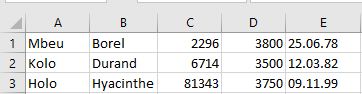
- It is recommended to filter updates by fields with a unique index, such as personalnummer, to avoid unintended modifications.
Common Errors and Their Messages
When attempting changes that violate the table structure or data integrity, Access returns error messages which are passed to VBA through error handling (On Error) in the Aktionsabfrage() procedure. These messages help diagnose the cause:
Error 1: Inserting a Null or Empty Value into a Required Field
- Attempting to assign an empty string to a field defined as not allowing nulls triggers an error.
SQLCommand = "UPDATE personen SET name = '' WHERE personalnummer = 2296"
Error 2: Inserting a Duplicate Value into a Field with a Unique Index
- Attempting to insert a value that already exists in a uniquely indexed field triggers an error.
SQLCommand = "UPDATE personen SET personalnummer = 6714 WHERE personalnummer = 2296"
Error 3: Inserting an Invalid Date or Number
- Assigning an invalid date or number—often due to incorrect format or type mismatch—results in an error.
SQLCommand = "UPDATE personen SET geburtstag = '32.12.1980' WHERE personalnummer = 2296"
SQL: Searching Using Select Queries Based on User Input in Excel VBA
When a user wants to search for specific records, the search term they enter can be incorporated directly into the SQL statement:
SQLCommand = « SELECT * FROM personen WHERE name LIKE ‘ » & _
Application.InputBox(« Which name are you searching for? ») & « ‘ »
- This query displays all records where the name field exactly matches the user input entered in the input box.
To improve flexibility, you can modify the query to search for any occurrence of the user input within the name field by using wildcards (%):
SQLCommand = « SELECT * FROM personen WHERE name LIKE ‘% » & _
Application.InputBox(« Which substring are you searching for? ») & _
« %’ »
- This query returns all records where the name field contains the substring the user enters, anywhere within the field.
Important:
- The SQL command string is constructed by concatenating several parts, so do not forget the single quotes (‘) around the search term—they are crucial for correct SQL syntax.
- During development, it is helpful to display the complete SQL command using:
MsgBox SQLCommand
This helps catch common errors when inserting user input into the query. You can comment out this debug line once your code works properly.
SQL: Sorting Query Results in Excel VBA
You can influence the order of records returned by a query using the ORDER BY clause. You can specify one or multiple sorting keys. By default, sorting is in ascending order. To sort in descending order, use the keyword DESC.
Example 1: Sorting by Salary Descending
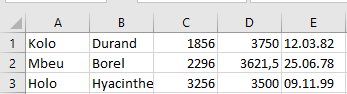
SQLCommand = « SELECT * FROM personen ORDER BY gehalt DESC »
- The records are sorted in descending order based on the gehalt (salary) field, as shown in next Figure.
Example 2: Sorting by Last Name and First Name
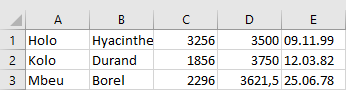
SQLCommand = « SELECT * FROM personen ORDER BY name, vorname »
- The records are sorted in ascending order by the name field (last name).
- If multiple records share the same last name, they are further sorted by the vorname (first name) field, also ascending, as shown in next Figure.
Note:
To demonstrate this query more clearly, a temporary record (Maier, Wolfgang) was added.SQL: Inserting Records Using INSERT Action Queries in Excel VBA
The INSERT statement is used to add new records to a database table.
Example:
SQLCommand = "INSERT INTO personen " & _
             "(name, vorname, personalnummer, gehalt, geburtstag) " & _
             "VALUES('Moyo', 'Yannick', 4711, 2900, '02.01.19976')"
This command inserts a new record into the personen table.
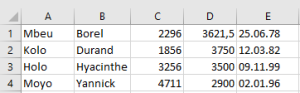
- The field names in parentheses specify the number and order of the values listed after VALUES, which must match.
- Note the use of single quotes around string and date values — these are mandatory in SQL.
- When inserting data, the same types of errors can occur as with updates, such as violating data types, null constraints, or unique indexes.
SQL: Select Queries with SELECT in Excel VBA
This and the following sections explain the most important SQL commands through typical examples and their effects. You can find the corresponding SQL statements commented in the procedures Auswahlabfrage() and Aktionsabfrage() in the workbook Mappe9.xlsm, Module 5.
The SELECT statement is used to retrieve records for display. An initial example using SELECT * FROM personen was already shown. Here are further examples:
Selecting Specific Fields
SQLCommand = « SELECT name, vorname FROM personen »
This query requests only the values from the fields name and vorname for all records, as shown in Figure 9.46.
- The result set is smaller because it contains only these two fields.
- Other fields are not included and therefore cannot be accessed in the processing loop.
- For this query, the processing loop is shortened accordingly:
Do While Not rs.EOF
    Cells(i, 1) = rs("name")
    Cells(i, 2) = rs("vorname")
    rs.MoveNext
    i = i + 1
Loop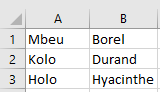
Restricting Selection with a Condition
SQLCommand = « SELECT * FROM personen WHERE gehalt > 3600 »
- The WHERE clause allows you to specify conditions, similar to an If statement.
- The result contains only those records that satisfy the condition—in this case, those where the value in the gehalt (salary) field is greater than 3600, as shown in next Figure.

Selecting by String Value
SQLCommand = « SELECT * FROM personen WHERE name = ‘Mbeu »
- When comparing string or date values, the value must be enclosed in single quotes (‘) (not to be confused with double quotes used for strings in VBA).
- The result of this query is shown in next Figure.

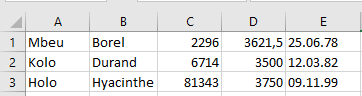
Note: The displayed results refer to the original values in the table before a 5% salary increase.
Sample Database: Action Query in Excel VBA
Code example:
Sub ActionQuery()
    Dim cn As New ADODB.Connection
    Dim SQLCommand As String
    Dim affectedRecords As Integer
    On Error GoTo ErrorHandler
    Set cn = New ADODB.Connection
    cn.ConnectionString = _
        "Provider=Microsoft.ACE.OLEDB.12.0;Data Source=" & _
        ThisWorkbook.Path & "\salary.accdb;"
    cn.Open
    SQLCommand = "UPDATE personen SET gehalt = gehalt * 1.05"
    ' MsgBox SQLCommand ' Uncomment for debugging
    cn.Execute SQLCommand, affectedRecords
    cn.Close
    Set cn = Nothing
    MsgBox "Number of records updated: " & affectedRecords
    Exit Sub
ErrorHandler:
    MsgBox Err.Description
    Set cn = Nothing
End Sub
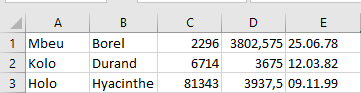
As an example of an action query, consider the following task: increase all salaries by 5%. After running the update and re-importing the table from MS Access, the updated records should appear as shown in next Figure.
Explanation:
- The Execute() method is used to run action queries and can accept a second parameter to return the number of affected records.
- In this example, the second parameter affectedRecords stores how many records were updated by the query.
- The return value of Execute() is not needed here since no Recordset is expected from an UPDATE statement.
- The SQL command UPDATE personen SET gehalt = gehalt * 1.05 can be broken down as follows:
- UPDATE … SET …: SQL syntax to update a table and assign new values.
- personen: The name of the table to update.
- gehalt = gehalt * 1.05: Expression that increases the salary field by 5%.
- Note that SQL uses a decimal point (not a comma) to separate decimal places.
- For confirmation, the number of updated records is displayed, as illustrated in Figure 9.45.
Sample Database: Select Query in Excel VBA
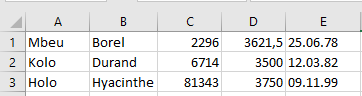
As an example of a select query, consider the simplest case: retrieving all records from a table including all fields.
Code example:
Sub SelectQuery()
    Dim cn As ADODB.Connection
    Dim rs As ADODB.Recordset
    Dim i As Integer
    Dim SQLCommand As String
    ThisWorkbook.Worksheets("Sheet4").Activate
    On Error GoTo ErrorHandler
    Set cn = New ADODB.Connection
    cn.ConnectionString = _
        "Provider=Microsoft.ACE.OLEDB.12.0;Data Source=" & _
        ThisWorkbook.Path & "\salary.accdb;"
    cn.Open
    SQLCommand = "SELECT * FROM personen"
    ' MsgBox SQLCommand ' Uncomment for debugging
    Range("A1:E4").Clear
    Set rs = cn.Execute(SQLCommand)
    i = 1
    Do While Not rs.EOF
        Cells(i, 1) = rs("name")
        Cells(i, 2) = rs("vorname")
        Cells(i, 3) = rs("personalnummer")
        Cells(i, 4) = rs("gehalt")
        Cells(i, 5) = rs("geburtstag")
        rs.MoveNext
        i = i + 1
    Loop
    rs.Close
    cn.Close
    Set rs = Nothing
    Set cn = Nothing
    Range("E:E").NumberFormatLocal = "dd.mm.yy"
    Range("A:E").Columns.AutoFit
    Exit Sub
ErrorHandler:
    MsgBox Err.Description
    Set cn = Nothing
End Sub
Explanation:
- Two object variables are declared: one for the ADODB.Connection and one for the ADODB.Recordset.
- Because database access often involves many potential errors, error handling is implemented with On Error. Common errors might include the database file missing at the specified location or syntax errors in the SQL statement. Helpful error messages facilitate troubleshooting.
- A new ADODB.Connection object is instantiated and assigned to the variable cn.
- The ConnectionString property is set with the provider (Microsoft.ACE.OLEDB.12.0) and the data source pointing to the firma.accdb file located in the same folder as the workbook.
- The connection is opened with cn.Open.
- The SQL command string « SELECT * FROM personen » selects all fields (*) from the table personen.
- This SQL command is stored in a string variable for easier management, especially useful if it includes user inputs. For debugging, you can display it with MsgBox.
- The output range (A1:E4) is cleared to prepare for fresh data.
- The Execute() method of the connection sends the SQL command and returns a Recordset object assigned to rs.
- The EOF property signals when the end of the recordset is reached, controlling the Do While loop.
- Within the loop, field values are accessed by rs(« <fieldname> ») syntax.
- The MoveNext() method moves to the next record.
- After processing, the recordset and connection are closed via Close(), and object variables are set to Nothing to free resources.
- Finally, the date format for column E is set, and columns A to E are auto-fitted to content.
- Additional commented SQL commands can be found in the example workbook for further study.
Accessing Appointments and Recurring Appointments in Excel VBA
The following program lists all appointments and recurring appointment masters with the subject « Test »:
Sub AccessAppointments()
    Dim appOutlook As Outlook.Application
    Dim ns As Outlook.Namespace
    Dim folder As Outlook.Folder
    Dim item As Object
    Dim pattern As Outlook.RecurrencePattern
    Dim recurrenceTypeText As String
    Dim dayOfWeekList As String
    Dim output As String
    Set appOutlook = CreateObject("Outlook.Application")
    ' Get MAPI namespace and default calendar folder
    Set ns = appOutlook.GetNamespace("MAPI")
    Set folder = ns.GetDefaultFolder(olFolderCalendar)
    ' Loop through all items in the calendar folder
    For Each item In folder.Items
        If TypeOf item Is Outlook.AppointmentItem Then
            If item.Subject = "Test" Then
                output = output & item.Start & " " & _
                    item.Duration & " " & item.Subject & " " & _
                    item.Location
                ' Check if item is the master of a recurring series
                If item.RecurrenceState = olApptMaster Then
                    Set pattern = item.GetRecurrencePattern
                    ' Determine recurrence type text
                    Select Case pattern.RecurrenceType
                        Case olRecursWeekly
                            recurrenceTypeText = "Weekly"
                        Case olRecursDaily
                            recurrenceTypeText = "Daily"
                        Case olRecursMonthly
                            recurrenceTypeText = "Monthly"
                        Case olRecursYearly
                            recurrenceTypeText = "Yearly"
                        Case Else
                            recurrenceTypeText = "Other"
                    End Select
                    ' Get list of days for weekly recurrence
                    dayOfWeekList = GetDayOfWeekList(pattern.DayOfWeekMask)
                    output = output & " Series " & recurrenceTypeText & " " & _
                        dayOfWeekList & vbCrLf & _
                        " From: " & pattern.PatternStartDate & _
                        " to: " & pattern.PatternEndDate
                End If
                output = output & vbCrLf
            End If
        End If
    Next item
    MsgBox output
    appOutlook.Quit
    Set pattern = Nothing
    Set item = Nothing
    Set folder = Nothing
    Set ns = Nothing
    Set appOutlook = Nothing
End Sub
Function GetDayOfWeekList(mask As Integer) As String
    If (mask And olSunday) > 0 Then GetDayOfWeekList = GetDayOfWeekList & "Sun "
    If (mask And olMonday) > 0 Then GetDayOfWeekList = GetDayOfWeekList & "Mon "
    If (mask And olTuesday) > 0 Then GetDayOfWeekList = GetDayOfWeekList & "Tue "
    If (mask And olWednesday) > 0 Then GetDayOfWeekList = GetDayOfWeekList & "Wed "
    If (mask And olThursday) > 0 Then GetDayOfWeekList = GetDayOfWeekList & "Thu "
    If (mask And olFriday) > 0 Then GetDayOfWeekList = GetDayOfWeekList & "Fri "
    If (mask And olSaturday) > 0 Then GetDayOfWeekList = GetDayOfWeekList & "Sat "
End Function
Explanation:
- The default calendar folder (olFolderCalendar) is accessed via the MAPI namespace.
- Items in this folder are of type AppointmentItem, which have properties such as Start, Duration, Subject, and Location.
- The program loops through all items and selects those with the subject « Test. »
- If the item’s RecurrenceState equals olApptMaster, it is the master appointment of a recurring series.
- The recurring pattern object (RecurrencePattern) is obtained using GetRecurrencePattern.
- The RecurrenceType property indicates the recurrence frequency, such as weekly, daily, monthly, or yearly.
- The DayOfWeekMask is decoded into a readable list of days using the helper function GetDayOfWeekList, which tests each weekday flag using bitwise And.
- The start and end dates of the recurrence pattern are also displayed.