Votre panier est actuellement vide !
Étiquette : date and time function
How to Use the DATEDIF Function in Excel
This function calculates the time interval (period) between a start date and an end date, returning the result in years, months, or days based on the specified unit.
Syntax
DATEDIF(start_date, end_date, unit)
Arguments
- start_date (required) – The beginning date of the period.
- end_date (required) – The ending date of the period.
- unit (required) – The type of interval to calculate. Available options:
- « Y » → Full years in the period.
- « M » → Full months in the period.
- « D » → Total days in the period.
- « MD » → Days remaining after whole months (ignores months and years).
- « YM » → Months remaining after whole years (ignores years and days).
- « YD » → Days remaining as if dates were in the same year (ignores years).
Background
DATEDIF() computes the difference between two dates, which can be entered as:
- Text strings (e.g., « 01/01/2020 »),
- Serial numbers (Excel’s date format), or
- Results of other formulas/functions (e.g., TODAY()).
Examples
- Calculating Employment Duration (Years):
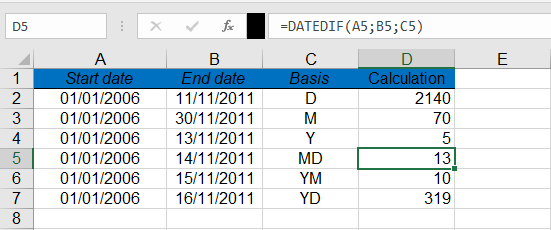
=DATEDIF(« 01/01/2006 », « 11/13/2011 », « Y »)
Result: 5 (years from January 1, 2006, to November 13, 2011).
- Calculating Employment Duration (Months):
=DATEDIF(« 01/01/2006 », « 11/30/2011 », « M »)
Result: 70 (full months between the dates).
Note:
- « MD », « YM », and « YD » units exclude higher time units (e.g., « MD » only compares days).
- Ensure end_date is later than start_date to avoid errors.
How to Use the DATE Function in Excel
This function returns the serial number representing a date based on the specified year, month, and day arguments.
Syntax
DATE(year, month, day)
Arguments
- year (required) – The year value (1 to 4 digits). Recommended: Use 4 digits.
- month (required) – A numeric value for the month (1 to 12).
- day (required) – A numeric value for the day (1 to 31).
Background
When working with date calculations, you may need to combine separate year, month, and day values into a single date. The DATE() function converts these components into a numeric date format that Excel can use in further calculations.
Excel interprets the year argument based on your system’s date settings:
- Windows (1900 Date System)
- Years 0–1899: Excel adds the value to 1900 (e.g., DATE(99,1,1) = January 1, 1999).
- Years 1900–9999: Excel uses the exact value (e.g., DATE(2023,5,10) = May 10, 2023).
- Invalid years (negative or ≥ 10,000) return #NUM!.
- Mac (1904 Date System)
- Years 4–1899: Excel adds the value to 1900 (e.g., DATE(50,1,1) = January 1, 1950).
- Years 1904–9999: Excel uses the exact value (e.g., DATE(2025,12,25) = December 25, 2025).
- Invalid years (< 4, ≥ 10,000, or 1900–1903) return #NUM!.
Handling Month & Day Overflow
- If month > 12, Excel adds the excess months to the first month of the given year.
- Example: DATE(2023,14,1) = February 1, 2024 (14 – 12 = 2 months into the next year).
- If day exceeds the month’s days, Excel adds the excess days to the first day of the month.
- Example: DATE(2023,1,35) = February 4, 2023 (35 – 31 = 4 days into the next month).
Examples
Calculating the First and Last Day of a Month
In accounting applications, you may need to determine the first and last day of a month for a given date.
- First day of the month:
=DATE(YEAR(« 07/23/2008 »), MONTH(« 07/23/2008 »), 1)
Result: 07/01/2008
Explanation: The formula extracts the year and month from the given date (07/23/2008) and sets the day to 1, returning the first day of the month.- Last day of the month:
=DATE(YEAR(« 07/23/2008 »), MONTH(« 07/23/2008 ») + 1, 1) – 1
Result: 07/31/2008
Explanation:-
- The formula calculates the first day of the next month (by adding +1 to the month).
- Subtracting 1 day gives the last day of the original month.
Additional Examples
- Two-digit year (1900 date system):
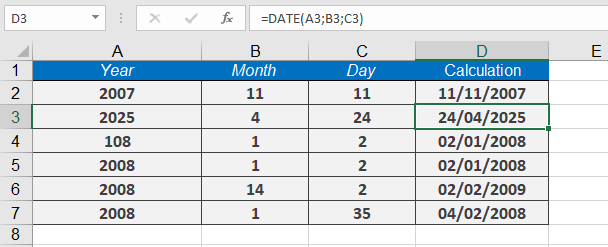
=DATE(108, 1, 2)
Result: 01/02/2008
Explanation: Excel adds 108 to 1900, resulting in 2008.- Four-digit year:
=DATE(2008, 1, 2)
Result: 01/02/2008
- Month overflow (greater than 12):
=DATE(2008, 14, 2)
Result: 02/02/2009
Explanation: Since 14 exceeds 12, Excel adds 2 months to January 2008, rolling into February 2009.- Day overflow (greater than days in the month):
=DATE(2008, 1, 35)
Result: 02/04/2008
Explanation: January has 31 days, so 35 – 31 = 4, resulting in February 4, 2008.