Votre panier est actuellement vide !
Étiquette : date and time function
How to use the YEARFRAC function in Excel
This function calculates the fraction of a year between two dates, useful for financial calculations and comparisons.
Syntax:
YEARFRAC(start_date, end_date, [basis])Arguments:
- start_date (required): The beginning date of the period
- end_date (required): The ending date of the period
- basis (optional): The day count convention method:
- 0 or omitted: US (NASD) 30/360
- 1: Actual/Actual
- 2: Actual/360
- 3: Actual/365
- 4: European 30/360
Background:
The YEARFRAC() function is particularly valuable for:- Financial analysis and interest calculations
- Comparing durations of investments or liabilities
- Age calculations with fractional years
Important notes:
- All date arguments are truncated to integers (decimal portions removed)
- Returns #VALUE! if either date is invalid
- Returns #NUM! if basis is <0 or >4
Examples:
- Basic calculation (US 30/360 basis):
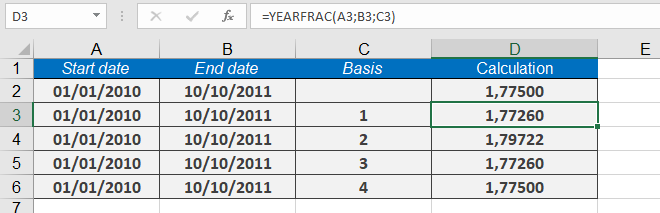
=YEARFRAC(« 01/01/2008 », « 10/10/2009 ») → Returns 775 - Different basis methods:
- =YEARFRAC(« 01/01/2010 », « 10/10/2011 », 1) → 77260(Actual/Actual)
- =YEARFRAC(« 01/01/2010 », « 10/10/2011 », 2) → 79722(Actual/360)
- =YEARFRAC(« 01/01/2010 », « 10/10/2011 », 3) → 77260(Actual/365)
- =YEARFRAC(« 01/01/2010 », « 10/10/2011 », 4) → 77500(European 30/360)
Common Uses:
- Calculating prorated interest payments
- Determining fractional periods for depreciation
- Comparing investment durations
How to use the YEAR function in Excel
This function extracts the four-digit year (1900–9999) from a date value.
Syntax:
YEAR(serial_number)Arguments:
- serial_number (required): The date from which to extract the year. This can be:
- A date serial number
- A reference to a cell containing a date
- A date string in Excel-recognized format
Background:
The YEAR() function is one of Excel’s date component functions (along with MONTH() and DAY()). It:- Returns values from 1900 to 9999
- Follows the Gregorian calendar
- Returns #VALUE! for invalid dates (before 1/1/1900 or after 12/31/9999)
- Is commonly used with other date functions for calculations and analysis
Examples:
- Basic extraction:
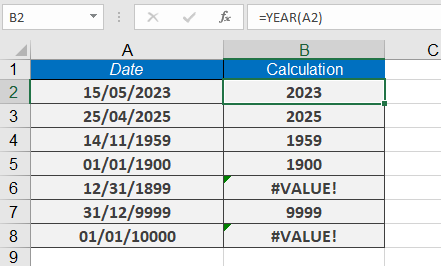
=YEAR(« 5/15/2023 ») returns 2023 - With TODAY():
=YEAR(TODAY()) returns current year (e.g., 2023) - Edge cases:
=YEAR(« 1/1/1900 ») returns 1900
=YEAR(« 12/31/9999 ») returns 9999
=YEAR(« 1/1/1899 ») returns #VALUE!
Notes:
- For pre-1900 dates, consider using TEXT() or other methods
- Combine with MONTH() and DAY() for complete date breakdown
- Useful for filtering, sorting, and conditional formatting by year
Common Errors:
- #VALUE! if input isn’t a valid date
- Incorrect results if dates are entered as text without proper formatting
- serial_number (required): The date from which to extract the year. This can be:
How to use the WORKDAY.INTL function in Excel
This advanced function calculates a date before or after a specified number of workdays, with customizable weekend days and optional holiday exclusions.
Syntax:
WORKDAY.INTL(start_date, days, [weekend], [holidays])Arguments:
- start_date (required): Beginning date for calculation (serial number or date text)
- days (required): Number of workdays to add (positive) or subtract (negative)
- weekend (optional): Defines non-working days using either:
- Predefined number codes (1-14)
- 7-character binary string (0=workday, 1=weekend)
- holidays (optional): Additional non-working dates to exclude
Background:
WORKDAY.INTL() extends WORKDAY() with customizable weekends. Key features:- Supports 14 predefined weekend patterns (Table 7-3)
- Allows custom weekend definitions via 7-digit binary strings
- Maintains all WORKDAY() functionality including holiday exclusion
- Ideal for international business with non-standard workweeks
Weekend Options:
Number Weekend Days String 1 Saturday-Sunday 0000011 2 Sunday-Monday 1000001 3 Monday-Tuesday 1100000 … … … 14 Saturday only 0000010 Important Notes:
- Defaults to Saturday-Sunday weekend (code 1) if omitted
- String must contain exactly seven 0/1 characters
- All-1 string (1111111) is invalid
- Returns #NUM! for invalid date results
- Returns #VALUE! for invalid inputs
- Truncates decimal day values
Examples:
- Standard workweek:
=WORKDAY.INTL(TODAY(), 14) → 14 business days from today (Sat/Sun off) - Middle Eastern workweek (Fri/Sat off):
=WORKDAY.INTL(« 01/01/2023 », 10, 7) → 10 workdays (Fri/Sat weekends) - Custom 4-day workweek (Wed/Thu/Fri off):
=WORKDAY.INTL(« 06/01/2023 », 15, « 0011100 ») - With holidays:
=WORKDAY.INTL(« 12/12/2022 », 10, 1, {« 12/25/2022″, »12/26/2022 »})

Formatting:
- Holiday lists must use curly braces: {« date1″, »date2 »}
- Date strings should match system locale settings
- For readability, consider using cell references for holiday lists
How to use the WORKDAY function in Excel
This function calculates the date that is a specified number of workdays before or after a start date, excluding weekends and optional holidays.
Syntax:
WORKDAY(start_date, days, [holidays])Arguments:
- start_date (required): The beginning date for the calculation
- days (required): Number of workdays to add (positive) or subtract (negative)
- holidays (optional): List of dates to exclude as non-working days (e.g., public holidays)
Background:
Use WORKDAY() to:- Calculate payment due dates based on business days
- Determine project deadlines excluding weekends/holidays
- Schedule deliveries within working days
Key features:
- Excludes Saturdays/Sundays by default
- Doesn’t count the start_date in calculations
- Holidays can be specified as a range or array constant
- Unlike NETWORKDAYS(), doesn’t include start date in count
Important notes:
- Returns #VALUE! for invalid dates
- Returns #NUM! if result is outside valid date range
- Truncates decimal values in days argument
Examples:
- Basic calculation:
=WORKDAY(TODAY(), 30) → Returns date 30 workdays from today - With holiday exclusion:
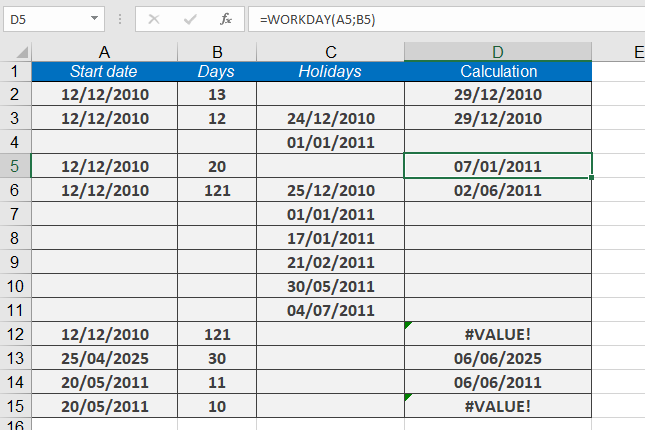
=WORKDAY(« 12/12/2010 », 12, {« 12/24/2010″, »01/01/2011 »}) → Returns 12/29/2010 - Negative days:
=WORKDAY(« 01/15/2023 », -10) → Returns date 10 workdays before Jan 15, 2023
Formatting Note:
When entering holidays directly in formula, use curly braces {} not parentheses.How to use the WEEKNUM function in Excel
This function returns the week number (as an integer) for a given date.
Syntax:
WEEKNUM(serial_number, [return_type])Arguments:
- serial_number (required): The date for which to calculate the week number.
- return_type (optional): A number specifying the week numbering system and starting day.
Options in Excel :
-
- 1 (System 1, default): Week begins on Sunday (days numbered 1–7, Sunday=1).
- 2 (System 2): Week begins on Monday (days numbered 1–7, Monday=1).
Additional options in Excel :
-
- 1: Week begins on Sunday (default).
- 2: Week begins on Monday.
- 11: Week begins on Monday.
- 12: Week begins on Tuesday.
- 13: Week begins on Wednesday.
- 14: Week begins on Thursday.
- 15: Week begins on Friday.
- 16: Week begins on Saturday.
- 17: Week begins on Sunday.
- 21 (System 2, ISO 8601): Week begins on Monday.
Background:
- System 1: Week 1 is the week containing January 1.
- System 2 (ISO 8601): Week 1 is the week with the year’s first Thursday (European standard).
- System 2 aligns with ISO 8601 (1988), where weeks start on Monday.
Example:
How to display week numbers in an operations schedule:
=WEEKNUM(date)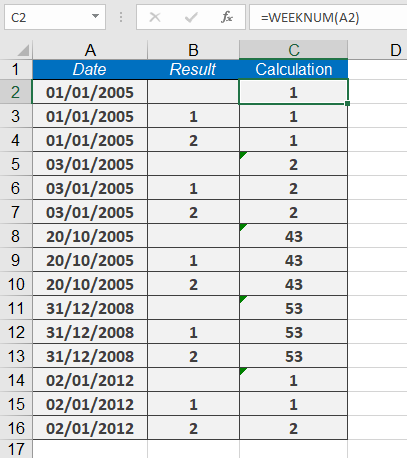
How to use the WEEKDAY function in Excel
This function converts a date (serial number) into a weekday number, returning an integer from 1 (Sunday) to 7 (Saturday) by default.
Syntax:
WEEKDAY(serial_number, [return_type])Arguments:
- serial_number (required): The date for which to calculate the weekday number.
- return_type (optional): A number (1, 2, or 3) that determines the numbering system for weekdays:
- 1 (or omitted): 1 = Sunday, 2 = Monday, …, 7 = Saturday (default).
- 2: 1 = Monday, 2 = Tuesday, …, 7 = Sunday.
- 3: 0 = Monday, 1 = Tuesday, …, 6 = Sunday.
additional return types are available:
-
- 11: 1 = Monday, 2 = Tuesday, …, 7 = Sunday.
- 12: 1 = Tuesday, 2 = Wednesday, …, 7 = Monday.
- 13: 1 = Wednesday, 2 = Thursday, …, 7 = Tuesday.
- 14: 1 = Thursday, 2 = Friday, …, 7 = Wednesday.
- 15: 1 = Friday, 2 = Saturday, …, 7 = Thursday.
- 16: 1 = Saturday, 2 = Sunday, …, 7 = Friday.
- 17: 1 = Sunday, 2 = Monday, …, 7 = Saturday.
Background:
Use WEEKDAY() to extract the day of the week from a date. As an alternative, the TEXT() function can return the weekday as a text string (e.g., =TEXT(TODAY(), « dddd »)).Example:
To highlight Sundays in red within a date column:- Select the date column.
- Apply conditional formatting:
- Go to Format > Conditional Formatting, select Formula, and enter:
=WEEKDAY(A1, 1) = 1
- Go to Format > Conditional Formatting, select Formula, and enter:
OR
- Click Conditional Formatting > New Rule > « Use a formula », then enter the formula above.
- Set the formatting to red.
Enter the formula
=WEEKDAY($B11,1)=1
and click the Format button to format the text
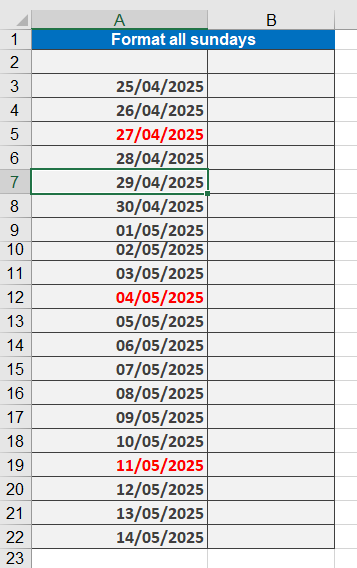
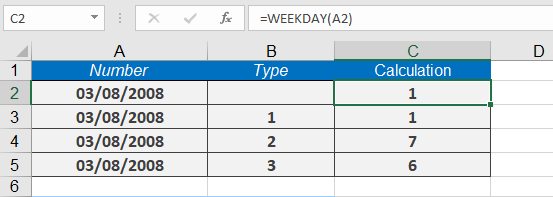
The following examples show how the type parameter works:
=WEEKDAY(« 08/03/2008 »,1) returns 1 (Sunday).
=WEEKDAY(« 08/03/2008 »,2) returns 7.
=WEEKDAY(« 08/03/2008 »,3) returns 6.
How to use the TODAY function in Excel
This function returns the serial number corresponding to the current date.
Syntax:
TODAY()Background:
The TODAY() function retrieves the current date without including the time. If the cell is formatted as General before entering the function, the result will display as a date.The related NOW() function returns both the current date and time, whereas TODAY() provides only the date.
Use TODAY() to calculate date differences from the current date. For example, you can determine how many days have passed since an invoice was issued, helping track deadlines.
Results update when:
- The workbook is opened
- A manual recalculation is triggered (press F9 to refresh)
Note: The function’s accuracy relies on your system’s correct date and time settings.
Example:
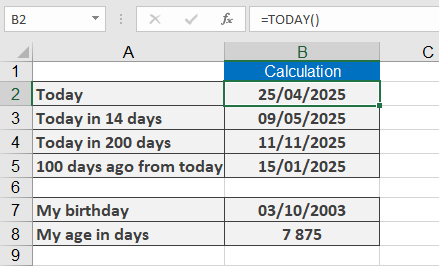
To insert the current date in an invoice form, use:
=TODAY()Additional examples:
- =TODAY()+14 → Returns the date 14 days from today.
- =TODAY()+200 → Returns the date 200 days from today.
- =TODAY()-100 → Returns the date 100 days before today.
- =TODAY()-« 11/14/1959 » → Calculates a person’s age in days if their birthdate is November 14, 1959.
How to use the TIMEVALUE function in Excel
This function converts a time formatted as text into a time value (serial number). The serial number is a value in the range of 0 through 0.99999999, corresponding to a time from 00:00:00 through 23:59:59.
Syntax:
TIMEVALUE(time_text)Arguments:
- Time_text (required): A text value in any Excel time format. Dates in the time argument are ignored.
Background:
If a time is formatted as text (e.g., in imported values), use the TIMEVALUE() function to convert it into a serial number. The result can then be used in other calculations.Most Excel functions automatically convert text-formatted times into serial numbers. However, with imported data or third-party add-in functions, this may not always happen. To ensure proper conversion, use TIMEVALUE().
Example:
Assume that after importing data, some values appear as text in a time column. To use them in calculations, convert them into numeric time values.The formula:
=TIMEVALUE(« 06:00:00 »)
returns the time value 0.25 (or 06:00 when formatted as hh:mm). This is a valid time value in Excel’s time system.Additional examples:
- =TIMEVALUE(« 06:00 PM ») returns 0.75.
- =TIMEVALUE(« 06:45:16 ») returns 0.281435185.
- =TIMEVALUE(« 12:00:00 ») returns 0.5.

How to use the TIME function in Excel
This function returns the serial number (decimal value) representing a time specified by the hour, minute, and second arguments.
Syntax: TIME(hour, minute, second)
Arguments:
- hour (required) – A number from 0 to 32,767 representing the hour.
- Values > 23 are divided by 24, and the remainder is used as the hour.
- Example: TIME(28,0,0) → TIME(4,0,0) (4:00 AM or 0.16667).
- minute (required) – A number from 0 to 32,767 representing the minute.
- Values > 59 are converted into hours and minutes.
- Example: TIME(0,150,0) → TIME(2,30,0) (2:30 AM or 0.1041667).
- second (required) – A number from 0 to 32,767 representing the second.
- Values > 59 are converted into hours, minutes, and seconds.
- Example: TIME(0,0,12011) → TIME(3,20,11) (3:20:11 AM or 0.139016204).
Background:
- When performing time calculations, you may need to break down a time into components (hours, minutes, seconds) and then reconstruct it.
- The TIME() function converts these parts back into a numeric time value (decimal between 0 and 0.99999999, representing 00:00:00 to 23:59:59).
- If the cell format is set to General before entering the function, the result displays as a time.
Examples:
For applications that include standard processing times in hours, minutes, and seconds, you might want to combine these to display a time value. To do this, use the formula
=TIME(standard_hours,standard_minutes,standard_seconds)
The following examples show possible results and exceptions if the 24- hour, 60-minute, or 60-second boundary is exceeded:
- Basic time construction:
- =TIME(5,6,11) → 05:06:11
- =TIME(13,10,0) → 13:10:00
- =TIME(23,45,30) → 23:45:30
- Handling overflow (values exceeding standard limits):
- =TIME(24,15,30) → 00:15:30 (24 hours wraps to 0)
- =TIME(26,30,30) → 02:30:30 *(26 – 24 = 2 hours)*
- =TIME(12,80,10) → 13:20:10 *(80 minutes = 1 hour + 20 minutes)*
- =TIME(12,59,120) → 13:01:00 *(120 seconds = 2 minutes)*

- hour (required) – A number from 0 to 32,767 representing the hour.
How to use the SECOND function in Excel
This function extracts the seconds from a serial number (a time value, with or without a date). The returned value is an integer between 0 and 59.
Syntax: SECOND(serial_number)
Arguments:
- serial_number (required) – A valid time (or a date-time value).
Background
Like the HOUR() and MINUTE() functions, SECOND() allows you to extract a component of a time value for use in calculations.
Times can be entered in different formats:
- As a text string in quotation marks (e.g., « 06:43:12 »),
- As a decimal number (e.g., 0.27986111 for 06:43),
- Or as the result of other formulas or functions (e.g., NOW()).
Examples:
The following are examples where the function SECOND() extracts seconds from a date/time value:
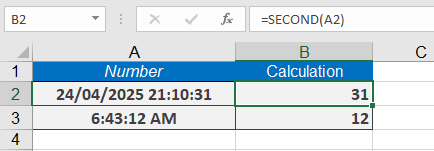
- =SECOND(« 07/13/2008 20:48:31 ») → Returns 31.
- =SECOND(« 06:43:12 ») → Returns 12.
- =SECOND(NOW()) → Returns the current second.