Votre panier est actuellement vide !
Étiquette : excel_vba
Select Case Statement In Excel VBA
The Select Case statement can be used as an alternative to the If-Then-Else block. It simplifies multiple-choice branching when only one value needs to be tested. The syntax is as follows:
Select Case testExpression
    [ Case expressionList1
      statements1 ]
    [ Case expressionList2
      statements2 ]
    ...
    [ Case Else
      statementsX ]
End Select
The Select Case statement evaluates a single test expression at the beginning. Its value is then compared sequentially to the values in each case’s expression list.
- An expression list can consist of multiple expressions separated by commas or a range specified with the keyword To.
- An expression can be a value or a condition using the keyword Is.
- When the first match is found, the corresponding block of statements is executed, and control passes to the statement following the End Select.
- The optional Case Else block runs if no previous matches are found.
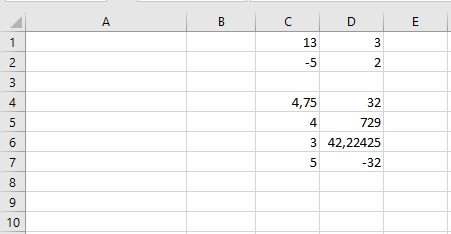
Example Procedure:
Sub SelectCaseExample()
    ThisWorkbook.Worksheets("Sheet1").Activate
    Select Case Range("C1").Value
        Case 20, 30, 40
            Range("C1").Interior.Color = vbRed
        Case Is < 10, Is > 100
            Range("C1").Interior.Color = vbGreen
        Case 12 To 17
            Range("C1").Interior.Color = vbCyan
        Case Else
            Range("C1").Interior.Color = vbYellow
    End Select
End Sub
Explanation:
- Case 20, 30, 40 means: If the value is 20, 30, or 40…
- Case Is < 10, Is > 100 means: If the value is less than 10 or greater than 100…
- Case 12 To 17 means: If the value is between 12 and 17 inclusive… This is the first matching case in the example.
- Case Else covers all other cases.
If-Then-Else Block In Excel VBA
For simple decisions involving single statements, the single-line If is suitable. However, as soon as multiple statements need to be executed, the code can quickly become confusing. For this purpose, an If-Then-Else block is much better suited.
The structure of the block is as follows:
If condition1 Then
    statements1
[ ElseIf condition2 Then
    statements2 ]
...
[ Else
    statementsX ]
End If
The program branches to the statements following the first true condition (ElseIf). If none of the conditions is true and an Else branch exists, the statements in the Else branch are executed. Otherwise, no statement is executed.
An If-Then-Else block always ends with an End If.
The following procedure tests two different cases. If neither applies, the Else branch is executed:
Sub BlockIf()
    ThisWorkbook.Worksheets("Sheet1").Activate
    If Range("C1").Value > 100 Then
        Range("C1").Font.Size = 14
        Range("C1").Font.Italic = True
        Range("C1").Font.Underline = True
    ElseIf Range("C1").Value < 10 Then
        Range("C1").Font.Size = 11
        Range("C1").Font.Italic = False
        Range("C1").Font.Underline = False
    Else
        Range("C1").Font.Size = 17
        Range("C1").Font.Italic = False
        Range("C1").Font.Underline = True
    End If
End Sub
Explanation:
Depending on the value in the cell, the font properties size, italic, and underline are set accordingly.
In the current case, the value is neither greater than 100 nor less than 10, so the third case (Else) applies.Single-Line If … Then … Else Statement
If condition Then statement1 [Else statement2]
Conditions are formed using comparison operators and evaluated as either True or False.
- If the condition evaluates to True, the code following Then (statement1) is executed.
- If the condition evaluates to False and an Else part exists, the code following Else (statement2) is executed.
The following procedure demonstrates two examples of single-line If usage. Note that the second example’s line is quite long for printing in this book, but it is still a single-line If statement:
Sub SingleLineIf()
    ThisWorkbook.Worksheets("Sheet1").Activate
    If Range("A1").Value > 100 Then MsgBox "Large"
    If Range("A1").Value < 10 Then MsgBox "Small" Else _
        MsgBox "Not small"
End Sub
Explanation:
- In the first example, a message box appears only if the value in cell A1 is greater than 100. Otherwise, nothing happens.
- In the second example, a message box is always displayed: it shows « Small » if the value is less than 10, otherwise it shows « Not small ».
Operator Precedence In Excel VBA
When an expression contains multiple operations, the individual subexpressions are evaluated and resolved in a specific order called the operator precedence or priority.
Precedence Operator(s) Description 1 ^ Exponentiation (power operator) 2 Unary – Negative sign (negation) 3 * and / Multiplication and division 4 \ Integer division 5 Mod Modulo operation 6 + and – Addition and subtraction 7 & String concatenation 8 =, <>, <, >, <=, >=, Like Comparison operators (Note: = means comparison, not assignment) 9 Not Logical NOT 10 And Logical AND 11 Or Logical OR 12 Xor Logical exclusive OR Operators of the same precedence level are evaluated left to right.
As mentioned earlier with arithmetic operators, this precedence can be overridden using parentheses, forcing specific expressions to be evaluated before others. Expressions inside parentheses always have priority, but inside them, normal precedence rules apply again.
Concatenation Operator In Excel VBA
The operator & is used to concatenate (join) strings. It is frequently needed to display results clearly combined with descriptive text.
If one of the expressions is not a string but a number or a date, VBA automatically converts it to a string before concatenation. The overall result is always a string.
Example:
Sub ConcatenationOperator()
    Dim a As String
    Dim s As Single
    Dim d As Date
    d = "15/03/2020"
    s = 4.6
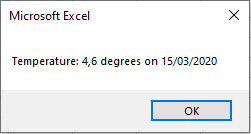
    a = "Temperature: " & s & " degrees on " & d
    MsgBox a
End Sub
Logical Operators In Excel VBA
Logical operators are used to combine multiple conditions. Lists the most important logical operators:
Operator Description Result is True when… Not Not … the expression is False And And … both expressions are True Or Inclusive Or … at least one expression is True Xor Exclusive Or … exactly one expression is True Given the variables a = 1, b = 3, and c = 5, observe the results in Table 3.10:
Expression Result Not (a < b) False (b > a) And (c > b) True (b < a) Or (c < b) False (b < a) Xor (c > b) True Shows the truth tables of these logical operators, where Expression 1 and Expression 2 can each be True or False:
Expr1 Expr2 Not Expr1 Expr1 And Expr2 Expr1 Or Expr2 Expr1 Xor Expr2 True True False True True False True False False False True True False True True False True True False False True False False False Note: The Not operator only applies to Expression 1.
Example Procedure Using Logical Operators:
Sub LogicalOperators()
    Dim a As Integer, b As Integer, c As Integer
    a = 1
    b = 3
    c = 5
    ThisWorkbook.Worksheets("Sheet1").Activate
    Range("G1").Value = Not (a < b)
    Range("G2").Value = (b > a) And (c > b)
    Range("G3").Value = (b < a) Or (c < b)
    Range("G4").Value = (b < a) Xor (c > b)
End Sub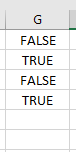
Comparison Operators In Excel VBA
Comparison operators are used in conditions, which are essential for controlling program flow with branching (e.g., If statements) and loops. Branching works on the same principle as Excel’s IF() function.
The result of a comparison is one of the two Boolean values: True or False. lists the common comparison operators:
Operator Description < Less than <= Less than or equal to > Greater than >= Greater than or equal to = Equal to <> Not equal to Examples:
Expression Result 5 > 3 True 3 = 3.2 False 5 + 3 * 2 >= 12 False The Like Operator
In addition, VBA supports the Like operator for pattern matching. You can use wildcards such as:
- * (asterisk) for zero or more characters
- ? (question mark) for exactly one character
Expression Result « abxba » Like « a*a » True « abxba » Like « a?a » False « aba » Like « a?a » True « asdlfigc » Like « a?d?f*c » True The Like operator allows you to perform much more complex pattern matching than shown here.
Example Procedure Using Comparison Operators:
Sub ComparisonOperators()
    ThisWorkbook.Worksheets("Sheet1").Activate
    Range("E1").Value = (5 > 3)
    Range("E2").Value = (3 = 3.2)
    Range("E3").Value = (5 + 3 * 2 >= 12)
    Range("F1").Value = ("abxba" Like "a*a")
    Range("F2").Value = ("abxba" Like "a?a")
    Range("F3").Value = ("aba" Like "a?a")
    Range("F4").Value = ("asdlfigc" Like "a?d?f*c")
End Sub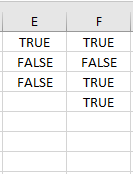
Note: Parentheses around comparison expressions are not necessary for correct evaluation; they are included here only to improve readability.
Arithmetic Operators In Excel VBA
Arithmetic operators are used to perform calculations. Table 3.2 lists the arithmetic operators available in VBA:
Operator Description + Addition – Subtraction or Negation * Multiplication / Division \ Integer Division (see explanation below) Mod Modulo (remainder) operation (see explanation below) ^ Exponentiation (power) Division
The division operator / returns the expected decimal result. However, the data type of the variable that stores the result is important:
- In the first example, the result is stored in a Double variable and will display the exact division result.
- In the second example, the result is stored in an Integer variable, which causes rounding.
Example 1: Division without rounding
Sub DivisionWithoutRounding()
    Dim x As Double
    x = 13 / 5
    MsgBox x  ' Displays 2.6
End Sub
Example 2: Division with rounding
Sub DivisionWithRounding()
    Dim x As Integer
    x = 13 / 5
    MsgBox x  ' Displays 3 due to rounding
End Sub
Integer Division (\ Operator)
Integer division is performed in two steps:
- Both the dividend and divisor are individually rounded.
- The rounded numbers are divided.
- The fractional part (digits after the decimal point) is discarded (truncated).
Excel has no direct equivalent for this operator.
Examples:
Expression Result 19 / 4 4.75 19 \ 4 4 19 \ 4.6 3 19.5 \ 4.2 5 Modulo Operator (Mod)
The Mod operator returns the remainder of a division. The calculation is done in two steps:
- Dividend and divisor are individually rounded.
- The remainder of the integer division is returned.
Excel provides the REST() function, which calculates the remainder without rounding. For example, REST(19.5; 3.2) returns 0.3 instead of 2.
Examples:
Expression Result 19 Mod 4 3 19.5 Mod 3.2 2 Exponentiation (^ Operator)
Exponentiation uses the ^ operator in both Excel and VBA. The function POTENZ() also exists and produces the same results.
Examples:
Expression Result 2 ^ 5 32 3 ^ 2 ^ 3 729 2 ^ 5.4 42.2242531447326 -2 ^ 5 -32 Example Procedure Using Arithmetic Operators
The following VBA procedure demonstrates the use of several arithmetic operators:
Sub ArithmeticOperators()
    ThisWorkbook.Worksheets("Sheet1").Activate
    ' Basic arithmetic
    Range("C1").Value = 5 * 3 - 6 / 3
    Range("C2").Value = 5 * (3 - 6) / 3
    ' Integer division
    Range("C4").Value = 19 / 4
    Range("C5").Value = 19 \ 4
    Range("C6").Value = 19 \ 4.6
    Range("C7").Value = 19.5 \ 4.2
    ' Modulo operator
    Range("D1").Value = 19 Mod 4
    Range("D2").Value = 19.5 Mod 3.2
    ' Exponentiation
    Range("D4").Value = 2 ^ 5
    Range("D5").Value = 3 ^ 2 ^ 3
    Range("D6").Value = 2 ^ 5.4
    Range("D7").Value = -2 ^ 5
End Sub
Operator Precedence and Associativity
- Multiplication and division have the same precedence and are evaluated from left to right as they appear in an expression.
- The same applies to addition and subtraction.
- Parentheses can override this precedence, forcing specific subexpressions to be evaluated first.
- Operations inside parentheses follow the normal precedence rules again.
Constants and Enumerations In Excel VBA
Constants and enumerations are used less frequently than variables but serve important purposes.
Constants are predefined values of various data types that cannot be changed during program execution. They are usually given meaningful names, making the code easier to understand and maintain than if literal values were used directly.
Compared to variables, programs can access constants faster. Therefore, you should use constants whenever a value is fixed and never changes during the program’s run.
There are two main types of constants:
- User-defined constants:
Defined by the developer at a central location in the code and can be used throughout the program. This central definition means that if the constant’s value needs to be changed, it only has to be updated once during design time. The scope of constants is analogous to that of variables. - Built-in constants:
These are predefined by VBA and cannot be altered by the developer.
For example, when inserting cells, you might have already used the built-in constants xlShiftDown and xlShiftToRight. They represent the numbers 4121 and 4161 respectively, which are less memorable than the constant names.
Another commonly used built-in constant is vbCrLf, which represents a newline character in a message box (MsgBox).
Enumerations are collections of related integer constants with meaningful names. You can define your own enumerations or use predefined ones.
The following example first works with a constant and a variable:
Sub ConstantsExample()
    Const MaxValue As Integer = 55
    Dim MinValue As Integer
    MinValue = 15
    MsgBox MaxValue - MinValue
    MinValue = 35
    MsgBox MaxValue - MinValue
End Sub
Explanation:
- The constant MaxValue is declared as an Integer and cannot be changed.
- The variable MinValue can be modified within the procedure.
Color Constants
VBA has the following predefined color constants:
- vbBlack: Black
- vbRed: Red
- vbGreen: Green
- vbYellow: Yellow
- vbBlue: Blue
- vbMagenta: Magenta
- vbCyan: Cyan
- vbWhite: White
You can create any color using the RGB() function. This function takes three parameters representing the red, green, and blue components of a color, each ranging from 0 to 255.
Defining and Using an Enumeration
Below is an example where a custom enumeration is defined and then used within a procedure. The enumeration block is between Enum and End Enum:
Enum Color
    Red
    Yellow
    Blue
    Black = 5
    Orange
End Enum
Sub UseEnumeration()
    Dim F As Color
    F = Orange
    MsgBox F
End Sub
Explanation:
- Enumerations are declared outside of procedures, typically at the top of a module just below Option Explicit.
- The example Color enumeration has five elements.
- If no values are assigned, the first element defaults to 0, and subsequent elements increment by 1 (i.e., 0, 1, 2, 3, …).
- If a value is assigned (e.g., Black = 5), that element takes the specified value, and subsequent elements continue incrementing from there (here: Orange becomes 6).
- In the procedure, a variable of type Color is declared. When assigning a value, VBA shows a list of enumeration members. You can assign any integer, but assigning values outside the defined enumeration goes against the purpose of enumerations.
- The MsgBox displays the numeric value associated with the assigned enumeration element (in this case, 6 for Orange).
There are many predefined enumerations in VBA. For example « Aligning Cells, » the Weight property determines the thickness of a cell border. Valid constants from the enumeration xlBorderWeight include xlHairline (very thin line), xlThin (thin line), xlMedium (medium line), and xlThick (thick line).
- User-defined constants:
Data Types In Excel VBA
The list the most important data types supported by VBA, along with their memory requirements and value ranges:
Data Type Memory Size Value Range / Meaning Boolean 2 bytes True or False (logical values) Byte 1 byte Whole number from 0 to 255 Integer 2 bytes Whole number from –32,768 to +32,767 Long 4 bytes Long whole number from approximately –2.1 × 10⁹ to +2.1 × 10⁹ Single 4 bytes Single-precision floating-point number: approx. –3.4×10³⁸ to –1.4×10⁻⁴⁵ (negative) and +1.4×10⁻⁴⁵ to +3.4×10³⁸ (positive) Double 8 bytes Double-precision floating-point number: approx. –1.8×10³⁰⁸ to –4.9×10⁻³²⁴ (negative) and +4.9×10⁻³²⁴ to +1.9×10³⁰⁸ (positive) Date 8 bytes Dates from January 1, 100 to December 31, 9999 Object 4 bytes Reference to an object (see section 6.4, « Working with Object Variables ») String 10 bytes + length of string Variable-length text string Variant ≥16 bytes Data type not explicitly defined (not recommended) Example: Declaring and Using Variables
The following VBA procedure declares variables of several of the above types, assigns values to them, and displays those values in worksheet cells:
Sub Variables()
    Dim By As Byte
    Dim Bo As Boolean
    Dim It As Integer, Lg As Long
    Dim Sg As Single, Db As Double
    Dim Dt As Date
    Dim St As String
    By = 200
    Bo = True
    It = 20000
    Lg = 200000
    Sg = 0.1 / 7
    Db = 0.1 / 7
    Dt = "15/03/2020"
    St = "String value"
    ThisWorkbook.Worksheets("Sheet1").Activate
    Range("A1").Value = By
    Range("A2").Value = Bo
    Range("A3").Value = It
    Range("A4").Value = Lg
    Range("A5").Value = Sg
    Range("A6").Value = Db
    Range("A5:A6").NumberFormatLocal = "0,00000000000000000000"
    Range("A7").Value = Dt
    Range("A8").Value = St
    Range("A:A").Columns.AutoFit
End Sub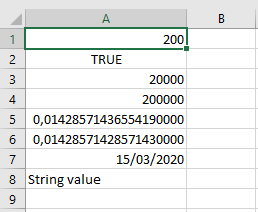
Explanation:
- Variables are declared using the Dim keyword, followed by As to specify the data type.
- Multiple variables can be declared in one line, but a common mistake is:
- Dim a, b As Integer
This declares b as an Integer but a as a Variant! The correct declaration is:
Dim a As Integer, b As Integer
- Boolean variables can only hold the values True or False.
- For numeric data types, exceeding the valid value range causes a runtime error.
- Whole numbers stored in Byte, Integer, or Long variables are stored exactly.
- Numbers with decimal places stored in Single or Double variables have limited precision. For example, the value 18.55 may be stored as approximately 18.549999. This slight inaccuracy is usually negligible in most calculations but should be kept in mind.
- Decimal values in VBA code must use a decimal point (.), regardless of locale.
- The difference between Single and Double lies in their precision: Double provides higher precision.
- The example sets the number of decimal places displayed in cells A5 and A6 to 20 using the NumberFormatLocal property to illustrate this difference.
- String and date values must be enclosed in double quotation marks. For dates, the format DD/MM/YYYY is recommended.
- Rows and columns can be optimally resized using the AutoFit() method.
Note:
If a variable is declared without an explicit data type using As, it defaults to the Variant type. This is discouraged because Variant variables consume more memory, execute more slowly, and are harder to debug and maintain.
Navigation Tips:
- To jump to a variable’s declaration, select the variable name and press Shift + F2.
- To return to the usage point, press Ctrl + Shift + F2.
The TypeName() function is very useful when you do not know the data type of a variable, cell content, or object. It returns the data type as a string.
Example:
Sub DetectType()
    ThisWorkbook.Worksheets("Sheet1").Activate
    Range("B2").Value = TypeName(Range("A2").Value)
    Range("B3").Value = TypeName(Range("A3").Value)
    Range("B4").Value = TypeName(Range("A4").Value)
    Range("B5").Value = TypeName(Range("A5").Value)
    Range("B6").Value = TypeName(Range("A6").Value)
    Range("B7").Value = TypeName(Range("A7").Value)
    Range("B8").Value = TypeName(Range("A8").Value)
End Sub
Explanation:
- This example writes the data type of the adjacent cell in column A into column B.
- Numbers, whether integer or decimal, are recognized as Double by TypeName().
- For example, the number in cell A5 no longer « remembers » if it originally came from a Single variable in VBA or was manually typed by the user. The function simply identifies it as a Double, the highest precision numeric type.