Votre panier est actuellement vide !
Étiquette : math
How to use the ROUNDUP function in Excel
The ROUNDUP function rounds a number up (away from zero) to a specified number of digits.
The ROUNDUP function uses these arguments:
=ROUNDUP(number, num_digits)Number (Required): The value you want to round up
Num_digits (Required): The number of digits to round toUSING THE ROUNDUP FUNCTION
Let’s round up 1233,345 to various precision levels:
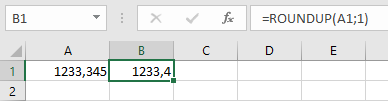
- One decimal place:
=ROUNDUP(A1; 1) → Returns 1233,4
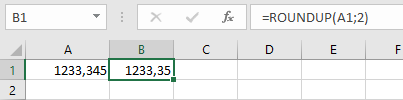
- Two decimal places:
=ROUNDUP(A1; 2) → Returns 1233,35
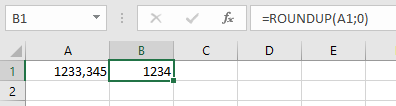
- Nearest integer:
=ROUNDUP(A1; 0) → Returns 1234
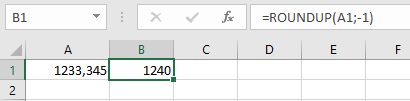
- Nearest 10:
=ROUNDUP(A1; -1) → Returns 1240
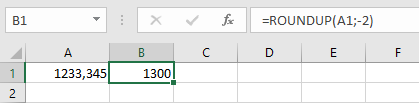
- Nearest 100:
=ROUNDUP(A1; -2) → Returns 1300
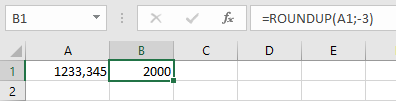
- Nearest 1000:
=ROUNDUP(A1; -3) → Returns 2000
Note: Unlike the standard ROUND function, ROUNDUP always rounds numbers upward regardless of the digit value.
- One decimal place:
How to use the ROUND function in Excel
The ROUND function adjusts a number to a specified number of digits, either rounding up or down as needed.
The ROUND function uses these arguments:
=ROUND(number, num_digits)Number (Required): The value you want to round
Num_digits (Required): The number of decimal places to round toUSING THE ROUND FUNCTION
Let’s round the number 1844,123 to various precision levels:
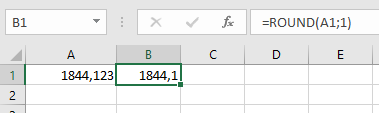
- One decimal place:
=ROUND(A1; 1)→ Returns 1844,1
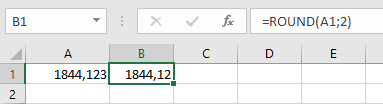
- Two decimal places:
=ROUND(A1; 2)→ Returns 1844,12
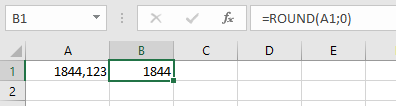
- Nearest integer:
=ROUND(A1; 0)→ Returns 1844
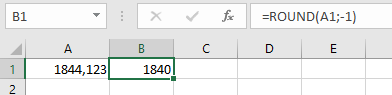
- Nearest 10:
=ROUND(A1; -1)→ Returns 1840
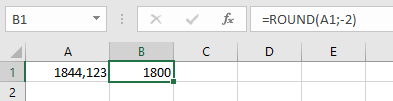
- Nearest 100:
=ROUND(A1; -2)→ Returns 1800
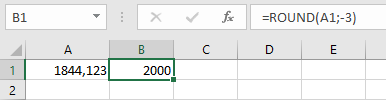
- Nearest 1000:
=ROUND(A1; -3)→ Returns 2000
Note: Positive num_digits rounds decimal places, zero rounds to whole numbers, and negative num_digits rounds to left of the decimal point.
- One decimal place:
How to use the ROUNDDOWN function in Excel
The ROUNDDOWN function rounds a number down (toward zero) to a specified number of digits.
The ROUNDDOWN function uses these arguments:
=ROUNDDOWN(number; num_digits)Number (Required): The value you want to round down
Num_digits (Required): The number of digits to round toUSING THE ROUNDDOWN FUNCTION
Let’s round down 1233,345 to various precision levels:
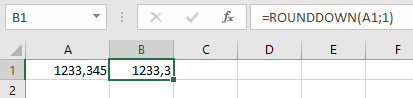
- One decimal place:
=ROUNDDOWN(A1; 1) → Returns 1233,3
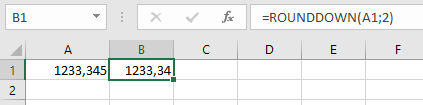
- Two decimal places:
=ROUNDDOWN(A1; 2) → Returns 1233,34
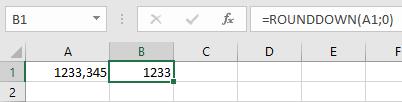
- Nearest integer:
=ROUNDDOWN(A1; 0) → Returns 1233
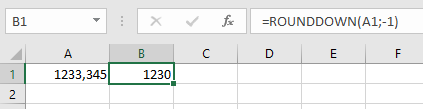
- Nearest 10:
=ROUNDDOWN(A1; -1) → Returns 1230
- Nearest 100:
=ROUNDDOWN(A1; -2) → Returns 1200
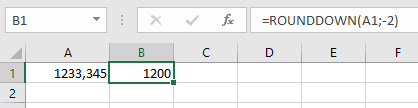
- Nearest 1000:
=ROUNDDOWN(A1; -3) → Returns 1000
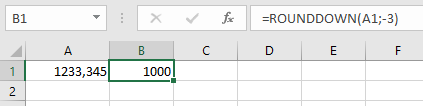
Note: Unlike the standard ROUND function, ROUNDDOWN always rounds numbers downward regardless of the digit value.
- One decimal place:
How to use the RANDBETWEEN function in Excel
The RANDBETWEEN function generates a random integer between two specified numbers. This function recalculates automatically whenever the worksheet is opened or modified.
The RANDBETWEEN function uses these arguments:
=RANDBETWEEN(bottom, top)Bottom (Required): The smallest integer that can be returned
Top (Required): The largest integer that can be returnedUSING THE RANDBETWEEN FUNCTION
To see how this function works, examine the following example:
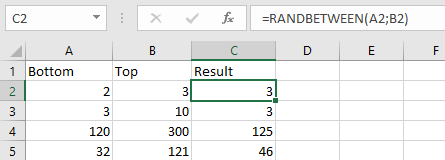
- The formula =RANDBETWEEN(A2; B2) has been applied above
- Each time the worksheet recalculates, a new random number appears as seen below;
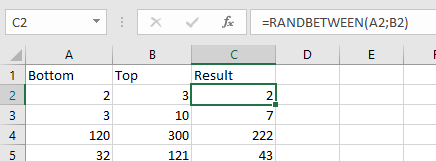
IMPORTANT NOTES
- The function generates a new value with each worksheet recalculation
- To prevent automatic recalculation:
- Enter the formula in the formula bar
- Press F9 to convert it to a static value
- To generate multiple random numbers at once:
- Select multiple cells
- Enter the RANDBETWEEN function
- Press Ctrl + Enter to fill all selected cells
How to use the MOD function in Excel
The MOD function returns the remainder after dividing one number (dividend) by another (divisor).
The MOD function uses these arguments:
=MOD(number, divisor)Number (Required): The dividend (number to be divided)
Divisor (Required): The number to divide byUSING THE MOD FUNCTION
Let’s find the remainder of dividing cell A2 by B2 in the table below:
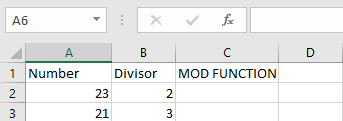
- Select an empty cell
- Enter the formula:
=MOD(A2, B2)- A2 contains the dividend
- B2 contains the divisor
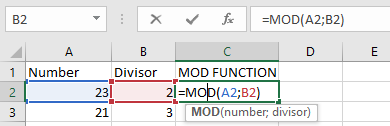
- The result will display in the selected cell
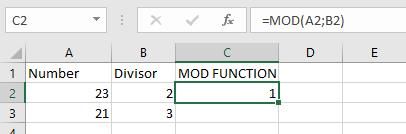
IMPORTANT NOTES
- #DIV/0! error occurs when:
- The divisor is zero
- The result will have:
- The same sign (+/-) as the divisor
How to use the SUMIFS function in Excel
The SUMIFS function adds cells that meet multiple specified conditions. These conditions can evaluate dates, numbers, and text values. The function supports logical operators (<, >, ≤, etc.) and wildcard characters (*, ?).
The SUMIFS function uses these arguments:
=SUMIFS(sum_range, criteria_range1, criteria1, [criteria_range2, criteria2], …)Sum_range: The range of cells to sum
Criteria_range1: The range where the first condition will be applied
Criteria1: The condition that determines which cells to include
Criteria_range2: (Optional) Additional range for second conditionUSING THE SUMIFS FUNCTION

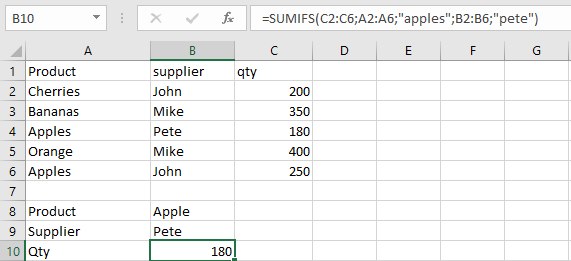
Let’s calculate the total quantity of Apples supplied by Pete:
- Select an empty cell
- Enter the formula:
=SUMIFS(C2:C6, A2:A6, « apples », B2:B6, « Pete »)- C2:C6 contains quantities to sum
- A2:A6 contains product names
- « apples » is our product criteria
- B2:B6 contains supplier names
- « Pete » is our supplier criteria
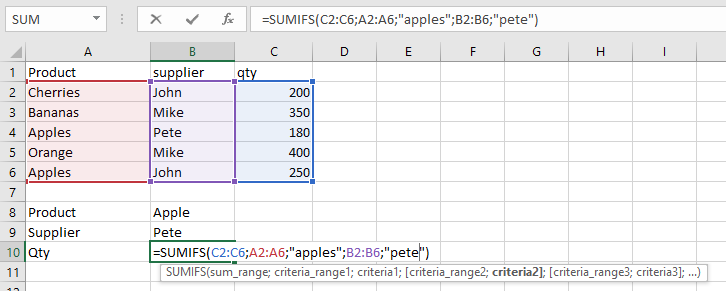
- Press Enter to see the result: 180
IMPORTANT NOTES
- Always enclose text criteria in double quotes (e.g., « orange »)
- All criteria ranges must match the size of sum_range
- #VALUE! error appears when:
- Ranges have different sizes
- Cell references in criteria are incorrectly quoted
- SUMIFS works with cell ranges, not arrays
How to use the SUMIF function in Excel
The SUMIF function calculates the total of cells that meet specific conditions. These conditions can be based on dates, numbers, or text values. The function supports logical operators (<, >, =, etc.) and wildcard characters (*, ?).
The SUMIF function uses these arguments:
=SUMIF(range; criteria; [sum_range])Range (Required):
This is the group of cells that will be checked against your criteria.Criteria (Required):
This determines which cells to include in the sum. You can use:- Numbers (like 10, 0.5, or 12:00)
- Text (such as « January », « North »)
- Expressions (for example, « >100 » or « <=50 »)
Sum_range (Optional):
These are the actual cells to add together. If you leave this out, Excel will sum the cells in your range instead.HOW TO USE SUMIF FUNCTION
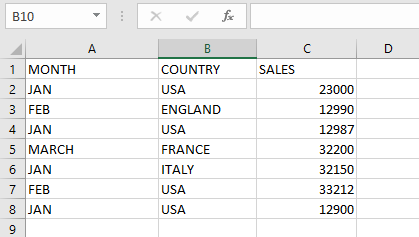
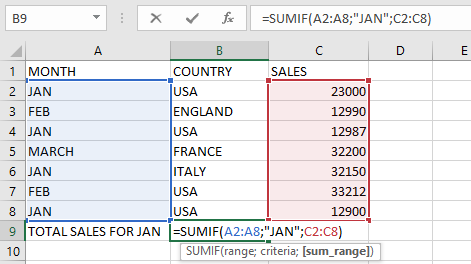
Let’s see how this works with two practical examples: calculating January sales using the table below;
Example 1: Calculate January Sales
- Click on an empty cell
- Type the formula:
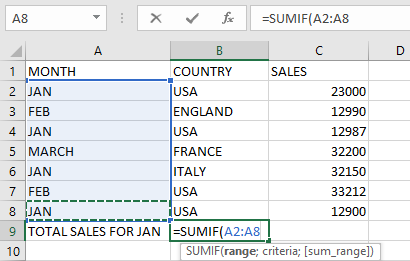
=SUMIF(A2:A8; « Jan »; C2:C8)- A2:A8 contains month names
-
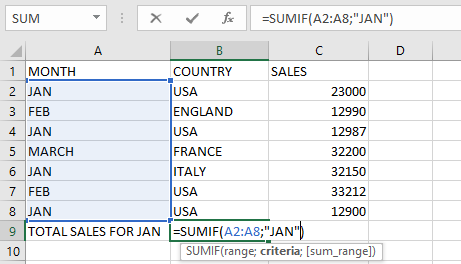
- « Jan » is our condition
-
- C2:C8 has the sales numbers
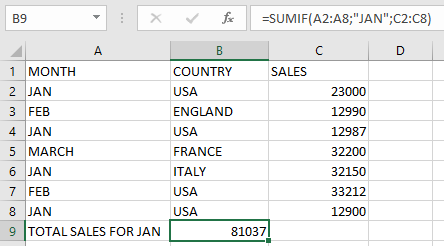
- Press Enter to see the result: 81037
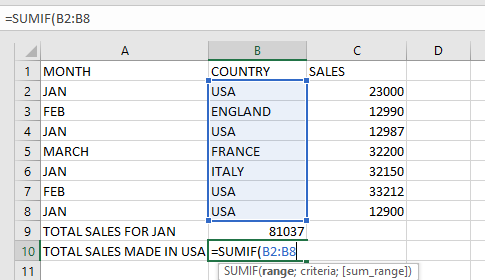
Example 2: Calculate USA Sales
- Select an empty cell
- Enter the formula:
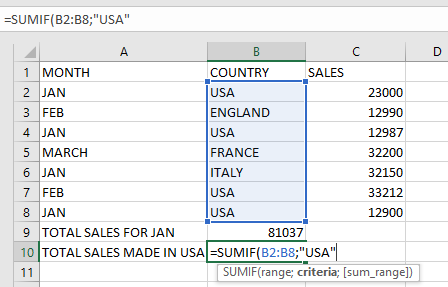
=SUMIF(B2:B8; « USA »; C2:C8)- B2:B8 lists countries
-
- « USA » is our criteria
-
- C2:C8 contains the sales figures
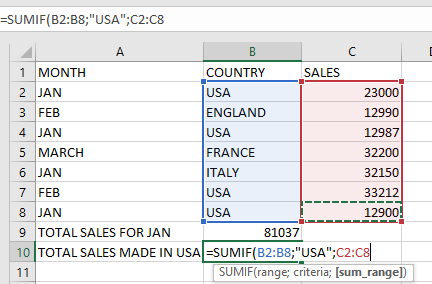
- Hit Enter to view the total USA sales
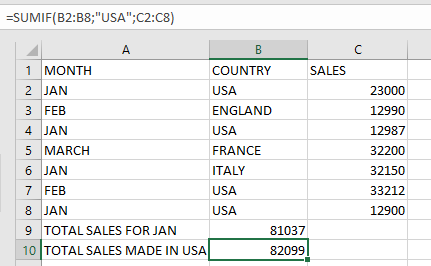
IMPORTANT NOTES
- If you see #VALUE!, your criteria might be too long (over 255 characters)
- When you don’t specify sum_range, Excel sums the cells in your range
- Always put text criteria in « double quotes »
- Wildcards work in SUMIF:
- matches multiple characters (e.g., « A* » finds « Apple »)
-
- ? matches one character (e.g., « J?n » finds « Jan » or « Jun »)
How to use the SUM function in Excel
The SUM function adds or totals the values of selected cells, rows, or columns.
Syntax
=SUM(number1, [number2], …)
How to Insert the SUM Function
- Select a cell and type =SUM(.
- In the function arguments, select the desired cells or range.
- Press Enter to display the result.
Arguments
- number1 (Required): The first value or range to sum.
- [number2], [number3], … (Optional): Additional values or ranges to include in the sum.
USING THE SUM FUNCTION
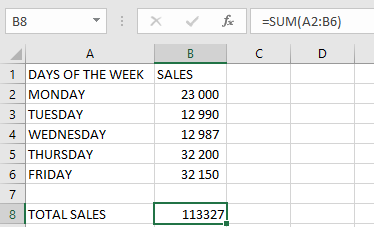
Example: Calculate the total sales from Monday to Friday.
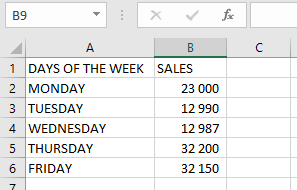
To calculate the sales from Monday to Friday using SUM, follow the steps below
Steps:
- Select an empty cell.
- Enter the function with the cell range:
=SUM(A2:B6)
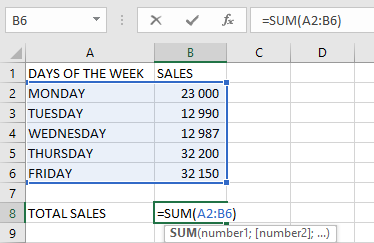
- Press Enter—the result (e.g., 113,327) will appear.
NOTES WHEN USING THE SUM FUNCTION
- #VALUE! Error: Occurs if the criteria exceed 255 characters.
- Ignored Cells: The SUM function automatically skips empty cells and text values.
- Valid Arguments: Can include constants, ranges, named ranges, or cell references.
- Error Handling: If any argument contains an error, the SUM function returns an error.