Votre panier est actuellement vide !
Étiquette : data base function
How to use the GETPIVOTDATA function in Excel
This function retrieves data from a PivotTable report. You can use GETPIVOTDATA() to extract summarized data from a PivotTable report, provided that the summary data is visible within the report.
Syntax
GETPIVOTDATA(data_field; pivot_table; field1; item1; field2; item2; …)
Arguments
- data_field (required): The name, enclosed in quotation marks, of the data field that contains the data you wish to retrieve.
- pivot_table (required): A reference to a cell, cell range, or named cell range within a PivotTable report. This information helps to identify which PivotTable report contains the data you want.
- field1, item1, field2, item2, …: You must provide at least 1 and up to 14 pairs of field names and item names that describe the specific data you want to retrieve. These pairs can be in any order. Field names and item names (except for dates and numbers) must be enclosed in quotation marks. For OLAP (Online Analytical Processing) PivotTable reports, the items can include both the source name of the dimension and the source name of the item. An example of a field and item pair for an OLAP PivotTable might look like this: « [Product] », »[Product].[All Products].[Foods].[Baked Goods] ».
Background
The PivotTable in Excel is a powerful tool for data analysis. It allows you to sort data from a database and display summarized information. You can group, hide, filter, or evaluate your data without altering the raw data in your Excel table.
PivotTables are particularly effective because they enable you to change the data view in seconds, and they offer numerous layout options to create different perspectives of your data.
A PivotTable is most useful for databases and lists that contain similar elements that can be summarized based on various criteria. For instance, if five sales occurred in Seattle and three in Chicago, you can summarize these cities to view the total number of orders and the sum of sales. If there was only one sale per city, a summary wouldn’t be as useful, as you could retrieve that data directly from the database.
The GETPIVOTDATA() function allows you to retrieve data that has been summarized within a PivotTable report. You can reference any results from a PivotTable, whether it’s in the current workbook or another one.
Example
At the end of a business year, you want to create a PivotTable and then use the GETPIVOTDATA() function to identify the product with the highest sales.
First, you would select Data/Pivot Table And Pivot Chart Report to create a PivotTable (see Figure below).

The Figure below demonstrates how the GETPIVOTDATA() function can be used. A combo box allows the user to select a product, and the table below it displays the sales figures for each month for the selected product.
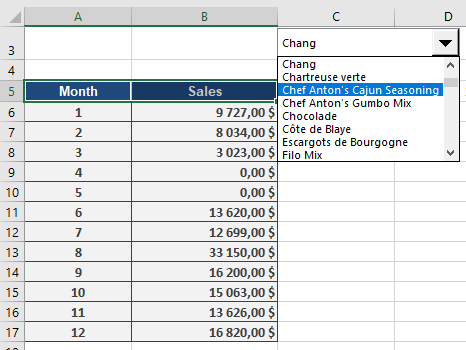
After selecting a product from the combo box, you want to display all sales for all countries that occurred within the year. Open a new worksheet and click on an empty cell. To test the GETPIVOTDATA() function, enter an equal sign (=) in the selected cell and then click any cell within the PivotTable you just created.
The GETPIVOTDATA() function will be applied automatically (see Figure below).

If you confirm the selected cell (cell B11 in the figure) by pressing the Enter key, the value $21,890 will appear in the worksheet (see Figure below).

Here are the arguments for the GETPIVOTDATA() function in this example: =GETPIVOTDATA(« Sales »,’Pivot from raw data’!$A$6, »Date »,1, »Product », »Camembert Pierrot »)
- « Sales »: This is the required data_field containing the data to be retrieved—in this case, the sales.
- ‘Pivot from original data’!$A$6: This is the pivot_table reference to cell A6 (or a cell range) within the PivotTable that contains the data you want to retrieve.
- « Date »,1: This is the first field1, item1 pair. « Date » is the field name, and 1 indicates January, meaning the sales for January are returned. 2 would indicate February, and so on.
- « Product », « Chai »: This is the first field2, item2 pair. « Product » is the field name, and « Chai » is the item name, meaning the sales for the product « Chai » are returned.
After familiarizing yourself with the GETPIVOTDATA() function, you decide to create a sales overview. Copy all item names from your original data list and paste them into the new worksheet (see Figure below).

Next, add a combo box to enable product selection from this list. If the « Developer » tab isn’t displayed, you’ll need to activate it.To add a combination field in Excel, right-click the menu bar and select « Form » to activate the « Form » toolbar. From the « Form » toolbar, drag a combination field onto the worksheet and open its properties. For « Input Range, » select the copied item names, and for « Cell Link, » assign an empty cell to the form.
When you click the arrow in the combo box, all item names will be available. In this example, the cell link is cell A2, and as a selection is made, the position of the selected entry in the list is displayed in this cell (see Figure below).
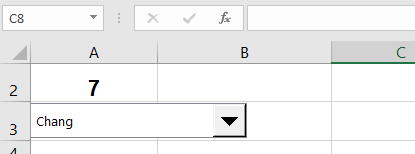
By using the INDEX() function, you can display the text value associated with the selection rather than just its position number. Click any empty cell in the worksheet and specify the arguments for the INDEX() function (see Figure below).
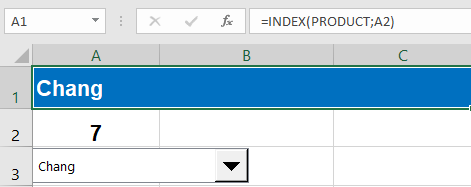
The following arguments are specified for the INDEX() function:
- array: This is the list of product names.
- row: A2 indicates the row or cell position to be returned.
- column: This argument doesn’t need to be specified because the row argument is used.
No matter which product you select in the combo box, the selection will be displayed as a label in cell A1.
To display the sales for each month, create a table with two columns: « Month » and « Sales. » Enter numbers 1 through 12 in the « Month » column, and then click the sales cell for month 1 (January). Enter an equal sign in this cell and click a cell under « January » in the PivotTable. Press the Enter key to confirm.
The Figure below shows the first entry in the sales cell for January.
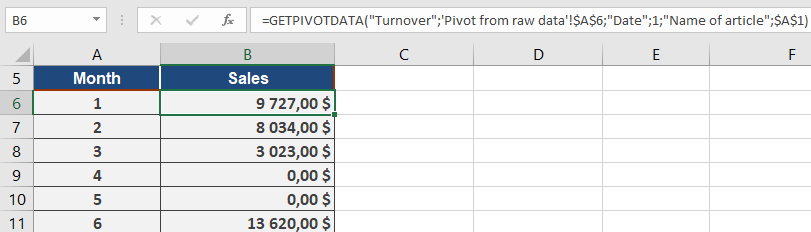
Now, you only need to modify the formula for the GETPIVOTDATA() function. The automatically generated formula displays the sales for January for the product « Alice Mutton. » Replace this with a reference to cell A1 to dynamically display the January sales for whatever product is selected in the combo box (see Figure below).

Finally, drag the formula in cell B6 down to the month of December to get the sales for all months, depending on the product selected in the combo box. The GETPIVOTDATA() function enables you to create neatly arranged summary tables.
How to use the DVARP function in Excel
This function calculates the variance of the entire population based on the numerical values in a column within a list or database that match the specified conditions.
Syntax
DVARP(database; field; criteria)
Arguments
- database (required): The cell range that constitutes your list or database.
- field (optional): Indicates which column the function will use.
- criteria (required): The cell range containing the field names and the filter criteria.
Background
The only difference between DVARP() and DVAR() is that the DVARP() function calculates the value based on the entire population.
Example
You have already calculated the variance for the sales of a product based on a sample using the DVAR() function. Now, you want to calculate the variance based on the entire population (see Figure below).

To put this into context, you also need to calculate the mean, as shown in Figure below.

The variance calculation based on a population meeting the criteria is $83,705.47. If you take the square root of this calculated variance, the result will be the standard deviation based on a population (refer to the DVAR() function, described earlier in this chapter).
How to use the DVAR function in Excel
This function estimates the variance of a sample based on the numerical values in a column within a list or database that match the specified conditions.
Syntax
DVAR(database; field; criteria)
Arguments
- database (required): The cell range that constitutes your list or database.
- field (optional): Indicates which column the function will use.
- criteria (required): The cell range containing the field names and the filter criteria.
Background
The most commonly used measures of spread in statistics are variance and standard deviation. The variance is calculated as the sum of the squared deviations of each value from the mean, divided by the number of values, with an adjustment made for the sample size.
Example
Since the sample variance measures the spread of data, it is frequently used in descriptive statistics.
Assume you are a wholesaler and want to use the DVAR() function to explain the variation in your sales orders. Let’s use the same example as for the DSTDEV() function. The objective here is to calculate the variance instead of the standard deviation, based on a sample with criteria defining the product and country/region selection (see Figure below).

To analyze the data, you will also need to calculate the mean, as shown in Figure below.

The result of the variance calculation, based on a sample and the set criteria, shows an average squared deviation of $90,680.52 from the arithmetic mean. If you take the square root of this variance, the result will be the standard deviation (as described earlier in this chapter, under the DSTDEV() function).
How to use the DSTDEVP function in Excel
This function calculates the standard deviation of an entire population based on the numerical values in a column within a list or database that match the specified criteria.
Syntax
DSTDEVP(database; field; criteria)
Arguments
- database (required): The cell range that constitutes your list or database.
- field (optional): Indicates which column the function will use.
- criteria (required): The cell range containing the field names and the filter criteria.
Background
The only difference between DSTDEVP() and DSTDEV() is that the DSTDEVP() calculation is based on the entire population and is not an estimate of the population value derived from a sample.
Example
As a wholesaler, you need to analyze your sales orders. You’ve already used the DSTDEV() function to calculate the standard deviation for a product’s sales based on a sample. Now, you want to calculate the standard deviation using the entire population.
Calculate the standard deviation based on the population of sales orders for a particular product in a specific country (see Figure below).

To effectively evaluate your findings, it’s also helpful to calculate the mean (see Figure below).

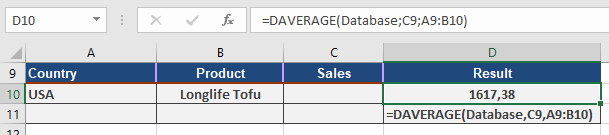
The calculation of the standard deviation based on the population and several criteria returns 289.32. This indicates that the sales of « Longlife Tofu » in the United States spread around the mean ($1,617.38) by $289.32.
How to use the DSTDEV function in Excel
This function estimates the standard deviation of a population based on a sample of data found in a column within a list or database that matches the specified conditions.
Syntax
DSTDEV(database; field; criteria)
Arguments
- database (required): The cell range that constitutes your list or database.
- field (optional): Indicates which column the function will use.
- criteria (required): The cell range containing the field names and the filter criteria.
Background
The standard deviation is a crucial measure of spread and quantifies the deviation from the arithmetic mean. It’s a measure of dispersion where a higher standard deviation indicates that the data is more spread out around the mean. The standard deviation is simply the square root of the variance.
Example
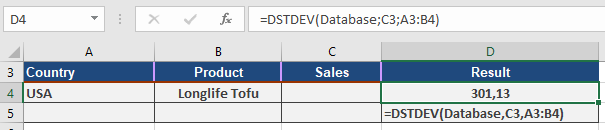
As a wholesaler, you’ve already analyzed your sales data using various functions. Now, you want to employ the DSTDEV() function to examine the dispersion of your sales. Specifically, you aim to understand how widely the sales orders for a particular product in a given country vary around the average order value.
In Figures below, the standard deviation is calculated for orders of « Longlife Tofu » in the United States. The result indicates a standard deviation of $301.13 around the mean of $1,617.38. Figure also illustrates the calculation of the average.
How to use the DPRODUCT function in Excel
This function multiplies the values in a specified column within a list or database that meet the defined conditions.
Syntax
DPRODUCT(database; field; criteria)
Arguments
- database (required): The cell range that constitutes your list or database.
- field (optional): Indicates which column the function will use.
- criteria (required): The cell range containing the field names and the filter criteria.
Background
Use the DPRODUCT() function to multiply values in a list based on specified criteria.
Example
The previous wholesaler example doesn’t offer suitable data to demonstrate this function effectively, so we’ll use a different scenario.
Assume you are a real estate agent and you’ve created a database for the apartments you are trying to sell (see Figure below).
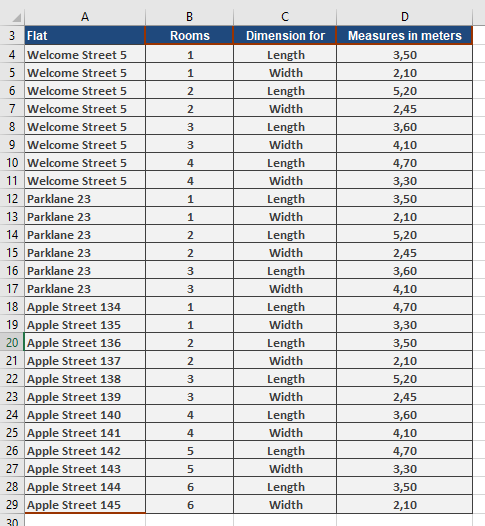
You have entered the dimensions of each room in the apartments and want to calculate the area of each room to provide this information to your customers. You can use the DPRODUCT() function to calculate the square meters. Figure below illustrates a possible solution.
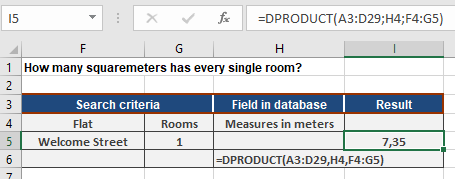
For this solution, the following arguments were used:
- Specify the cell range A3:D29 for the database argument.
- The street name and one of the rooms are used as the criteria fields (F4:G5).
- Specify cell H4 to identify the field argument.
The function returns 7.35 square meters for room 1 in the apartment on Welcome Street. If you change the value in cell G5 or the street name, you can calculate the area of other rooms in selected apartments.
How to use the DMIN function in Excel
This function returns the smallest numerical value from a specified column within a list or database, provided it matches the conditions you’ve set.
Syntax
DMIN(database; field; criteria)
Arguments
- database (required): This is the cell range that defines your list or database.
- field (optional): This indicates which column the function should use.
- criteria (required): This is the cell range containing the field names and the filter criteria you want to apply.
Background
You can use the DMIN() and DMAX() functions to find the smallest or largest value, respectively, in a database based on specific criteria. DMIN() will return a value from a database, such as the smallest sales figure for a product over the past five years.
Example
Your wholesale company is doing well with high sales, but you want to identify which product has the lowest sales. This insight could help you decide whether to modify the product or offer a different one. Specifically, you want to find the product with the lowest sales for a particular customer. The DMIN() function is perfect for this.
The DMIN() function will return the order value for the « Save-a-lot Markets » company (see Figure below). Since your database includes sales of $0, you’ll need to specify a criterion of >0 to exclude them.

DMIN() will then return the lowest sale of $1,020 for your customer, « Save-a-lot Markets. » You can also use the DGET() function to determine which product this specific sale was for. Figure below illustrates how to do this.

This approach allows you to analyze each customer and identify products with the smallest sales, helping you make informed decisions about adjusting your product line.
How to use the DMAX function in Excel
This function returns the largest numerical value from a specified column within a list or database, based on conditions that you define.
Syntax
DMAX(database; field; criteria)
Arguments
- database (required): This is the cell range that makes up your list or database.
- field (optional): This indicates which column the function should use.
- criteria (required): This is the cell range containing the field names and the filter criteria you want to apply.
Background
Use the DMIN() and DMAX() functions to find the smallest or largest value in a database based on specific criteria. DMAX() will return a value from a database, such as the highest production volume for a product over the last five years.
Example
As a wholesaler, you have many customers and sell a wide range of products. You want to analyze your customers, sales, and products. Let’s start by finding the product and customer with the highest sales based on orders within the United States. You can achieve this using the DMAX() function.
The DMAX() function will search for the largest sales value for orders originating from the United States (see Figure below). Since you only want to know the highest sales within the United States, you’ll specify « USA » as a search criterion (B5). You won’t specify a product because you want to include all products in your search.
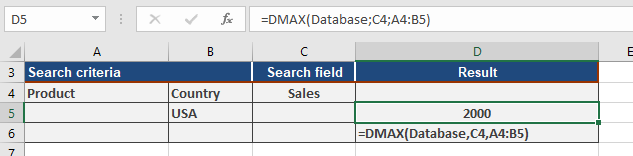
DMAX() will then return 2000, meaning the highest single order placed in the United States was for $2,000.
If you also want to know which company placed this order and what product they bought, you can perform additional calculations using the DGET() function. Figure below shows one way to do this.
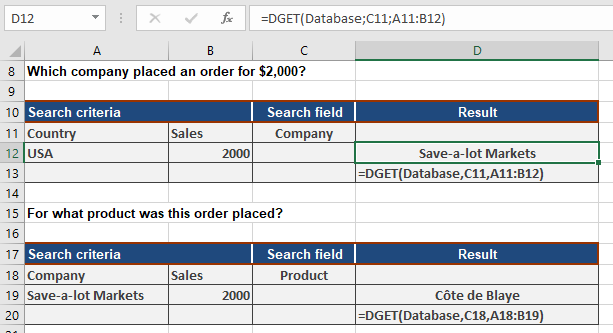
With the DMAX() function, you can quickly analyze your sales and customers.
How to use the DGET function in Excel
This function extracts a single value from a specified column within a list or database, based on conditions that you define.
Syntax
DGET(database; field; criteria)
Arguments
- database (required): This is the cell range that constitutes your list or database.
- field (optional): This indicates which column the function should use for extracting the value.
- criteria (required): This is the cell range that contains the field names and the filter criteria you wish to apply.
Background
To find a specific value within a database where a particular field matches certain criteria, use the DGET() function.
Example
Imagine you’re a wholesaler and you’ve received a complaint from a customer, « Old World Delicatessen. » They claim the tofu they ordered is moldy. To submit a complaint to the manufacturer and inquire about any known production issues, you need to find out the exact date you sold that tofu to « Old World Delicatessen. » The DGET() function can help you do this. Since « Old World Delicatessen » definitely ordered the tofu, you can be sure that DGET() will return a result.
DGET() returns 12/3/2007 when using the company name, country/region, and item number as criteria (as shown in B4:D5 in Figure below). By using the DGET() function, you can quickly retrieve values from your database, even when you specify multiple search criteria.

How to use the DCOUNTA function in Excel
This function counts the number of non-empty cells within a specified column, list, or database that match the given conditions.
Syntax
DCOUNTA(database; field; criteria)
Arguments
- database (required): This is the cell range that defines your list or database.
- field (optional): This indicates which column the function should use.
- criteria (required): This is the cell range containing the field names and the filter criteria.
Background
DCOUNTA() is different from DCOUNT() because it counts non-empty cells, whereas DCOUNT() specifically counts numerical values.
Example
Let’s say your business is relatively new, and you want to find out how many invoices were sent to companies in the United States. You also need the total number of invoices in your database to calculate the percentage of invoices sent to U.S. companies.
First, open a new worksheet and define your criteria range using the « Country/Region » field from your original data. Then, specify « USA » as your search criterion (see Figure below).
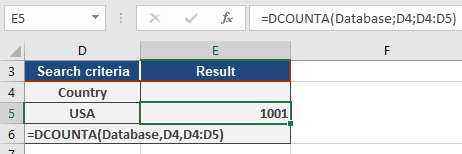
Since DCOUNTA() counts text, it will return the number of records that match « USA ». For the database argument, specify the cell range containing your database, such as A1:F7008. In this example, that cell range is dynamically named « Database ».
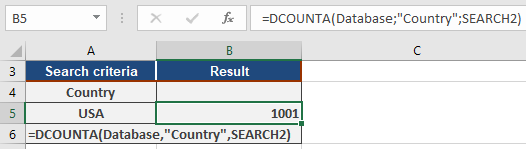
You’ll get the same result if you enter « SEARCH2 » for the criteria range (A4:A5 in this example) and input « country/region » instead of cell A4 in the field argument. Just remember to enclose the field name, « country/region », in quotation marks.
The result will still be 1001; this means your database contains 1,001 records matching the « USA » criterion, indicating that 1,001 invoices were sent to companies in the United States (see Figure below).
Now, to calculate the total number of invoices issued, you’ll do it the same way. The search range remains unchanged, but to count all records in the « country » search range, refer the search criterion to an empty cell (see Figure below).
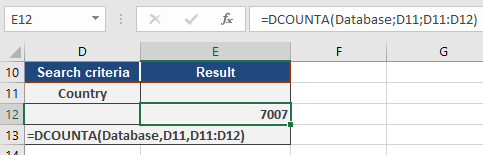
After you’ve calculated a total of 7,007 for all invoices, you can then figure out the percentage of invoices sent to companies within the United States. As shown in Figure below, you can calculate this percentage using the DCOUNTA() function.

Although this method might seem a bit tedious, it’s effective. You’ll find that 14 percent of your invoices go to companies in the United States, with the remaining invoices sent to companies outside th.e U.S