Votre panier est actuellement vide !
Étiquette : excel_vba
Selecting a Workbook by Index or Name in Excel VBA
Selecting a Workbook by Index or Name
The following macro demonstrates two different techniques for selecting (activating) already opened workbooks:
Sub SelectWorkbookFromList()
    Workbooks(1).Activate
    MsgBox ActiveWorkbook.Name
    Workbooks("Workbook2.xlsm").Activate
    MsgBox ActiveWorkbook.Name
End Sub
Explanation:
This VBA subroutine shows how to activate workbooks using:
- Selection by Index:
Workbooks(1).Activate
- The Workbooks collection contains all the currently open workbooks in the Excel session.
- Each workbook in this collection has a position index, starting at 1 for the first opened workbook, up to Workbooks.Count (the total number of open workbooks).
- The line above activates the workbook at position 1.
- MsgBox ActiveWorkbook.Name then displays the name of the currently active workbook, confirming which one was selected.
⚠️ Be cautious:
If you try to use an index that doesn’t exist (for example, Workbooks(3) when only two workbooks are open), Excel will throw a runtime error.
Techniques for managing such errors will be covered in Chapter 4: Error Handling.- Selection by Name:
Workbooks(« Workbook2.xlsm »).Activate
- Instead of using an index, you can specify the name of the workbook file as a string in quotation marks.
- This is often more reliable than using the index because the order of open workbooks can change (especially if the user opens or closes files dynamically).
- The name used must be exactly the file name as shown in Excel’s title bar (but without the full file path).
- After activation, the MsgBox line again displays the name of the now active workbook.
✅ Important:
In Excel, you cannot open two workbooks with the same name at the same time, even if they are located in different folders. This guarantees that the name is a unique identifier among open workbooks.Recommendation:
Although selecting a workbook by index may work in some cases, using the workbook name is more precise and less error-prone. It’s easier to understand and maintain in your code, especially when multiple workbooks are open.
Saving a Workbook in Excel VBA
The following procedure saves the current workbook in two different ways:
Sub SaveWorkbook()
    ThisWorkbook.Save
    ThisWorkbook.SaveAs "C:\Users\MAC 2015\Desktop\woorbook.xls"
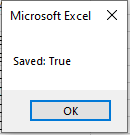
    MsgBox "Saved: " & ThisWorkbook.Saved
End Sub
Explanation:
This macro performs two main saving actions using VBA:
- ThisWorkbook.Save
This line calls the Save method on the ThisWorkbook object, which refers to the workbook containing the macro. It saves the current state of the workbook using its existing name and location. If the workbook hasn’t been saved before (i.e., it’s a new workbook), this would usually trigger a save prompt or fallback to a default path. - ThisWorkbook.SaveAs « C:\Users\MAC 2015\Desktop\titanic.csv »
This command performs a « Save As » operation, creating a copy of the current workbook under the new name Workbook2.xlsm in the specified folder C:\Users\MAC 2015\Desktop.
⚠️ After this line is executed, your VBA session continues within this newly saved copy. That is, any further operations now apply to Workbook2.xlsm, not the original file. - MsgBox « Saved: » & ThisWorkbook.Saved
This displays a message box showing the status of the workbook’s Saved property. This property is a Boolean (True or False) that indicates whether the workbook has unsaved changes:- True means the workbook is currently saved (no changes made since last save).
- False means the workbook has been modified and those changes haven’t been saved yet.
Since the workbook was just saved (twice), the Saved property should return True at this point.
Note:
You can use the Saved property in conditional logic (like If…Then statements) to determine whether saving is necessary. For instance, if ThisWorkbook.Saved = False, it would be a good idea to prompt the user to save the workbook to avoid losing changes.- ThisWorkbook.Save
Activating a Workbook in Excel VBA
The following VBA procedure demonstrates how to activate a workbook that is already open. This is especially useful when multiple workbooks are open and you want to make sure that further actions are performed in a specific one:
Sub ActivateWorkbook()
    ThisWorkbook.Activate
    MsgBox ActiveWorkbook.Name
End Sub
Explanation:
This procedure uses the Activate() method of the Workbook object. In this case, it calls ThisWorkbook.Activate, which activates the workbook that contains this very VBA code.
When a workbook is activated, Excel brings it into focus—making it the currently selected and interactive file. This is important when automating tasks across multiple open workbooks and you want to ensure that subsequent operations (such as writing data, inserting sheets, or saving files) affect the correct one.
To confirm the activation, the procedure then displays the name of the currently active workbook using ActiveWorkbook.Name.
Identifying the Active Workbook in Excel VBA
Identifying the Active Workbook
The following VBA procedure demonstrates how to determine the name of the active workbook in two different situations:
Sub IdentifyActiveWorkbook()
    Workbooks.Open "C:\Users\MAC 2015\Desktop\Titanic-Dataset.csv"
    MsgBox "Active after opening: " & ActiveWorkbook.Name
    ActiveWorkbook.Close
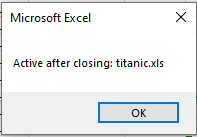
    MsgBox "Active after closing: " & ActiveWorkbook.Name
End Sub
Explanation:
This procedure begins by opening an additional workbook from a specified file path. It assumes that the file « C:\Temp\Mappe1.xlsm » exists and can be opened without error.
The keyword ActiveWorkbook refers to the workbook that is currently in focus—the one the user is interacting with or the one that has been programmatically activated. In Excel, any workbook that is just opened automatically becomes the active workbook.
To verify this behavior, the name of the active workbook is displayed using MsgBox() immediately after opening the file.
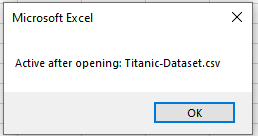
Next, the Close() method is called on the ActiveWorkbook object, which closes the workbook that was just opened. Once it is closed, Excel automatically reactivates the workbook that was active before the new one was opened.
To verify the change, the procedure again displays the name of the currently active workbook using MsgBox().
Additional Tip:
If you want to close a specific workbook by its name rather than using ActiveWorkbook, you can write:
Workbooks(« Titanic-Dataset.csv »).Close
Determine the Name of a Workbook in Excel VBA
The following VBA procedure demonstrates two ways to retrieve the name of a workbook:
Sub GetWorkbookName()
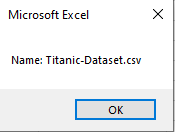
    MsgBox "Name: " & ThisWorkbook.Name
    MsgBox "Name with Path: " & ThisWorkbook.FullName
End Sub
Explanation:
The keyword ThisWorkbook always refers to the workbook in which this code resides, regardless of which workbook is currently active on the screen.
In this procedure:
- ThisWorkbook.Name retrieves and displays the name of the file only, such as Titanic-Dataset.csv. It does not include the file path.
- ThisWorkbook.FullName, on the other hand, retrieves and displays the full file path, including the name of the workbook. For example:
C:\Users\MAC 2015\Desktop\Titanic-Dataset.csv
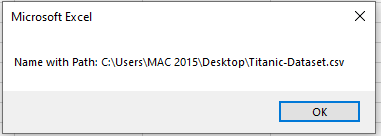
These properties are useful when you want to display or store workbook information, or when you need to log or reference the file in other operations, such as saving copies or linking to external files.
Creating a New Workbook in Excel VBA
Creating a New Workbook
The following VBA procedure demonstrates how to create and open a new workbook in Excel. To confirm that the new workbook has been successfully added, it displays the number of currently open workbooks before and after the operation:
Sub CreateNewWorkbook()
    MsgBox "Before: " & Workbooks.Count & " workbook(s)"
    Workbooks.Add
    MsgBox "After: " & Workbooks.Count & " workbook(s)"
End Sub
Explanation:
This procedure calls the Add() method of the Workbooks collection. The Add() method instructs Excel to create a new, empty workbook and open it. As a result, this new file becomes the active workbook, meaning it is now in focus and ready for editing or further automation.
Simultaneously, the Workbooks collection is updated to include this new workbook. You can clearly observe this change by looking at the two message boxes: one shows the number of workbooks before creation, and the other shows the count afterward. The difference confirms that a new workbook has been added to the collection.
This approach is useful when your macro needs to generate a new workbook—for example, to export reports, create backups, or collect data—without altering the currently open files.
Opening an Existing Workbook in Excel VBA
The following VBA procedure demonstrates how to open an existing Excel workbook:
Sub OpenExistingWorkbook()
    Workbooks.Open "C:\Users\MAC 2015\Desktop\exercice.xlsm"
End Sub
Explanation:
This procedure uses the Open() method of the Workbooks object. When Workbooks.Open is called with a file path as an argument, Excel opens the specified workbook file from the given location.
Once opened, the workbook becomes the active workbook, meaning it is now in focus and ready for user input or further processing through code.
By opening this file, a new item is also added to the Workbooks collection, increasing the count of open workbooks.
In the example shown above, an absolute file path (C:\Users\MAC 2015\Desktop\exercice.xlsm) is used to specify the workbook location. However, you can also open files using relative paths or paths pointing to the same directory as the workbook executing the code.
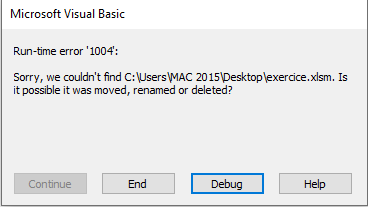
Important Note:
If the specified file does not exist at the given location, the program will fail and throw a runtime error. Excel displays an error message and halts execution, as illustrated in Figure 2.2.
These types of runtime interruptions are common when dealing with file operations. In Chapter 4, « Error Handling », you will learn how to catch and handle such errors properly, so your VBA code can respond gracefully instead of crashing.
Determining the Number of Open Workbooks
The following VBA procedure shows how to determine the number of Excel workbooks currently open:
Sub CountWorkbooks()
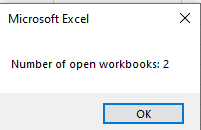
    MsgBox "Number of open workbooks: " & Workbooks.Count
End Sub
Explanation:
This procedure retrieves the value of the Count property from the Workbooks collection. The Count property returns a numerical value indicating how many workbooks are currently open in Excel.
The result is then displayed in a message box using the MsgBox() function. This is a simple yet effective way to monitor the number of active workbooks during the execution of your macros.
Important Note:
The count also includes hidden workbooks, such as the Personal Macro Workbook (usually named Personal.xlsb), if it is open. This special workbook is often used to store macros that are available globally across all workbooks. You can verify its presence by checking the Project Explorer in the VBA Editor (VBE).
Illustration Note:
From this point on in the source material, message box titles and the OK button will no longer be shown in figure illustrations for simplicity.
Creating a New Workbook in Excel VBA
The following VBA procedure demonstrates how to create and open a new workbook in Excel. For verification, it displays the number of currently open workbooks both before and after the new workbook is created:
Sub NeueMappe()
    MsgBox "Before: " & Workbooks.Count & " workbook(s)"
    Workbooks.Add
    MsgBox "After: " & Workbooks.Count & " workbook(s)"
End Sub
Explanation:
This procedure makes use of the Add() method of the Workbooks object. When Workbooks.Add is called, Excel creates a new, blank workbook and immediately opens it. This new workbook also becomes the active workbook, meaning it is now the one in focus and ready for user interaction.
At the same time, the new workbook is added to the Workbooks collection. You can observe this by comparing the output of Workbooks.Count before and after the Add() method is executed: the count increases by one, confirming that a new workbook has been successfully created and included in the collection of currently open workbooks.
Working with Workbooks in Excel VBA
In VBA (Visual Basic for Applications), the Workbooks object represents a collection of all Excel workbooks that are currently open. Think of it as a list that contains every open Excel file. Within this collection, each individual workbook is represented by a Workbook object (note the singular form, without the “s”).
There are several ways to refer to and work with a specific workbook, depending on your needs:
- ThisWorkbook: This refers to the workbook in which the currently executing VBA code resides. No matter which workbook is active on the screen, ThisWorkbook always points to the file containing the running code. In this context, it is often referred to simply as this workbook.
- ActiveWorkbook: This refers to the workbook that is currently active or in focus—in other words, the one that the user is interacting with at the moment. Be aware that the ActiveWorkbook might be different from ThisWorkbook if the user switches to another file while code is running.
- Workbooks(Index): This method accesses a workbook by its position in the Workbooks collection. The Index is a numeric value indicating the workbook’s order in the list, starting from 1 (VBA uses 1-based indexing). For example, Workbooks(1) returns the first opened workbook. You can use the Count property (e.g., Workbooks.Count) to find out how many workbooks are currently open, which also tells you the maximum valid index.
- Workbooks(« Name »): This lets you refer to a specific workbook by its name, written as a string (in double quotation marks). For instance, Workbooks(« Sales2024.xlsx ») accesses the workbook named “Sales2024.xlsx”, assuming it is currently open.