Votre panier est actuellement vide !
Étiquette : excel_vba
Exporting Files in a Directory Hierarchy in Excel VBA
This section describes how to export all Word documents (.docx files) and Excel workbooks (.xlsx files) from the subdirectory Export and all its subdirectories into PDF files. The resulting PDFs will be saved in the same directories as their source files.
Key Concepts:
- All entries (files and folders) within a directory are traversed using the Dir() function.
- When an entry is a Word document, it is exported to PDF using Word’s ExportAsFixedFormat() method.
- When an entry is an Excel workbook, it is exported to PDF using Excel’s ExportAsFixedFormat() method.
- If the entry is a subdirectory, its name is added to a Collection object for later processing.
- After completing the traversal of the current directory, the procedure recursively processes each stored subdirectory in the collection.
Important Note on Dir() and Recursion:
Dir() maintains internal state regarding the current search pattern and directory. It cannot handle multiple concurrent search contexts, which makes recursive calls that rely on Dir() within a directory traversal problematic.
To work around this, the recursive calls for subdirectories are performed after finishing the current directory traversal, iterating through the stored collection of subdirectories.
Entry Procedure: HierarchieStart()
This procedure initializes the Word and Excel application objects, sets the starting path, and calls the recursive procedure to begin traversal.
Sub HierarchieStart()
    Dim path As String
    Dim appWord As Word.Application
    Dim appExcel As Excel.Application
    path = ThisWorkbook.Path & "\Export"
    Set appWord = CreateObject("Word.Application")
    Set appExcel = CreateObject("Excel.Application")
    HierarchieUnter path, appWord, appExcel
    appWord.Quit
    appExcel.Quit
    Set appWord = Nothing
    Set appExcel = Nothing
    MsgBox "Finished"
End Sub
Recursive Procedure: HierarchieUnter()
This procedure traverses a given directory, exports all Word and Excel files it finds, and collects subdirectories to recurse into afterward.
Sub HierarchySub(path As String, _
                 appWord As Word.Application, _
                 appExcel As Excel.Application)
    Dim directoryList As New Collection
    Dim directory As Variant
    Dim entry As String
    Dim fullEntry As String
    Dim nameParts() As String
    Dim length As Integer
    Dim document As Word.Document
    Dim workbook As Excel.Workbook
    Dim pdfFileName As String
    entry = Dir(path & "\*", vbDirectory) ' Get first entry including directories
    Do While entry <> ""
        fullEntry = path & "\" & entry
        nameParts = Split(entry, ".")
        length = UBound(nameParts) - LBound(nameParts) + 1
        ' If file with exactly two parts and extension .docx or .xlsx
        If length = 2 Then
            If nameParts(1) = "docx" Then
                Set document = appWord.Documents.Add(fullEntry)
                pdfFileName = path & "\" & nameParts(0) & ".pdf"
                document.ExportAsFixedFormat _
                    OutputFileName:=pdfFileName, _
                    ExportFormat:=wdExportFormatPDF
                document.Close SaveChanges:=wdDoNotSaveChanges
                Set document = Nothing
            ElseIf nameParts(1) = "xlsx" Then
                Set workbook = appExcel.Workbooks.Add(fullEntry)
                pdfFileName = path & "\" & nameParts(0) & ".pdf"
                workbook.ExportAsFixedFormat _
                    Type:=xlTypePDF, Filename:=pdfFileName
                workbook.Close SaveChanges:=False
                Set workbook = Nothing
            End If
        End If
        ' Ignore the current and parent directory entries "." and ".."
        If entry <> "." And entry <> ".." Then
            ' Check if entry is a directory
            If (GetAttr(fullEntry) And vbDirectory) > 0 Then
                directoryList.Add fullEntry
            End If
        End If
        entry = Dir() ' Get next entry
    Loop
    ' Recurse into collected subdirectories
    For Each directory In directoryList
        HierarchySub directory, appWord, appExcel
    Next directory
End Sub
Explanation:
- The initial call to Dir() with the attribute vbDirectory retrieves all entries (files and folders).
- Each entry’s full path is checked.
- Using Split(), the filename is split into name and extension parts.
- Files with extensions .docx or .xlsx are exported accordingly to PDF.
- Entries representing current . and parent .. directories are skipped.
- For all other entries, the attribute is checked to determine if it is a directory; if yes, it is added to a Collection.
- After completing the directory traversal, the procedure recursively calls itself for each subdirectory stored in the Collection.
This approach efficiently walks through all folders and subfolders exporting Word and Excel files to PDFs, keeping each PDF in the corresponding directory.
Exporting All Excel Files in a Directory to PDF in Excel VBA
This section exports all Excel files with the .xlsx extension from the Export subdirectory into PDF files.
Code example:
Sub ExportExcelFilesToPDFInFolder()
    Dim appExcel As Excel.Application
    Dim workbook As Excel.Workbook
    Dim folderPath As String
    Dim excelFileName As String
    Dim pdfFileName As String
    Dim nameParts() As String
    Set appExcel = CreateObject("Excel.Application")
    folderPath = ThisWorkbook.Path & "\Export"
    ' Get the first .xlsx file in the folder
    excelFileName = Dir(folderPath & "\*.xlsx")
    Do While excelFileName <> ""
        ' Open the Excel workbook
        Set workbook = appExcel.Workbooks.Add(folderPath & "\" & excelFileName)
        ' Split filename into name and extension
        nameParts = Split(excelFileName, ".")
        ' Build PDF filename with same base name but .pdf extension
        pdfFileName = folderPath & "\" & nameParts(0) & ".pdf"
        ' Export the workbook as PDF
        workbook.ExportAsFixedFormat _
            Type:=xlTypePDF, Filename:=pdfFileName
        ' Close workbook without saving changes
        workbook.Close SaveChanges:=False
        ' Get the next .xlsx file matching the pattern
        excelFileName = Dir
    Loop
    ' Quit Excel application and clean up
    appExcel.Quit
    Set workbook = Nothing
    Set appExcel = Nothing
End Sub
Explanation:
- The process uses the Dir() function, a Do While loop, and the Split() function.
- The Dir() function is first called with the search pattern *.xlsx to get the first Excel file.
- The loop opens each Excel file in the folder, splits its filename to separate the base name and extension, and builds the output PDF filename by replacing the extension with .pdf.
- Each workbook is then exported as a PDF using ExportAsFixedFormat.
- After exporting, the workbook is closed without saving any changes.
- The loop continues by calling Dir() without parameters to fetch subsequent .xlsx files until none remain.
- Finally, the Excel application is quit and object references are cleaned up.
Exporting an Excel File in Excel VBA
Similar to Word 2010, since Excel 2010 the Workbook object provides the method ExportAsFixedFormat(). This method allows exporting an Excel workbook as a PDF file or as an XPS file.
Example:
Sub ExportExcelToPDF()
    Dim appExcel As Excel.Application
    Dim workbook As Excel.Workbook
    Dim folderPath As String
    Dim pdfFileName As String
    Set appExcel = CreateObject("Excel.Application")
    folderPath = ThisWorkbook.Path & "\Export"
    ' Open the Excel workbook from the Export folder
    Set workbook = appExcel.Workbooks.Add(folderPath & "\MappeTest01.xlsx")
    ' Define the PDF filename to be created
    pdfFileName = folderPath & "\MappeTest01.pdf"
    ' Export the workbook as PDF
    workbook.ExportAsFixedFormat _
        Type:=xlTypePDF, Filename:=pdfFileName
    ' Close workbook without saving changes
    workbook.Close SaveChanges:=False
    ' Quit Excel application and clean up
    appExcel.Quit
    Set workbook = Nothing
    Set appExcel = Nothing
End Sub
Explanation:
- The Excel file is accessed similarly to Word by using the CreateObject() method, which returns a reference to an Excel.Application object.
- The parameter names differ slightly compared to Word:
- The filename of the output file is passed via Filename (note capitalization).
- The output format is specified with the Type parameter, which can be either xlTypePDF or xlTypeXPS.
- When closing the workbook with the Close() method, passing False for SaveChanges prevents saving any changes to the original file.
- The Excel application is then terminated with Quit().
Exporting Word Documents to PDF in a Directory with Excel VBA
This function allows you to search for multiple files within a directory that match a certain pattern.
Using this function, the following example exports all Word files with the .docx extension from the subdirectory Export into PDF files:
Code example:
Sub ExportWordFilesToPDFInFolder()
    Dim appWord As Word.Application
    Dim document As Word.Document
    Dim folderPath As String
    Dim wordFileName As String
    Dim pdfFileName As String
    Dim nameParts() As String
    Set appWord = CreateObject("Word.Application")
    folderPath = ThisWorkbook.Path & "\Export"
    ' Get the first .docx file in the folder
    wordFileName = Dir(folderPath & "\*.docx")
    Do While wordFileName <> ""
        ' Open the Word document
        Set document = appWord.Documents.Add(folderPath & "\" & wordFileName)
        ' Split filename into name and extension
        nameParts = Split(wordFileName, ".")
        ' Build PDF filename with same base name but .pdf extension
        pdfFileName = folderPath & "\" & nameParts(0) & ".pdf"
        ' Export the document as PDF
        document.ExportAsFixedFormat _
            OutputFileName:=pdfFileName, _
            ExportFormat:=wdExportFormatPDF
        ' Close document without saving changes
        document.Close SaveChanges:=wdDoNotSaveChanges
        ' Get the next .docx file matching the pattern
        wordFileName = Dir
    Loop
    ' Quit Word application and clean up
    appWord.Quit
    Set document = Nothing
    Set appWord = Nothing
End Sub
Explanation:
- The variable wordFileName initially stores the name of the first .docx file found in the Export folder under the directory of the Excel workbook running this macro.
- If a matching file is found, the Do While loop begins.
- Calling Dir() again without parameters at the end of the loop fetches the next .docx file that matches the pattern.
- The loop ends when no more matching files are found (Dir() returns an empty string).
- Inside the loop, the full filename is split into name and extension parts using the Split() function.
- The PDF filename is then created by replacing the .docx extension with .pdf.
- Each Word document is opened, exported to PDF, and closed without saving changes.
Exporting a Word Document in Excel VBA
Since Word 2010, the Document object from the Word library includes the method ExportAsFixedFormat(), which allows exporting a Word document to either a PDF file or an XPS file.
Example:
Sub ExportWordToPDF()
    Dim appWord As Word.Application
    Dim document As Word.Document
    Dim folderPath As String
    Dim pdfFileName As String
    Set appWord = CreateObject("Word.Application")
    folderPath = ThisWorkbook.Path & "\Export"
    ' Open the Word document located in the "Export" subfolder
    Set document = appWord.Documents.Add(folderPath & "\DokumentTest01.docx")
    ' Define the name of the PDF file to be created
    pdfFileName = folderPath & "\DokumentTest01.pdf"
    ' Export the document as PDF
    document.ExportAsFixedFormat _
        OutputFileName:=pdfFileName, _
        ExportFormat:=wdExportFormatPDF
    ' Close the Word document without saving changes
    document.Close SaveChanges:=wdDoNotSaveChanges
    ' Quit Word application and clean up
    appWord.Quit
    Set document = Nothing
    Set appWord = Nothing
End Sub
Explanation:
- The code exports a Word document located in the Export folder, which is a subdirectory of the folder containing the Excel workbook running this VBA code.
- The OutputFileName parameter specifies the full path and name of the file to be created, which in this example is the same as the Word document’s name but with a .pdf extension.
- The ExportFormat parameter determines the export type. It can be set to:
- wdExportFormatPDF for exporting as a PDF file
- wdExportFormatXPS for exporting as an XPS file (XML Paper Specification format)
- When closing the Word document using the Close() method, the SaveChanges parameter is set to wdDoNotSaveChanges to prevent any modifications to the original Word file.
SQL: Deleting Records Using DELETE Action Queries in Excel VBA
The DELETE statement is used to remove records from a database table. Its syntax is similar to SELECT. Selection criteria must be carefully specified to avoid deleting unintended records.
Example 1: Deleting All Records
SQLCommand = "DELETE FROM personen"
- This command deletes all records from the personen table and should generally be avoided unless you really want to clear the entire table.
Example 2: Deleting a Specific Record
SQLCommand = "DELETE FROM personen WHERE personalnummer = 4711"
- This command deletes exactly one record, since it filters by the unique indexed field personalnummer (personnel number).
SQL: Modifying Data with UPDATE Action Queries in Excel VBA
The UPDATE statement is used to modify the contents of one or more fields in one or multiple records within a database table. Its syntax is similar to the SELECT statement. Selection criteria should be chosen carefully to avoid accidentally modifying more records than intended.
Example 1: Updating All Records
SQLCommand = "UPDATE personen SET gehalt = 3800"
- This command sets the value of the gehalt (salary) field to 3800 for all records in the personen table, which is usually unrealistic.
Example 2: Updating a Specific Record
SQLCommand = "UPDATE personen SET gehalt = 3800 WHERE personalnummer = 2296"
- This command updates the gehalt field only for the record where personalnummer (personnel number) equals 2296.
- The result after re-importing the data shows that only one record was changed.
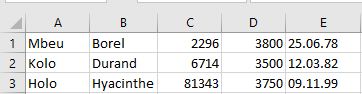
- It is recommended to filter updates by fields with a unique index, such as personalnummer, to avoid unintended modifications.
Common Errors and Their Messages
When attempting changes that violate the table structure or data integrity, Access returns error messages which are passed to VBA through error handling (On Error) in the Aktionsabfrage() procedure. These messages help diagnose the cause:
Error 1: Inserting a Null or Empty Value into a Required Field
- Attempting to assign an empty string to a field defined as not allowing nulls triggers an error.
SQLCommand = "UPDATE personen SET name = '' WHERE personalnummer = 2296"
Error 2: Inserting a Duplicate Value into a Field with a Unique Index
- Attempting to insert a value that already exists in a uniquely indexed field triggers an error.
SQLCommand = "UPDATE personen SET personalnummer = 6714 WHERE personalnummer = 2296"
Error 3: Inserting an Invalid Date or Number
- Assigning an invalid date or number—often due to incorrect format or type mismatch—results in an error.
SQLCommand = "UPDATE personen SET geburtstag = '32.12.1980' WHERE personalnummer = 2296"
SQL: Searching Using Select Queries Based on User Input in Excel VBA
When a user wants to search for specific records, the search term they enter can be incorporated directly into the SQL statement:
SQLCommand = « SELECT * FROM personen WHERE name LIKE ‘ » & _
Application.InputBox(« Which name are you searching for? ») & « ‘ »
- This query displays all records where the name field exactly matches the user input entered in the input box.
To improve flexibility, you can modify the query to search for any occurrence of the user input within the name field by using wildcards (%):
SQLCommand = « SELECT * FROM personen WHERE name LIKE ‘% » & _
Application.InputBox(« Which substring are you searching for? ») & _
« %’ »
- This query returns all records where the name field contains the substring the user enters, anywhere within the field.
Important:
- The SQL command string is constructed by concatenating several parts, so do not forget the single quotes (‘) around the search term—they are crucial for correct SQL syntax.
- During development, it is helpful to display the complete SQL command using:
MsgBox SQLCommand
This helps catch common errors when inserting user input into the query. You can comment out this debug line once your code works properly.
SQL: Sorting Query Results in Excel VBA
You can influence the order of records returned by a query using the ORDER BY clause. You can specify one or multiple sorting keys. By default, sorting is in ascending order. To sort in descending order, use the keyword DESC.
Example 1: Sorting by Salary Descending
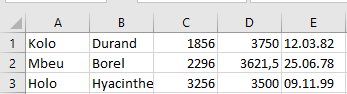
SQLCommand = « SELECT * FROM personen ORDER BY gehalt DESC »
- The records are sorted in descending order based on the gehalt (salary) field, as shown in next Figure.
Example 2: Sorting by Last Name and First Name
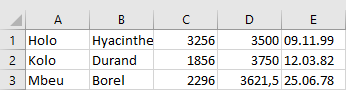
SQLCommand = « SELECT * FROM personen ORDER BY name, vorname »
- The records are sorted in ascending order by the name field (last name).
- If multiple records share the same last name, they are further sorted by the vorname (first name) field, also ascending, as shown in next Figure.
Note:
To demonstrate this query more clearly, a temporary record (Maier, Wolfgang) was added.SQL: Inserting Records Using INSERT Action Queries in Excel VBA
The INSERT statement is used to add new records to a database table.
Example:
SQLCommand = "INSERT INTO personen " & _
             "(name, vorname, personalnummer, gehalt, geburtstag) " & _
             "VALUES('Moyo', 'Yannick', 4711, 2900, '02.01.19976')"
This command inserts a new record into the personen table.
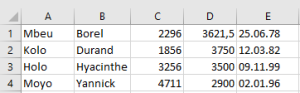
- The field names in parentheses specify the number and order of the values listed after VALUES, which must match.
- Note the use of single quotes around string and date values — these are mandatory in SQL.
- When inserting data, the same types of errors can occur as with updates, such as violating data types, null constraints, or unique indexes.