Votre panier est actuellement vide !
Étiquette : excel_vba
SQL: Select Queries with SELECT in Excel VBA
This and the following sections explain the most important SQL commands through typical examples and their effects. You can find the corresponding SQL statements commented in the procedures Auswahlabfrage() and Aktionsabfrage() in the workbook Mappe9.xlsm, Module 5.
The SELECT statement is used to retrieve records for display. An initial example using SELECT * FROM personen was already shown. Here are further examples:
Selecting Specific Fields
SQLCommand = « SELECT name, vorname FROM personen »
This query requests only the values from the fields name and vorname for all records, as shown in Figure 9.46.
- The result set is smaller because it contains only these two fields.
- Other fields are not included and therefore cannot be accessed in the processing loop.
- For this query, the processing loop is shortened accordingly:
Do While Not rs.EOF
    Cells(i, 1) = rs("name")
    Cells(i, 2) = rs("vorname")
    rs.MoveNext
    i = i + 1
Loop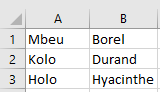
Restricting Selection with a Condition
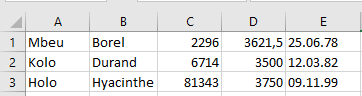
SQLCommand = « SELECT * FROM personen WHERE gehalt > 3600 »
- The WHERE clause allows you to specify conditions, similar to an If statement.
- The result contains only those records that satisfy the condition—in this case, those where the value in the gehalt (salary) field is greater than 3600, as shown in next Figure.

Selecting by String Value
SQLCommand = « SELECT * FROM personen WHERE name = ‘Mbeu »
- When comparing string or date values, the value must be enclosed in single quotes (‘) (not to be confused with double quotes used for strings in VBA).
- The result of this query is shown in next Figure.

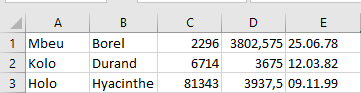
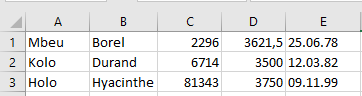
Note: The displayed results refer to the original values in the table before a 5% salary increase.
Sample Database: Action Query in Excel VBA
Code example:
Sub ActionQuery()
    Dim cn As New ADODB.Connection
    Dim SQLCommand As String
    Dim affectedRecords As Integer
    On Error GoTo ErrorHandler
    Set cn = New ADODB.Connection
    cn.ConnectionString = _
        "Provider=Microsoft.ACE.OLEDB.12.0;Data Source=" & _
        ThisWorkbook.Path & "\salary.accdb;"
    cn.Open
    SQLCommand = "UPDATE personen SET gehalt = gehalt * 1.05"
    ' MsgBox SQLCommand ' Uncomment for debugging
    cn.Execute SQLCommand, affectedRecords
    cn.Close
    Set cn = Nothing
    MsgBox "Number of records updated: " & affectedRecords
    Exit Sub
ErrorHandler:
    MsgBox Err.Description
    Set cn = Nothing
End Sub
As an example of an action query, consider the following task: increase all salaries by 5%. After running the update and re-importing the table from MS Access, the updated records should appear as shown in next Figure.
Explanation:
- The Execute() method is used to run action queries and can accept a second parameter to return the number of affected records.
- In this example, the second parameter affectedRecords stores how many records were updated by the query.
- The return value of Execute() is not needed here since no Recordset is expected from an UPDATE statement.
- The SQL command UPDATE personen SET gehalt = gehalt * 1.05 can be broken down as follows:
- UPDATE … SET …: SQL syntax to update a table and assign new values.
- personen: The name of the table to update.
- gehalt = gehalt * 1.05: Expression that increases the salary field by 5%.
- Note that SQL uses a decimal point (not a comma) to separate decimal places.
- For confirmation, the number of updated records is displayed, as illustrated in Figure 9.45.
Sample Database: Select Query in Excel VBA
As an example of a select query, consider the simplest case: retrieving all records from a table including all fields.
Code example:
Sub SelectQuery()
    Dim cn As ADODB.Connection
    Dim rs As ADODB.Recordset
    Dim i As Integer
    Dim SQLCommand As String
    ThisWorkbook.Worksheets("Sheet4").Activate
    On Error GoTo ErrorHandler
    Set cn = New ADODB.Connection
    cn.ConnectionString = _
        "Provider=Microsoft.ACE.OLEDB.12.0;Data Source=" & _
        ThisWorkbook.Path & "\salary.accdb;"
    cn.Open
    SQLCommand = "SELECT * FROM personen"
    ' MsgBox SQLCommand ' Uncomment for debugging
    Range("A1:E4").Clear
    Set rs = cn.Execute(SQLCommand)
    i = 1
    Do While Not rs.EOF
        Cells(i, 1) = rs("name")
        Cells(i, 2) = rs("vorname")
        Cells(i, 3) = rs("personalnummer")
        Cells(i, 4) = rs("gehalt")
        Cells(i, 5) = rs("geburtstag")
        rs.MoveNext
        i = i + 1
    Loop
    rs.Close
    cn.Close
    Set rs = Nothing
    Set cn = Nothing
    Range("E:E").NumberFormatLocal = "dd.mm.yy"
    Range("A:E").Columns.AutoFit
    Exit Sub
ErrorHandler:
    MsgBox Err.Description
    Set cn = Nothing
End Sub
Explanation:
- Two object variables are declared: one for the ADODB.Connection and one for the ADODB.Recordset.
- Because database access often involves many potential errors, error handling is implemented with On Error. Common errors might include the database file missing at the specified location or syntax errors in the SQL statement. Helpful error messages facilitate troubleshooting.
- A new ADODB.Connection object is instantiated and assigned to the variable cn.
- The ConnectionString property is set with the provider (Microsoft.ACE.OLEDB.12.0) and the data source pointing to the firma.accdb file located in the same folder as the workbook.
- The connection is opened with cn.Open.
- The SQL command string « SELECT * FROM personen » selects all fields (*) from the table personen.
- This SQL command is stored in a string variable for easier management, especially useful if it includes user inputs. For debugging, you can display it with MsgBox.
- The output range (A1:E4) is cleared to prepare for fresh data.
- The Execute() method of the connection sends the SQL command and returns a Recordset object assigned to rs.
- The EOF property signals when the end of the recordset is reached, controlling the Do While loop.
- Within the loop, field values are accessed by rs(« <fieldname> ») syntax.
- The MoveNext() method moves to the next record.
- After processing, the recordset and connection are closed via Close(), and object variables are set to Nothing to free resources.
- Finally, the date format for column E is set, and columns A to E are auto-fitted to content.
- Additional commented SQL commands can be found in the example workbook for further study.
Accessing Appointments and Recurring Appointments in Excel VBA
The following program lists all appointments and recurring appointment masters with the subject « Test »:
Sub AccessAppointments()
    Dim appOutlook As Outlook.Application
    Dim ns As Outlook.Namespace
    Dim folder As Outlook.Folder
    Dim item As Object
    Dim pattern As Outlook.RecurrencePattern
    Dim recurrenceTypeText As String
    Dim dayOfWeekList As String
    Dim output As String
    Set appOutlook = CreateObject("Outlook.Application")
    ' Get MAPI namespace and default calendar folder
    Set ns = appOutlook.GetNamespace("MAPI")
    Set folder = ns.GetDefaultFolder(olFolderCalendar)
    ' Loop through all items in the calendar folder
    For Each item In folder.Items
        If TypeOf item Is Outlook.AppointmentItem Then
            If item.Subject = "Test" Then
                output = output & item.Start & " " & _
                    item.Duration & " " & item.Subject & " " & _
                    item.Location
                ' Check if item is the master of a recurring series
                If item.RecurrenceState = olApptMaster Then
                    Set pattern = item.GetRecurrencePattern
                    ' Determine recurrence type text
                    Select Case pattern.RecurrenceType
                        Case olRecursWeekly
                            recurrenceTypeText = "Weekly"
                        Case olRecursDaily
                            recurrenceTypeText = "Daily"
                        Case olRecursMonthly
                            recurrenceTypeText = "Monthly"
                        Case olRecursYearly
                            recurrenceTypeText = "Yearly"
                        Case Else
                            recurrenceTypeText = "Other"
                    End Select
                    ' Get list of days for weekly recurrence
                    dayOfWeekList = GetDayOfWeekList(pattern.DayOfWeekMask)
                    output = output & " Series " & recurrenceTypeText & " " & _
                        dayOfWeekList & vbCrLf & _
                        " From: " & pattern.PatternStartDate & _
                        " to: " & pattern.PatternEndDate
                End If
                output = output & vbCrLf
            End If
        End If
    Next item
    MsgBox output
    appOutlook.Quit
    Set pattern = Nothing
    Set item = Nothing
    Set folder = Nothing
    Set ns = Nothing
    Set appOutlook = Nothing
End Sub
Function GetDayOfWeekList(mask As Integer) As String
    If (mask And olSunday) > 0 Then GetDayOfWeekList = GetDayOfWeekList & "Sun "
    If (mask And olMonday) > 0 Then GetDayOfWeekList = GetDayOfWeekList & "Mon "
    If (mask And olTuesday) > 0 Then GetDayOfWeekList = GetDayOfWeekList & "Tue "
    If (mask And olWednesday) > 0 Then GetDayOfWeekList = GetDayOfWeekList & "Wed "
    If (mask And olThursday) > 0 Then GetDayOfWeekList = GetDayOfWeekList & "Thu "
    If (mask And olFriday) > 0 Then GetDayOfWeekList = GetDayOfWeekList & "Fri "
    If (mask And olSaturday) > 0 Then GetDayOfWeekList = GetDayOfWeekList & "Sat "
End Function
Explanation:
- The default calendar folder (olFolderCalendar) is accessed via the MAPI namespace.
- Items in this folder are of type AppointmentItem, which have properties such as Start, Duration, Subject, and Location.
- The program loops through all items and selects those with the subject « Test. »
- If the item’s RecurrenceState equals olApptMaster, it is the master appointment of a recurring series.
- The recurring pattern object (RecurrencePattern) is obtained using GetRecurrencePattern.
- The RecurrenceType property indicates the recurrence frequency, such as weekly, daily, monthly, or yearly.
- The DayOfWeekMask is decoded into a readable list of days using the helper function GetDayOfWeekList, which tests each weekday flag using bitwise And.
- The start and end dates of the recurrence pattern are also displayed.
Creating a Recurring Appointment in Excel VBA
When creating a recurring appointment, an additional object is involved: a RecurrencePattern object that defines the pattern for the series of appointments.
Here is an example:
Sub CreateRecurringAppointment()
    Dim appOutlook As Outlook.Application
    Dim appointment As Outlook.AppointmentItem
    Dim pattern As Outlook.RecurrencePattern
    Set appOutlook = CreateObject("Outlook.Application")
    ' Create a new appointment
    Set appointment = appOutlook.CreateItem(olAppointmentItem)
    ' Assign properties
    appointment.Start = "10/06/2025 07:45"
    appointment.Duration = 45 ' Duration in minutes
    appointment.Subject = "Test"
    ' Get the recurrence pattern object
    Set pattern = appointment.GetRecurrencePattern
    ' Set recurrence properties
    pattern.RecurrenceType = olRecursWeekly
    pattern.DayOfWeekMask = olWednesday Or olSaturday
    pattern.PatternStartDate = "18.03.2020"
    pattern.PatternEndDate = "04.04.2020"
    ' Save the recurring appointment
    appointment.Save
    ' Clean up
    appOutlook.Quit
    Set pattern = Nothing
    Set appointment = Nothing
    Set appOutlook = Nothing
End Sub
Explanation:
- The CreateItem() method creates an object of type AppointmentItem.
- The appointment’s properties such as Start, Duration, and Subject are assigned.
- The GetRecurrencePattern() method returns an object of type RecurrencePattern.
- Some important properties of the RecurrencePattern object are then set:
- RecurrenceType: Defines the recurrence frequency and must be set first. Valid values include:
- olRecursDaily (daily),
- olRecursWeekly (weekly),
- olRecursMonthly (monthly).
- DayOfWeekMask: Specifies the days of the week on which the appointment occurs. This is a bitmask composed by bitwise OR of day constants:
- olSunday (1),
- olMonday (2),
- olTuesday (4),
- olWednesday (8),
- olThursday (16),
- olFriday (32),
- olSaturday (64).
- RecurrenceType: Defines the recurrence frequency and must be set first. Valid values include:
You can combine any combination of these constants using the Or operator.
-
- PatternStartDate and PatternEndDate: Define the date range during which the recurring appointments occur.
- Finally, the recurring appointment is saved using the Save() method.
Creating an Appointment in Outlook with Excel VBA
Items in the Calendar folder are objects of the type AppointmentItem. These objects have different properties compared to MailItem objects. The following example shows how to add a new appointment to the personal calendar using VBA:
Sub CreateAppointment()
    Dim appOutlook As Outlook.Application
    Dim appointment As Outlook.AppointmentItem
    ' Start Outlook application
    Set appOutlook = CreateObject("Outlook.Application")
    ' Create a new appointment item
    Set appointment = appOutlook.CreateItem(olAppointmentItem)
    ' Assign properties to the appointment
    appointment.Start = "10/06/2025 09:45"
    appointment.Duration = 60        ' Duration in minutes
    appointment.Subject = "Test"
    appointment.Location = "here"
    ' Save the appointment
    appointment.Save
    ' Quit Outlook and clean up
    appOutlook.Quit
    Set appointment = Nothing
    Set appOutlook = Nothing
End Sub
Explanation:
Using the method CreateItem() along with the constant olAppointmentItem, a new Outlook item of the type AppointmentItem is created.Several key properties of the appointment are then set:
- Start: Defines the start date and time of the appointment (format: dd.mm.yyyy hh:mm).
- Duration: Specifies the length of the appointment in minutes.
- Subject: The subject or title of the appointment.
- Location: The place where the appointment takes place.
The new appointment is saved in Outlook’s calendar with the Save() method.
Accessing Contacts in Outlook with Excel VBA
The following example lists all contacts whose last name begins with the letter « M »:
Sub AccessContacts()
    Dim appOutlook As Outlook.Application
    Dim ns As Outlook.Namespace
    Dim contactsFolder As Outlook.Folder
    Dim contact As Outlook.ContactItem
    Dim output As String
    ' Start Outlook application
    Set appOutlook = CreateObject("Outlook.Application")
    ' Get the MAPI namespace
    Set ns = appOutlook.GetNamespace("MAPI")
    ' Access the default Contacts folder
    Set contactsFolder = ns.GetDefaultFolder(olFolderContacts)
    ' Attempt to retrieve matching contacts
    On Error GoTo ErrorHandler
    For Each contact In contactsFolder.Items
        If Left(contact.LastName, 1) = "M" Then
            output = output & contact.LastName & ", " & contact.FirstName & _
                     " (" & contact.Email1Address & ")" & vbCrLf
        End If
    Next contact
    ' Display the collected contacts
    MsgBox output
    ' Clean up
    appOutlook.Quit
    Set contact = Nothing
    Set contactsFolder = Nothing
    Set ns = Nothing
    Set appOutlook = Nothing
    Exit Sub
ErrorHandler:
    ' Ignore errors and continue with next contact
    Resume Next
End Sub
Explanation:
This code accesses the default Contacts folder in Outlook, identified by the constant olFolderContacts.All items in this folder are of the type ContactItem and possess properties such as last name (LastName), first name (FirstName), and primary email address (Email1Address).
The script examines the last name of each contact using the Left() function to check if the first character is « M ». For all contacts matching this criterion, it concatenates their last name, first name, and email address into a string.
If an error occurs while accessing any contact (for example, due to an unexpected item type), the error handler ensures the loop continues with the next contact, effectively ignoring problematic entries.
Finally, the compiled list of matching contacts is displayed in a message box.
Creating a Contact in Outlook with Excel VBA
New contacts can be created in a manner similar to composing new emails. The following example demonstrates this process:
Sub CreateContact()
    Dim appOutlook As Outlook.Application
    Dim contactItem As Outlook.ContactItem
    ' Start Outlook application
    Set appOutlook = CreateObject("Outlook.Application")
    ' Create a new contact item
    Set contactItem = appOutlook.CreateItem(olContactItem)
    ' Assign properties to the contact
    contactItem.LastName = "Muster"
    contactItem.FirstName = "Max"
    contactItem.Email1Address = "max.muster@mailziel.de"
    ' Save the new contact
    contactItem.Save
    ' Quit Outlook and clean up
    appOutlook.Quit
    Set contactItem = Nothing
    Set appOutlook = Nothing
End Sub
Explanation:
The CreateItem() method of the Outlook application object is used here with the constant olContactItem to create a new item of type ContactItem. This generates a blank contact form.Next, the script assigns values to key properties of the contact, specifically the last name (LastName), first name (FirstName), and primary email address (Email1Address).
Finally, the new contact is saved to Outlook’s contacts folder using the Save() method.
The Outlook interface will then display this newly created contact, as illustrated in the referenced figure.
Accessing Email Attachments in Outlook with Excel VBA
The following VBA example demonstrates how to analyze emails within the « Sent Items » folder in Outlook to answer questions such as:
- What percentage of all emails contain at least one attachment?
- On average, how many attachments does an email with attachments have?
- When and to whom was a specific file sent as an email attachment?
Sub AccessMailAttachments()
    Dim appOutlook As Outlook.Application
    Dim ns As Outlook.Namespace
    Dim folder As Outlook.Folder
    Dim mailItem As Outlook.MailItem
    Dim attachment As Outlook.Attachment
    Dim countWithAttachments As Integer
    Dim percentWithAttachments As Single
    Dim totalAttachments As Integer
    Dim attachmentsPerMail As Single
    Dim output As String
    Const maxItems As Integer = 100
    Dim processedItems As Integer
    ' Start Outlook application
    Set appOutlook = CreateObject("Outlook.Application")
    ' Get MAPI namespace
    Set ns = appOutlook.GetNamespace("MAPI")
    ' Access the Sent Items folder
    Set folder = ns.GetDefaultFolder(olFolderSentMail)
    ' Initialize counters
    processedItems = 0
    countWithAttachments = 0
    totalAttachments = 0
    ' Loop through emails in the folder (limit to maxItems)
    For Each mailItem In folder.Items
        processedItems = processedItems + 1
        ' Check if email has attachments
        If mailItem.Attachments.Count > 0 Then
            countWithAttachments = countWithAttachments + 1
            totalAttachments = totalAttachments + mailItem.Attachments.Count
        End If
        ' Stop if maxItems processed
        If processedItems > maxItems Then Exit For
    Next mailItem
    ' Calculate percentage of emails with attachments
    percentWithAttachments = countWithAttachments / folder.Items.Count
    MsgBox Format(percentWithAttachments, "0.00 %") & _
           " of emails in the 'Sent Items' folder have attachments."
    ' Calculate average number of attachments per email with attachments
    If countWithAttachments > 0 Then
        attachmentsPerMail = totalAttachments / countWithAttachments
    Else
        attachmentsPerMail = 0
    End If
    MsgBox Format(attachmentsPerMail, "0.00") & _
           " attachments per email that contains attachments."
    ' Search for a specific attachment by filename
    processedItems = 0
    output = ""
    For Each mailItem In folder.Items
        processedItems = processedItems + 1
        For Each attachment In mailItem.Attachments
            If attachment.FileName = "Mappe9.xlsm" Then
                output = output & "Sent to " & mailItem.To & _
                         " on " & mailItem.CreationTime & vbCrLf
            End If
        Next attachment
        If processedItems > maxItems Then Exit For
    Next mailItem
    ' Display results if the file was found
    If output <> "" Then MsgBox output
    ' Clean up
    appOutlook.Quit
    Set attachment = Nothing
    Set mailItem = Nothing
    Set folder = Nothing
    Set ns = Nothing
    Set appOutlook = Nothing
End Sub
Explanation:
This script uses a For Each loop to iterate over all items in the « Sent Items » folder of Outlook. Since processing a very large number of emails can take a long time, the script limits the examination to the first 100 items by using a constant (maxItems) and a counter (processedItems). You can adjust maxItems to analyze more or fewer emails.For each email (mailItem), the code checks if it contains any attachments by inspecting the Attachments.Count property. If the email has attachments, it increments the counter for emails with attachments and adds the number of attachments to a total count.
After processing, it calculates and displays:
- The percentage of emails that contain at least one attachment relative to all emails in the folder.
- The average number of attachments per email that has attachments.
Next, using nested loops, the code examines every attachment in each email to find any attachment matching a specific filename — in this case, « Mappe9.xlsm ». For every match found, the script collects and outputs the recipient (mailItem.To) and the creation date/time of the email (mailItem.CreationTime).
Finally, the Outlook application and all object references are properly released to free resources.
Accessing the Outlook Folder in Excel VBA
The following VBA program determines the number of items contained within the « Sent Items » folder in Outlook. Additionally, it retrieves and displays certain properties of an email item from this folder:
Sub AccessFolder()
    Dim appOutlook As Outlook.Application
    Dim ns As Outlook.Namespace
    Dim folder As Outlook.Folder
    Dim mailItem As Outlook.MailItem
    ' Start the Outlook application
    Set appOutlook = CreateObject("Outlook.Application")
    ' Get the MAPI namespace
    Set ns = appOutlook.GetNamespace("MAPI")
    ' Access the default Sent Items folder
    Set folder = ns.GetDefaultFolder(olFolderSentMail)
    ' Count the number of items in the folder
    MsgBox folder.Items.Count & " items in the 'Sent Items' folder"
    ' Attempt to retrieve properties of the first item
    On Error GoTo ErrorHandler
    Set mailItem = folder.Items(1)
    MsgBox "Properties of the first item:" & vbCrLf & _
           "Subject: " & mailItem.Subject & vbCrLf & _
           "Recipient(s): " & mailItem.To & vbCrLf & _
           "Body (first 50 characters): " & Left(mailItem.Body, 50) & " ..."
    ' Clean up and quit Outlook
    appOutlook.Quit
    Set mailItem = Nothing
    Set folder = Nothing
    Set ns = Nothing
    Set appOutlook = Nothing
    Exit Sub
ErrorHandler:
    MsgBox "Unable to retrieve properties from the item."
    appOutlook.Quit
    Set mailItem = Nothing
    Set folder = Nothing
    Set ns = Nothing
    Set appOutlook = Nothing
End Sub
Explanation:
The method GetNamespace() of the Application object returns a namespace object, which is necessary to access Outlook folders. In this context, only the « MAPI » namespace type is supported.Using the namespace object, the method GetDefaultFolder() retrieves a Folder object representing the default folder of the specified type. Here, it targets the « Sent Items » folder, referenced by the constant olFolderSentMail.
The folder’s Items property is a collection representing all the items (emails, calendar entries, etc.) within that folder. The total number of items can be obtained using the Count property, just as with any typical collection.
Individual items within the Items collection can be accessed using an index. In this example, the code accesses the first item (Items(1)) and displays its main properties: the email’s subject (Subject), recipient list (To), and a snippet of the email body (Body), limited here to the first 50 characters.
If an error occurs while accessing the properties of the item, the program jumps to an error handler that notifies the user that the properties could not be retrieved.
The Outlook application instance and all object references are properly released at the end to avoid resource leaks.