Votre panier est actuellement vide !
Étiquette : excel_vba
Sending a Specific Range via Email in Excel VBA
If you want to send only a specific range from a workbook, you can first let the user select the range, copy it into a new workbook, and then email that new workbook:
Sub SendSelectedRange()
    Dim selectedRange As Range
    Dim appOutlook As Outlook.Application
    Dim MailItem As Outlook.MailItem
    ' Let user select the range to send
    Set selectedRange = Application.InputBox( _
        Prompt:="Select the range to email", Type:=8)
    ' Copy the selected range
    selectedRange.Copy
    ' Create a new workbook and paste the copied range
    Workbooks.Add
    ActiveSheet.Paste
    ' Save and close the new workbook
    ActiveWorkbook.SaveAs ThisWorkbook.Path & "\C:\Users\POPOLY\Desktop\Doc.xlsx"
    ActiveWorkbook.Close
    ' Start Outlook and create a new email
    Set appOutlook = CreateObject("Outlook.Application")
    Set MailItem = appOutlook.CreateItem(olMailItem)
    ' Set email properties
    MailItem.To = "max.muster@mailziel.de"
    MailItem.Subject = "Test"
    ' Attach the newly saved workbook
    MailItem.Attachments.Add ThisWorkbook.Path & "\AttachmentWorkbook.xlsx"
    ' Send the email
    MailItem.Send
    ' Quit Outlook and clean up
    appOutlook.Quit
    Set MailItem = Nothing
    Set appOutlook = Nothing
    Set selectedRange = Nothing
End Sub
Explanation:
- The method Application.InputBox() allows the user to select a range with the mouse.
- The Copy() method copies this selected range. Since no destination is specified, the copied data is stored in the clipboard.
- A new workbook is created with Workbooks.Add(), which becomes the active workbook.
- The clipboard contents are pasted into the new workbook using Paste().
- The new workbook is saved (here named AttachmentWorkbook.xlsx) and then closed.
- An email is created using CreateItem(). The To, Subject, and Attachments properties are assigned. The attachment is the newly saved workbook.
- The email is placed into the Outlook Outbox, ready for sending.
Creating a Mail Merge Email in Excel VBA
The previous example can be easily adapted to send a mail merge email to multiple recipients whose addresses are stored in an Excel worksheet.
Sub MailMergeEmail()
    Dim appOutlook As Outlook.Application
    Dim MailItem As Outlook.MailItem
    Dim i As Integer
    Dim BccList As String
    ' Build list of recipients from the worksheet
    ThisWorkbook.Worksheets("Sheet3").Activate
    i = 1
    Do While Cells(i, 3) <> ""
        BccList = BccList & Cells(i, 3).Value & ";"
        i = i + 1
    Loop
    ' Remove the trailing semicolon
    BccList = Left(BccList, Len(BccList) - 1)
    ' Start Outlook and create an email
    Set appOutlook = CreateObject("Outlook.Application")
    Set MailItem = appOutlook.CreateItem(olMailItem)
    ' Set properties and send
    MailItem.To = "moyofranck@gmail.com"
    MailItem.BCC = BccList
    MailItem.Subject = "Barbecue Party at 5 PM"
    MailItem.Send
    ' Quit Outlook and clean up
    appOutlook.Quit
    Set MailItem = Nothing
    Set appOutlook = Nothing
End Sub
Explanation:
- An Excel worksheet contains names, first names, and email addresses of several people.
- A loop constructs a string of all email addresses from column 3 of the worksheet, separating each with a semicolon. The trailing semicolon is removed using the Left() and Len() functions.
- The email is created similarly to the previous example, with the properties To, Bcc, and Subject assigned.
- The Bcc property receives the constructed string of recipients to ensure each recipient’s address remains hidden from others.
- The email is sent using the Send() method, placing it in the Outlook Outbox.
Composing an Email in Excel VBA
All elements of an email can also be created and composed entirely via VBA code. The following example shows how to create an email with recipient, subject, body content, and an attachment, and then send it:
Sub ComposeEmail()
    Dim appOutlook As Outlook.Application
    Dim MailItem As Outlook.MailItem
    ' Start Outlook application
    Set appOutlook = CreateObject("Outlook.Application")
    ' Create a new mail item
    Set MailItem = appOutlook.CreateItem(olMailItem)
    ' Set properties
    MailItem.To = "moyofranck@gmail.com"
    MailItem.Subject = "Test"
    MailItem.Body = "Hello" & vbCrLf & "World"
    ' Add attachment with error handling
    On Error GoTo ErrorHandler
    MailItem.Attachments.Add "C:\Users\POPOLY\Desktop\fleur.jpeg"
    ' Send the email
    MailItem.Send
    ' Quit Outlook and release memory
    appOutlook.Quit
    Set MailItem = Nothing
    Set appOutlook = Nothing
    Exit Sub
ErrorHandler:
    MsgBox Err.Description
    appOutlook.Quit
    Set MailItem = Nothing
    Set appOutlook = Nothing
End Sub
Explanation:
- The variable MailItem is declared as an object of type Outlook.MailItem.
- Using the CreateObject() function, an object of type Outlook.Application is created and a reference to it is returned. This reference is used to interact with the Outlook application.
- The CreateItem() method of the Application object creates a new item—in this case, a mail item. Different types of items have different available properties and methods.
- The properties To, Subject, and Body assign the email recipient, subject, and message body respectively. Multiple recipients can be specified in a single string, separated by semicolons. Unlike the SendMail() method, recipients here are not provided as an array.
- The Attachments collection holds all attachments of the email. The Add() method adds files to this collection. Since the file might not exist, error handling is used to catch such exceptions.
- The Send() method places the email into the Outlook Outbox for sending.
- Alternatively, you could use the Display() method instead of Send(). This shows the email to the user for review and prompts whether to save it. If the user agrees, the email is saved in the Outlook Drafts folder and can be sent later.
- At the end, the Outlook application is closed using the Quit() method.
Using the Integrated Email Dialog in Excel VBA
If you want to always give the user the opportunity to add additional elements to an email (such as Cc, Bcc recipients, or a message body), you can invoke Excel’s built-in email dialog box:
Sub EmailDialog()
    Dim success As Boolean
    success = Application.Dialogs(xlDialogSendMail).Show("moyofranck@gmail.com", "Test")
    If success Then
        MsgBox "Email was saved"
    Else
        MsgBox "Email saving was canceled"
    End If
End Sub
Explanation:
- The Show() method of the Dialogs collection is called to display one of Excel’s many built-in dialog boxes (see Section 10.1, « Built-in Dialog Boxes »).
- Using the constant xlDialogSendMail, the email dialog box is opened.
- You can specify a single recipient or multiple recipients as an array.
- The automatically generated subject line is known to be incorrect and should be overwritten by the user.
- The active workbook is attached to the email.
- The user can add further elements to the email, such as additional recipients or a message body, within the dialog.
- The method returns a Boolean indicating whether the email was saved. However, note that the return value is sometimes True even if the user cancels the email operation in Outlook.
- If the user saves the email, it is placed in the Outlook Outbox.
Sending a Workbook as an Email Attachment in Excel VBA
The SendMail() method allows you to send the active workbook as an email attachment easily. The example email addresses used below should be adjusted to your own addresses so you can verify the email delivery.
Example 1: Sending to a Single Recipient
Sub SimpleSend1()
    ThisWorkbook.SendMail "moyofranck@gmail.com", "Test"
End Sub
The user must choose whether to ALLOW or DENY access to Outlook. This security prompt appears for many subsequent applications that try to access Outlook elements.
If permission is granted, the email with the workbook as an attachment is placed into the Outlook Outbox.
Note that in Excel 2016, the subject line was not correctly passed with SendMail(). This issue was fixed in Excel 2019. Regardless, the actual sending of the workbook as an attachment works correctly in all versions.
Example 2: Sending to Multiple Recipients
Sub SimpleSend2()
    Dim outlookApp As Object
    Dim mailItem As Object
    Dim recipients As String
    recipients = "moyo.yannick@gmail.com; mbeu.borel@gmail.com"
    Set outlookApp = CreateObject("Outlook.Application")
    Set mailItem = outlookApp.CreateItem(0)
    With mailItem
        .To = recipients
        .Subject = "Test"
        .Body = "Ceci est un test d'envoi à plusieurs destinataires via Outlook."
        .Display ' Ou .Send pour envoi direct
    End With
End Sub
Explanation of Both Procedures:
- The SendMail() method has one required and two optional parameters.
- The first parameter specifies the recipient(s):
- A single string for one recipient.
- An array of strings for multiple recipients.
- The second parameter allows you to specify the email subject.
- The optional third parameter, if set to True, requests a read receipt. The success of this request depends on the recipient’s email client supporting and honoring read receipts.
- The generated email, including the active workbook as an attachment, is placed into the Outlook Outbox for sending.
Outlook Object Model in Excel VBA
Some key elements of the hierarchical Outlook object model include:
- The main object Application represents the Outlook application.
- Similar to Word, an object of type Outlook.Application is created using the CreateObject() function to access Outlook, and a reference to this object is returned. This reference is then used throughout the code to interact with the Outlook application. The Outlook application must be properly closed at the end.
- The CreateItem() method of the Application object is used to create items such as emails, contacts, or appointments. Depending on the item type, different properties and methods are available.
- The GetNameSpace() method of the Application object returns a namespace object, which is needed to access Outlook folders. The only supported namespace type is MAPI.
- The GetDefaultFolder() method of the MAPI namespace returns a Folder object representing the default folder of a specific type, such as Inbox (olFolderInbox) or Contacts (olFolderContacts).
- The Items property is a collection of items within an Outlook folder. Depending on the type of item, different properties and methods are available.
To access the Outlook object model from Excel’s Visual Basic Editor (VBE), you must first set a reference to the Microsoft Outlook Object Library. This is done via the menu Tools → References by selecting the appropriate version of the Microsoft Outlook Object Library, as shown in next Figure.
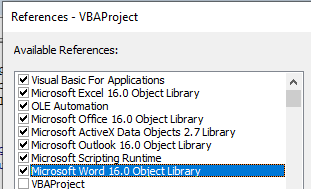
- For Outlook 2019 and Outlook 2016, this is the Microsoft Outlook 16.0 Object Library.
- For Outlook 2013, it is the Microsoft Outlook 15.0 Object Library.
- For Outlook 2010, it is the Microsoft Outlook 14.0 Object Library.
- For Outlook 2007, it is the Microsoft Outlook 12.0 Object Library.
Reading a Webpage in Excel VBA
Word can open HTML files, which contain the code of webpages. Word automatically converts the HTML content and displays it as a Word document. You can use this feature to import HTML content into your Excel workbook.
Consider the following example HTML code:
<!DOCTYPE html>
<html>
<body>
<p>Line 1</p>
<p>Line 2</p>
<p>Line 3</p>
</body>
</html>
This HTML file, named page.htm, displays three paragraphs as shown in Figure when opened in a browser.
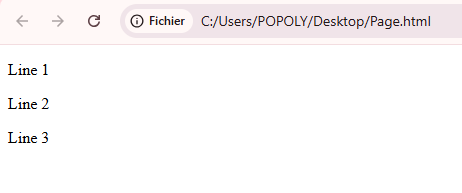
Using the following VBA code, the contents of these three paragraphs are extracted and placed into three cells in Excel . The code trims the paragraph end character using string functions Left() and Len().
Sub ReadWordHtml()
    Dim appWord As Word.Application
    Dim document As Word.document
    Dim paragraphText As String
    Dim i As Integer
    ThisWorkbook.Worksheets("Sheet1").Activate
    ' Create Word application object
    Set appWord = CreateObject("Word.Application")
    ' Open the HTML file as a Word document
    Set document = appWord.Documents.Add(ThisWorkbook.Path & "C:\Users\POPOLY\Desktop\page.html")
    ' Loop through all paragraphs
    For i = 1 To document.Paragraphs.Count
        paragraphText = document.Paragraphs(i).Range.Text
        ' Remove the paragraph end character and write to Excel
        Cells(i, 8).Value = Left(paragraphText, Len(paragraphText) - 1)
    Next i
    ' Close document and quit Word
    document.Close
    appWord.Quit
    Set document = Nothing
    Set appWord = Nothing
End Sub
Explanation:
- The HTML file is opened as a Word document via Documents.Add().
- Word parses the HTML and treats the <p> tags as paragraphs.
- Each paragraph’s text includes a paragraph end character, which is removed by trimming the last character.
- The cleaned paragraph text is transferred to column 8 (column H) in the Excel worksheet.
Reading a Word Table in Excel VBA
The following procedure reads the entire content of the Word table shown in next Figure and stores it in an Excel worksheet. Make sure the Word document is not open in Word before running this VBA code:

Sub ReadWordTable()
    Dim appWord As Word.Application
    Dim document As Word.Document
    Dim table As Word.Table
    Dim i As Integer
    Dim k As Integer
    Dim cellText As String
    Dim numberValue As Double
    Dim dateValue As Date
    ThisWorkbook.Worksheets("Sheet2").Activate
    ' Create Word application object
    Set appWord = CreateObject("Word.Application")
    ' Open the Word document
    Set document = appWord.Documents.Add(ThisWorkbook.Path & "\table.docx")
    ' Reference the first table in the document
    Set table = document.Tables(1)
    ' Loop through rows and columns
    For i = 1 To table.Rows.Count
        For k = 1 To table.Columns.Count
            ' Get the text of the cell, including cell end characters
            cellText = table.Cell(i, k).Range.Text
            ' Remove the two end-of-cell characters
            cellText = Left(cellText, Len(cellText) - 2)
            ' Determine the data type and write accordingly
            If IsNumeric(cellText) Then
                If InStr(cellText, ".") > 0 Then
                    dateValue = CDate(cellText)
                    Cells(i + 10, k).Value = dateValue
                Else
                    numberValue = CDbl(cellText)
                    Cells(i + 10, k).Value = numberValue
                End If
            Else
                Cells(i + 10, k).Value = cellText
            End If
        Next k
    Next i
    ' Close document and quit Word
    document.Close
    appWord.Quit
    Set table = Nothing
    Set document = Nothing
    Set appWord = Nothing
End Sub
The result of this import is shown in Figure.

Explanation:
- The variable table references the first Word.Table object in the document by accessing Tables(1).
- The properties Rows and Columns provide the collections of rows and columns in the table. The Count property gives the total number, which is used as the limit for the loops.
- The text of the entire content of a cell is accessed via Cell(row, column).Range.Text.
- Each cell’s text includes two end-of-cell characters; these are removed by using the string functions Left() and Len() to trim the last two characters.
- The data type of the remaining text is determined, as described in Section 8.4.1, « Converting Strings. » Based on the result, the value is converted to a number, date, or left as a string.
- The processed data is written into the Excel worksheet, starting from row 11 (offset by +10), with rows and columns corresponding to those in the Word table.
Writing a Word Table in Excel VBA
The contents of the Excel worksheet shown in Next Figure are to be written as a table into the Word document Doc.docx.

Sub WriteWordTable()
    Dim appWord As Word.Application
    Dim document As Word.Document
    Dim table As Word.Table
    Dim i As Integer
    Dim k As Integer
    ThisWorkbook.Worksheets("Sheet2").Activate
    ' Start Word application
    Set appWord = CreateObject("Word.Application")
    ' Create a new Word document
    Set document = appWord.Documents.Add
    ' Add a new table at the beginning of the document with 3 rows and 5 columns
    Set table = document.Tables.Add(appWord.ActiveDocument.Range(0), 3, 5)
    ' Set table borders for inside and outside lines to single line style
    table.Borders.InsideLineStyle = wdLineStyleSingle
    table.Borders.OutsideLineStyle = wdLineStyleSingle
    ' Transfer data from Excel to Word table cells
    For i = 1 To 3
        For k = 1 To 5
            table.Cell(i, k).Range.Text = Cells(i, k).Value
        Next k
    Next i
    ' Save the Word document and close it
    document.SaveAs ThisWorkbook.Path & "C:\Users\POPOLY\Desktop\Doc.docx"
    document.Close
    ' Quit Word application and clean up
    appWord.Quit
    Set table = Nothing
    Set document = Nothing
    Set appWord = Nothing
End Sub
The result of this code is shown in next Figure.
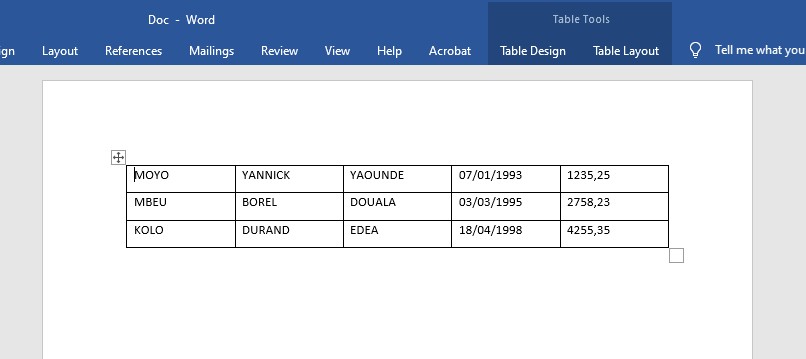
Explanation:
- The Add() method of the Tables collection inserts a new table into the document with the specified size. It requires at least three parameters:
- A Range object that specifies the location of the new table. Using Range(0) places the table at the very beginning of the document.
- The number of rows and columns for the new table.
- The Add() method returns a reference of type Word.Table to the newly created table. This reference is used to interact with the table in subsequent code.
- The Borders property contains all the borders of the table. Properties beginning with Inside… and Outside… control the appearance of inner and outer borders respectively. Here, InsideLineStyle and OutsideLineStyle are set to wdLineStyleSingle, which corresponds to a single-line border. Thus, the table receives a simple grid border.
- Nested loops iterate through all cells of the Excel worksheet and transfer their contents to the corresponding cells in the Word table. In Word, the Cell(row, column) method is used similarly to Excel.
- The Add() method of the Tables collection inserts a new table into the document with the specified size. It requires at least three parameters:
Reading Word Paragraphs in Excel VBA
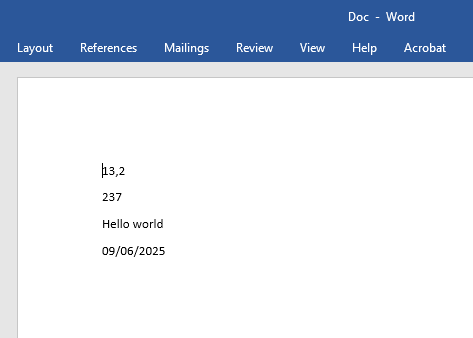
The following program reads all paragraphs from a Word document and stores each paragraph into a cell in an Excel worksheet. Ensure that the Word document is not open in Word before running this VBA program:
Sub ReadWordParagraphs()
    Dim appWord As Word.Application
    Dim document As Word.Document
    Dim i As Integer
    Dim paragraphText As String
    Dim numberValue As Double
    Dim dateValue As Date
    ThisWorkbook.Worksheets("Sheet1").Activate
    ' Create Word application object
    Set appWord = CreateObject("Word.Application")
    ' Open the Word document
    Set document = appWord.Documents.Add(ThisWorkbook.Path & "C:\Users\POPOLY\Desktop\Doc.docx")
    ' Loop through all paragraphs
    For i = 1 To document.Paragraphs.Count
        ' Get the text of the paragraph including paragraph mark
        paragraphText = document.Paragraphs(i).Range.Text
        ' Remove the paragraph end character (last character)
        paragraphText = Left(paragraphText, Len(paragraphText) - 1)
        ' Determine the data type and write to Excel cells
        If IsNumeric(paragraphText) Then
            If InStr(paragraphText, ".") > 0 Then
                dateValue = CDate(paragraphText)
                Cells(i + 12, 1).Value = dateValue
                Cells(i + 12, 2).Value = "Date"
            Else
                numberValue = CDbl(paragraphText)
                Cells(i + 12, 1).Value = numberValue
                Cells(i + 12, 2).Value = "Number"
            End If
        Else
            Cells(i + 12, 1).Value = paragraphText
            Cells(i + 12, 2).Value = "String"
        End If
    Next i
    ' Close the document and quit Word
    document.Close
    appWord.Quit
    Set document = Nothing
    Set appWord = Nothing
End Sub
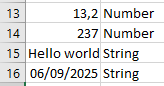
The result of this code is shown in next Figure.
Explanation:
- The Add() method of the Documents object, when called with a file path parameter, opens the specified Word document and returns a reference to it.
- A loop iterates over all paragraphs in the document.
- Using the Paragraphs collection and the Range property, the full text of each paragraph (including the paragraph mark) is accessed.
- The paragraph mark, which is part of the text, is removed by using the string functions Left() and Len() to exclude the last character.
- The data type of the remaining text is determined, as explained in Section 8.4.1, « Converting Strings. » Based on this, the text is converted into a number, date, or left as a string.
- The converted values are written to the Excel worksheet, starting from row 13 (i + 12), with the value in column 1 and its data type in column 2.