Votre panier est actuellement vide !
Étiquette : implement_advanced
Implement Advanced Inventory Control Algorithms with Excel VBA
The goal is to create a system that incorporates advanced inventory control techniques such as:
- Economic Order Quantity (EOQ) – Determines the optimal order quantity.
- Reorder Point (ROP) – When to place a new order to avoid stockouts.
- Safety Stock – Additional stock to prevent stockouts during demand fluctuations.
- Lead Time Demand – Calculating expected demand during lead time.
Step-by-Step Explanation:
- Economic Order Quantity (EOQ)
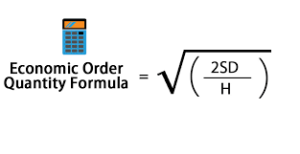
The EOQ formula helps us find the optimal order quantity that minimizes total inventory costs (order cost + holding cost). The formula is:
- Reorder Point (ROP)
The Reorder Point tells us when to place a new order. It depends on the lead time (time taken from placing an order to receiving it) and the average demand during this lead time.
ROP=Lead Time Demand=Lead Time×Average Demand per DayROP
3. Safety Stock
Safety Stock is an additional quantity of inventory kept to prevent stockouts due to variability in demand or lead time.
SS=Z×σL×LTSS
Where:
- Z= Service factor (based on the desired service level)
- σL = Standard deviation of demand during lead time
- LT = Lead time
- Lead Time Demand (LTD)
Lead Time Demand (LTD) is the expected demand during the lead time. This helps in predicting how much inventory will be consumed during the lead time before the next order arrives.
Excel VBA Code Implementation:
Below is an Excel VBA implementation for these advanced inventory control algorithms:
Sub AdvancedInventoryControl()
    ' Define variables for EOQ, ROP, Safety Stock, and Lead Time Demand calculations
    Dim demand As Double, orderCost As Double, holdingCost As Double
    Dim leadTime As Double, averageDemand As Double
    Dim zValue As Double, sigmaL As Double, LT As Double
    Dim eoq As Double, rop As Double, safetyStock As Double, ltd As Double
    Dim serviceLevel As Double
    ' Input values for the model (these can be replaced by cell references if needed)
    demand = 12000 ' Annual Demand (units per year)
    orderCost = 100 ' Ordering cost (per order)
    holdingCost = 5 ' Holding cost (per unit per year)
    leadTime = 7 ' Lead time (in days)
    averageDemand = 30 ' Average daily demand (units)
    ' Safety Stock parameters
    serviceLevel = 0.95 ' Desired service level (95% service level corresponds to Z=1.645)
    zValue = Application.WorksheetFunction.NormSInv(serviceLevel) ' Z value for service level
    ' Standard deviation of demand during lead time (use historical data or estimation)
    sigmaL = 10 ' Standard deviation of demand during lead time
    LT = leadTime ' Lead time in days
    ' Calculate EOQ (Economic Order Quantity)
    eoq = Sqr((2 * demand * orderCost) / holdingCost)
    ' Calculate Reorder Point (ROP)
    rop = leadTime * averageDemand
    ' Calculate Safety Stock
    safetyStock = zValue * sigmaL * Sqr(LT)
    ' Calculate Lead Time Demand (LTD)
    ltd = leadTime * averageDemand
    ' Output results to Excel sheet (or directly to the Immediate Window for debugging)
    Debug.Print "Economic Order Quantity (EOQ): " & eoq
    Debug.Print "Reorder Point (ROP): " & ro
    Debug.Print "Safety Stock: " & safetyStock
    Debug.Print "Lead Time Demand (LTD): " & ltd
    ' Optionally, output the results in specific cells (you can adjust the cell references)
    Range("B1").Value = "Economic Order Quantity (EOQ)"
    Range("B2").Value = eoq
    Range("B3").Value = "Reorder Point (ROP)"
    Range("B4").Value = ro
    Range("B5").Value = "Safety Stock"
    Range("B6").Value = safetyStock
    Range("B7").Value = "Lead Time Demand (LTD)"
    Range("B8").Value = ltd
End Sub
Explanation of the Code:
- Variable Declaration:
- Variables are declared for each of the parameters: demand, order cost, holding cost, etc. These can be replaced by cell references if you want to pull them directly from an Excel sheet.
- EOQ Calculation:
- The formula for EOQ is applied to calculate the optimal order quantity.
- ROP Calculation:
- The reorder point is calculated by multiplying the lead time by the average demand per day.
- Safety Stock Calculation:
- The safety stock is calculated using the Z-score for the desired service level and the standard deviation of demand during the lead time.
- LTD Calculation:
- Lead Time Demand is calculated simply by multiplying the average daily demand by the lead time (in days).
- Output:
- Results are output to the Immediate Window for debugging and also placed in the Excel worksheet cells for easy reference.
How to Use:
- Input Data:
- You can adjust the input values for demand, order cost, holding cost, lead time, and average demand. These values can also be linked to specific cells in an Excel sheet.
- Run the Code:
- Press Alt + F11 to open the VBA editor in Excel, then paste this code into a new module.
- You can run the AdvancedInventoryControl subroutine directly or link it to a button in your Excel sheet.
- View Results:
- The results will be displayed in the Immediate Window (for debugging) and in the Excel cells, where you can easily review the EOQ, ROP, Safety Stock, and Lead Time Demand values.
Additional Enhancements:
- Dynamic Inputs: You can set up user forms or links to cells where users can input values like demand, lead time, etc., and dynamically calculate the results.
- Inventory Tracking: You could integrate a system to track inventory levels and automatically alert when the reorder point is reached or if stock levels fall below the safety stock.
- Multiple Items: This algorithm can be expanded to work for multiple products by looping through different items and their respective inputs.
This script provides a foundational approach to implementing advanced inventory control algorithms in Excel VBA, and you can build on it depending on your specific needs and data complexity.
Implement Advanced Geospatial Analysis Techniques with Excel VBA
To implement advanced geospatial analysis techniques using Excel VBA, you need to understand a few important concepts and tools that allow you to handle and process geographical data. Geospatial analysis often involves working with spatial data, such as geographic coordinates (latitude and longitude), calculating distances, performing spatial queries, or using mapping techniques.
Since Excel VBA doesn’t come with native geospatial analysis tools like GIS software, you would typically need external libraries (such as the Geopy library in Python) or APIs (such as Google Maps API or Bing Maps API). However, Excel can still perform basic geospatial analysis, such as distance calculations, geographical transformations, and even basic mapping using VBA code.
Let’s walk through the process of implementing some advanced geospatial analysis techniques in Excel VBA, with detailed explanations of each step.
- Geospatial Data Preparation
Before performing geospatial analysis, the data should typically consist of geographical coordinates. Here is a simple setup:
ID Name Latitude Longitude 1 Place A 34.0522 -118.2437 2 Place B 40.7128 -74.0060 3 Place C 51.5074 -0.1278 You may also have additional attributes like elevation, region, or area.
- Calculating the Distance Between Two Geographical Points (Haversine Formula)
To calculate the distance between two geographical coordinates (latitude and longitude), you can use the Haversine Formula, which calculates the great-circle distance between two points on the Earth’s surface.
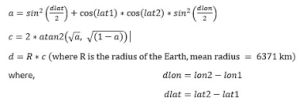
Here is the VBA code that uses the Haversine formula to calculate the distance:
Function HaversineDistance(lat1 As Double, lon1 As Double, lat2 As Double, lon2 As Double) As Double
    Dim R As Double
    Dim dLat As Double
    Dim dLon As Double
    Dim a As Double
    Dim c As Double
    ' Radius of the Earth in kilometers
    R = 6371
    ' Convert degrees to radians
    lat1 = WorksheetFunction.Radians(lat1)
    lon1 = WorksheetFunction.Radians(lon1)
    lat2 = WorksheetFunction.Radians(lat2)
    lon2 = WorksheetFunction.Radians(lon2)
    ' Differences in coordinates
    dLat = lat2 - lat1
    dLon = lon2 - lon1
    ' Haversine formula
    a = Sin(dLat / 2) ^ 2 + Cos(lat1) * Cos(lat2) * Sin(dLon / 2) ^ 2
    c = 2 * Atn(Sqr(a) / Sqr(1 - a))
    ' Calculate distance
    HaversineDistance = R * c
End Function
Explanation of the Code:
- Function Definition: The function HaversineDistance takes four parameters: the latitudes and longitudes of two locations.
- Convert to Radians: The latitudes and longitudes are converted from degrees to radians using WorksheetFunction.Radians.
- Calculate Differences: The differences in latitude and longitude are calculated.
- Haversine Formula: The formula is used to calculate the central angle between the two points.
- Distance Calculation: The final distance is calculated by multiplying the Earth’s radius by the central angle.
- Calculating the Midpoint Between Two Geographical Points
In some cases, you may want to calculate the midpoint between two geographic coordinates. The formula for calculating the midpoint is:
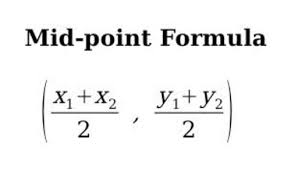
Here’s how you can implement this in VBA:
Function Midpoint(lat1 As Double, lon1 As Double, lat2 As Double, lon2 As Double) As String
    Dim midLat As Double
    Dim midLon As Double
    ' Calculate midpoint
    midLat = (lat1 + lat2) / 2
    midLon = (lon1 + lon2) / 2
    ' Return midpoint as a string
    Midpoint = "Latitude: " & midLat & ", Longitude: " & midLon
End Function
Explanation of the Code:
- The function calculates the average latitude and longitude between the two points and returns the midpoint as a string.
- Clustering Points Using K-Means Algorithm
Geospatial clustering is a common technique for identifying clusters of nearby points. One of the most widely used algorithms for clustering data is K-Means Clustering.
While implementing a full K-Means algorithm from scratch can be complex in VBA, here’s a simplified outline of how to perform clustering:
- Select the number of clusters (K).
- Randomly initialize centroids for each cluster.
- Assign each point to the nearest centroid.
- Recalculate the centroids based on the assigned points.
- Repeat steps 3-4 until convergence.
You can implement this in VBA by using arrays to store the points and centroids and iterating over the data until the algorithm converges.
- Geospatial Visualization (Using Bing Maps API)
While Excel doesn’t support interactive maps, you can visualize geospatial data by integrating Excel with the Bing Maps API (or any mapping API). The key steps are:
- Get a Bing Maps API Key from the Bing Maps portal.
- Create a URL with parameters for the map you want to show (latitude, longitude, zoom level, etc.).
- Open the Map in a Web Browser from VBA by generating a URL and using FollowHyperlink.
Example:
Sub ShowMap(lat As Double, lon As Double)
    Dim url As String
    ' Bing Maps URL format (use your actual Bing Maps API key)
    url = "https://www.bing.com/maps?cp=" & lat & "~" & lon & "&lvl=15&style=r&v=2"
    ' Open the URL in the default browser
    ThisWorkbook.FollowHyperlink url
End Sub
Explanation:
- This code generates a URL that points to a Bing Map, centered on the provided latitude and longitude.
- The map is opened in the default web browser.
Conclusion
In this example, we walked through:
- How to calculate distances between two geographical points using the Haversine formula.
- How to calculate the midpoint between two points.
- How to visualize geospatial data using the Bing Maps API.
For more advanced techniques such as spatial joins, heatmaps, or 3D geospatial visualization, you’d typically need to integrate Excel with specialized software or APIs (such as GIS software or a Python-based solution).
Implement Advanced Genetic Algorithms with Excel VBA
Implementing advanced Genetic Algorithms (GAs) in Excel VBA can be quite rewarding and challenging at the same time. Let’s break down the entire process with a detailed explanation and code.
Introduction to Genetic Algorithms (GAs)
A Genetic Algorithm (GA) is a search heuristic that is inspired by the process of natural selection. It is used to find approximate solutions to optimization and search problems. The basic idea is to mimic the process of natural evolution, where the fittest individuals are selected for reproduction to produce the offspring of the next generation.
A GA works by evolving a population of candidate solutions to a given problem. These candidates are encoded as chromosomes (a string of genes), and the evolution process involves selection, crossover (recombination), mutation, and replacement.
Steps in a Genetic Algorithm
- Initialization: Start with a randomly initialized population of solutions (chromosomes).
- Selection: Choose individuals based on their fitness to create new individuals (offspring).
- Crossover: Combine two individuals (parents) to create new offspring.
- Mutation: Randomly alter the offspring with some probability.
- Replacement: Replace the old population with the new one.
- Termination: Stop when a stopping criterion is met (e.g., number of generations, or convergence).
Problem Definition
Let’s assume you’re optimizing a simple mathematical function, such as Maximizing f(x) = x^2 where x is a binary encoded string representing a possible solution.
We’ll break down the implementation of the Genetic Algorithm in VBA for Excel.
Excel VBA Genetic Algorithm Code
Below is a detailed implementation of an advanced Genetic Algorithm using Excel VBA:
- Create a New Module in Excel VBA (Alt + F11 > Insert > Module).
- Declare the required variables and functions:
Option Explicit
' Constants
Const PopulationSize As Integer = 100        ' Population size
Const ChromosomeLength As Integer = 10       ' Number of bits in each individual
Const CrossoverRate As Single = 0.7         ' Probability of crossover
Const MutationRate As Single = 0.01         ' Probability of mutation
Const MaxGenerations As Integer = 1000      ' Max number of generations
' Data structures
Dim Population() As String
' Array to hold the population of chromosomes
Dim Fitness() As Single
' Fitness values for each chromosome
Sub GeneticAlgorithm()
    Dim Generation As Integer
    Dim BestSolution As String
    Dim BestFitness As Single
    Dim i As Integer
    Dim Parent1 As String, Parent2 As String
    Dim Child1 As String, Child2 As String
    Dim SelectedParents As Variant
    Dim NextPopulation() As String
    ' Initialize population
    Call InitializePopulation
    ' Main genetic algorithm loop
    For Generation = 1 To MaxGenerations
        ' Evaluate fitness
        Call EvaluateFitness
        ' Find best solution
        BestFitness = Application.WorksheetFunction.Max(Fitness)
        BestSolution = Population(Application.Match(BestFitness, Fitness, 0))
        ' Print the current best solution and fitness
        Debug.Print "Generation " & Generation & ": " & BestSolution & " with fitness " & BestFitness
        ' Create next generation
        ReDim NextPopulation(PopulationSize - 1)
        For i = 0 To PopulationSize - 1 Step 2
            ' Select two parents
            SelectedParents = SelectParents
            Parent1 = SelectedParents(0)
            Parent2 = SelectedParents(1)
            ' Perform crossover
            If Rnd() < CrossoverRate Then
                Call Crossover(Parent1, Parent2, Child1, Child2)
            Else
                Child1 = Parent1
                Child2 = Parent2
            End If
            ' Perform mutation
            If Rnd() < MutationRate Then Call Mutate(Child1)
            If Rnd() < MutationRate Then Call Mutate(Child2)
            ' Add children to the next population
            NextPopulation(i) = Child1
            NextPopulation(i + 1) = Child2
        Next i
        ' Update population for next generation
        Population = NextPopulation
    Next Generation
    Debug.Print "Optimization completed."
End Sub

' Initialize the population with random binary strings
Sub InitializePopulation()
    Dim i As Integer
    ReDim Population(PopulationSize - 1)
    For i = 0 To PopulationSize - 1
        Population(i) = GenerateRandomChromosome
    Next i
End Sub

' Generate a random binary chromosome of specified length
Function GenerateRandomChromosome() As String
    Dim i As Integer
    Dim Chromosome As String
    Chromosome = ""
    For i = 1 To ChromosomeLength
        If Rnd() < 0.5 Then
            Chromosome = Chromosome & "0"
        Else
            Chromosome = Chromosome & "1"
        Next i
    GenerateRandomChromosome = Chromosome
End Function

' Evaluate the fitness of each chromosome
Sub EvaluateFitness()
    Dim i As Integer
    ReDim Fitness(PopulationSize - 1)
    For i = 0 To PopulationSize - 1
        Fitness(i) = EvaluateChromosome(Population(i))
    Next i
End Sub

' Evaluate the fitness function (example: f(x) = x^2)
Function EvaluateChromosome(Chromosome As String) As Single
    Dim x As Integer
    x = BinaryToDecimal(Chromosome)
    EvaluateChromosome = x ^ 2 ' Example fitness function: f(x) = x^2
End Function

' Convert a binary string to a decimal value
Function BinaryToDecimal(Binary As String) As Integer
    Dim i As Integer
    Dim DecimalValue As Integer
    DecimalValue = 0
    For i = 1 To Len(Binary)
        DecimalValue = DecimalValue * 2 + CInt(Mid(Binary, i, 1))
    Next i
    BinaryToDecimal = DecimalValue
End Function

' Select two parents based on fitness proportionate selection
Function SelectParents() As Variant
    Dim TotalFitness As Single
    Dim SelectionPoint1 As Single, SelectionPoint2 As Single
    Dim Parent1Index As Integer, Parent2Index As Integer
    Dim Parents(1) As String
    ' Calculate total fitness
    TotalFitness = Application.WorksheetFunction.Sum(Fitness)
    ' Select two parents
    SelectionPoint1 = Rnd() * TotalFitness
    SelectionPoint2 = Rnd() * TotalFitness
    ' Find the parents by fitness
    Parent1Index = FindParentIndex(SelectionPoint1, TotalFitness)
    Parent2Index = FindParentIndex(SelectionPoint2, TotalFitness)
    Parents(0) = Population(Parent1Index)
    Parents(1) = Population(Parent2Index)
    SelectParents = Parents
End Function

' Find the index of the parent using fitness proportionate selection
Function FindParentIndex(SelectionPoint As Single, TotalFitness As Single) As Integer
    Dim i As Integer
    Dim RunningTotal As Single
    RunningTotal = 0
    For i = 0 To PopulationSize - 1
        RunningTotal = RunningTotal + Fitness(i)
        If RunningTotal >= SelectionPoint Then
            FindParentIndex = i
            Exit Function
        End If
    Next i
End Function

' Perform single-point crossover
Sub Crossover(Parent1 As String, Parent2 As String, ByRef Child1 As String, ByRef Child2 As String)
    Dim CrossoverPoint As Integer
    CrossoverPoint = Int(Rnd() * ChromosomeLength) + 1
    Child1 = Left(Parent1, CrossoverPoint) & Mid(Parent2, CrossoverPoint + 1)
    Child2 = Left(Parent2, CrossoverPoint) & Mid(Parent1, CrossoverPoint + 1)
End Sub

' Perform mutation by flipping a random bit
Sub Mutate(ByRef Chromosome As String)
    Dim MutationPoint As Integer
    MutationPoint = Int(Rnd() * ChromosomeLength) + 1
    If Mid(Chromosome, MutationPoint, 1) = "0" Then
        Mid(Chromosome, MutationPoint, 1) = "1"
    Else
        Mid(Chromosome, MutationPoint, 1) = "0"
    End If
End Sub
Explanation of the Code
- Variables and Constants:
- PopulationSize: The number of individuals in each generation.
- ChromosomeLength: The length of each individual’s chromosome (in bits).
- CrossoverRate: Probability of performing crossover.
- MutationRate: Probability of performing mutation.
- MaxGenerations: Maximum number of generations.
- Initialize Population: This creates an initial population of random binary strings (chromosomes).
- Evaluate Fitness: The fitness of each chromosome is calculated. In this case, the fitness function is f(x)=x2f(x) = x^2, where xx is the decimal representation of the binary chromosome.
- Select Parents: Two individuals (parents) are selected for reproduction based on their fitness values using fitness-proportionate selection.
- Crossover: Single-point crossover is performed to generate two offspring from the selected parents.
- Mutation: Each offspring has a chance of undergoing mutation, where one random bit in the chromosome is flipped.
- Replacement: The new generation is formed by the offspring produced through crossover and mutation, replacing the old population.
Running the Algorithm
- In the VBA editor, click Run > Run Sub/UserForm to execute the GeneticAlgorithm subroutine.
- The results (best solution and fitness per generation) will be printed to the Immediate Window (press Ctrl+G to view it).
Further Enhancements
- Custom Fitness Functions: You can modify the EvaluateChromosome function to suit more complex optimization problems.
- Elitism: You could modify the algorithm to retain the best individuals from each generation.
- Parallel Processing: For larger populations, parallelizing the evaluation of fitness could improve performance.
This is a foundational approach to implementing genetic algorithms in Excel VBA. You can further refine it by adjusting parameters, fitness functions, or introducing advanced techniques such as multi-point crossover or different selection methods.
Implement Advanced Financial Forecasting Models with Excel VBA
This example will assume that we are working on a forecast of sales for the next few years, based on historical sales data, using multiple forecasting techniques.
Explanation of Advanced Financial Forecasting
Financial forecasting involves predicting future financial outcomes based on historical data and various mathematical techniques. There are several approaches to forecasting, including:
- Moving Average: A simple forecasting model where future values are the average of the past values.
- Exponential Smoothing: A more sophisticated model that gives more weight to recent observations.
- Linear Regression: A statistical approach that uses past data to model the relationship between variables (e.g., sales and time).
- ARIMA (AutoRegressive Integrated Moving Average): A more complex time-series model.
- Monte Carlo Simulation: A method that uses random sampling to model uncertainty in forecasts.
In this VBA example, I’ll focus on the Linear Regression and Exponential Smoothing models, as they are commonly used in financial forecasting.
Data Structure
Assume that you have historical monthly sales data in columns A (Month) and B (Sales) starting from row 2.
Month Sales Jan-2020 1000 Feb-2020 1050 Mar-2020 1100 … … We will use VBA to:
- Implement a Linear Regression model to forecast future sales.
- Apply Exponential Smoothing to predict the next values.
VBA Code Implementation
Here’s a step-by-step breakdown of the code to implement these models:
Option Explicit
' This function implements Linear Regression forecasting
Function LinearRegressionForecast(rngMonths As Range, rngSales As Range, forecastPeriod As Integer) As Double
    Dim X() As Double, Y() As Double
    Dim i As Long
    Dim slope As Double, intercept As Double
    Dim forecast As Double
    ' Prepare arrays for Months and Sales data
    ReDim X(rngMonths.Rows.Count)
    ReDim Y(rngSales.Rows.Count)
    For i = 1 To rngMonths.Rows.Count
        X(i) = rngMonths.Cells(i, 1).Value ' Month values (e.g., 1 for Jan, 2 for Feb, etc.)
        Y(i) = rngSales.Cells(i, 1).Value ' Sales data
    Next i
    ' Perform Linear Regression to get Slope and Intercept (Y = mX + b)
    slope = WorksheetFunction.Slope(Y, X)
    intercept = WorksheetFunction.Intercept(Y, X)
    ' Forecasting for the next period
    forecast = (forecastPeriod * slope) + intercept
    ' Return the forecasted value
    LinearRegressionForecast = forecast
End Function

' This function implements Exponential Smoothing forecasting
Function ExponentialSmoothingForecast(rngSales As Range, smoothingFactor As Double) As Double
    Dim lastForecast As Double
    Dim i As Long
    Dim smoothedValue As Double
    ' Get the most recent sales value (use the last entry in the data)
    lastForecast = rngSales.Cells(rngSales.Rows.Count, 1).Value
    ' Apply Exponential Smoothing formula: New forecast = α * Actual value + (1 - α) * Previous forecast
    For i = rngSales.Rows.Count - 1 To 1 Step -1
        smoothedValue = smoothingFactor * rngSales.Cells(i, 1).Value + (1 - smoothingFactor) * lastForecast
        lastForecast = smoothedValue
    Next i
    ' Return the smoothed forecast
    ExponentialSmoothingForecast = lastForecast
End Function

Sub ForecastingModels()
    Dim rngMonths As Range, rngSales As Range
    Dim forecastPeriod As Integer
    Dim linearForecast As Double, expSmoothForecast As Double
    Dim smoothingFactor As Double
    ' Set the range for Months and Sales data
    Set rngMonths = Range("A2:A13") ' Modify this based on your data range
    Set rngSales = Range("B2:B13")  ' Modify this based on your data range
    ' Define forecast period (e.g., forecast for the next month)
    forecastPeriod = rngMonths.Rows.Count + 1
    ' Implement Linear Regression forecast
    linearForecast = LinearRegressionForecast(rngMonths, rngSales, forecastPeriod)
    ' Implement Exponential Smoothing forecast (alpha = 0.2)
    smoothingFactor = 0.2
    expSmoothForecast = ExponentialSmoothingForecast(rngSales, smoothingFactor)
    ' Output results
    MsgBox "Linear Regression Forecast for next month: " & linearForecast & vbCrLf & _
           "Exponential Smoothing Forecast for next month: " & expSmoothForecast
End Sub
Explanation of the Code
- Linear Regression Forecasting (LinearRegressionForecast)
- Input Parameters:
- rngMonths: A range containing the months (or time periods).
- rngSales: A range containing the historical sales data.
- forecastPeriod: The period (month) for which we are forecasting the sales.
- How it works:
- We extract the month and sales data into arrays.
- We calculate the slope and intercept using Excel’s built-in SLOPE and INTERCEPT functions.
- The forecasted sales for the specified future period are then calculated using the equation of a line: y = mx + b, where m is the slope and b is the intercept.
- Input Parameters:
- Exponential Smoothing Forecasting (ExponentialSmoothingForecast)
- Input Parameters:
- rngSales: The historical sales data.
- smoothingFactor: The smoothing constant (α), which determines the weight given to the most recent sales value.
- How it works:
- We start with the last recorded sales value as the initial forecast.
- We apply the exponential smoothing formula:
New forecast = α * Actual value + (1 – α) * Previous forecast - This is done iteratively to smooth the data.
- Input Parameters:
- The Main Subroutine (ForecastingModels)
- This subroutine calls both the LinearRegressionForecast and ExponentialSmoothingForecast functions to produce forecasts for the next period.
- The forecasted values are displayed in a message box.
How to Use the Code
- Open Excel and press Alt + F11 to open the VBA editor.
- Insert a new module by clicking Insert > Module.
- Copy and paste the above code into the module.
- Adjust the ranges (A2:A13, B2:B13) to match the location of your actual data in your Excel sheet.
- Run the ForecastingModels subroutine by pressing F5.
Conclusion
This VBA code implements a basic financial forecasting model using two techniques: Linear Regression and Exponential Smoothing. These methods are widely used in financial planning and analysis to predict future outcomes based on historical data. You can extend this model further by adding other techniques like ARIMA or Monte Carlo simulations if you need more advanced forecasting methods.
Implement Advanced Facility Location Analysis Models with Excel VBA
This example will involve solving a basic facility location problem (finding the optimal placement of facilities to minimize transportation costs) with several steps:
- Define the Problem
In a Facility Location Problem (FLP), the objective is to determine the best locations for facilities (such as warehouses, factories, etc.) to minimize costs (transportation, fixed facility costs, etc.) while considering factors like demand and capacity.
Problem Example:
- We have a set of potential facility locations (e.g., cities).
- We also have a set of customer demand points (e.g., demand locations).
- Each customer point has a demand that must be met by the nearest facility.
- We need to find the facility locations that minimize the total transportation cost.
Objective: Minimize the transportation cost
- Data Collection and Input
To implement this model, you’ll need the following inputs:
- Facility Locations (e.g., city coordinates or facility positions).
- Customer Demand Locations (e.g., customer coordinates or demand volumes).
- Distance Matrix: Calculate the distance between each facility and customer.
Input Data in Excel:
- Sheet1: Contains Facility Locations (columns A, B), where A = Facility ID, B = Facility Location (X, Y).
- Sheet2: Contains Customer Locations and Demand (columns A, B, C), where A = Customer ID, B = Customer Location (X, Y), C = Demand.
- Distance Matrix: Will be computed from the coordinates of the customers and facilities.
- Choose an Algorithm or Model
There are several approaches to solving the facility location problem:
- Greedy Algorithms
- Integer Linear Programming (ILP): Common for more complex problems.
- K-Means Clustering: Can be applied to solve facility location problems when the number of facilities is fixed.
For simplicity, let’s assume we are solving this problem using a Greedy Algorithm (the algorithm sequentially places facilities and assigns customers to minimize cost).
- Implementing in VBA
Here’s a basic implementation of a Greedy Facility Location Model in VBA:
Step-by-Step VBA Code:
Sub FacilityLocationAnalysis()
    Dim wsFacility As Worksheet, wsCustomer As Worksheet
    Dim facilityCount As Integer, customerCount As Integer
    Dim i As Integer, j As Integer
    Dim distMatrix() As Double
    Dim totalCost As Double
    Dim facilityLocation As Integer
    Dim cost As Double
    ' Set the worksheets
    Set wsFacility = ThisWorkbook.Sheets("FacilityLocations")
    Set wsCustomer = ThisWorkbook.Sheets("CustomerDemand")
    ' Get the number of facilities and customers
    facilityCount = wsFacility.Cells(Rows.Count, 1).End(xlUp).Row - 1
    customerCount = wsCustomer.Cells(Rows.Count, 1).End(xlUp).Row - 1
    ' Initialize the distance matrix (facility x customer)
    ReDim distMatrix(1 To facilityCount, 1 To customerCount)
    ' Calculate distance matrix (using Euclidean distance)
    For i = 1 To facilityCount
        For j = 1 To customerCount
            distMatrix(i, j) = CalculateDistance(wsFacility.Cells(i + 1, 2).Value, wsFacility.Cells(i + 1, 3).Value, _
                                                 wsCustomer.Cells(j + 1, 2).Value, wsCustomer.Cells(j + 1, 3).Value)
        Next j
    Next i
    ' Initialize total cost
    totalCost = 0
    ' Greedy Facility Location Selection
    For i = 1 To customerCount
        ' Find the closest facility for each customer
        facilityLocation = FindClosestFacility(distMatrix, i, facilityCount)
        ' Calculate the transportation cost for this customer-facility pai
        cost = distMatrix(facilityLocation, i) * wsCustomer.Cells(i + 1, 3).Value
        totalCost = totalCost + cost
        ' Output the result (customer and assigned facility)
        wsCustomer.Cells(i + 1, 4).Value = "Facility " & facilityLocation
        wsCustomer.Cells(i + 1, 5).Value = cost
    Next i
    ' Output the total cost
    MsgBox "Total Transportation Cost: " & totalCost
End Sub

' Function to calculate Euclidean distance
Function CalculateDistance(x1 As Double, y1 As Double, x2 As Double, y2 As Double) As Double
    CalculateDistance = Sqr((x2 - x1) ^ 2 + (y2 - y1) ^ 2)
End Function

' Function to find the closest facility to a customer
Function FindClosestFacility(distMatrix() As Double, customerIndex As Integer, facilityCount As Integer) As Integer
    Dim minDistance As Double
    Dim bestFacility As Integer
    minDistance = Application.WorksheetFunction.Max(distMatrix)
    For i = 1 To facilityCount
        If distMatrix(i, customerIndex) < minDistance Then
            minDistance = distMatrix(i, customerIndex)
            bestFacility = i
        End If
    Next i
    FindClosestFacility = bestFacility
End Function
Explanation of Code:
- Input Data:
- The facility and customer locations are assumed to be in separate worksheets: FacilityLocations and CustomerDemand.
- Distance Calculation:
- The function CalculateDistance computes the Euclidean distance between a facility and a customer. This distance is stored in a distance matrix.
- Greedy Selection:
- For each customer, the code identifies the closest facility using the FindClosestFacility function.
- The transportation cost is calculated as the distance between the facility and the customer multiplied by the demand.
- Output:
- The assigned facility for each customer is displayed in the Customer sheet, and the total transportation cost is calculated and displayed via a message box.
- Output and Visualization
After running the VBA code:
- Customer Sheet will be updated with the facility assignment and transportation cost for each customer.
- The total transportation cost will be displayed in a message box.
- To visualize the results, you can use Excel charts (e.g., scatter plot) to plot customer locations and facility locations on the same chart, with lines connecting customers to their assigned facilities.
Example Visualization:
- Scatter plot: Plot customer locations and facility locations with distinct colors.
- Lines: Draw lines connecting customers to their assigned facilities.
You can also use Excel’s Conditional Formatting to highlight the minimum cost facility assignments.
Notes:
- Complexity: This greedy approach works for small-to-medium-sized problems but may not find the global optimum. More advanced techniques like Linear Programming (via Solver) or Metaheuristics (like Genetic Algorithms) are better for larger or more complex problems.
- Scalability: For very large problems, this approach could become inefficient, and alternative methods should be considered.
- Data Input: Ensure that your data (coordinates, demand, etc.) is properly formatted in Excel to avoid errors in calculations.
Implement Advanced Decision Tree Analysis Techniques with Excel VBA
A Decision Tree is a model that is used to make decisions based on input variables. It works by splitting data into branches that represent possible outcomes. This approach is quite useful for predictive analytics, classification, and regression.
We’ll walk through the creation of a decision tree in Excel VBA, going beyond basic decision trees to include advanced techniques like pruning, cross-validation, and feature importance.
Step 1: Setting up the Excel Environment
Before diving into VBA, you should have Excel set up to use VBA. Ensure that the Developer tab is visible. If it’s not, follow these steps:
- Click on the File tab.
- Go to Options.
- In the Customize Ribbon, check the box for Developer.
Also, make sure you enable VBA macros:
- Click on Macro Security in the Developer tab.
- Set it to « Enable all macros ».
Step 2: Preparing Data
For the purpose of this example, let’s assume we are working with a classification dataset. We’ll use a simple dataset with features (independent variables) and one target variable (dependent variable).
Let’s say we have a dataset like this:
Age Income Credit Score Default 25 30k 700 No 45 50k 650 Yes 35 40k 620 No 50 60k 680 Yes 40 55k 710 No Where:
- Age, Income, and Credit Score are features.
- Default is the target variable.
Step 3: Building the Basic Decision Tree
Before diving into advanced techniques, we will start with building a basic decision tree model using Excel VBA. We will split data based on the most important feature at each node, starting with the root.
- Open Excel.
- Press Alt + F11 to open the VBA editor.
- Insert a new module (Insert > Module).
- Write the following basic VBA code to start building a Decision Tree:
Sub BuildDecisionTree()
    Dim ws As Worksheet
    Set ws = ThisWorkbook.Sheets("Data") ' Assume your data is in a sheet named "Data"
    ' Define the data range
    Dim dataRange As Range
    Set dataRange = ws.Range("A2:D6") ' Example range (A2:D6)
    ' Call the function to build a decision tree
    Call SplitNode(dataRange, 1) ' Start with root node, column 1 (Age) as the feature
End Sub

Sub SplitNode(dataRange As Range, featureIndex As Integer)
    ' Here we will use Age (feature 1) for the split
    Dim medianValue As Double
    Dim splitRange As Range
    Dim leftRange As Range, rightRange As Range
    ' Calculate the median of the feature to split
    medianValue = Application.WorksheetFunction.Median(dataRange.Columns(featureIndex))
    ' Split the data into two ranges based on the median value
    Set leftRange = dataRange.Columns(featureIndex).Resize(dataRange.Rows.Count, 1).SpecialCells(xlCellTypeVisible).Find("<=" & medianValue)
    Set rightRange = dataRange.Columns(featureIndex).Resize(dataRange.Rows.Count, 1).SpecialCells(xlCellTypeVisible).Find(">" & medianValue)
    ' Now you would perform recursion or further splitting to continue growing the tree.
    ' The function can continue splitting the data based on additional features or on different criteria.
End Sub
What happens in this code:
- The BuildDecisionTree function begins the tree-building process by calling SplitNode, which splits the data based on the Age column (feature index 1).
- In SplitNode, we find the median of the selected feature (e.g., Age) to create a binary split.
Step 4: Advanced Decision Tree Techniques
Now that we’ve seen the basics, let’s explore Advanced Decision Tree Techniques:
- Pruning
Pruning is a technique used to reduce the complexity of a decision tree by removing parts that don’t improve the model’s performance. This helps to avoid overfitting.
Here’s how we can implement pruning:
- Set a minimum sample size for leaves (e.g., 5).
- Use cross-validation to test the accuracy of the tree at each level of depth.
You could modify the code above to include a pruning condition that stops growing the tree when a node has fewer than 5 samples, for instance:
Sub SplitNodeWithPruning(dataRange As Range, featureIndex As Integer, minSamples As Integer)
    If dataRange.Rows.Count < minSamples Then Exit Sub ' Pruning condition
    ' Continue with the median split and further recursive tree building
    ' as before.
End Sub
- Cross-Validation
To avoid overfitting, cross-validation is a method of evaluating the model by splitting the data into subsets and validating the model on each.
We can implement cross-validation in VBA by splitting the dataset into, say, 5 parts, and training/testing the tree on each subset.
Sub CrossValidation(dataRange As Range, k As Integer)
    Dim foldSize As Integer
    foldSize = Int(dataRange.Rows.Count / k)
    Dim fold As Integer
    For fold = 1 To k
        ' Split the data into training and test sets
        ' Train the model on training set
        ' Test on the test set
    Next fold
End Sub
You would need to integrate this logic with your tree-building process, training the tree on each fold and measuring its accuracy.
- Feature Importance
Feature importance is a method to determine which features contribute most to the decision-making process in the tree.
A simple method to compute feature importance in decision trees is to track how much each feature reduces the impurity (like Gini impurity or entropy) at each split.
For each feature, you can calculate the total reduction in impurity across all nodes where that feature was used, and then normalize these values to determine feature importance.
Here’s a basic example of how you could track this in VBA:
Dim featureImportance As Dictionary
Set featureImportance = New Dictionary
Sub TrackFeatureImportance(featureIndex As Integer, impurityReduction As Double)
    If featureImportance.Exists(featureIndex) Then
        featureImportance(featureIndex) = featureImportance(featureIndex) + impurityReduction
    Else
        featureImportance.Add featureIndex, impurityReduction
    End If
End Sub
Step 5: Visualization of Decision Trees
While VBA is not directly used for visualizing decision trees, you can use Excel charts (e.g., scatter plots) to represent the decision boundaries visually.
For more complex visualizations like plotting decision trees as graphs, you would need external tools like Python with libraries such as matplotlib or graphviz, but this can give you a solid idea of how to build and evaluate decision trees in Excel.
Final Thoughts:
Building a decision tree in Excel VBA involves:
- Splitting data based on the best feature.
- Recursively splitting until some condition is met (e.g., maximum depth, minimum samples).
- Implementing pruning to avoid overfitting.
- Using cross-validation for more reliable performance metrics.
- Calculating feature importance to understand which features matter most.
While Excel VBA is powerful for small-scale tasks, advanced decision tree models typically use specialized software like Python (with scikit-learn) or R for better scalability, flexibility, and ease of integration with other advanced techniques.
Implement Advanced Data Visualization Techniques with Excel VBA
In Excel, data visualization helps users interpret and present data more effectively. While Excel’s built-in charts and graphs provide basic functionality, VBA can enhance this with advanced techniques that allow for dynamic and interactive visualizations.
Some advanced data visualization techniques include:
- Dynamic Charting (charts that update automatically based on changes in data)
- Conditional Formatting (using color gradients, data bars, and icons to visually highlight patterns in data)
- Combo Charts (combining different types of charts like line and column in one chart)
- Dynamic Dashboard (interactive, visually appealing reports with multiple charts and controls)
Step-by-Step VBA Implementation for Advanced Visualizations
Let’s dive into the code and techniques. The examples provided will be designed for specific purposes, such as creating dynamic charts and using conditional formatting.
- Dynamic Charting
Dynamic charts automatically update when the data changes. Let’s say you have a dataset with sales data for each month, and you want the chart to adjust automatically whenever new data is added.
VBA Code for Dynamic Charting
Sub CreateDynamicChart()
    Dim ws As Worksheet
    Dim chartObject As ChartObject
    Dim dataRange As Range
    Dim chartRange As Range
    ' Set reference to the worksheet
    Set ws = ThisWorkbook.Sheets("SalesData")
    ' Define the data range dynamically
    ' Assuming data is in columns A and B, starting from row 1
    Set dataRange = ws.Range("A1:B" & ws.Cells(ws.Rows.Count, "A").End(xlUp).Row)
    ' Create a chart
    Set chartObject = ws.ChartObjects.Add(Left:=100, Width:=375, Top:=75, Height:=225)
    ' Define chart range for dynamic data
    chartObject.Chart.SetSourceData Source:=dataRange
    ' Set chart type (line chart in this case)
    chartObject.Chart.ChartType = xlLine
    ' Adding a title
    chartObject.Chart.HasTitle = True
    chartObject.Chart.ChartTitle.Text = "Sales Trend"
    ' Customize the chart
    chartObject.Chart.Axes(xlCategory, xlPrimary).HasTitle = True
    chartObject.Chart.Axes(xlCategory, xlPrimary).AxisTitle.Text = "Month"
    chartObject.Chart.Axes(xlValue, xlPrimary).HasTitle = True
    chartObject.Chart.Axes(xlValue, xlPrimary).AxisTitle.Text = "Sales"
End Sub
Explanation
- Dynamic Range: The data range is dynamically defined based on the last non-empty row in column A. The code automatically adjusts to include all rows with data.
- Chart Creation: The code creates a line chart based on the dynamic range and applies some formatting (like titles and axis labels).
- Conditional Formatting
Conditional formatting allows you to apply visual elements (such as colors or icons) to cells based on the value. For example, you might want to highlight sales figures above a certain threshold in green and those below in red.
VBA Code for Conditional Formatting
Sub ApplyConditionalFormatting()
    Dim ws As Worksheet
    Dim dataRange As Range
    ' Set reference to the worksheet
    Set ws = ThisWorkbook.Sheets("SalesData")
    ' Define the range to apply formatting (Assuming sales data in column B)
    Set dataRange = ws.Range("B2:B" & ws.Cells(ws.Rows.Count, "B").End(xlUp).Row)
    ' Clear any existing formatting
    dataRange.FormatConditions.Delete
    ' Apply conditional formatting (Green for sales > 1000, Red for sales < 500)
    With dataRange.FormatConditions.Add(Type:=xlCellValue, Operator:=xlGreater, Formula1:="1000")
        .Interior.Color = RGB(0, 255, 0) ' Green color for sales > 1000
    End With
    With dataRange.FormatConditions.Add(Type:=xlCellValue, Operator:=xlLess, Formula1:="500")
        .Interior.Color = RGB(255, 0, 0) ' Red color for sales < 500
    End With
End Sub
Explanation
- FormatConditions: This object allows you to apply conditional formatting. We used xlCellValue to format based on the cell’s value.
- Color Coding: Green is applied to cells with values greater than 1000, while red is applied to cells with values less than 500.
- Combo Charts
A combo chart combines different chart types (such as a column chart for one data series and a line chart for another). This is useful when you want to display different data trends on the same graph (e.g., showing sales revenue as columns and profit margins as a line).
VBA Code for Combo Chart
Sub CreateComboChart()
    Dim ws As Worksheet
    Dim chartObject As ChartObject
    Dim dataRange As Range
    ' Set reference to the worksheet
    Set ws = ThisWorkbook.Sheets("SalesData")
    ' Define the data range (Assuming data in columns A, B, and C)
    Set dataRange = ws.Range("A1:C" & ws.Cells(ws.Rows.Count, "A").End(xlUp).Row)
    ' Create a chart
    Set chartObject = ws.ChartObjects.Add(Left:=100, Width:=500, Top:=100, Height:=300)
    ' Set source data
    chartObject.Chart.SetSourceData Source:=dataRange
    ' Create combo chart (columns for data 2, line for data 3)
    chartObject.Chart.ChartType = xlColumnClustered
    chartObject.Chart.SeriesCollection(1).ChartType = xlColumnClustered ' Column for sales
    chartObject.Chart.SeriesCollection(2).ChartType = xlLine ' Line for profit margin
    ' Add titles
    chartObject.Chart.HasTitle = True
    chartObject.Chart.ChartTitle.Text = "Sales and Profit Margin"
    chartObject.Chart.Axes(xlCategory, xlPrimary).AxisTitle.Text = "Month"
    chartObject.Chart.Axes(xlValue, xlPrimary).AxisTitle.Text = "Sales"
End Sub
Explanation
- Chart Types: The first series (e.g., sales) is displayed as columns, while the second series (e.g., profit margin) is displayed as a line.
- Combo Charts: Excel allows you to mix different chart types to enhance data visualization.
- Dynamic Dashboard
A dynamic dashboard is an interactive report where users can filter data or select certain elements to see related visuals. This is a more complex feature, but VBA can help automate and control this.
Basic Example: Adding a Button to Update a Chart
Here’s a simple implementation that allows a button click to change a chart’s data range dynamically.
Sub CreateDashboard()
    Dim ws As Worksheet
    Dim button As Object
    Dim chartObject As ChartObject
    ' Set reference to the worksheet
    Set ws = ThisWorkbook.Sheets("Dashboard")
    ' Add a button
    Set button = ws.Buttons.Add(Left:=100, Top:=50, Width:=100, Height:=30)
    button.Caption = "Update Chart"
    ' Assign a macro to update the chart when the button is clicked
    button.OnAction = "UpdateChart"
    ' Add a chart
    Set chartObject = ws.ChartObjects.Add(Left:=100, Top:=100, Width:=375, Height:=225)
    chartObject.Chart.ChartType = xlColumnClustered
    chartObject.Chart.HasTitle = True
    chartObject.Chart.ChartTitle.Text = "Sales Overview"
End Sub

Sub UpdateChart()
    Dim ws As Worksheet
    Dim chartObject As ChartObject
    Dim newRange As Range
    ' Set reference to the worksheet
    Set ws = ThisWorkbook.Sheets("Dashboard")
    ' Update the chart with a new data range
    Set chartObject = ws.ChartObjects(1)
    Set newRange = ws.Range("A1:B10") ' New dynamic range for chart
    chartObject.Chart.SetSourceData Source:=newRange
End Sub
Explanation
- Button Control: The button triggers the UpdateChart subroutine, which updates the chart’s data range.
- Dynamic Chart Update: The UpdateChart subroutine changes the source data for the chart when the button is pressed.
Conclusion
Using VBA in Excel, you can significantly enhance your data visualization capabilities. The examples provided cover dynamic charts, conditional formatting, combo charts, and even dashboard interactivity. You can extend these techniques by incorporating more advanced concepts like pivot charts, advanced filtering, or integrating with external data sources.
Implement Advanced Data Validation Techniques with Excel VBA
Objective:
We will create a VBA code that implements complex data validation techniques such as:
- Custom Validation Lists that are dynamic and depend on other cell values.
- Date Range Validation ensuring data falls within a specific date range.
- Text Length Validation to restrict the number of characters entered in a cell.
- Formula-based Validation that validates based on a custom formula.
Step-by-Step VBA Code Example
Sub ImplementAdvancedDataValidation()
    Dim ws As Worksheet
    Dim rng As Range
    ' Set the target worksheet and the range where validation will be applied
    Set ws = ThisWorkbook.Sheets("Sheet1")
    ' Example 1: Custom Dynamic List Validation
    ' The validation will depend on the value of cell A1
    ' If A1 is "Fruits", the list should contain "Apple", "Banana", "Orange"
    ' If A1 is "Vegetables", the list should contain "Carrot", "Potato", "Tomato"
    Set rng = ws.Range("B2:B10") ' Range where validation will be applied
    ' Clear existing validations
    rng.Validation.Delete
    ' Add a dynamic validation list
    If ws.Range("A1").Value = "Fruits" Then
        rng.Validation.Add Type:=xlValidateList, AlertStyle:=xlValidAlertStop, _
                           Operator:=xlBetween, Formula1:="Apple,Banana,Orange"
    ElseIf ws.Range("A1").Value = "Vegetables" Then
        rng.Validation.Add Type:=xlValidateList, AlertStyle:=xlValidAlertStop, _
                           Operator:=xlBetween, Formula1:="Carrot,Potato,Tomato"
    End If
    rng.Validation.IgnoreBlank = True
    rng.Validation.InCellDropdown = True
    ' Example 2: Date Range Validation
    ' Ensures the entered date is between 01-Jan-2020 and 31-Dec-2025
    Set rng = ws.Range("C2:C10")
    ' Clear existing validations
    rng.Validation.Delete
    ' Add date range validation
    rng.Validation.Add Type:=xlValidateDate, AlertStyle:=xlValidAlertStop, _
                       Operator:=xlBetween, Formula1:="01/01/2020", Formula2:="31/12/2025"
    rng.Validation.IgnoreBlank = True
    rng.Validation.InCellDropdown = False
    ' Example 3: Text Length Validation
    ' Restrict text length to be between 5 and 15 characters
    Set rng = ws.Range("D2:D10")
    ' Clear existing validations
    rng.Validation.Delete
    ' Add text length validation
    rng.Validation.Add Type:=xlValidateTextLength, AlertStyle:=xlValidAlertStop, _
                       Operator:=xlBetween, Formula1:=5, Formula2:=15
    rng.Validation.IgnoreBlank = True
    rng.Validation.InCellDropdown = False
    ' Example 4: Formula-based Validation
    ' Ensure that the value in E2:E10 is greater than the value in D2:D10
    Set rng = ws.Range("E2:E10")
    ' Clear existing validations
    rng.Validation.Delete
    ' Add formula-based validation
    rng.Validation.Add Type:=xlValidateCustom, AlertStyle:=xlValidAlertStop, _
                       Operator:=xlBetween, Formula1:="=E2>D2"
    rng.Validation.IgnoreBlank = True
    rng.Validation.InCellDropdown = False
    ' Final Message
    MsgBox "Advanced Data Validation has been applied successfully!", vbInformation
End Sub
Detailed Explanation of Each Step
- Dynamic List Validation Based on Another Cell’s Value (Example 1)
‘ Create a dynamic validation list based on the value of cell A1
If ws.Range("A1").Value = "Fruits" Then rng.Validation.Add Type:=xlValidateList, Formula1:="Apple,Banana,Orange" ElseIf ws.Range("A1").Value = "Vegetables" Then rng.Validation.Add Type:=xlValidateList, Formula1:="Carrot,Potato,Tomato" End If- Goal: This technique allows you to create a dependent dropdown list. The list options change depending on the value entered in a parent cell (e.g., A1).
- How it works:
- The Validation.Add method applies data validation to a specified range.
- If cell A1 contains « Fruits, » the dropdown in B2:B10 will show fruit options. If A1 contains « Vegetables, » the dropdown will show vegetable options.
- Date Range Validation (Example 2)
' Validate that entered date is between 01-Jan-2020 and 31-Dec-2025
rng.Validation.Add Type:=xlValidateDate, Formula1:="01/01/2020", Formula2:="31/12/2025"
- Goal: This ensures that the data entered is a valid date within a specific date range.
- How it works:
- The xlValidateDate validation type is used.
- Formula1 and Formula2 specify the start and end dates of the valid range.
- If the user enters a date outside this range, Excel will trigger an error message.
- Text Length Validation (Example 3)
' Validate that the entered text length is between 5 and 15 characters
rng.Validation.Add Type:=xlValidateTextLength, Formula1:=5, Formula2:=15
- Goal: This limits the length of text input in cells to a specific range, preventing excessively short or long entries.
- How it works:
- The xlValidateTextLength type is used to restrict text input to a range defined by Formula1 (minimum characters) and Formula2 (maximum characters).
- Users can only enter text that is between 5 and 15 characters in length.
- Formula-based Validation (Example 4)
' Ensure the value in E2:E10 is greater than the value in D2:D10
rng.Validation.Add Type:=xlValidateCustom, Formula1:="=E2>D2"
- Goal: This validation uses a custom formula to compare values between two columns, ensuring one is greater than the other.
- How it works:
- The xlValidateCustom validation type allows the use of an Excel formula for validation.
- The formula « =E2>D2 » checks that the value in column E is greater than the value in column D. If the condition is not met, the user will see an error message.
Additional Features:
- Error Messages: You can customize the error message using ErrorTitle and ErrorMessage properties in the Validation object.
- Data Entry Handling: By setting the InCellDropdown property to True, you ensure the user can see a dropdown for list-based validations.
- Clearing Validations: The Validation.Delete method is used to clear any existing validations before applying new ones.
Conclusion
By using the techniques above, you can create robust data validation rules in Excel through VBA. This allows for dynamic, formula-based, and even context-sensitive validation rules, ensuring the data entered into your Excel worksheets adheres to your specific requirements.
Implement Advanced Data TransFormation Techniques with Excel VBA
Scenario
Let’s imagine you have a dataset with multiple columns, and you want to transform it into a more useful format. For example, you might need to:
- Pivot a table of data (turn rows into columns).
- Unpivot data (turn columns into rows).
- Clean data by removing unwanted characters or handling missing values.
- Apply complex filters or transform the data based on certain criteria.
I will break down the techniques and provide a VBA code example for each one.
- Pivoting Data (Turning Rows into Columns)
Problem: You have a list of sales data for multiple sales representatives across different months, but the data is in rows, and you want to pivot it so that each month becomes a separate column.
Example Data:
Sales Rep Month Sales Amount Alice Jan 200 Alice Feb 250 Bob Jan 300 Bob Feb 400 Desired Output:
Sales Rep Jan Feb Alice 200 250 Bob 300 400 VBA Code for Pivoting Data:
Sub PivotData()
    Dim ws As Worksheet
    Dim lastRow As Long, lastCol As Long
    Dim dataRange As Range
    Dim pivotTable As PivotTable
    Dim pivotCache As PivotCache
    ' Set the worksheet and range
    Set ws = ThisWorkbook.Sheets("Sheet1")
    lastRow = ws.Cells(ws.Rows.Count, 1).End(xlUp).Row
    lastCol = ws.Cells(1, ws.Columns.Count).End(xlToLeft).Column
    Set dataRange = ws.Range(ws.Cells(1, 1), ws.Cells(lastRow, lastCol))
    ' Create a Pivot Cache
    Set pivotCache = ThisWorkbook.PivotTableWizard(dataRange)
    ' Create the Pivot Table on a new sheet
    Set wsPivot = ThisWorkbook.Sheets.Add
    Set pivotTable = wsPivot.PivotTableWizard(pivotCache, _
                                              ws.Cells(1, 1), _
                                              ws.Cells(1, 2), _
                                              ws.Cells(1, 3))
    ' Organize Pivot Table Fields
    pivotTable.PivotFields("Sales Rep").Orientation = xlRowField
    pivotTable.PivotFields("Month").Orientation = xlColumnField
    pivotTable.PivotFields("Sales Amount").Orientation = xlDataField
    pivotTable.PivotFields("Sales Amount").Function = xlSum
End Sub
Explanation:
- We define the data range that contains the dataset.
- Create a pivot cache and then use the PivotTableWizard method to create a new pivot table on a separate sheet.
- Set the field orientation for rows (Sales Rep), columns (Month), and data (Sales Amount) to display the sum of sales.
- Unpivoting Data (Turning Columns into Rows)
Problem: You have a wide dataset, and you want to transform it into a long format (unpivot the data).
Example Data:
Sales Rep Jan Feb Alice 200 250 Bob 300 400 Desired Output:
Sales Rep Month Sales Amount Alice Jan 200 Alice Feb 250 Bob Jan 300 Bob Feb 400 VBA Code for Unpivoting Data:
Sub UnpivotData()
    Dim ws As Worksheet
    Dim lastRow As Long, lastCol As Long
    Dim i As Long, j As Long
    Dim targetRow As Long
    Dim monthName As String
    Dim salesAmount As Double
    ' Set worksheet reference
    Set ws = ThisWorkbook.Sheets("Sheet1")
    lastRow = ws.Cells(ws.Rows.Count, 1).End(xlUp).Row
    lastCol = ws.Cells(1, ws.Columns.Count).End(xlToLeft).Column
    ' Start populating the new unpivoted data below the existing data
    targetRow = lastRow + 2
    ' Write headers for unpivoted data
    ws.Cells(targetRow, 1).Value = "Sales Rep"
    ws.Cells(targetRow, 2).Value = "Month"
    ws.Cells(targetRow, 3).Value = "Sales Amount"
    targetRow = targetRow + 1
    ' Loop through the data to unpivot
    For i = 2 To lastRow
        For j = 2 To lastCol
            monthName = ws.Cells(1, j).Value
            salesAmount = ws.Cells(i, j).Value
            ws.Cells(targetRow, 1).Value = ws.Cells(i, 1).Value ' Sales Rep
            ws.Cells(targetRow, 2).Value = monthName ' Month
            ws.Cells(targetRow, 3).Value = salesAmount ' Sales Amount
            targetRow = targetRow + 1
        Next j
    Next i
End Sub
Explanation:
- We loop through each row and column of the original dataset.
- For each combination of Sales Rep and Month, we create a new row in the output table with the corresponding month and sales amount.
- The data is now in a long format, suitable for analysis or further transformations.
- Cleaning Data (Removing Unwanted Characters)
Problem: Your dataset contains unwanted spaces or special characters, and you want to clean the data.
Example Data:
Name Age Address John Doe 30 123 Main St. Alice@! 25 456 Elm St.#$ VBA Code for Cleaning Data:
Sub CleanData()
    Dim ws As Worksheet
    Dim lastRow As Long
    Dim i As Long
    Dim cell As Range
    ' Set worksheet reference
    Set ws = ThisWorkbook.Sheets("Sheet1")
    lastRow = ws.Cells(ws.Rows.Count, 1).End(xlUp).Row
    ' Loop through each row to clean data
    For i = 2 To lastRow
        ' Clean Name - Remove special characters and extra spaces
        Set cell = ws.Cells(i, 1)
        cell.Value = Trim(Replace(cell.Value, "@", ""))
        cell.Value = Trim(Replace(cell.Value, "!", ""))
        ' Clean Address - Remove special characters
        Set cell = ws.Cells(i, 3)
        cell.Value = Trim(Replace(cell.Value, "#", ""))
    Next i
End Sub
Explanation:
- We loop through the rows and clean up the unwanted characters (like @, !, #, etc.) and extra spaces in the Name and Address columns.
- The Trim() function removes leading and trailing spaces, and the Replace() function is used to replace unwanted characters.
- Complex Filtering (Applying Multiple Criteria)
Problem: You need to filter a dataset based on multiple conditions (e.g., sales greater than a certain value and from a specific region).
Example Data:
Sales Rep Region Sales Amount Alice North 200 Bob South 300 Alice South 150 John North 500 VBA Code for Complex Filtering:
Sub FilterData()
    Dim ws As Worksheet
    Dim lastRow As Long
    Dim i As Long
    Dim salesAmount As Double
    Dim region As String
    ' Set worksheet reference
    Set ws = ThisWorkbook.Sheets("Sheet1")
    lastRow = ws.Cells(ws.Rows.Count, 1).End(xlUp).Row
    ' Loop through each row to apply the filter criteria
    For i = 2 To lastRow
        salesAmount = ws.Cells(i, 3).Value
        region = ws.Cells(i, 2).Value
        ' Only keep rows where Sales Amount > 200 and Region is North
        If salesAmount > 200 And region = "North" Then
            ws.Rows(i).Hidden = False
        Else
            ws.Rows(i).Hidden = True
        End If
    Next i
End Sub
Explanation:
- We loop through the dataset and apply a filter where the Sales Amount is greater than 200, and the Region is « North. »
- Rows that do not meet these criteria are hidden.
Conclusion
These are just a few of the advanced data transformation techniques you can implement using VBA in Excel. With these methods, you can pivot and unpivot your data, clean it, and apply complex filters to make your dataset more useful for analysis. VBA allows you to automate these tasks, saving you time and ensuring consistency.
Implement Advanced Data TransFormation Pipelines with Excel VBA
Implementing an advanced data transformation pipeline using Excel VBA involves various steps like cleaning data, performing calculations, aggregating, transforming, and finally loading it into a desired format. Here’s a detailed VBA code with step-by-step explanations:
Scenario
We will create a pipeline that performs the following operations on data:
- Data Loading: Import raw data from a worksheet.
- Data Cleaning: Remove empty rows, handle missing values, and standardize text.
- Data Transformation: Perform some mathematical operations or aggregations.
- Data Output: Output the transformed data to a new worksheet.
Structure of the VBA Code
Sub AdvancedDataTransformationPipeline()

    ' Declare Variables

    Dim wsSource As Worksheet

    Dim wsOutput As Worksheet

    Dim lastRow As Long
    Dim i As Long
    Dim value As Double
    Dim cleanData As Collection
    Dim cleanedRow As Variant
    Dim rowCount As Long
    ' Set worksheets
    Set wsSource = ThisWorkbook.Sheets("RawData") ' Raw Data worksheet
    Set wsOutput = ThisWorkbook.Sheets("CleanedData") ' Output worksheet
    ' Get the last row with data in the source sheet
    lastRow = wsSource.Cells(wsSource.Rows.Count, "A").End(xlUp).Row
    ' Clear existing data in the Output sheet
    wsOutput.Cells.Clear
    ' Step 1: Data Cleaning
    Set cleanData = New Collection
    For i = 2 To lastRow ' Assuming row 1 is headers
        ' Read the data row by row
        cleanedRow = Application.Transpose(wsSource.Range("A" & i & ":D" & i).Value)
        ' Step 1.1: Remove rows with empty values
        If Not IsEmpty(cleanedRow(1)) And Not IsEmpty(cleanedRow(2)) Then
            ' Step 1.2: Handle missing values (replace empty cells with default value 0)
            For j = 1 To UBound(cleanedRow)
                If IsEmpty(cleanedRow(j)) Then
                    cleanedRow(j) = 0 ' Default value for missing data
                End If
            Next j
            ' Step 1.3: Standardize text (trim spaces, capitalize)
            cleanedRow(3) = Trim(UCase(cleanedRow(3))) ' Assuming column C has the text to standardize
            ' Add the cleaned data row to the collection
            cleanData.Add cleanedRow
        End If
    Next i
    ' Step 2: Data Transformation
    rowCount = 1 ' Starting row for output
    For Each cleanedRow In cleanData
        ' Write the cleaned data to the output worksheet
        wsOutput.Cells(rowCount, 1).Value = cleanedRow(1)
        wsOutput.Cells(rowCount, 2).Value = cleanedRow(2)
        wsOutput.Cells(rowCount, 3).Value = cleanedRow(3)
        ' Step 2.1: Perform transformation (example: apply a formula or calculation)
        value = cleanedRow(2) * 1.1 ' Example: apply a 10% increase to the second column's value
        wsOutput.Cells(rowCount, 4).Value = value
        rowCount = rowCount + 1
    Next cleanedRow
    ' Step 3: Aggregation (optional)
    ' For example, sum the transformed column
    Dim total As Double
    total = 0
    For i = 2 To rowCount - 1
        total = total + wsOutput.Cells(i, 4).Value
    Next i
    ' Write total in the next available row
    wsOutput.Cells(rowCount, 4).Value = "Total"
    wsOutput.Cells(rowCount, 5).Value = total
    MsgBox "Data transformation complete!"
End Sub
Step-by-Step Explanation
- Declare Variables: We begin by declaring variables for the source and output worksheets, as well as for the last row of data, loop counters, and a collection to store cleaned data.
- Set Worksheets:
- wsSource is the worksheet that contains the raw data, named « RawData ».
- wsOutput is the worksheet where the transformed data will be written, named « CleanedData ».
- Data Cleaning Loop:
- We loop through the rows in the wsSource worksheet starting from row 2 (assuming row 1 contains headers).
- For each row, we:
- Remove rows with empty values: If either the first or second cell is empty, that row is skipped.
- Handle missing values: If any cell in the row is empty, it is replaced with a default value (0 in this case).
- Standardize text: If the third column contains text, it is trimmed (extra spaces are removed) and capitalized (converted to uppercase).
- Data Transformation:
- After cleaning, the data is stored in a collection (cleanData).
- We then loop through the collection, and for each cleaned row, we:
- Write the cleaned values to the wsOutput worksheet.
- Apply a transformation: In this example, the second column’s value is increased by 10%. You can replace this calculation with your own transformation logic.
- Aggregation:
- After the transformed data is written, we aggregate the data. In this case, we sum up the values in the fourth column (which contains the transformed data) and display the total in the next row.
- This step is optional and can be customized for other types of aggregation like average, count, etc.
- Completion Message: After all the steps are done, a message box is displayed to let the user know that the data transformation is complete.
How to Use
- Prepare your workbook: Ensure that your raw data is in the « RawData » worksheet. The columns should be consistent with the data structure defined in the code (for example, four columns: one with numeric values, one with text, etc.).
- Run the Macro: Open the VBA editor (Alt + F11), paste the code into a new module, and then run it (F5). The cleaned and transformed data will be output to the « CleanedData » worksheet.
Customization
- Column Structure: If your data structure is different, you can change the range of columns and rows accordingly.
- Transformation Logic: The code currently applies a 10% increase to the numeric data in the second column. You can modify this logic to perform any other transformation or calculation.
- Aggregation: You can add other aggregation logic like calculating the average or counting certain values depending on your requirements.
This is a robust starting point for implementing an advanced data transformation pipeline using Excel VBA.