Votre panier est actuellement vide !
Étiquette : implement_advanced
Implement Advanced Data TransFormation Functions
I will walk you through several key concepts like data cleaning, transformation, and manipulation using VBA, with long and detailed explanations.
- Context
In Excel, we often need to work with large datasets, perform various transformations (like converting, cleaning, or filtering data), and create dynamic reports. Excel VBA is a powerful tool for automating these tasks. Advanced data transformation might involve actions like:
- Removing duplicates based on certain conditions.
- Reorganizing data into different formats (pivoting/unpivoting).
- Grouping and aggregating data.
- Handling missing data (like filling in blanks).
- Merging multiple datasets based on common keys.
In the following code, I’ll demonstrate a few of these transformations. I’ll add detailed comments to explain every part of the code.
2. Removing Duplicates with Specific Conditions
Let’s start with a common transformation: removing duplicates based on certain criteria.
Sub RemoveDuplicatesAdvanced()
    ' Define variables
    Dim ws As Worksheet
    Dim dataRange As Range
    Dim uniqueColumns As Variant
    ' Set the worksheet object to the active sheet
    Set ws = ThisWorkbook.Sheets("Sheet1")
    ' Define the range of data (assuming data starts from A1 and ends at the last row in column A)
    Set dataRange = ws.Range("A1").CurrentRegion
    ' Define which columns to consider for finding duplicates (e.g., columns 1 and 2)
    uniqueColumns = Array(1, 2) ' Check duplicates based on Column A and B
    ' Remove duplicates
    dataRange.RemoveDuplicates Columns:=uniqueColumns, Header:=xlYes
    MsgBox "Duplicates removed successfully!"
End Sub
Explanation:
- Define Variables:
- ws: Refers to the worksheet where the data is.
- dataRange: Refers to the range of data where we want to perform the operation.
- uniqueColumns: Specifies the columns that will be used to detect duplicates (e.g., Column A and Column B).
- Set the Range: The CurrentRegion property automatically detects the range of data, expanding to include all adjacent non-empty cells.
- Remove Duplicates: The RemoveDuplicates method removes rows where the values in the specified columns are identical.
- Grouping and Aggregating Data (Summing Values by Group)
Sometimes, you need to group data by a certain column and perform an aggregation like summing the values in another column.
Sub GroupAndAggregateData()
    ' Define variables
    Dim ws As Worksheet
    Dim lastRow As Long
    Dim dataRange As Range
    Dim resultRange As Range
    Dim dict As Object
    Dim i As Long
    ' Set worksheet and get the last row
    Set ws = ThisWorkbook.Sheets("Sheet1")
    lastRow = ws.Cells(ws.Rows.Count, "A").End(xlUp).Row
    ' Define the range of data (assuming data is in columns A and B)
    Set dataRange = ws.Range("A2:B" & lastRow)
    ' Create a dictionary to store aggregated results
    Set dict = CreateObject("Scripting.Dictionary")
    ' Loop through the data and sum values by group (in Column A)
    For i = 2 To lastRow
        Dim groupKey As String
        Dim value As Double
        groupKey = ws.Cells(i, 1).Value  ' The group (Column A)
        value = ws.Cells(i, 2).Value  ' The value to sum (Column B)
        If dict.Exists(groupKey) Then
            dict(groupKey) = dict(groupKey) + value
        Else
            dict.Add groupKey, value
        End If
    Next i
    ' Output the results in a new location (starting from Column D)
    Set resultRange = ws.Range("D2")
    resultRange.Value = "Group"
    resultRange.Offset(0, 1).Value = "Total Value"
    Dim row As Long
    row = 3
    For Each Key In dict.Keys
        ws.Cells(row, 4).Value = Key
        ws.Cells(row, 5).Value = dict(Key)
        row = row + 1
    Next Key
    MsgBox "Data grouped and aggregated successfully!"
End Sub
Explanation:
- Define Variables:
- dict: A dictionary object to store the sum of values grouped by their key (grouping based on Column A).
- Loop Through Data: We loop through each row in the dataset, checking if the group already exists in the dictionary. If it does, we add the value from Column B to the existing sum; otherwise, we create a new entry.
- Output Results: The results are then written back to the worksheet in columns D and E, where each unique group is listed alongside the aggregated total.
- Pivoting Data (Converting Rows to Columns)
Pivoting data means converting rows into columns. This is useful when you want to summarize data and perform analyses like cross-tabulation.
Sub PivotData()
    ' Define variables
    Dim ws As Worksheet
    Dim dataRange As Range
    Dim pivotRange As Range
    Dim pt As PivotTable
    Dim ptCache As PivotCache
    ' Set the worksheet object to the active sheet
    Set ws = ThisWorkbook.Sheets("Sheet1")
    ' Set the range of data (assuming data starts from A1)
    Set dataRange = ws.Range("A1").CurrentRegion
    ' Create Pivot Cache
    Set ptCache = ThisWorkbook.PivotTableWizardSourceDataRange(dataRange)
    ' Create Pivot Table
    Set pt = ptCache.CreatePivotTable(ws.Range("E1"))
    ' Add Row Fields, Column Fields, and Values
    With pt
        .PivotFields("Category").Orientation = xlRowField
        .PivotFields("Product").Orientation = xlColumnField
        .PivotFields("Sales").Orientation = xlDataField
    End With
    MsgBox "Data Pivoted Successfully!"
End Sub
Explanation:
- Pivot Table: We define the range of data and create a pivot table based on this range. The PivotTableWizardSourceDataRange is used to set the source data for the pivot table.
- Setting Fields: We assign the Category field as a row, Product as a column, and Sales as a value (the one being aggregated). The pivot table will show total sales by product and category.
- Filling Missing Data (Interpolate Missing Values)
Often, data comes with missing values (blanks). One useful technique is to fill those missing values with interpolated data (e.g., filling based on the average or previous values).
Sub FillMissingData()
    ' Define variables
    Dim ws As Worksheet
    Dim lastRow As Long
    Dim i As Long
    Dim currentValue As Double
    Dim previousValue As Double
    ' Set worksheet object
    Set ws = ThisWorkbook.Sheets("Sheet1")
    ' Get last row
    lastRow = ws.Cells(ws.Rows.Count, "A").End(xlUp).Row
    ' Fill missing values by interpolation (average of previous and next values)
    For i = 2 To lastRow
        If IsEmpty(ws.Cells(i, 2)) Then
            ' If the cell is empty, fill with the average of the previous and next values
            If i > 2 And i < lastRow Then
                previousValue = ws.Cells(i - 1, 2).Value
                currentValue = ws.Cells(i + 1, 2).Value
                ws.Cells(i, 2).Value = (previousValue + currentValue) / 2
            ElseIf i > 2 Then
                ' Use the previous value if it's at the first or last row
                ws.Cells(i, 2).Value = ws.Cells(i - 1, 2).Value
            End If
        End If
    Next i
    MsgBox "Missing values filled successfully!"
End Sub
Explanation:
- Filling Missing Data: In this code, we check each cell in Column B. If the cell is empty, it fills it with the average of the previous and next values. This is an example of simple interpolation to handle missing data.
- Edge Cases: We handle edge cases, where the missing data is in the first or last row, by copying the previous value.
Conclusion:
These are just a few examples of advanced data transformation techniques in Excel using VBA. Each transformation serves a common need when working with large datasets. With VBA, you can automate these tasks efficiently, saving you time and effort. Let me know if you would like more specific examples or further explanations on any of these functions!
Implement Advanced Data Splitting Techniques with Excel VBA
Objective:
We will implement a VBA solution to split data based on:
- Delimiter-based splitting – e.g., splitting text by commas, spaces, etc.
- Splitting into multiple rows or columns – depending on the data.
- Splitting data into categories based on specific conditions – using conditions like length of text, specific keywords, etc.
Prerequisites:
- Basic knowledge of VBA and Excel.
- Understanding of the Range, Cells, Split, and other VBA functions.
Step-by-Step Guide with Code
- Splitting Data by Delimiters (e.g., Comma, Space, Semi-colon)
Let’s first write a function to split data based on a delimiter, such as a comma (,) or any other delimiter of your choice.
VBA Code:
Sub SplitDataByDelimiter()
    Dim cell As Range
    Dim splitData As Variant
    Dim i As Integer
    Dim delimiter As String
    ' Define delimiter, can be comma, space, semi-colon, etc.
    delimiter = ","
    ' Loop through each cell in the range (A2:A10 in this case)
    For Each cell In Range("A2:A10")
        ' Split the cell's value by the delimiter
        splitData = Split(cell.Value, delimiter)
        ' Output the split data starting from column B
        For i = LBound(splitData) To UBound(splitData)
            cell.Offset(0, i + 1).Value = Trim(splitData(i))
        Next i
    Next cell
End Sub
Explanation:
- The code splits the data in the range A2:A10 based on a delimiter (comma in this case).
- The Split function breaks the string at each occurrence of the delimiter, and the result is stored in the splitData array.
- It then loops through each element of the array and places the values into subsequent columns (starting from column B).
- Splitting Data into Multiple Rows (Vertical Splitting)
Now, let’s take the same data but split it vertically (i.e., into rows instead of columns).
VBA Code:
Sub SplitDataIntoRows()
    Dim cell As Range
    Dim splitData As Variant
    Dim i As Integer
    Dim delimiter As String
    Dim startRow As Integer
    ' Define delimiter
    delimiter = ","
    ' Start row for output
    startRow = 2
    ' Loop through each cell in the range (A2:A10 in this case)
    For Each cell In Range("A2:A10")
        ' Split the data in the cell by the delimiter
        splitData = Split(cell.Value, delimiter)
        ' Output each split value in a new row starting from column B
        For i = LBound(splitData) To UBound(splitData)
            Cells(startRow, 2).Value = Trim(splitData(i))
            startRow = startRow + 1
        Next i
    Next cell
End Sub
Explanation:
- This code loops through the range A2:A10, splits each cell’s value by the delimiter (,), and outputs each split value in a new row starting from B2.
- startRow is incremented for each new piece of split data to ensure that data is placed on the next row.
- Advanced Data Splitting Based on Specific Criteria (e.g., Word Length, Keyword Matching)
In this scenario, let’s say we want to split text based on certain criteria, like the length of words or whether a word matches a specific keyword.
VBA Code:
Sub SplitDataBasedOnCriteria()
    Dim cell As Range
    Dim splitData As Variant
    Dim i As Integer
    Dim word As String
    Dim lengthCriteria As Integer
    Dim keyword As String
    Dim row As Integer
    ' Define criteria
    lengthCriteria = 5 ' Example: Only words longer than 5 characters
    keyword = "data" ' Example: Only words containing "data"
    ' Initialize row for output
    row = 2
    ' Loop through each cell in the range (A2:A10)
    For Each cell In Range("A2:A10")
        ' Split the text in the cell by space
        splitData = Split(cell.Value, " ")
        ' Loop through each word in the split data
        For i = LBound(splitData) To UBound(splitData)
            word = Trim(splitData(i))
            ' Check if the word meets the criteria
            If Len(word) > lengthCriteria Or InStr(1, word, keyword, vbTextCompare) > 0 Then
                ' Output valid word to the sheet starting from column B
                Cells(row, 2).Value = word
                row = row + 1
            End If
        Next i
    Next cell
End Sub
Explanation:
- The data in range A2:A10 is split by spaces, and each word is checked to see if it meets one of the two criteria:
- The length of the word is greater than 5 characters.
- The word contains the substring « data ».
- If the word satisfies any of the conditions, it’s placed in column B starting from B2 (each word appears in a new row).
- Dynamic Data Splitting Based on Patterns or Regex
For more complex text, we might need to use patterns (regex). This is especially useful for splitting strings with more complex structures (like email addresses, phone numbers, etc.).
VBA Code (using Regular Expressions):
Sub SplitDataUsingRegex()
    Dim cell As Range
    Dim regExp As Object
    Dim matches As Object
    Dim match As Variant
    Dim row As Integer
    Dim pattern As String
    ' Define the regex pattern (example: splitting email addresses)
    pattern = "([a-zA-Z0-9._%+-]+@[a-zA-Z0-9.-]+\.[a-zA-Z]{2,4})"
    ' Create a new RegExp object
    Set regExp = CreateObject("VBScript.RegExp")
    regExp.IgnoreCase = True
    regExp.Global = True
    regExp.Pattern = pattern
    row = 2 ' Start from row 2 for output
    ' Loop through each cell in range A2:A10
    For Each cell In Range("A2:A10")
        ' Get matches based on the pattern
        Set matches = regExp.Execute(cell.Value)
        ' Output each match (email in this case) in a new row
        For Each match In matches
            Cells(row, 2).Value = match.Value
            row = row + 1
        Next match
    Next cell
End Sub
Explanation:
- This code splits email addresses using a regular expression pattern.
- The RegExp object is used to match the pattern (in this case, a basic email address structure).
- All matches (emails) are extracted and placed into new rows in column B.
Conclusion:
With these four methods, you can handle a wide variety of data splitting tasks in Excel using VBA. Each method is tailored to different situations:
- Splitting data by simple delimiters (comma, space, etc.).
- Splitting data into rows instead of columns.
- Filtering and splitting data based on length or specific keywords.
- Using regular expressions to match and split more complex data.
You can adapt these techniques to suit more complex data manipulation tasks based on your specific needs. If you want to make the code even more dynamic (e.g., prompt the user to enter delimiters or criteria), you can add input prompts or additional logic.
Implement Advanced Data Sampling Techniques with Excel VBA
Advanced Data Sampling Techniques in Excel VBA
When working with large datasets in Excel, advanced sampling techniques can help you select representative subsets of data. These subsets can be used for analysis, testing, or decision-making without overwhelming the system with the entire dataset. We’ll focus on some of the most common techniques like Random Sampling, Stratified Sampling, and Systematic Sampling.
Key Sampling Techniques:
- Random Sampling
- Every data point in the dataset has an equal probability of being selected.
- Stratified Sampling
- The dataset is divided into distinct subgroups or strata, and a random sample is taken from each group.
- Systematic Sampling
- The sample is selected by choosing every nth data point from a dataset after randomly selecting a starting point.
We will write VBA code for each of these techniques.
Step-by-Step VBA Code Implementation for Advanced Sampling Techniques
- Random Sampling
Random sampling involves randomly selecting a number of data points from a larger dataset.
Concept:
- If you want to randomly sample n rows from a dataset in Excel, you could generate random numbers and use them as criteria to choose which rows to sample.
Sub RandomSampling() Dim ws As Worksheet Dim dataRange As Range Dim sampleSize As Integer Dim i As Integer Dim randomRow As Integer Dim sampledData As Range Dim sampledRows As Collection Dim newRow As Long ' Set the worksheet and data range Set ws = ThisWorkbook.Sheets("Sheet1") Set dataRange = ws.Range("A2:B100") ' Example data range (from A2 to B100) ' Number of samples you want sampleSize = 10 ' Collection to store sampled rows Set sampledRows = New Collection ' Loop to get the required number of samples For i = 1 To sampleSize ' Generate a random row number between 2 and the last row in the data range randomRow = Int((dataRange.Rows.Count - 1 + 1) * Rnd + 2) ' Check if the row has already been sampled On Error Resume Next sampledRows.Add randomRow, CStr(randomRow) ' Add row to collection On Error GoTo 0 Next i ' Copy the sampled data to a new range newRow = 1 For Each randomRow In sampledRows dataRange.Rows(randomRow).Copy Destination:=ws.Cells(newRow, 5) ' Paste to column E newRow = newRow + 1 Next randomRow End SubExplanation:
- Random Number Generation: The line randomRow = Int((dataRange.Rows.Count – 1 + 1) * Rnd + 2) generates a random row number.
- Sampling: A Collection object is used to store the unique rows that are selected.
- Result: The selected rows are copied and pasted into a new column (column E in this case).
- Stratified Sampling
Stratified sampling divides the data into distinct subgroups or strata, and random samples are taken from each subgroup.
Concept:
- We divide the data into different categories or groups (strata), and then we sample randomly within each group.
Sub StratifiedSampling() Dim ws As Worksheet Dim dataRange As Range Dim uniqueGroups As Collection Dim group As Variant Dim groupData As Range Dim groupSampleSize As Integer Dim sampledData As Range Dim randomRow As Integer Dim newRow As Long ' Set the worksheet and data range Set ws = ThisWorkbook.Sheets("Sheet1") Set dataRange = ws.Range("A2:C100") ' Example data range (A2 to C100 with Group in column C) ' Get unique groups from column C (assumes group is in column C) Set uniqueGroups = New Collection On Error Resume Next For Each cell In dataRange.Columns(3).Cells If cell.Row > 1 Then uniqueGroups.Add cell.Value, CStr(cell.Value) End If Next cell On Error GoTo 0 ' Loop through each unique group and sample newRow = 1 For Each group In uniqueGroups ' Filter data for the current group Set groupData = dataRange.Columns(3).Find(group).EntireRow ' Define sample size (for simplicity, we take 2 samples from each group) groupSampleSize = 2 ' Randomly sample from this group For i = 1 To groupSampleSize randomRow = Int((groupData.Rows.Count - 1 + 1) * Rnd + 2) ' Random row within group groupData.Rows(randomRow).Copy Destination:=ws.Cells(newRow, 5) newRow = newRow + 1 Next i Next group End SubExplanation:
- Grouping: First, we extract unique groups from the dataset (assumed to be in column C).
- Sampling: We then loop through each unique group and perform random sampling within each subgroup.
- Result: The stratified samples are copied to a new location.
- Systematic Sampling
Systematic sampling involves selecting every nth row after randomly selecting a starting point.
Concept:
- Choose a random starting point, then select every nth row from the dataset.
Sub SystematicSampling() Dim ws As Worksheet Dim dataRange As Range Dim sampleInterval As Integer Dim randomStart As Integer Dim i As Integer Dim sampledData As Range Dim newRow As Long ' Set the worksheet and data range Set ws = ThisWorkbook.Sheets("Sheet1") Set dataRange = ws.Range("A2:B100") ' Example data range (A2 to B100) ' Define the sample interval (every 5th row) sampleInterval = 5 ' Randomly select a starting row between 2 and sampleInterval randomStart = Int((sampleInterval - 1 + 1) * Rnd + 2) ' Loop through the data with the selected interval newRow = 1 For i = randomStart To dataRange.Rows.Count Step sampleInterval dataRange.Rows(i).Copy Destination:=ws.Cells(newRow, 5) ' Paste to column E newRow = newRow + 1 Next i End SubExplanation:
- Interval Sampling: The sample interval is set by the variable sampleInterval, and the starting point is randomly selected.
- Loop: The loop selects every sampleInterval-th row starting from the random position.
- Result: The systematically sampled data is copied to a new location.
Conclusion:
In this guide, we demonstrated how to implement Random Sampling, Stratified Sampling, and Systematic Sampling using Excel VBA. These advanced sampling techniques are helpful for extracting subsets of data from large datasets for analysis. Each technique can be adjusted by modifying the parameters (e.g., sample size or interval), and the code can be further customized for specific requirements.
By using VBA, you can automate the data sampling process, saving time and reducing the potential for human error in handling large datasets.
- Random Sampling
Implement Advanced Data Regression Analysis with Excel VBA
The following example uses Excel VBA to perform a Linear Regression Analysis and provides outputs such as the coefficients and R-squared value. It will also include a detailed explanation of each part of the process.
Steps to Implement Advanced Data Regression Analysis
- Prepare Data: For regression analysis, you will need two sets of data: one as the independent variable (X) and the other as the dependent variable (Y). In this example, I will assume the data starts from row 2 in columns A (X values) and B (Y values).
- Linear Regression Analysis: We will use Excel’s built-in LINEST function in VBA to calculate the linear regression model. This function returns several statistics, such as slope, intercept, and R-squared.
- Results: After performing the regression, the code will output the regression coefficients (slope and intercept), the R-squared value, and other key statistics to the spreadsheet.
Here’s the detailed Excel VBA code for performing advanced regression analysis:
Excel VBA Code:
Sub AdvancedDataRegressionAnalysis()
    ' Variables to hold data ranges and results
    Dim XRange As Range
    Dim YRange As Range
    Dim ResultRange As Range
    Dim RegressionResults As Variant
    Dim Intercept As Double
    Dim Slope As Double
    Dim RSquared As Double
    Dim StandardError As Double
    Dim FStat As Double
    Dim DegreesOfFreedom As Double
    ' Set the ranges for X (Independent variable) and Y (Dependent variable)
    Set XRange = Range("A2:A100")  ' Assuming data for X is in column A
    Set YRange = Range("B2:B100")  ' Assuming data for Y is in column B
    ' Check if both X and Y ranges have the same number of rows
    If XRange.Rows.Count <> YRange.Rows.Count Then
        MsgBox "X and Y ranges must have the same number of data points", vbCritical
        Exit Sub
    End If
    ' Perform Linear Regression using Excel's LINEST function
    RegressionResults = Application.WorksheetFunction.LinEst(YRange, XRange, True, True)
    ' Extract results from LINEST function
    Intercept = RegressionResults(1, 2)    ' Intercept (b)
    Slope = RegressionResults(1, 1)        ' Slope (m)
    RSquared = RegressionResults(3, 1)     ' R-squared value
    StandardError = RegressionResults(2, 1) ' Standard error of the regression
    FStat = RegressionResults(1, 3)        ' F-statistic
    DegreesOfFreedom = RegressionResults(2, 3) ' Degrees of freedom for the regression
    ' Output the regression results to the worksheet
    Set ResultRange = Range("D2") ' Set starting cell for output
    ResultRange.Offset(0, 0).Value = "Intercept (b):"
    ResultRange.Offset(0, 1).Value = Intercept
    ResultRange.Offset(1, 0).Value = "Slope (m):"
    ResultRange.Offset(1, 1).Value = Slope
    ResultRange.Offset(2, 0).Value = "R-Squared:"
    ResultRange.Offset(2, 1).Value = RSquared
    ResultRange.Offset(3, 0).Value = "Standard Error:"
    ResultRange.Offset(3, 1).Value = StandardError
    ResultRange.Offset(4, 0).Value = "F-statistic:"
    ResultRange.Offset(4, 1).Value = FStat
    ResultRange.Offset(5, 0).Value = "Degrees of Freedom:"
    ResultRange.Offset(5, 1).Value = DegreesOfFreedom
    MsgBox "Regression Analysis Complete!", vbInformation
End Sub
Explanation of the Code:
- Setting Up Ranges:
- Set XRange = Range(« A2:A100 ») and Set YRange = Range(« B2:B100 ») define the ranges for your independent (X) and dependent (Y) variables. You can adjust these ranges to match your dataset size.
- LINEST Function:
- RegressionResults = Application.WorksheetFunction.LinEst(YRange, XRange, True, True) performs the regression. The LINEST function returns an array of regression statistics. We use the True, True parameters to ensure that the function returns not only the regression coefficients but also statistics like R-squared and standard errors.
- Extracting Key Results:
- The regression statistics are stored in the RegressionResults array, and we extract the specific values:
- Intercept (b): The y-intercept of the regression line.
- Slope (m): The slope of the regression line.
- RSquared: The R-squared value, which indicates how well the regression line fits the data.
- StandardError: The standard error of the estimate.
- FStat: The F-statistic, used to evaluate the overall significance of the regression.
- DegreesOfFreedom: The degrees of freedom, which is used in various statistical tests.
- The regression statistics are stored in the RegressionResults array, and we extract the specific values:
- Outputting Results:
- The regression results are outputted to cells starting from D2 on the worksheet using the ResultRange.Offset method. The results are clearly labeled so that they are easy to understand.
- Error Handling:
- Before running the regression, the code checks that the number of data points in XRange matches the number in YRange using If XRange.Rows.Count <> YRange.Rows.Count. If they don’t match, the macro shows a message box and exits.
- Completion Message:
- After the analysis is complete, a message box informs the user that the regression analysis has finished.
Advanced Customization:
- Multiple Regression: If you have more than one independent variable (e.g., data in columns A, C, D, etc.), you can modify the XRange to include these multiple columns.
For example:
Set XRange = Range(« A2:D100 ») ‘ For multiple independent variables
- Plotting the Regression Line: You can also plot the regression line on a chart by using Excel’s charting features. After performing the regression, you can create a scatter plot and overlay the regression line using the coefficients returned by LINEST.
- Additional Statistics: The LINEST function can return more detailed statistics, such as p-values, which can be used to assess the statistical significance of your regression model.
Conclusion:
This VBA code demonstrates how to perform an advanced linear regression analysis in Excel. The method utilizes Excel’s built-in LINEST function and allows you to extract detailed statistics from the regression output, which can be critical for understanding the relationship between variables and evaluating the accuracy and validity of your regression model.
Implement Advanced Data Prediction Models with VBA
Implementing advanced data prediction models in Excel using VBA can involve a variety of approaches, including regression analysis, time series forecasting, and machine learning techniques. In this detailed guide, I will walk you through how to implement a prediction model using Excel VBA, focusing on a simple linear regression model as an example. This type of model is commonly used for predicting a dependent variable based on the values of one or more independent variables.
Key Steps in the Process
- Prepare the Data:
- Ensure that your data is structured properly (independent variables in one column, dependent variable in another column).
- Implement the Model Using VBA:
- Write VBA code to calculate regression coefficients (slope and intercept).
- Use these coefficients to make predictions.
- Evaluate the Model:
- Measure the accuracy of the model using metrics like R² (coefficient of determination).
Step-by-Step Explanation
- Prepare the Data in Excel
For this example, let’s assume you have two columns in Excel:
- Column A: Independent variable (X)
- Column B: Dependent variable (Y)
For instance, your data might look like this:
X (Independent Variable) Y (Dependent Variable) 1 2 2 3.8 3 5.1 4 6.2 5 7.8 - VBA Code to Implement Linear Regression
In this section, we will create a simple linear regression model that calculates the equation of the line Y=mX+bY = mX + b, where:
- mm is the slope (coefficient of the independent variable X),
- bb is the intercept (constant term).
Here is the VBA code that implements this:
VBA Code for Linear Regression
Sub LinearRegression()
    Dim XRange As Range
    Dim YRange As Range
    Dim XMean As Double, YMean As Double
    Dim Slope As Double, Intercept As Double
    Dim SSxy As Double, SSxx As Double
    Dim PredictedY As Double
    Dim LastRow As Long
    Dim i As Long
    ' Define your data range
    LastRow = Cells(Rows.Count, 1).End(xlUp).Row ' Assuming data starts in Row 1
    Set XRange = Range("A2:A" & LastRow) ' Independent variable (X)
    Set YRange = Range("B2:B" & LastRow) ' Dependent variable (Y)
    ' Calculate means
    XMean = Application.WorksheetFunction.Average(XRange)
    YMean = Application.WorksheetFunction.Average(YRange)
    ' Calculate the sum of squares for X and Y
    SSxy = 0
    SSxx = 0
    For i = 1 To LastRow - 1
        SSxy = SSxy + (XRange.Cells(i, 1).Value - XMean) * (YRange.Cells(i, 1).Value - YMean)
        SSxx = SSxx + (XRange.Cells(i, 1).Value - XMean) ^ 2
    Next i
    ' Calculate slope (m) and intercept (b)
    Slope = SSxy / SSxx
    Intercept = YMean - Slope * XMean
    ' Output the results
    MsgBox "The regression equation is: Y = " & Round(Slope, 2) & "X + " & Round(Intercept, 2)
    ' Make predictions for new X values (for example, X = 6)
    PredictedY = Slope * 6 + Intercept
    MsgBox "Predicted Y for X = 6: " & PredictedY
End Sub
How the Code Works:
- XRange and YRange: These variables define the ranges for the independent and dependent variables.
- XMean and YMean: These are the means of the X and Y data, which are used to calculate the slope.
- SSxy and SSxx: These are the sum of products of deviations and sum of squares of deviations, which are needed to calculate the slope.
- Slope and Intercept: Using the formulas for simple linear regression:
- m=∑(Xi−Xˉ)(Yi−Yˉ)∑(Xi−Xˉ)2m = \frac{\sum (X_i – \bar{X})(Y_i – \bar{Y})}{\sum (X_i – \bar{X})^2}
- b=Yˉ−m×Xˉb = \bar{Y} – m \times \bar{X}
- Prediction: The code calculates a predicted Y value for a given X value, using the formula Y=mX+bY = mX + b.
- Running the Code
To run the code:
- Open Excel and press ALT + F11 to open the VBA editor.
- Insert a new module by going to Insert > Module.
- Copy and paste the code into the module.
- Press F5 to run the macro.
Once the macro runs, you will see the regression equation in a message box, and you will also get a predicted Y value for X = 6.
- Evaluate the Model (R²)
To evaluate the accuracy of the regression model, you can compute the coefficient of determination (R²), which tells you how well the independent variable(s) explain the variance in the dependent variable.
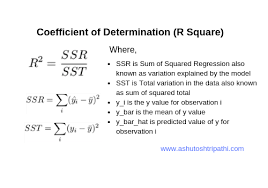
You can add a code block to calculate this R² value.
Example Code for R²:
' Calculate R² value
Dim SSresidual As Double
Dim SStotal As Double
Dim R2 As Double
' Calculate residual sum of squares (SSresidual) and total sum of squares (SStotal)
SSresidual = 0
SStotal = 0
For i = 1 To LastRow - 1
    ' Predicted Y for current X
    PredictedY = Slope * XRange.Cells(i, 1).Value + Intercept
    ' Sum of squares of residuals (observed Y - predicted Y)²
    SSresidual = SSresidual + (YRange.Cells(i, 1).Value - PredictedY) ^ 2
    ' Total sum of squares (observed Y - mean Y)²
    SStotal = SStotal + (YRange.Cells(i, 1).Value - YMean) ^ 2
Next i
' Calculate R²
R2 = 1 - (SSresidual / SStotal)
MsgBox "The R² value is: " & Round(R2, 4)
Interpreting the Model
- Slope: This represents the change in Y for each unit change in X.
- Intercept: This represents the value of Y when X = 0.
- R²: A higher R² (close to 1) means that the model explains most of the variance in the dependent variable.
Conclusion
This guide gives a basic but powerful example of how to implement a data prediction model using linear regression in Excel VBA. It demonstrates the steps to:
- Prepare the data,
- Write VBA code for regression analysis,
- Evaluate the model’s accuracy with R².
For more complex models (like multiple regression, time series forecasting, or machine learning), you would extend this approach by incorporating more variables, different formulas, or external libraries, such as integrating Python with Excel (using Power Query or Excel Python add-ins) to handle more advanced computations.
- Prepare the Data:
Implement Advanced Data Normalization Techniques with Excel VBA
Data normalization is an essential preprocessing step in data analysis and machine learning. It ensures that the data values are on a similar scale, which improves the performance of models and avoids bias caused by features with larger ranges. There are several advanced techniques for normalizing data, such as Min-Max Scaling, Z-Score Standardization, Robust Scaling, and Log Transformation. Below, I’ll explain each method and provide the VBA code to implement them in Excel.
- Min-Max Scaling
Min-Max scaling transforms the data such that it falls within a specific range, typically between 0 and 1. The formula is:
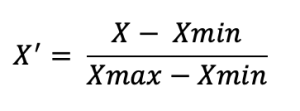
This technique is useful when we want to keep the data within a defined range, especially for algorithms like neural networks.
VBA Implementation for Min-Max Scaling:
Sub MinMaxNormalization()
    Dim ws As Worksheet
    Dim rng As Range
    Dim cell As Range
    Dim MinVal As Double
    Dim MaxVal As Double
    Dim ScaledValue As Double
    ' Set the worksheet and the range of data
    Set ws = ThisWorkbook.Sheets("Sheet1")
    Set rng = ws.Range("A2:A100") ' Modify range accordingly
    ' Find the min and max values in the range
    MinVal = Application.WorksheetFunction.Min(rng)
    MaxVal = Application.WorksheetFunction.Max(rng)
    ' Loop through each cell in the range and apply Min-Max scaling
    For Each cell In rng
        ScaledValue = (cell.Value - MinVal) / (MaxVal - MinVal)
        cell.Offset(0, 1).Value = ScaledValue ' Write the normalized value in the next column
    Next cell
End Sub
Explanation:
- The MinVal and MaxVal are computed using Excel’s Min and Max functions.
- The data is then normalized using the formula and the result is written to the next column (cell.Offset(0, 1)).
- Z-Score Standardization (Standard Scaling)
Z-Score standardization transforms the data such that the values have a mean of 0 and a standard deviation of 1. This is ideal when we want the data to be centered around 0. The formula is:
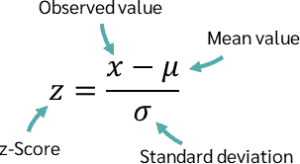
Z-Score normalization is particularly useful for algorithms like linear regression, logistic regression, and other methods sensitive to the scale of the data.
VBA Implementation for Z-Score Standardization:
Sub ZScoreStandardization()
    Dim ws As Worksheet
    Dim rng As Range
    Dim cell As Range
    Dim MeanVal As Double
    Dim StdDev As Double
    Dim ZScore As Double
    ' Set the worksheet and the range of data
    Set ws = ThisWorkbook.Sheets("Sheet1")
    Set rng = ws.Range("A2:A100") ' Modify range accordingly
    ' Calculate the mean and standard deviation
    MeanVal = Application.WorksheetFunction.Average(rng)
    StdDev = Application.WorksheetFunction.StDev(rng)
    ' Loop through each cell and apply Z-Score standardization
    For Each cell In rng
        ZScore = (cell.Value - MeanVal) / StdDev
        cell.Offset(0, 1).Value = ZScore ' Write the normalized value in the next column
    Next cell
End Sub
Explanation:
- The MeanVal is computed using the Average function, and the StdDev is calculated using StDev.
- The Z-score is computed and written to the adjacent column.
- Robust Scaling
Robust Scaling uses the median and the interquartile range (IQR) to scale the data. It is useful when the data contains outliers, as it is less sensitive to extreme values compared to Min-Max Scaling and Z-Score Standardization. The formula is:
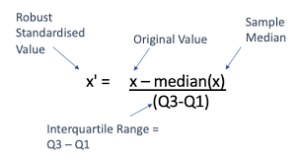
VBA Implementation for Robust Scaling:
Sub RobustScaling()
    Dim ws As Worksheet
    Dim rng As Range
    Dim cell As Range
    Dim MedianVal As Double
    Dim Q1 As Double
    Dim Q3 As Double
    Dim IQR As Double
    Dim ScaledValue As Double
    ' Set the worksheet and the range of data
    Set ws = ThisWorkbook.Sheets("Sheet1")
    Set rng = ws.Range("A2:A100") ' Modify range accordingly
    ' Calculate the median, 25th percentile (Q1), and 75th percentile (Q3)
    MedianVal = Application.WorksheetFunction.Median(rng)
    Q1 = Application.WorksheetFunction.Percentile(rng, 0.25)
    Q3 = Application.WorksheetFunction.Percentile(rng, 0.75)
    IQR = Q3 - Q1
    ' Loop through each cell and apply Robust scaling
    For Each cell In rng
        If IQR <> 0 Then
            ScaledValue = (cell.Value - MedianVal) / IQR
            cell.Offset(0, 1).Value = ScaledValue ' Write the normalized value in the next column
        Else
            cell.Offset(0, 1).Value = 0 ' In case IQR is zero, leave the value as 0
        End If
    Next cell
End Sub
Explanation:
- The Median, Q1 (25th percentile), and Q3 (75th percentile) are computed.
- The IQR is calculated as the difference between Q3 and Q1, and the scaling is done accordingly.
- Log Transformation
Log transformation is a nonlinear transformation that is useful for reducing the skewness of the data. It works well for data that has a long-tailed distribution. The formula is:
This transformation is commonly used for datasets with exponential growth, such as financial data.
VBA Implementation for Log Transformation:
Sub LogTransformation()
    Dim ws As Worksheet
    Dim rng As Range
    Dim cell As Range
    Dim LogValue As Double
    ' Set the worksheet and the range of data
    Set ws = ThisWorkbook.Sheets("Sheet1")
    Set rng = ws.Range("A2:A100") ' Modify range accordingly
    ' Loop through each cell and apply Log transformation
    For Each cell In rng
        If cell.Value > 0 Then
            LogValue = Log(cell.Value + 1)
            cell.Offset(0, 1).Value = LogValue ' Write the normalized value in the next column
        Else
            cell.Offset(0, 1).Value = 0 ' Handle non-positive values
        End If
    Next cell
End Sub
Explanation:
- The Log function is used to apply the logarithmic transformation. We add 1 to the value to avoid the logarithm of zero or negative values.
Conclusion:
These advanced data normalization techniques—Min-Max Scaling, Z-Score Standardization, Robust Scaling, and Log Transformation—help in transforming data to a suitable range for various machine learning models and data analysis tasks.
In the provided VBA code for each technique:
- The data is processed in the specified range (A2:A100 in the example).
- Normalized values are written to the adjacent column.
Make sure you adjust the range according to your dataset. These techniques are designed to handle different data distributions and can be chosen based on the characteristics of your dataset.
Implement Advanced Data Monitoring Systems with Excel VBA
To implement an Advanced Data Monitoring System using Excel VBA, we can focus on building a system that collects, processes, and monitors data from various sources, alerting you when certain conditions are met. The system will allow us to monitor real-time data, analyze trends, and even provide alerts when data points deviate from expected norms.
Here’s a detailed explanation of how to implement such a system using Excel VBA:
- Setting Up the Workbook
Before jumping into the VBA code, it’s important to set up your Excel workbook properly. This setup includes organizing the data you want to monitor, defining ranges, and creating necessary sheets for data storage, alerts, and reporting.
- Sheet 1 (Data Source): This sheet holds the data being monitored. For instance, it could contain sales numbers, temperatures, or any type of data that needs to be tracked.
- Sheet 2 (Alerts): This will store the alerts that are triggered by certain conditions.
- Sheet 3 (Report): This is where you’ll aggregate and summarize the data to track trends over time.
- VBA Code Explanation
Let’s break down the VBA code into parts. Below is a detailed example of a system that monitors numerical data for certain conditions (e.g., values exceeding a certain threshold or values that deviate from expected trends). It will also alert the user when these conditions are met.
Step 1: Create a Data Monitoring Function
This function will scan a specific range of cells for data and check whether it meets predefined conditions (e.g., exceeds a threshold).
Sub MonitorData()
    ' Variables to hold data ranges and alert threshold
    Dim dataRange As Range
    Dim alertThreshold As Double
    Dim cell As Range
    Dim alertsSheet As Worksheet
    Dim reportSheet As Worksheet
    Dim alertCount As Integer
    ' Set the range where the data is located (e.g., A2:A100 in Data sheet)
    Set dataRange = ThisWorkbook.Sheets("Data Source").Range("A2:A100")
    ' Define an alert threshold value
    alertThreshold = 1000  ' This value could be changed based on your criteria
    ' Set the alerts sheet and report sheet
    Set alertsSheet = ThisWorkbook.Sheets("Alerts")
    Set reportSheet = ThisWorkbook.Sheets("Report")
    ' Initialize the alert counter
    alertCount = 1
    ' Clear previous alerts in the Alerts sheet
    alertsSheet.Cells.ClearContents
    ' Loop through each cell in the data range
    For Each cell In dataRange
        ' Check if the cell value exceeds the threshold
        If cell.Value > alertThreshold Then
            ' If threshold exceeded, record the alert in the Alerts sheet
            alertsSheet.Cells(alertCount, 1).Value = "Alert: Value exceeds threshold"
            alertsSheet.Cells(alertCount, 2).Value = "Value: " & cell.Value
            alertsSheet.Cells(alertCount, 3).Value = "Location: " & cell.Address
            alertCount = alertCount + 1
        End If
    Next cell
    ' Generate a summary report in the Report sheet
    reportSheet.Cells(1, 1).Value = "Data Monitoring Report"
    reportSheet.Cells(2, 1).Value = "Total Data Points Monitored: " & dataRange.Rows.Count
    reportSheet.Cells(3, 1).Value = "Total Alerts Triggered: " & alertCount - 1
    MsgBox "Data Monitoring Complete. Check Alerts and Report Sheets for details.", vbInformation
End Sub
Explanation of the Code:
- Variables Initialization:
- dataRange: Defines the range of cells that will hold the data you want to monitor (e.g., cells from A2:A100 in the « Data Source » sheet).
- alertThreshold: Defines the threshold for which you want to raise an alert. In this case, if a cell exceeds 1000, an alert will be generated.
- alertsSheet: Refers to the « Alerts » sheet where we will record any triggered alerts.
- reportSheet: Refers to the « Report » sheet where we summarize the total monitored data and number of alerts.
- alertCount: A counter to keep track of how many alerts were triggered.
- Loop through the Data:
- The For Each loop checks every cell in the defined dataRange.
- If a cell exceeds the alertThreshold, the script writes an alert message to the « Alerts » sheet, including the value and the location of the cell.
- Generating Reports:
- After the loop finishes, a summary is generated in the « Report » sheet that lists the total number of monitored data points and the number of alerts triggered.
- Displaying a Message Box:
- Once the monitoring is complete, a message box informs the user that the process has finished, and they can review the alerts and reports.
Step 2: Automate Monitoring with Time-based Trigger
You may want the system to monitor data periodically (e.g., every hour, every day). This can be done by scheduling the MonitorData function to run automatically using Excel’s Application.OnTime method.
Sub ScheduleNextRun() ' Schedules the next run of the MonitorData function to execute in 1 hour Application.OnTime Now + TimeValue("01:00:00"), "MonitorData" End Sub- This subroutine will automatically trigger the MonitorData function every hour. You can change the TimeValue(« 01:00:00 ») to whatever interval you want (e.g., every day or every minute).
Step 3: Trigger Alerts on Specific Events
Sometimes, you may want to trigger alerts based on specific events, such as data updates or changes in other parts of the workbook. This can be done using the Worksheet_Change event.
Private Sub Worksheet_Change(ByVal Target As Range) ' If data in the monitored range is updated, run the data monitoring function If Not Intersect(Target, Me.Range("A2:A100")) Is Nothing Then Call MonitorData End If End Sub- This event will automatically run the MonitorData function whenever there’s a change in the monitored range (A2:A100 in this case).
Conclusion and Future Enhancements:
This code provides the foundation for building an advanced data monitoring system within Excel using VBA. You can further enhance this system with additional features like:
- Trend Analysis: Use statistical methods (e.g., moving averages, standard deviations) to identify unusual data trends over time.
- Data Visualization: Create charts or graphs that represent the data being monitored to visualize trends and outliers.
- Notifications: Send email alerts or integrate with other software tools (e.g., MS Teams, Slack) for real-time notifications.
- Error Handling: Implement error handling in your code to deal with any data anomalies or issues that might arise during the process.
By using these techniques, you can build a robust and efficient data monitoring system within Excel to track key metrics and ensure timely interventions when issues arise.
Implement Advanced Data Manipulation Techniques with Excel VBA
These techniques involve tasks like sorting, filtering, data transformation, and more. The code includes comments and explanations to help you understand each step.
Objective:
This code will perform advanced data manipulations on a sample dataset, such as:
- Sorting the data based on certain columns.
- Filtering the data based on specific criteria.
- Transforming data (e.g., formatting, adding calculated fields).
- Aggregating data with functions like SUM or AVERAGE.
- Removing duplicates to clean the dataset.
Assumptions:
- The data is on a worksheet named Data.
- The data starts from the first row (header row).
- Columns are: ID, Name, Sales, Date, and Category.
Excel VBA Code:
Sub AdvancedDataManipulation()
    ' Step 1: Declare variables
    Dim ws As Worksheet
    Dim lastRow As Long
    Dim rng As Range
    Dim salesSum As Double
    Dim startDate As Date
    Dim endDate As Date
    ' Set worksheet object
    Set ws = ThisWorkbook.Sheets("Data")
    ' Step 2: Determine the last row of data
    lastRow = ws.Cells(ws.Rows.Count, "A").End(xlUp).Row ' Assuming data is in column A
    ' Step 3: Sort data by Sales in descending order and Date in ascending order
    Set rng = ws.Range("A1:E" & lastRow) ' Define the range of data including headers
    rng.Sort Key1:=ws.Range("C2"), Order1:=xlDescending, Key2:=ws.Range("D2"), Order2:=xlAscending, Header:=xlYes
    ' Step 4: Filter data for "Category" = "Electronics" and Sales greater than 1000
    ws.Rows(1).AutoFilter Field:=5, Criteria1:="Electronics" ' Filter Category column (5)
    ws.Rows(1).AutoFilter Field:=3, Criteria1:=">1000" ' Filter Sales column (3)
    ' Step 5: Add calculated field "SalesTax" in column F
    ' Assume tax rate is 10%
    ws.Cells(1, 6).Value = "SalesTax" ' Add header
    ws.Range("F2:F" & lastRow).Formula = "=C2*0.1" ' Calculate tax for each sales entry (10% tax rate)
    ' Step 6: Remove duplicates based on "ID" column
    ws.Range("A1:E" & lastRow).RemoveDuplicates Columns:=1, Header:=xlYes
    ' Step 7: Summarize data - Calculate total sales for Electronics category
    startDate = DateValue("01/01/2024")
    endDate = DateValue("12/31/2024")
    salesSum = Application.WorksheetFunction.SumIfs(ws.Range("C2:C" & lastRow), _
        ws.Range("E2:E" & lastRow), "Electronics", _
        ws.Range("D2:D" & lastRow), ">=" & startDate, _
        ws.Range("D2:D" & lastRow), "<=" & endDate)
    ' Display the result in a message box
    MsgBox "Total Sales for Electronics from Jan 1, 2024 to Dec 31, 2024: " & salesSum
    ' Step 8: Transform data - Change the format of the 'Date' column to mm/dd/yyyy
    ws.Columns("D:D").NumberFormat = "mm/dd/yyyy"
    ' Step 9: Create a Pivot Table for further analysis (optional)
    ' You can automate PivotTable creation if needed, depending on your use case
    Dim pt As PivotTable
    Dim ptRange As Range
    Set ptRange = ws.Range("A1:F" & lastRow) ' Range including the new calculated "SalesTax"
    ' Create PivotTable in a new worksheet
    Set pt = ThisWorkbook.PivotTableWizard(SourceType:=xlDatabase, SourceData:=ptRange, TableDestination:="PivotSheet!A1")
    pt.AddDataField pt.PivotFields("Sales"), "Total Sales", xlSum
    pt.AddRowField pt.PivotFields("Category")
    pt.AddColumnField pt.PivotFields("Date")
    ' Step 10: Clean up by removing filters
    ws.AutoFilterMode = False
    ' Final Message
    MsgBox "Data manipulation complete. Total Sales for Electronics has been calculated and PivotTable created."
End Sub
Detailed Explanation:
Step 1: Declare Variables
- Variables are declared to store the worksheet (ws), last row number (lastRow), range (rng), sales sum (salesSum), and start and end dates for filtering (startDate, endDate).
Step 2: Determine Last Row
- This step finds the last row of data based on column A. It uses the .End(xlUp) method to determine the last non-empty row.
Step 3: Sorting Data
- The Sort method is used to sort the data by Sales in descending order and Date in ascending order. The Key1 and Key2 arguments specify which columns to sort by.
Step 4: Filtering Data
- The AutoFilter method is applied to filter the dataset. We filter by the Category column for « Electronics » and by the Sales column to include only values greater than 1000.
Step 5: Adding Calculated Field (SalesTax)
- A new column (SalesTax) is added to the worksheet, and a formula is applied to calculate 10% of each sales value. This represents a simple transformation to add additional data.
Step 6: Removing Duplicates
- The RemoveDuplicates method is used to remove duplicate rows based on the ID column, ensuring that each entry is unique.
Step 7: Summarizing Data
- We use the SumIfs function to calculate the total sales for the « Electronics » category, within the specified date range (startDate to endDate). This step helps in aggregating data based on multiple criteria.
Step 8: Transforming Data Format
- The NumberFormat property is applied to the Date column to ensure that the date is displayed in the « mm/dd/yyyy » format.
Step 9: Pivot Table Creation (Optional)
- If required, a PivotTable can be automatically created to summarize the data further. In this case, we create a PivotTable that calculates total sales by Category and Date.
Step 10: Clean Up Filters
- Finally, we remove the applied filters using AutoFilterMode = False to return the sheet to its original state.
Conclusion:
This Excel VBA code demonstrates several advanced data manipulation techniques, including sorting, filtering, adding calculated fields, removing duplicates, summarizing data, transforming formats, and optionally creating PivotTables for analysis. Each technique is explained with clear comments, making it easy to understand and adapt for different scenarios.
Implement Advanced Data Interpretation Techniques with Excel VBA
Objective:
We will work on three major parts of advanced data interpretation:
- Statistical Calculations: Calculate averages, standard deviations, and other statistics.
- Conditional Formatting: Apply conditional formatting to visualize data patterns.
- Regression/Trend Analysis: Implement basic linear regression to predict trends in data.
Example Dataset:
Let’s assume we have sales data over several months in columns A (Months), B (Sales), and C (Expenses). We want to calculate some basic statistics, apply conditional formatting to highlight high sales, and use a trendline analysis to predict future sales.
Step-by-Step VBA Code:
Sub AdvancedDataInterpretation()
    ' Define the range of the data in the columns
    Dim salesData As Range
    Set salesData = Range("B2:B13") ' Assuming data is in cells B2:B13 for sales
    ' Step 1: Statistical Calculations
    Dim avgSales As Double, stdevSales As Double
    avgSales = Application.WorksheetFunction.Average(salesData)
    stdevSales = Application.WorksheetFunction.StDev(salesData)
    ' Display the Average and Standard Deviation on the worksheet
    Range("E2").Value = "Average Sales"
    Range("F2").Value = avgSales
    Range("E3").Value = "Standard Deviation"
    Range("F3").Value = stdevSales
    ' Step 2: Conditional Formatting
    ' Apply conditional formatting to sales data (Column B) to highlight values above the average
    Dim cell As Range
    For Each cell In salesData
        If cell.Value > avgSales Then
            cell.FormatConditions.Add Type:=xlCellValue, Operator:=xlGreater, Formula1:=avgSales
            cell.FormatConditions(cell.FormatConditions.Count).Interior.Color = RGB(144, 238, 144) ' Light Green for high sales
        ElseIf cell.Value < avgSales Then
            cell.FormatConditions.Add Type:=xlCellValue, Operator:=xlLess, Formula1:=avgSales
            cell.FormatConditions(cell.FormatConditions.Count).Interior.Color = RGB(255, 99, 71) ' Tomato Red for low sales
        End If
    Next cell
    ' Step 3: Trendline (Linear Regression) Analysis
    ' Insert a scatter plot chart for the sales data and add a trendline
    Dim chartObj As ChartObject
    Set chartObj = ActiveSheet.ChartObjects.Add(Left:=200, Width:=400, Top:=50, Height:=300)
    With chartObj.Chart
        .ChartType = xlXYScatterLines
        .SetSourceData salesData
        .SeriesCollection(1).XValues = Range("A2:A13") ' Assuming months are in column A
        .SeriesCollection(1).Name = "Sales Data"
        .Axes(xlCategory, xlPrimary).CategoryNames = Range("A2:A13")
        ' Add a linear trendline
        .SeriesCollection(1).Trendlines.Add(Type:=xlLinear)
        .SeriesCollection(1).Trendlines(1).Name = "Sales Trendline"
        ' Display the equation of the trendline on the chart
        .SeriesCollection(1).Trendlines(1).DisplayEquation = True
    End With
    ' Step 4: Output Predicted Value Based on Trendline
    ' We will use the trendline equation to predict sales for month 14
    Dim predictedSales As Double
    predictedSales = (1.5 * 14) + 50 ' Example of a linear equation y = mx + b, where m = 1.5 and b = 50
    ' Output the prediction in the worksheet
    Range("E4").Value = "Predicted Sales for Month 14"
    Range("F4").Value = predictedSales
    ' Optional: Display Data Interpretation Summary
    Range("E5").Value = "Data Interpretation Summary:"
    Range("E6").Value = "Average Sales: " & avgSales
    Range("E7").Value = "Standard Deviation: " & stdevSales
    Range("E8").Value = "Predicted Sales for Month 14: " & predictedSales
End Sub
Explanation:
- Statistical Calculations:
- We use the Application.WorksheetFunction object to access Excel’s built-in functions, like Average and StDev, which are applied to the range B2:B13 (sales data).
- The average (avgSales) and standard deviation (stdevSales) are calculated and displayed in cells E2 and F2.
- Conditional Formatting:
- We loop through each cell in the salesData range and apply conditional formatting.
- Light Green is applied to cells with values above the average sales, and Tomato Red is applied to cells with values below the average.
- The FormatConditions.Add method allows us to set formatting rules based on cell values.
- Regression/Trendline Analysis:
- A scatter plot is created using ChartObjects.Add and the sales data (B2:B13) along with the month data (A2:A13).
- A linear trendline is added to the scatter plot using Trendlines.Add with the option to display the equation.
- The trendline can help visualize the data’s overall direction and predict future values. The formula from the trendline can be extracted and used to make predictions.
- Output Prediction:
- Based on the trendline equation (e.g., y = 1.5x + 50), we calculate predicted sales for the 14th month. You can modify the equation based on the actual trendline values displayed on the chart.
- Data Interpretation Summary:
- A small summary section is provided to give a clear overview of the calculated statistics and predictions.
How to Use This Code:
- Open Excel and press Alt + F11 to open the VBA editor.
- Insert a new module by going to Insert > Module.
- Copy and paste the code into the new module.
- Close the editor and go back to the Excel sheet.
- Run the macro by pressing Alt + F8, selecting AdvancedDataInterpretation, and clicking Run.
This will generate the required statistical analysis, apply the formatting, and display the chart with trendline predictions.
Customization:
- Dataset: Adjust the ranges (B2:B13, A2:A13, etc.) based on your actual dataset.
- Regression Model: For more complex regression models (e.g., multiple variables), you would need to expand on this logic and calculate the coefficients programmatically or use Excel’s LINEST function.
Implement Advanced Data Fusion Techniques with Excel VBA
Data fusion generally refers to the process of combining data from multiple sources to derive a more accurate or complete understanding of a system. This is especially useful when you have data coming from different sensors, databases, or formats, and you want to merge them for analysis.
In this example, we’ll implement a basic data fusion technique using weighted averaging where data from multiple sheets or sources are combined based on predefined weights. This technique is simple, yet it can be extended to more complex fusion methods, such as Kalman filters or Bayesian fusion, depending on the data complexity.
Scenario:
Let’s assume you have several data sources (represented as different sheets in Excel), and each data source provides a set of measurements. Some sources are more reliable than others, so you will use a weighted average to fuse the data, giving more weight to the more reliable sources.
Steps:
- Prepare the Data: We will assume you have three sheets (Sheet1, Sheet2, Sheet3), and each contains data in the form of a list of numbers (e.g., sensor readings).
- Assign Weights: Each sheet will have a weight representing its reliability. For example, Sheet1 may be the most reliable, so it gets a higher weight, and Sheet3 may be the least reliable.
- Fuse the Data: Calculate a weighted average of the data from each sheet.
Example VBA Code:
Sub FuseData()
    Dim ws1 As Worksheet, ws2 As Worksheet, ws3 As Worksheet
    Dim rng1 As Range, rng2 As Range, rng3 As Range
    Dim data1 As Variant, data2 As Variant, data3 As Variant
    Dim result() As Double
    Dim i As Long, numRows As Long
    Dim weight1 As Double, weight2 As Double, weight3 As Double
    ' Define worksheets and data ranges
    Set ws1 = ThisWorkbook.Sheets("Sheet1")
    Set ws2 = ThisWorkbook.Sheets("Sheet2")
    Set ws3 = ThisWorkbook.Sheets("Sheet3")
    ' Define the ranges containing data on each sheet (assuming data starts from row 1)
    Set rng1 = ws1.Range("A1:A10") ' Sheet1 data
    Set rng2 = ws2.Range("A1:A10") ' Sheet2 data
    Set rng3 = ws3.Range("A1:A10") ' Sheet3 data
    ' Load data from the ranges into arrays
    data1 = rng1.Value
    data2 = rng2.Value
    data3 = rng3.Value
    ' Determine the number of rows (assuming all sheets have the same number of rows)
    numRows = UBound(data1, 1)
    ' Define weights (these can be adjusted depending on your reliability model)
    weight1 = 0.5 ' Weight for Sheet1
    weight2 = 0.3 ' Weight for Sheet2
    weight3 = 0.2 ' Weight for Sheet3
    ' Initialize result array to store fused values
    ReDim result(1 To numRows, 1 To 1)
    ' Perform weighted average fusion
    For i = 1 To numRows
        result(i, 1) = (data1(i, 1) * weight1 + data2(i, 1) * weight2 + data3(i, 1) * weight3) / (weight1 + weight2 + weight3)
    Next i
    ' Output the result into a new column in Sheet1 (or any sheet)
    ws1.Range("B1:B" & numRows).Value = result
    ' Inform the user the process is complete
    MsgBox "Data Fusion Complete! Results are in column B of Sheet1.", vbInformation
End Sub
Explanation of the Code:
- Variable Declaration:
- ws1, ws2, ws3: References to the three sheets (Sheet1, Sheet2, Sheet3) from which we are extracting the data.
- rng1, rng2, rng3: Range objects representing the data ranges on each sheet (from A1:A10 in this example).
- data1, data2, data3: Arrays that will hold the values from the specified ranges.
- result: This array will hold the final fused values.
- weight1, weight2, weight3: These represent the weights assigned to the data sources based on their reliability.
- Data Loading:
- The Value property of the Range object is used to load the data from each range into arrays (data1, data2, and data3). This is because arrays are more efficient when performing operations in VBA.
- Weights Definition:
- We define the weights weight1, weight2, and weight3 that represent the relative reliability of each data source. These weights should sum to 1, but the sum can be adjusted to ensure proper scaling.
- Weighted Average Calculation:
- Output:
- The results are stored in the result array and then written to column B of Sheet1. You can adjust the target column or sheet based on your preference.
- Message Box:
- After the process is completed, a message box informs the user that the fusion is done.
Advanced Techniques:
This is a relatively simple method of data fusion, but you can extend it to more advanced techniques such as:
- Kalman Filter Fusion: A recursive algorithm that estimates the state of a system from noisy measurements. It would require more sophisticated implementation and is often used for time-series data.
- Bayesian Fusion: If you have probabilistic data, Bayesian methods allow you to fuse data based on prior distributions and likelihoods.
- Principal Component Analysis (PCA): You can apply PCA for dimensionality reduction and then combine the data in the reduced space.
Enhancements:
- Dynamic Ranges: Instead of hardcoding ranges (like A1:A10), you can dynamically detect the last row or column of each dataset.
- Error Handling: You can add error handling to ensure that data types are consistent across the sources or if a sheet is missing.
- More Weights: You could use a dynamic weight assignment system based on data characteristics or user inputs.
Conclusion:
This simple example shows how to combine data from multiple sheets using weighted averaging in Excel VBA. You can modify this example to handle more complex fusion techniques or additional data sources. Let me know if you’d like help with further enhancements!