Votre panier est actuellement vide !
Étiquette : logical
How to Use the OR Function in Excel
The OR function is a logical function that returns TRUE if any of the specified conditions are TRUE, and returns FALSE only if all conditions are false. Unlike the AND function, which requires all conditions to be true, the OR function only needs one true condition to return TRUE.
The syntax for the OR function is as follows:
=OR(logical1; [logical2]; …)
- logical1 (Required): The first condition or logical value to evaluate.
- logical2 (Optional): The second condition or logical value to evaluate.
USING THE OR FUNCTION
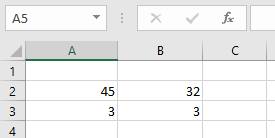
Let’s determine whether:
- Cell A2 is greater than 30,
- Cell B2 is less than 50,
- Cell B3 is equal to 45,
by using the OR function to return either TRUE or FALSE based on the evaluation.
To apply the function:
- Select an empty cell and enter the function with the specified arguments:
=OR(A2>30; B2<50; B3=45)
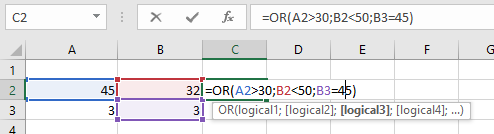
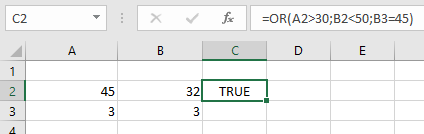
- Press Enter, and the result will be displayed (e.g., FALSE if none of the conditions are met).
NOTES WHEN USING THE OR FUNCTION
- If any logical test cannot be interpreted as a numeric or logical value, the function returns a #VALUE! error.
- The function ignores text values or empty cells in the arguments.
- It can evaluate up to 255 conditions in a single function.
- The OR function can also be combined with the AND function, depending on the required logic.
THE AND FUNCTION in Excel
The AND function is a logical function that checks whether all specified conditions in a dataset are TRUE. If any condition fails, it returns FALSE. For example, checking if B1 is greater than 50 AND less than 100.
The AND function uses the following syntax:
=AND(logical1; [logical2]; …)
Arguments:
- Logical1 (Required): The first condition to evaluate
- Logical2 (Optional): The second condition to evaluate
(Up to 255 conditions can be tested)
USING THE AND FUNCTION
Using the table below, let’s test if cell A2 is greater than 67 AND less than cell A3:
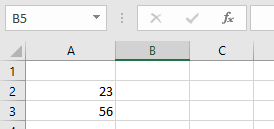
To perform this check:
- Select an empty cell
- Enter the formula:
=AND(A2>6; A2<A3)
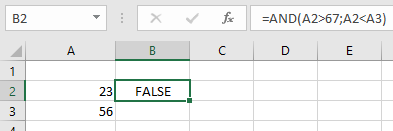
In this example:
- The function returns FALSE because one condition fails (A2 is not greater than 67)
- If all conditions were met, it would return TRUE
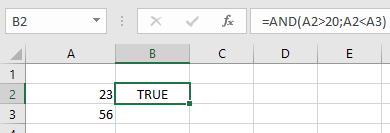
IMPORTANT NOTES ABOUT THE AND FUNCTION
- Returns #VALUE! error if no logical values are provided
- Ignores text values and empty cells in its arguments
- Can test up to 255 different conditions
- Only returns TRUE when ALL conditions are satisfied
- Returns FALSE if any single condition fails
- Commonly used with other functions like IF to create more complex logical tests
The AND function provides a simple way to verify multiple conditions simultaneously in your data analysis.
How to Use the IFERROR Function in Excel
The IFERROR function is used to return a custom result when a formula produces an error. It provides a simple way to handle errors without complex nested IF statements.
The IFERROR function uses the following syntax:
=IFERROR(value; value_if_error)
Arguments:
- Value (Required): The formula or expression to be checked for errors
- Value_if_error (Required): The result to return if an error is detected
USING THE IFERROR FUNCTION
Using the table below, we’ll apply the IFERROR function to replace errors with the message « invalid data »:
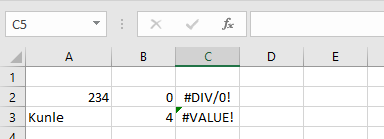
To correct the error in cell C2:
- Select an empty cell
- Enter the formula:
=IFERROR(A2/B2; « invalid data »)
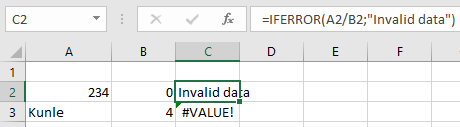
To correct the error in cell C3:
- Select an empty cell
- Enter the formula:
=IFERROR(A3/B3; « invalid data »)
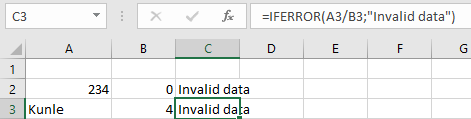
IMPORTANT NOTES ABOUT THE IFERROR FUNCTION
- If either value or value_if_error refers to an empty cell, IFERROR treats it as an empty string (« »)
- When applied to an array formula, IFERROR returns an array of results for each cell in the specified range
- Common errors handled by IFERROR include:
- #N/A
- #VALUE!
- #REF!
- #DIV/0!
- #NUM!
- #NAME?
- #NULL!
The IFERROR function simplifies error handling in formulas while maintaining spreadsheet clarity and efficiency.
How to Use the IFS Function in Excel
The IFS function serves as an alternative to nested IF functions. This function evaluates one or more conditions and returns the value corresponding to the first TRUE condition found.
The IFS function operates using the following syntax:
=IFS(Logical_test1; Value1; [Logical_test2, Value2]; …; [Logical_test127; Value127])
Arguments:
- Logical_test1 (Required): The first condition Excel evaluates as TRUE or FALSE
- Value1 (Required): The result returned if Logical_test1 is TRUE
- Additional logical tests and values (Optional): You can include up to 127 condition/value pairs
USING THE IFS FUNCTION
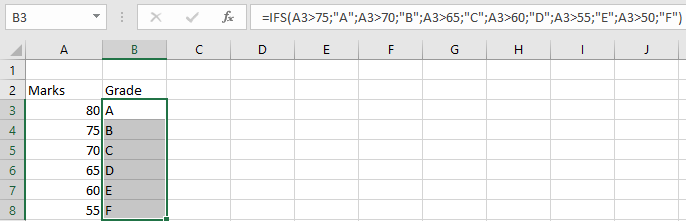
Let’s apply the IFS function to assign letter grades based on student marks from the table below:
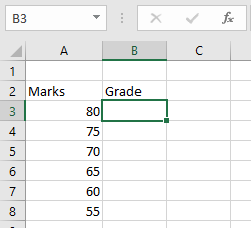
To assign grades:
- Select an empty cell
- Enter the formula:
=IFS(A3>75; »A »; A3>70; »B »; A3>65; »C »; A3>60; »D »; A3>55; »E »; A3>50; »F »)
- Press Enter to see the grade for the first student
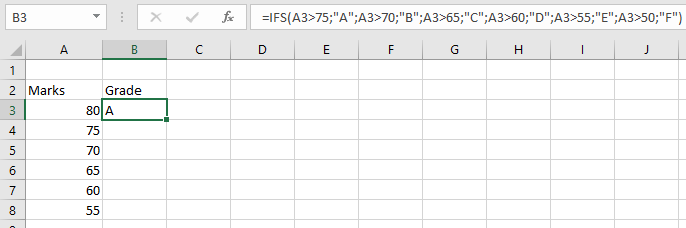
To apply this to other students:
- Use the fill handle to drag the formula down to adjacent cells
IMPORTANT NOTES ABOUT THE IFS FUNCTION
- #N/A Error: Occurs when none of the specified conditions are met
- #VALUE! Error: Appears when a logical test returns a value that isn’t TRUE or FALSE
- Evaluation Order: The function checks conditions sequentially and stops at the first TRUE result
- Default Case: Unlike IF, IFS doesn’t have a built-in « else » clause – all possible outcomes must be explicitly defined
How to Use the NESTED IF Function in Excel
The Nested IF function refers to one IF function placed inside another IF function, enabling you to evaluate multiple conditions and expand the range of possible results. While you could achieve similar outcomes using separate IF functions individually, nesting them provides a more streamlined approach. Now, let’s apply the Nested IF function to the table below to examine whether prices exceed or fall below 500.

USING THE NESTED IF FUNCTION
To determine if a value is greater than 500 using the Nested IF, input the following formula in an empty cell:
=IF(A2>500; « Yes »; « No »
=IF(A3>500; « Yes »; « No »
=IF(A4>500; « Yes »; « No »
=IF(A5>500; « Yes »; « No »)
=IF(A6>500; « Yes »; « No »))))
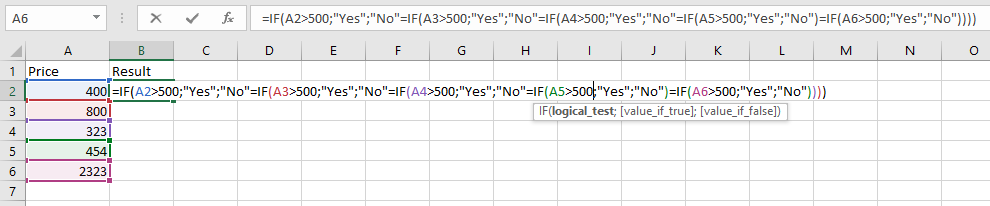
Press Enter, and the result for the first referenced cell will appear.
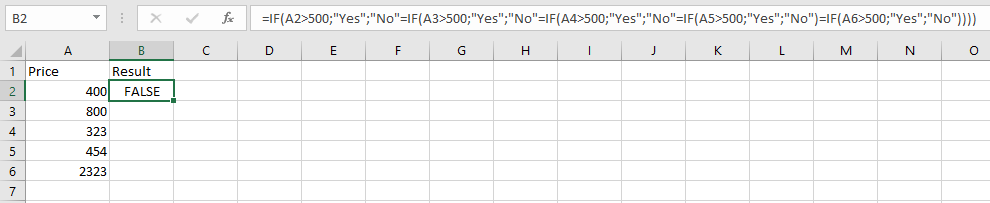
To extend this evaluation to the remaining cells, utilize the fill handle to drag the formula downward, applying it to the other cells automatically.

IMPORTANT NOTES ON NESTED IF FUNCTIONS
- Precision in Construction
- Crafting a Nested IF function demands careful thought and accuracy to ensure the logic processes each condition correctly through to the final outcome.
- Potential for Complexity
- Nested IF functions can become difficult to follow, particularly when numerous IF functions are nested within one another.
- Precision in Construction
How to Use the IF Function in Excel
The IF function is a function that tests a given condition and returns one value for a TRUE result and another value for a FALSE result. This function allows you to make a logical comparison between a value and what you expect.
The IF function uses the following syntax:
=IF(Logical_test; [Value_if_true]; [Value_if_false])
Arguments:
- Logical_test (Required Argument): This is the value or logical expression to be tested and evaluated as either TRUE or FALSE.
- Value_if_true (Optional Argument): This is the value returned if the logical test evaluates to TRUE.
- Value_if_false (Optional Argument): This is the value returned if the logical test evaluates to FALSE.
When using this function, the following logical operators can be applied:
- Equal to (=)
- Greater than (>)
- Greater than or equal to (≥)
- Less than (<)
- Less than or equal to (≤)
- Not equal (≠)
USING THE IF FUNCTION
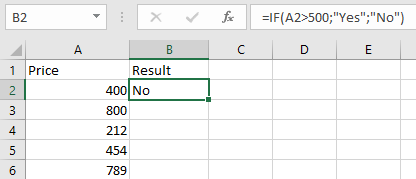
In the table below, we want to test whether the values in the cells are greater than 500 or not. If TRUE, the result will be « Yes », and if FALSE, the result will be « No ».
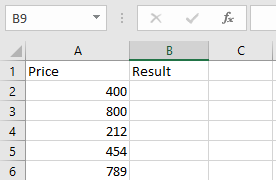
To check if cell A2 is greater than 500, enter:
=IF(A2>500; « Yes »; « No »)
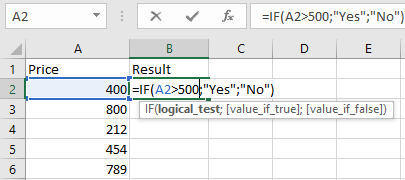
Press Enter, and the returned value will be « No ».
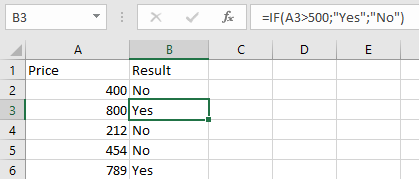
Use the same steps to evaluate cells A3 to A6:
=IF(A3>500; « Yes »; « No »)
=IF(A4>500; « Yes »; « No »)
=IF(A5>500; « Yes »; « No »)
=IF(A6>500; « Yes »; « No »)
NOTES WHEN USING THE IF FUNCTION:
- The IF function works if the logical_test returns a numeric value.
- It treats any non-zero value as TRUE and zero as FALSE.
- #VALUE! occurs when the logical_test argument cannot be evaluated as TRUE or FALSE.
- If any argument is supplied as an array, the IF function evaluates each element of the array.
- To count based on conditions, use COUNTIF and COUNTIFS.
- To sum based on conditions, use SUMIF and SUMIFS.