Votre panier est actuellement vide !
Étiquette : table
How to Rename a Table in Excel
Renaming tables in Excel is a best practice that significantly improves the clarity, manageability, and professionalism of your workbooks—especially when dealing with multiple datasets, dashboards, or dynamic reports.
Understanding Excel Table Names
Every table created in Excel is automatically assigned a default name such as
Table1,Table2,Table3, etc. These names are functional but not descriptive, which can make your workbook harder to read, especially when using structured references in formulas or VBA code.Why rename a table?
- To better reflect the content of the table (e.g.,
Sales2024,EmployeeData,Inventory_June) - To make formulas easier to understand
- To avoid confusion when multiple tables exist in the same workbook
- To simplify referencing in Power Query, charts, pivot tables, or macros
Two Main Methods to Rename a Table
Using the Table Design Tab
This method is the most direct and user-friendly.
Steps:
- Click anywhere inside the table to activate the contextual Table Design tab (Excel 2016 and later) or Design tab (earlier versions).
- Look at the left-hand corner of the ribbon, in the group called Properties.

- Locate the field called Table Name.
- Replace the existing name (e.g.,
Table3) with a more descriptive one (e.g.,MonthlyExpenses). - Press Enter to validate the new name.
Tip: If Excel returns an error, it usually means the name is already in use or violates a naming rule (explained below).
Using the Name Manager
This method is more suited for reviewing, managing, and renaming multiple tables and named ranges.
Steps:
- Go to the Formulas tab in the Excel ribbon.
- Click Name Manager in the group called Defined Names.

- In the dialog box, scroll to locate your table (it will appear as
Table1,Table2, etc. under the “Name” column). - Select the table and click Edit.

- In the “Edit Name” dialog, you’ll see:
- Name: enter your desired name (e.g.,
Employee) - Refers to: verify that the correct table range is selected (e.g.,
=Sheet1!$A$2:$E$20)
- Name: enter your desired name (e.g.,
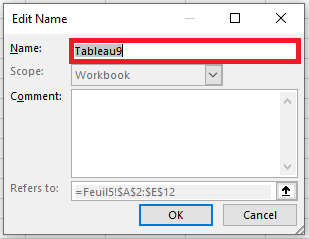
- Click OK, then close the Name Manager.
Note: This method is particularly useful when your workbook contains dozens of named objects, and you need to manage them centrally.
Rules & Conventions for Table Naming in Excel
When renaming tables, you must follow Excel’s strict naming rules. Failing to do so will result in an error message.
Rules:
- Unique names: No two tables can share the same name, even if capitalization differs.
Sales2024andsales2024are treated as identical. - No spaces allowed: Use camel case (
SalesReport2023), underscores (Sales_Report_2023), or hyphens (Sales-Report-2023) to separate words. - Length limit: The name must be 255 characters or fewer, though practical names should ideally stay under 30–40 characters for clarity.
- Valid starting character: Must begin with a letter (A–Z), an **underscore (_) **, or a backslash (\).
After the first character, you may use:- Letters
- Numbers
- Underscores (_)
- Periods (.)
- No cell references: A name like
B3orA1is invalid because Excel could interpret it as a cell reference.
Common Errors When Renaming Tables
Error Cause « That name is already taken » You’ve chosen a name already assigned to another table or named range « The name is not valid » Invalid characters, name too long, or begins with an invalid character Table name turns red You’ve typed an invalid name but haven’t pressed Enter yet
Best Practices for Naming Excel Tables
- Use clear, descriptive names that indicate the table’s purpose (e.g.,
CustomerFeedback_Q1,ProductList_2025) - Prefer camel case (
EmployeeRecords) or underscores (Employee_Records) to improve readability - Avoid special characters like
@,#,!,%,?, etc. - Use consistent naming throughout the workbook for easier navigation and troubleshooting
- To better reflect the content of the table (e.g.,
Anatomy and Features of an Excel Table
An Excel table is a powerful tool for organizing, analyzing, and managing data efficiently. A typical table consists of three main structural components: the header row, the data body range, and the total row. In addition, Excel tables offer advanced features such as calculated columns and a resizing handle. Below is a detailed explanation of each of these elements.
The Header Row
The header row is the topmost row of an Excel table and is typically visible by default. It defines the field names or column headers of your dataset. These headers must be static values (not formulas) to maintain formula references and enable structured references, a key feature in Excel table formulas.
Headers serve two main purposes:
-
They define the identity of each column.
-
They display filter drop-down buttons that provide powerful options to sort and filter data.
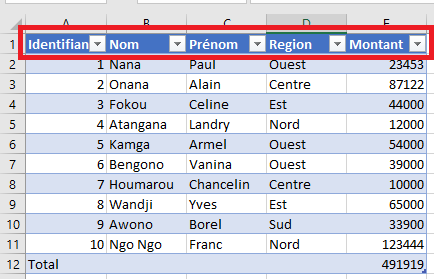
Each header value within a single table must be unique. If you accidentally enter duplicate header names, Excel will automatically append a number to one of them to preserve uniqueness (e.g., entering a second “ID” column will result in “ID2”).
To make headers dynamic, you can use data validation lists, allowing users to choose from a predefined list of possible header names. If a header is changed, all formulas referring to that column automatically update accordingly.
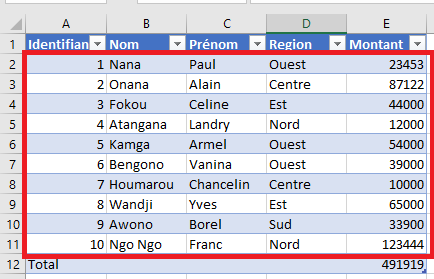
The Data Body Range
This is the central portion of the table, found between the header and the total row. It contains the actual data records. If no data is present, Excel shows a single empty row where data can be entered.
The size of the data body range is only limited by the total number of rows available in the worksheet. The body range grows automatically as you add new entries and is designed to support Excel features like structured referencing, dynamic filtering, and formatting.
The Total Row
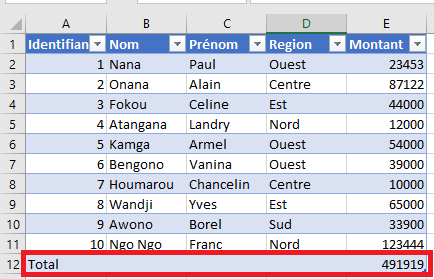
The total row appears at the bottom of the table and is optional. It is hidden by default but can be displayed to provide summary calculations like Sum, Average, Count, Max, Min, etc.
When you select a cell in the total row, a drop-down list appears allowing you to choose a built-in aggregate function. These calculations are automatically adjusted to consider only visible rows, which is useful when filters are applied. You may also insert your own custom formulas, referencing cells inside or outside the table.
Calculated Columns
A calculated column automatically applies the same formula to all cells in that column’s data range. When you enter a formula into a single cell of a calculated column, Excel automatically propagates it throughout the column, maintaining consistency.
If the column contains a mix of values and formulas, and is not yet recognized as a calculated column, Excel will display an AutoCorrect Options button after formula entry. You can use it to convert the column into a fully calculated one.
Note: There is no built-in indicator to show if a column is truly a calculated column. The best method is to edit a formula and observe whether Excel offers to apply it to the entire column.
The Resize Handle
In the bottom-right corner of the table is a small resize handle, a square icon used to adjust the size of the table. By clicking and dragging this handle, you can expand or shrink the table’s range.
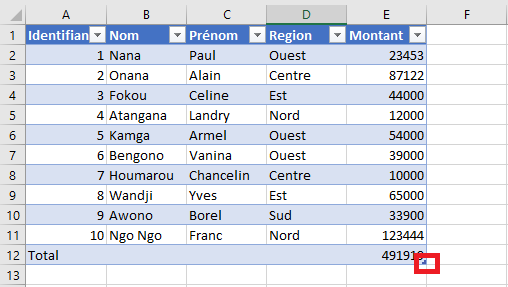
This is useful when adding or removing rows/columns manually. You can also resize the table from the Table Design tab on the ribbon, using the Resize Table option.
Table Behavior and Constraints
Excel imposes several design limitations on tables to preserve functionality:
-
Headers must occupy a single row only.
-
The table can have only one total row.
-
Duplicate column headers are not allowed.
-
Multi-cell array formulas are not permitted (single-cell arrays are allowed).
-
Tables cannot overlap with other tables.
-
Each table must have a unique name within the workbook.
Additionally, you cannot save a workbook with tables in shared mode, although you may publish it via SharePoint for collaborative work.
These rules ensure that Excel can manage structured references, auto-expansion, and dynamic formulas reliably within tables.
Freezing Table Rows
In large tables, identifying columns can become difficult when scrolling down, as the header row disappears from view. To solve this, you can freeze the top row via the ribbon (View > Freeze Panes > Freeze Top Row), ensuring the headers stay visible as you scroll.
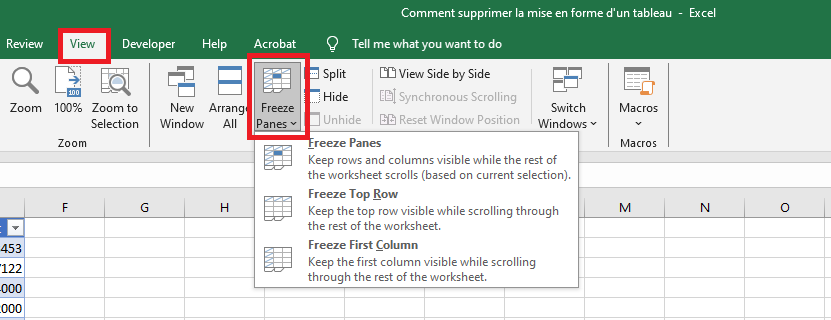
When headers aren’t frozen, Excel compensates by temporarily displaying the table’s headers in place of the usual column letters (A, B, C, etc.) when you’re working inside the table.
Accessibility
Excel supports alternative text (alt text) for tables, helping users who rely on screen readers and other assistive technologies.
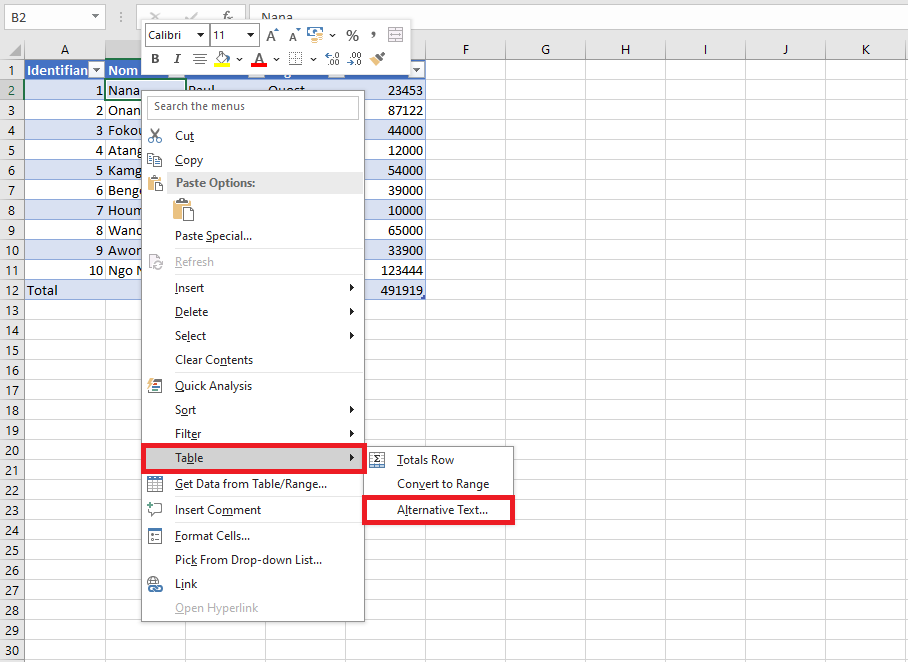 T
TTo set alt text, right-click on any table cell, go to Table > Alt Text, and fill in the description. This improves accessibility for both web publications and documents exported in formats like DAISY. When users hover over a table with alt text, the description appears as a tooltip.
-
Create an Excel table from a range of cells
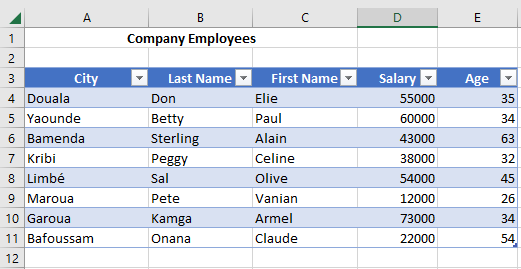
To simplify the management and analysis of related datasets, you can convert a standard cell range into an Excel Table. Despite the generic name, Excel Tables are powerful tools packed with features that make your data easier to organize, analyze, and maintain over time. If you frequently update your datasets or require dynamic formulas that automatically adapt to new entries, then Excel Tables are exactly what you need.
Tables offer functionalities like sorting, filtering, automatic formatting, and more. It is generally recommended to format your data ranges as named Excel Tables to leverage these capabilities and additional advantages outlined below.
Advantages and Disadvantages of Excel Tables
Advantages
- Dropdown menus in header cells make sorting and filtering extremely convenient, allowing users to explore and extract insights quickly.
- Dynamic range: Excel Tables automatically expand or shrink when you add or remove rows, ensuring your data range always reflects the latest updates.
- Built-in styles allow you to quickly format tables for readability or presentation, without manual adjustments.
- Automatic filling of formulas and formatting: When you enter a formula in one row, Excel applies it to the entire column.
- Structured references: Instead of cell coordinates like A2:A10, formulas use column names (e.g., =SUM(Table1[Sales])), improving clarity and interpretability.
- Total row toggle: Easily enable a total row at the bottom of your table to calculate sums, averages, counts, and more without writing manual formulas.
- Seamless integration with PivotTables: Excel Tables are ideal sources for PivotTables, since they automatically adjust to include new data without requiring a manual update of the data source range.
Disadvantages
Despite their benefits, Excel Tables also have limitations, which may influence your decision depending on your workflow:
- Structured references lack absolute referencing, making it more difficult to copy formulas across columns without adjustments.
- Tables do not automatically expand on protected worksheets, even if the cells beneath are unlocked.
- Limitations with worksheet operations: You cannot group, copy, or move multiple sheets if at least one of them contains a table.
- Custom views cannot be created in workbooks that contain one or more Excel Tables.
Preparing Your Data for Table Conversion
Before converting a range into a formatted Excel Table, it is important to properly organize your data:
- Arrange your dataset in rows and columns, where each row represents a unique record (e.g., a customer order or inventory transaction).
- The first row should contain column headers, each with a short, descriptive, and unique title.
- Each column should contain consistent data types: one for dates, another for currencies, another for text, etc.
- Every row should include all the relevant details for a record. Ideally, use a unique identifier (like an order number) to avoid confusion.
- Avoid empty rows or columns within the list, as they can interfere with Excel’s ability to define the table’s boundaries.
- Keep the dataset isolated from other data on the worksheet, preferably with at least one empty row and column separating it from other content.
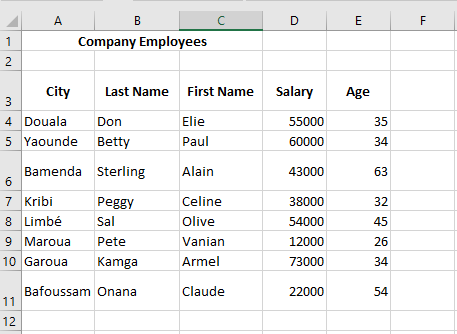
Creating an Excel Table
Once your dataset is properly structured, follow these steps to convert it into an Excel Table:
- Select any cell within your dataset.
- Go to the Insert tab on the ribbon.

- In the Tables group, click on the Table command.
- In the Create Table dialog box, Excel automatically identifies the range of your dataset. Make sure the “My table has headers” option is selected if your first row contains column names.
- Click OK to confirm. Your data is now formatted as an Excel Table.
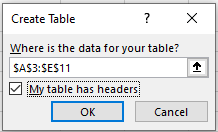
Creating a Table Using Keyboard Shortcuts
You can quickly insert a table using keyboard shortcuts:
- CTRL + T or CTRL + L: Both shortcuts launch the Create Table dialog box.
- For a guided keyboard navigation: From the Home tab, press ALT, then H, then T, and use the arrow keys to select your desired table style. Press Enter to insert the table.
- From the Insert tab, press ALT, then N, then T to access the table insertion option.
Why CTRL + L?
While CTRL + T seems logical for creating a “Table,” CTRL + L is a legacy shortcut from Excel 2003, where formatted lists (not yet called « Tables ») were created using this shortcut. When Microsoft introduced the Ribbon in Excel 2007, they preserved older keyboard shortcuts (now called “Key Tips” or “Access Keys”) to maintain compatibility. In non-English versions of Excel, CTRL + L is sometimes the only functional shortcut, as CTRL + T may be reassigned to other functions.
Table Design Tools in Excel
After you create a Table, Excel reveals a new contextual ribbon tab labeled Table Design (or Table Tools > Design depending on the version). This tab only appears when a cell within the Table is selected. It gives access to various tools like:
- Changing the table name
- Enabling the total row
- Applying or modifying styles
- Adding banded rows or columns
- Managing table ranges
This dynamic behavior is also shared by other objects such as PivotTables, slicers, charts, and images—each of which activates contextual tabs when selected.