Votre panier est actuellement vide !
Étiquette : excel_vba
Strings in Excel VBA
From the large number of string functions available, the following example explains some representative VBA and worksheet functions. It shows how to determine the content and position of a substring and how to replace one substring with another.
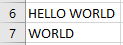
Suppose the two cells A6 and A7 contain the values shown in Figure. The following procedure demonstrates the operations:
Sub StringsExample()
    Dim s As String
    Dim pos As Long  ' Utilisez Long au lieu de Integer pour stocker la position
    Dim searchTerm As String
    Dim lengthSearch As Integer
    ' Active la feuille de calcul
    ThisWorkbook.Worksheets("Sheet1").Activate
    ' Récupère les valeurs dans les cellules
    s = Range("A6").Value
    searchTerm = Range("A7").Value
    lengthSearch = Len(searchTerm)
    ' Vérifie si searchTerm existe dans s
    If Len(searchTerm) > 0 Then
        ' Affiche les premiers caractères
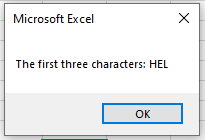
        MsgBox "The first three characters: " & Left(s, 3)
        ' Trouve la position de searchTerm dans s
        pos = InStr(s, searchTerm)
        If pos > 0 Then
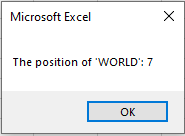
            MsgBox "The position of '" & searchTerm & "': " & pos

            ' Utilise WorksheetFunction.Replace
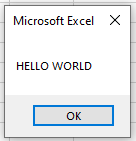
            MsgBox WorksheetFunction.Replace(s, pos, lengthSearch, "WORLD")
        Else
            MsgBox "Search term not found."
        End If
    Else
        MsgBox "Search term is empty."
    End If
End Sub
Explanation:
- The variable s stores the string to be examined, taken from the first worksheet cell.
- The variable searchTerm stores the substring to be found, taken from the second worksheet cell.
- The VBA function Len() returns the length of a string, including all spaces.
- The VBA function Left() returns a substring starting from the first character, with the specified length. Similarly, you can use the VBA functions Right() and Mid() to extract substrings from the end or middle of a string.
- The VBA function InStr() returns the position of the searched substring within the string. Positions start at 1.
- The worksheet function Search() performs the same task as InStr(). It also has an optional third parameter specifying the starting position for the search.
- The worksheet function Replace() replaces a substring with another substring (see Figure 8.22). It requires the following parameters:
- The original string
- The position at which to start the replacement
- The number of characters to replace
- The new substring to insert in place of the old substring
Retry and Cancel Buttons in Excel VBA
An example featuring the Retry and Cancel buttons, together with a critical warning icon, is shown in Figure.
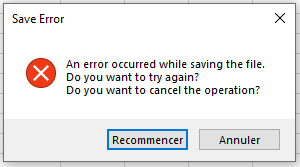
The corresponding code is:
Sub MsgBoxRetryCancel()
    If MsgBox("An error occurred while saving the file." & vbCrLf & _
              "Do you want to try again?" & vbCrLf & _
              "Do you want to cancel the operation?", _
              vbRetryCancel Or vbCritical, _
              "Save Error") = vbRetry Then
        MsgBox "You chose to try again"
    Else
        MsgBox "You chose to cancel the operation"
    End If
End Sub
Explanation:
The Retry and Cancel buttons are combined with an icon that visually signals a critical warning.Three Buttons Including a Default Button in Excel VBA
The following example shows a message box with Yes, No, and Cancel buttons — this time, the second button (No) is set as the default, as shown in Figure.
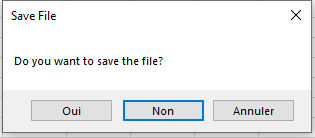
The corresponding code is:
Sub MsgBoxYesNoCancel()
    Dim response As Integer
    response = MsgBox("Do you want to save the file?", _
                      vbYesNoCancel Or vbDefaultButton2, "Save File")
    If response = vbYes Then
        MsgBox "You chose to save the file"
    ElseIf response = vbNo Then
        MsgBox "You chose not to save the file"
    Else
        MsgBox "You chose to cancel the operation"
    End If
End Sub
Explanation:
The three buttons Yes, No, and Cancel are combined with the vbDefaultButton2 behavior. If the user presses the Enter key, this corresponds to selecting the second button, which is No in this case.Because the user has three choices, the response must be stored in a variable. The response is then evaluated using a multiple-branch conditional structure to execute different actions based on the selection.
Yes and No Buttons in Excel VBA
An example code featuring Yes and No buttons is:
Sub MsgBoxYesNo()
    If MsgBox("Do you want to save the file?", _
              vbYesNo Or vbQuestion, "Save File") = vbYes Then
        MsgBox "You chose to save the file"
    Else
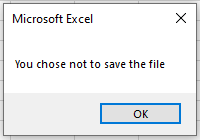
        MsgBox "You chose not to save the file"
    End If
End Sub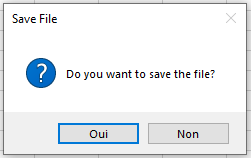
Explanation:
The Yes and No buttons are combined with the question mark icon. The user must answer the question, and the response is evaluated using a conditional statement. Because the MsgBox() function now returns a value, its parameters must be enclosed in parentheses.In this example, two different messages are displayed depending on the user’s choice. You can use the evaluation of these responses to initiate different program flows.
A possible response where the No button was pressed is shown:
System Modal In Excel VBA
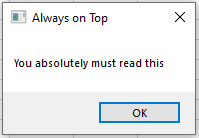
An example code of a system-modal message box is:
Sub MsgBoxSystemModal()
    MsgBox "You absolutely must read this", _
           vbOKOnly Or vbSystemModal, "Always on Top"
End Sub
Explanation:
The OK button and the vbSystemModal property are combined using the Or operator. This makes the dialog box stay always on top, even if the user switches to another application.Information Icon in Excel VBA
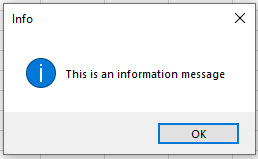
The example demonstrates a message box displaying the information icon.
Sub MsgBoxInformation()
    MsgBox "This is an information message", vbInformation, "Info"
End Sub
Explanation:
An icon (in this case, the letter “i” for “Information”) can be displayed on its own. In this scenario, a simple message box with only the OK button is shown.Buttons – An Overview in Excel VBA
The following examples in this section use various options to control the appearance and behavior of the dialog box.
Buttons Description AbortRetryIgnore Three buttons: Abort, Retry, and Ignore Critical Displays an icon that visually emphasizes a critical warning DefaultButton1 (or 2/3) Specifies which button is activated when the user presses the Enter key — usually button 1 Exclamation Displays an icon with an exclamation mark to visually highlight a warning Information Displays an information icon to visually highlight a simple message Question Displays a question mark icon to visually indicate a question RetryCancel Two buttons: Retry and Cancel SystemModal Makes the dialog box stay on top, even if the user switches to another application YesNo Two buttons: Yes and No YesNoCancel Three buttons: Yes, No, and Cancel You can combine a button set with an icon and a default button behavior using the Or operator. For example, you can combine AbortRetryIgnore with Exclamation and DefaultButton2. Alternatively, you can use the + operator instead of Or.
When multiple buttons are displayed, the return value of the MsgBox() function (i.e., the user’s choice) must be evaluated using conditional branching. This return value is an integer. To avoid memorizing these numbers, predefined constants are provided that represent them. Their names are self-explanatory: vbAbort, vbCancel, vbIgnore, vbNo, vbOK, vbRetry, and vbYes.
OK Button in Excel VBA
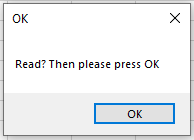
First, the code example:
Sub MsgBoxOkOnly()
    MsgBox "Read? Then please press OK", vbOKOnly, "OK"
End Sub
Explanation:
The first parameter is the message text displayed in the message box, which you are already familiar with.The second parameter is optional and controls the appearance and behavior of the dialog box. In this example, the constant vbOKOnly is used to display only the OK button — this is also the default setting.
The third parameter is also optional and specifies the title of the dialog box window. If omitted, the title defaults to the name of the application.
Example: Moving Cells in Excel VBA
In the very first macro presented in this book, a recorded macro was used to move the contents of one cell to another:
Sub Macro1()
    Range("A1").Select
    Selection.Cut
    Range("C1").Select
    ActiveSheet.Paste
End Sub
Disadvantages of this approach:
- Multiple steps are required, increasing the chance of errors.
- It is unclear which workbook and worksheet the move operation applies to.
- The process runs more slowly.
Using direct referencing, you can perform this task more clearly and efficiently:
Sub MoveCells()
    ThisWorkbook.Worksheets("Sheet1").Range("A7:A9").Cut _
        Destination:=ThisWorkbook.Worksheets("Sheet1").Range("B7")
End Sub
This method clearly specifies the source and destination ranges within the same workbook and worksheet. It avoids unnecessary selection and pasting steps, resulting in faster and more reliable code.
The Application.InputBox Method In Excel VBA
The Application.InputBox() method provides better input control and overall more options than the basic InputBox(). Its return value depends on the type specified. You can choose the input type to be a number, formula, cell reference, text, or Boolean value. If the user clicks Cancel, the method returns False, which you can use to control the flow of your program.
Like the simple input box, you can specify a default value and a title. The input type is set using the last parameter. Therefore, the examples below use named parameters for clarity.
Entering a Number
Here is an example where a number is requested (Type 1):
Sub EnterNumber()
    ThisWorkbook.Worksheets("Sheet1").Activate
    Range("A1").Value = Application.InputBox(Prompt:="Number:", Type:=1)
End Sub
Explanation:
You can run the EnterNumber() procedure through the Macro dialog box, accessible via the Excel ribbon under the View tab → Macros → View Macros. Alternatively, you can create a button on the worksheet and link it to this procedure.If the user inputs a valid number, it is placed in cell A1. Valid examples include « 5.7 », « 5e2 » (which equals 5 × 10² = 500), or « 0.57 ». Invalid examples are « 5a7 » or « a57 ». Note that entering « 5.7 » might be interpreted as the date July 5 of the current year depending on regional settings.
If the user inputs an invalid number, a warning message appears, and the input box remains open until a valid number is entered, as shown in Figure 8.5.
Entering a Formula
An example to input a formula (Type 0):
Sub EnterFormula()
    ThisWorkbook.Worksheets("Sheet1").Activate
    Range("A1").Value = Application.InputBox(Prompt:="Formula:", Type:=0)
End Sub
Explanation:
Run EnterFormula() via the Macro dialog or a button. The user can enter formulas including cell references, which may also cover non-contiguous ranges.Typing =SUM($A$10:$A$12) will insert this formula into cell A1, showing the calculated result. Pay attention to the use of absolute references with dollar signs.
If the user starts typing =SUM(, they can select the cells using the mouse or arrow keys before closing the parenthesis.
Entering an invalid formula results in an error message.
Entering a Cell Range
An example for entering a cell range (Type 8):
Sub EnterRange()
    Dim rng As Range
    ThisWorkbook.Worksheets("Sheet1").Activate
    Set rng = Application.InputBox(Prompt:="Cell range:", Type:=8)
    rng.Borders.LineStyle = xlContinuous
    Set rng = Nothing
End Sub
Explanation:
Run EnterRange() through the Macro dialog or a button. First, an object variable for a Range object is declared.The user can input ranges by typing or selecting with the mouse. Non-contiguous ranges are also supported. Remember to use absolute references with dollar signs for non-contiguous areas.
The selected range is returned and stored in the object variable, allowing further actions such as formatting or calculations.
Additional Notes
Besides the types described above—
- 1 for numbers,
- 0 for formulas, and
- 8 for ranges,
there are other type codes available, for example:
- 2 for text input, and
- 4 for Boolean values.