Votre panier est actuellement vide !
Étiquette : excel_vba
Unit Conversion in Excel VBA
The worksheet function Convert() offers a wide range of possibilities for converting physical units. It supports units with prefixes such as “k” for kilo (factor 1,000), for example in “km”.
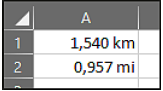
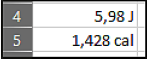
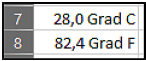
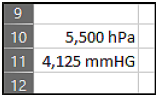
The four numeric values shown in Figure 8.37 (representing distance, energy, temperature, and pressure) are each converted into different units. At the same time, they are formatted for clearer display along with their converted results.
Sub Conversions()
    ThisWorkbook.Worksheets("Sheet2").Activate
    ' Distance
    Range("A2").Value = WorksheetFunction.Convert(Range("A1").Value, "km", "mi")
    Range("A1").NumberFormat = "0,000 ""km"""
    Range("A2").NumberFormat = "0,000 ""mi"""
    ' Energy
    Range("A5").Value = WorksheetFunction.Convert(Range("A4").Value, "J", "cal")
    Range("A4").NumberFormat = "0,00 ""J"""
    Range("A5").NumberFormat = "0,000 ""cal"""
    ' Temperature
    Range("A8").Value = WorksheetFunction.Convert(Range("A7").Value, "C", "F")
    Range("A7").NumberFormat = "0,0 ""°C"""
    Range("A8").NumberFormat = "0,0 ""°F"""
    ' Pressure
    Range("A11").Value = WorksheetFunction.Convert(Range("A10").Value, "hPa", "mmHg")
    Range("A10").NumberFormat = "0,000 ""hPa"""
    Range("A11").NumberFormat = "0,000 ""mmHg"""
End Sub
Explanation:
- In the first case, a distance value is converted from kilometers to miles. The parameters « km » and « mi » specify the units. The prefix k indicates kilometers, as shown in Figure.
- In the second case, an energy value is converted from joules to calories. The parameters « J » and « cal » specify the units, as shown in Figure .
- In the third case, a temperature is converted from degrees Celsius (C) to degrees Fahrenheit (F), as shown in Figure.
- The last conversion calculates pressure in millimeters of mercury (mmHg) from hectopascals (hPa), as shown in Figure 8.41. The prefix h stands for hecto, meaning one hundred.
All cells have been formatted appropriately. Remember: text within a number format string must be enclosed in double quotation marks (« »).
Pausing the Application in Excel VBA
The VBA function Timer() returns the number of seconds elapsed since midnight. You can use this function to pause or delay the execution of your program, as shown in the following example:
Sub TimeDelay()
    Dim startTime As Single
    MsgBox "After pressing OK, the timer starts running."
    startTime = Timer
    Do
        DoEvents
    Loop Until Timer > startTime + 5
    MsgBox "Five seconds have passed."
End Sub
Explanation:
The Timer() function returns the seconds elapsed since midnight as a Single value. This value is stored in the variable startTime.After the user confirms the first message box, the program enters a Do…Loop that continues until the current time (from Timer()) is greater than startTime + 5, i.e., 5 seconds later.
Inside the loop, DoEvents() is called. This function allows other system events to be processed while the loop runs, such as user interactions or background processes. You can use DoEvents() to keep your application responsive during delays or long calculations.
Calculating Workdaysin Excel VBA
The worksheet function NetworkDays() calculates the number of workdays within a specified period. Workdays exclude weekends — Saturdays and Sundays — and can also exclude a user-defined list of holidays or vacation days.
Since Excel 2010, an international version called NetworkDays_Intl() is available. This allows you to define which days of the week count as weekends. These can be Saturdays and Sundays, or any other days you specify.
The worksheet function WorkDay() calculates the date of a workday based on a given start date. You can specify how many workdays in the future or past you want to move, e.g., the fourth next workday or the third last workday. Like NetworkDays(), weekends, holidays, and vacation days are excluded.
Since Excel 2010, the international counterpart WorkDay_Intl() lets you define weekend days similarly to NetworkDays_Intl().
The following procedure, Workdays(), calculates the number of workdays in the period from January 1, 2025, to January 31, 2025. It also calculates the fourth next workday starting from January 3, 2025. The holidays are assumed to be from January 6 to January 8, 2025, inclusive. Additionally, January 1, 2025, is considered a workday.
Sub Workdays()
    Dim count As Integer
    Dim dt As Date
    Dim msg As String
    ThisWorkbook.Worksheets("Sheet1").Activate
    count = WorksheetFunction.NetworkDays( _
        Range("G1").Value, Range("G31").Value, Range("G6:G8"))
    msg = msg & "Number of workdays: " & count & vbCrLf
    count = WorksheetFunction.NetworkDays_Intl( _
        Range("G1").Value, Range("G31").Value, 11, Range("G6:G8"))
    msg = msg & "Number of workdays (Intl): " & count & vbCrLf
    dt = WorksheetFunction.WorkDay( _
        Range("G3").Value, 4, Range("G6:G8"))
    msg = msg & "Fourth next workday: " & dt & vbCrLf
    dt = WorksheetFunction.WorkDay_Intl( _
        Range("G3").Value, 4, 11, Range("G6:G8"))
    msg = msg & "Fourth next workday (Intl): " & dt & vbCrLf
    MsgBox msg
End Sub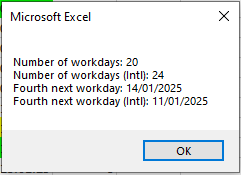
Explanation of Calculation and Result:
The first two parameters of NetworkDays() are the start and end dates. The third parameter is the range containing holidays and vacation days.
In this example, cells G1 to G31 contain dates for January (31 days). Subtracting four Saturdays, four Sundays, and three vacation days results in 20 workdays.
In the international version NetworkDays_Intl(), the third parameter (11) defines weekend days — here, only Sundays. The four Saturdays are counted as workdays, resulting in 24 workdays.
The first two parameters of WorkDay() specify the start date and the number of workdays to offset (positive or negative). The third parameter lists holidays and vacation days.
Starting from January 3, 2025, the next workdays are: January 9, 10, 13, and 14.
In WorkDay_Intl(), the third parameter (11) similarly defines Sunday as the only weekend day. Starting from January 3, 2025, the next workdays are: January 4, 9, 10, and 11.
Annual Calendar in Excel VBA
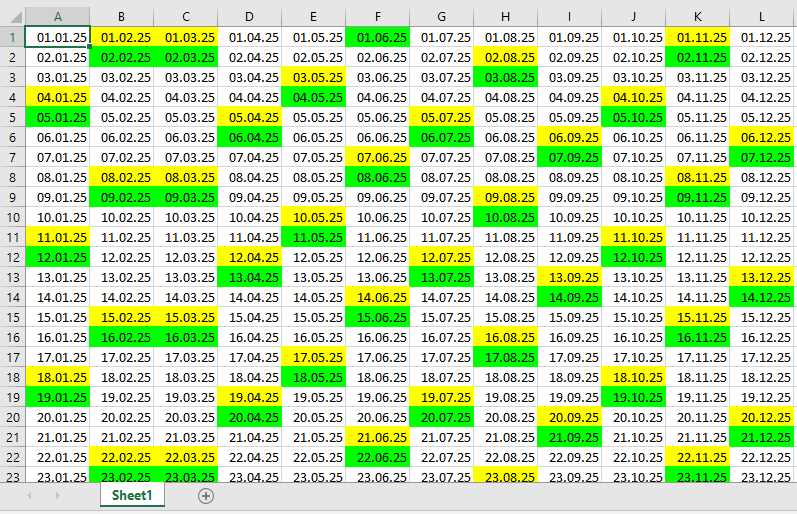
The previous example can be easily extended into a full annual calendar by adding two functions:
- The VBA function Day() to determine the day of the month
- The worksheet function EoMonth() to find the last day of a given month
Here is the code for the annual calendar:
Sub AnnualCalendar()
    Dim dayNum As Integer, monthNum As Integer, yearNum As Integer
    Dim currentDate As Date, firstOfMonth As Date
    Dim daysInMonth As Integer
    yearNum = Application.InputBox("Please enter a year:", Type:=1)
    ' Application.ScreenUpdating = False
    Workbooks.Add
    For monthNum = 1 To 12
        firstOfMonth = DateSerial(yearNum, monthNum, 1)
        daysInMonth = Day(WorksheetFunction.EoMonth(firstOfMonth, 0))
        For dayNum = 1 To daysInMonth
            currentDate = DateSerial(yearNum, monthNum, dayNum)
            Cells(dayNum, monthNum).Value = currentDate
            Cells(dayNum, monthNum).NumberFormat = "DD.MM.YY"
            If Weekday(currentDate) = 7 Then
                Cells(dayNum, monthNum).Interior.Color = vbYellow
            ElseIf Weekday(currentDate) = 1 Then
                Cells(dayNum, monthNum).Interior.Color = vbGreen
            End If
        Next dayNum
    Next monthNum
    ' Application.ScreenUpdating = True
End Sub
Explanation:
First, the user is prompted to enter a year, as shown in Figure.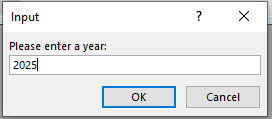
The construction of the annual calendar may take a moment. You can speed up the process by turning off screen updating using Application.ScreenUpdating = False. For normal operation, remember to turn it back on (= True) at the end.
A new workbook is created to hold the annual calendar, which the user can save later in the desired location.
The outer loop cycles through all twelve months of the year.
For each month, DateSerial() generates the date of the first day of the month. This date is passed to the worksheet function EoMonth(), which returns the date of the last day of that month.
The Day() function extracts the day number from the last day of the month, which tells how many days that month contains. Similarly, Month() and Year() return the month and year components of a date.
The inner loop iterates over every day of the current month. Each date is created with DateSerial() and formatted into the corresponding cell.
As in the previous example, weekends are highlighted using the Weekday() function — Saturdays in yellow, Sundays in green.
Creating Dates and Highlighting Weekdays in Excel VBA
The function DateSerial() is used to create a date, while the function Weekday() determines the day of the week for a given date. Below, these two functions are used to highlight weekend days specifically:
Sub HighlightWeekend()
    Dim i As Integer
    Dim currentDate As Date
    ThisWorkbook.Worksheets("Sheet1").Activate
    For i = 1 To 31
        currentDate = DateSerial(2025, 1, i)   ' Create a date for January 2025
        Cells(i, 7).Value = currentDate         ' Put the date in column G (7th column)
        Cells(i, 7).NumberFormat = "ddd. dd.mm.yy" ' Format the date display
        If Weekday(currentDate, vbSunday) = 7 Then
            Cells(i, 7).Interior.Color = vbYellow  ' Highlight Saturdays in yellow
        ElseIf Weekday(currentDate, vbSunday) = 1 Then
            Cells(i, 7).Interior.Color = vbGreen   ' Highlight Sundays in green
        Else
            Cells(i, 7).Interior.Pattern = xlNone   ' No fill for weekdays
        End If
    Next i
End Sub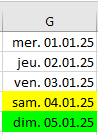
Explanation:
All dates of January 2020 are listed vertically. A loop runs from 1 to 31 to generate each day.Inside the loop, the DateSerial() function constructs a date using three parameters: year, month, and day.
The date is formatted using the NumberFormatLocal property.
The Weekday() function returns an integer representing the day of the week: 1 = Sunday, 2 = Monday, …, 7 = Saturday.
In this example, Saturdays and Sundays are highlighted with yellow and green fill colors, respectively.
Calculations with Time Values with Excel VBA
The VBA function DateAdd() adds a time interval to a given time. The function DateDiff() calculates the time interval as the difference between two time values. The time interval can be either positive or negative.
Here is an example:
Sub TimeCalculation()
    Dim t As Date
    Dim interval As Integer
    ' Set the initial time
    t = "06/09/2025 15:38:25"
    ' Activate Sheet1 and apply formatting
    ThisWorkbook.Worksheets("Sheet1").Activate
    Range("E1:E2").NumberFormat = "mm/dd/yyyy hh:mm:ss"
    ' Store initial time in E1
    Range("E1").Value = t
    ' Add 5 minutes
    t = DateAdd("n", 5, t)
    ' Subtract 50 seconds
    t = DateAdd("s", -50, t)
    ' Store modified time in E2
    Range("E2").Value = t
    ' Calculate the interval in seconds between the two times
    interval = DateDiff("s", Range("E1").Value, Range("E2").Value)
    Range("E3").Value = interval
End Sub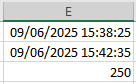
Explanation:
A time value with both the date and time is stored in the time variable.Using the DateAdd() function, a time interval is added to this time value. The first parameter specifies the unit of the time interval. The following options are available:
- yyyy: Year
- q: Quarter
- m: Month
- y: Day of the year
- d: Day
- w: Weekday
- ww: Week
- h: Hour
- n: Minute
- s: Second
The second parameter is the value of the time interval, and the third parameter is the original time value to which the interval will be added.
In this example, 5 minutes are added first, and then 50 seconds are subtracted. The time 15:38:25 is first adjusted to 15:43:25, and then it becomes 15:42:35. The cells with the time values are appropriately formatted.
The DateDiff() function calculates the difference between two time values as a time interval. The first parameter also specifies the unit of the time interval. To calculate the result, the second parameter’s time value is subtracted from the third parameter’s time value.
In this example, the difference is 4 minutes and 10 seconds, which equals 250 seconds.
Splitting Records in Excel VBA
For data import, it is usually necessary to split concatenated records beforehand. The Split() function reverses the operation of the Join() function. It converts a string into a one-dimensional array. The individual parts of the record must be separated by a defined delimiter character to be correctly recognized.

Here is an example:
Sub SplitRecords()
    Dim i As Integer
    Dim arr() As String
    ThisWorkbook.Worksheets("Sheet1").Activate
    arr = Split(Cells(4, 1).Value, "#")
    For i = 0 To 2
        Cells(5, i + 1).Value = arr(i)
    Next i
End Sub
Explanation:
A dynamic array (with variable size) is declared.The Split() function breaks the string into parts and assigns the result to the array. The delimiter used here is the # character. The first element of the array has index 0.
If no delimiter is specified, a space is used by default for splitting.
The individual elements of the array are then written into three adjacent cells in the worksheet. Note that the first element starts at index 0.
Concatenating Records in Excel VBA
For data export purposes, it is often necessary to concatenate records beforehand. This task is handled by the Join() function. It converts a one-dimensional array into a string, separating each element of the array with a specified delimiter.
Here is an example:
Sub ConcatenateRecords()
    Dim i As Integer
    Dim arr(1 To 3) As String
    ThisWorkbook.Worksheets("Sheet3").Activate
    For i = 1 To 3
        arr(i) = Cells(1, i).Value
    Next i
    Cells(2, 1).Value = Join(arr, "#")
End Sub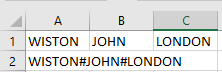
Explanation:
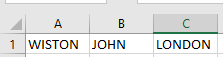
An array with three elements is declared.In this example, the data of one record are located in three adjacent cells in the first row. These values are assigned to the individual array elements.
The Join() function concatenates the elements of the array into a single string, separating them with the # character.
If no delimiter is specified, a space character is used as the default separator.
Output Formatting in Excel VBA
The NumberFormatLocal property, which allows country-specific formatting of numbers and dates in worksheet cells, has already been introduced. Numbers, dates, and texts can also be formatted appropriately for display in dialog boxes using the string function Format().
So far, only the MsgBox() function has been presented as a dialog box, but the following formatting options apply to all types of dialog boxes. These formatting techniques are especially useful for custom dialog boxes.
Here are some examples:
Sub FormatExamples()
    Dim x As Single, y As Single
    Dim d As Date
    ' Decimal places
    x = 13 / 7
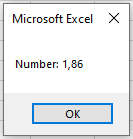
    MsgBox "Number: " & Format(x, "0.00")
    ' Percentage values
    x = 1 / 7
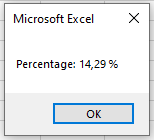
    MsgBox "Percentage: " & Format(x, "0.00 %")
    ' Text and thousand separators
    x = 1399.95
    y = 29.95
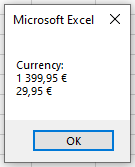
    MsgBox "Currency: " & vbCrLf & Format(x, "#,##0.00 €") & _
           vbCrLf & Format(y, "#,##0.00 €")
    ' Date formatting
    d = "09.06.2025"
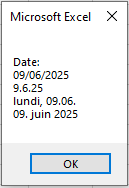
    MsgBox "Date: " & vbCrLf & d & _
           vbCrLf & Format(d, "d.m.yy") & _
           vbCrLf & Format(d, "dddd, dd.mm.") & _
           vbCrLf & Format(d, "dd. mmmm yyyy")
End Sub
Explanation:
The second parameter of the Format() function is a string specifying the desired format in English notation.- The digit 0 represents a single digit that is always displayed. Decimal places are separated by a period, and the number is rounded to the specified number of decimal places, as shown in Figure.
- The percent sign % multiplies the number by 100 and appends a percent sign, as seen in Figure.
- The # symbol represents a single digit, but only if the number has that digit; otherwise, nothing is displayed. The comma is used as a thousands separator. Text, such as currency symbols, can be included along with the number, as shown in Figure.
Note:
Right-aligned numbers are possible. However, since text in a MsgBox uses a proportional font (characters have different widths), commas in numbers of varying length will not align perfectly under each other. This alignment is possible inside controls in custom dialog boxes.The default date output format (without specifying a format) is dd.mm.yyyy, meaning two digits for day, two for month, and four for the year. Using dddd outputs the full weekday name. The format mmmm outputs the full month name, as shown in Figure.
Converting Strings in Excel VBA
As you know, worksheet cells can contain strings or numbers. Numbers may also be formatted as dates. You can store cell contents in variables of the appropriate data type if you recognize their type or formatting.

To identify the type, you can use the functions IsNumeric() and IsDate(). For conversion, use the functions CDbl() and CDate(). Here is an example:
Sub ConvertStrings()
    Dim x As Double
    Dim d As Date
    Dim s As String
    Dim i As Integer
    ThisWorkbook.Worksheets("Sheet1").Activate
    For i = 1 To 4
        If IsNumeric(Cells(i, 2).Value) Then
            x = CDbl(Cells(i, 2).Value)
            Cells(i, 3).Value = x
            Cells(i, 4).Value = "Number"
        ElseIf IsDate(Cells(i, 2).Value) Then
            d = CDate(Cells(i, 2).Value)
            Cells(i, 3).Value = d
            Cells(i, 4).Value = "Date"
        Else
            s = Cells(i, 2).Value
            Cells(i, 3).Value = s
            Cells(i, 4).Value = "String"
        End If
    Next i
End Sub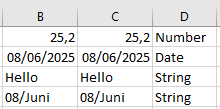
Explanation:
Assume the values shown in Figure 8.23 are in cells B1 to B4. The date in cell B4 was previously formatted.If the function IsNumeric() determines the cell content is a number, it is converted to a Double variable using CDbl().
If IsDate() finds the content to be a date, it is converted to a Date variable using CDate().
Otherwise, the cell content is assigned to a string variable.
The application can then continue working with variables of the correct data type, and—for example—output them again into a worksheet.