Votre panier est actuellement vide !
Étiquette : excel_vba
Writing Word Paragraphs in Excel VBA
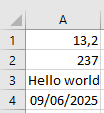
The contents of the cells shown in Figure of an Excel worksheet are to be written as individual paragraphs into the Word document Doc.docx.
Sub WriteWordParagraphs()
    Dim appWord As Word.Application
    Dim document As Word.document
    Dim i As Integer
    ThisWorkbook.Worksheets("Sheet1").Activate
    ' Start Word application
    Set appWord = CreateObject("Word.Application")
    ' Create a new Word document
    Set document = appWord.Documents.Add
    For i = 1 To 4
        ' Add a new paragraph
        document.Paragraphs.Add
        ' Fill the paragraph with text from the Excel cell
        document.Paragraphs(i).Range.Text = Cells(i, 1).Value
    Next i
    ' Save the Word document with the given filename and close it
    document.SaveAs ThisWorkbook.Path & "C:\Users\POPOLY\Desktop\Doc.docx"
    document.Close
    ' Quit Word application and release memory
    appWord.Quit
    Set document = Nothing
    Set appWord = Nothing
End Sub
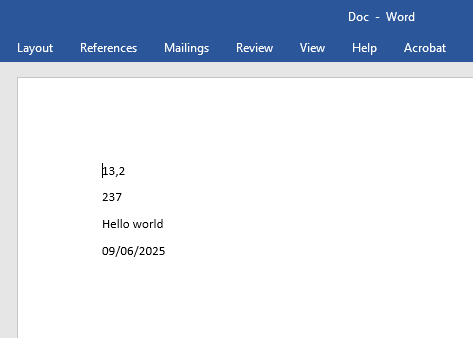
The result of the code is shown in next Figure.
Explanation:
- The variable appWord is declared as a reference to an object of type Word.Application (the Word application). This object type (along with other Word-specific object types) is available only if the Word library is referenced, as explained in Section 9.6.1, « Word Object Model. »
- The function CreateObject() creates an object of type Word.Application and returns a reference to it. This reference is used subsequently to control the Word application.
- The method Add() of the Documents object, when called without parameters, opens a new Word document and returns a reference to a Document object. This reference is then used to interact with the Word document.
- Inside the loop, a new paragraph is added using the Add() method of the Paragraphs collection.
- Each paragraph is filled with the content of an Excel cell.
- The new Word document is saved using the method SaveAs(), under the name paragraphs.docx in the same folder as the Excel workbook that contains this VBA code.
- Afterwards, the Word document is closed using the Close() method, and the Word application is terminated with the Quit() method.
- For exporting larger amounts of data, an alternative approach is to concatenate all the data into a single string variable, including necessary line breaks (using the constant vbCrLf), and output this variable in one operation at the end.
Object Model of Word in Excel VBA
There are parallels between the hierarchical object models of Word and Excel:
- The main object, Application, represents the Word application itself.
- Using the CreateObject() function, ActiveX objects can be created. To access Word, an object of type Word.Application is created and a reference to this object is returned. This reference is used throughout the program to interact with the Word application. At the end, the Word application must be properly closed.
- A property of the Application object is the Documents collection, which contains all the Word documents currently open or accessible.
- A property of an individual document is the Paragraphs collection, which contains all paragraphs within that document.
- Similarly, the Tables collection contains all tables within a single document.
- A property of an individual table is the Cells collection, which contains all the cells of that table. A single cell can be accessed, similarly to Excel, via the Cells collection.
- The term Range in Word also refers to a range of content. This range can include one or more paragraphs, either completely or partially, and can also encompass table cells.
To access the Word object model from Excel’s Visual Basic Editor (VBE), a reference to the Microsoft Word Object Library must first be set up. This is done via the menu Tools → References by selecting the appropriate version of the Microsoft Word Object Library, as shown in Figure.
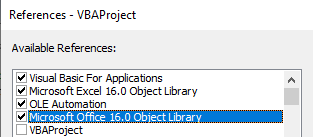
- For Word 2019 and Word 2016, this is the Microsoft Word 16.0 Object Library.
- For Word 2013, it is the Microsoft Word 15.0 Object Library.
- For Word 2010, it is the Microsoft Word 14.0 Object Library.
- For Word 2007, it is the Microsoft Word 12.0 Object Library.
Performing Operations with Directories in Excel VBA
Using VBA, you can create directories and delete them if they are empty. The following example demonstrates creating a subdirectory, copying a file into it, moving another file there, then deleting both files, and finally removing the subdirectory.
Between each step, a list of currently existing files in the subdirectory is displayed for verification. For this purpose, the procedure ListFilesInPath() is used.
Sub ListFilesInPath(path As String)
    Dim fileName As String
    Dim output As String
    fileName = Dir(path & "\*.txt")
    output = ""
    Do While fileName <> ""
        output = output & " " & fileName
        fileName = Dir
    Loop
    MsgBox output
End Sub
The directory operations are implemented in the following procedure:
Sub DirectoryOperations()
    Dim basePath As String, subPath As String
    basePath = ThisWorkbook.Path
    subPath = basePath & "\Subfolder"
    On Error GoTo ErrorHandler
    ' Create subdirectory
    MkDir subPath
    ' Copy a file in the base directory
    FileCopy basePath & "\lines.txt", basePath & "\linesCopy1.txt"
    ' Copy a file into the subdirectory
    FileCopy basePath & "\lines.txt", subPath & "\linesCopy2.txt"
    ' Move a file into the subdirectory
    Name basePath & "\linesCopy1.txt" As subPath & "\linesCopy1.txt"
    ' List files in the subdirectory
    ListFilesInPath subPath
    ' Delete files from the subdirectory
    Kill subPath & "\linesCopy1.txt"
    Kill subPath & "\linesCopy2.txt"
    ' List files in the subdirectory again (should be empty)
    ListFilesInPath subPath
    ' Remove the now-empty subdirectory
    RmDir subPath
    Exit Sub
ErrorHandler:
    MsgBox Err.Description
End Sub
Explanation:
- The function MkDir() creates a directory. It requires a string parameter specifying the name (or path) of the directory to create.
- The functions FileCopy() and Name() have been introduced earlier; they are used here to copy and move/rename files between directories.
- The function RmDir() deletes an empty directory. Like MkDir(), it requires a string parameter specifying the directory to remove.
Performing File Operations in Excel VBA
In VBA, you can perform several common file operations using built-in functions. However, you should exercise great caution, especially when deleting files.
The following example copies a file, then renames it, and finally deletes it. After each step, a list of currently existing files is displayed for verification:
Sub ListFiles(folderPath As String)
    Dim f As String
    Dim output As String
    f = Dir(folderPath & "\*.*")
    Do While f <> ""
        output = output & f & vbCrLf
        f = Dir
    Loop
    MsgBox "Fichiers dans " & folderPath & ":" & vbCrLf & output
End Sub
Sub FileOperations()
    Dim path As String
    path = Environ("USERPROFILE") & "\Desktop\Doc"
    On Error GoTo ErrorHandler
    ' Afficher les fichiers du Bureau
    ListFiles path
    ' Copier le fichier
    FileCopy path & "\Document.txt", path & "\DocumentCopy.txt"
    ListFiles path
    ' Renommer le fichier copié
    Name path & "\DocumentCopy.txt" As path & "\DocumentNew.txt"
    ListFiles path
    ' Supprimer le fichier renommé
    Kill path & "\DocumentNew.txt"
    ListFiles path
    Exit Sub
ErrorHandler:
    MsgBox Err.Description
End Sub
Explanation:
The procedure ListFiles is used to display the list of existing files at each step. Initially, the file list appears as shown in Figure 9.12.
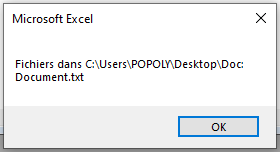
- The FileCopy() function copies a file. If the destination file already exists, it will be overwritten without any prior warning. After copying, the file list changes as illustrated in Figure.
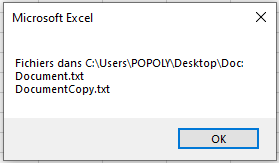
- The Name() function renames or moves a file. If the target file already exists, it will not be overwritten, and a runtime error will occur. If the destination is in a different folder, the file is moved and possibly renamed. The file list after renaming looks like Figure.
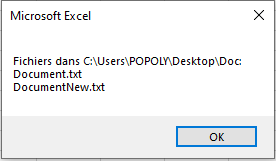
- The Kill() function deletes one or more files, optionally using wildcards, without any confirmation. The final file list after deletion is shown in Figure.
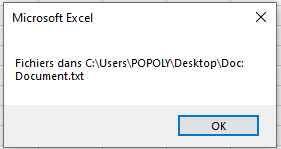
Retrieving File Information in Excel VBA
There are several functions to obtain information about files, such as the last modification date, file size, or file attributes. The following program demonstrates how to use these functions:
Sub GetFileInformation()
    Dim fileName As String
    Dim fullFileName As String
    Dim folderPath As String
    Dim i As Integer
    ' Set the folder path correctly
    folderPath = "C:\Users\POPOLY\Desktop\"
    If Right(folderPath, 1) <> "\" Then
        folderPath = folderPath & "\"
    End If
    With ThisWorkbook.Worksheets("Sheet1")
        .Activate
        i = 1
        fileName = Dir(folderPath & "*.*")
        Do While fileName <> ""
            fullFileName = folderPath & fileName
            ' Vérifie que le fichier existe vraiment
            If Dir(fullFileName) <> "" Then
                On Error Resume Next ' Ignore temporairement les erreurs
                ' Write file info
                .Cells(i, 3).Value = fileName
                .Cells(i, 4).Value = FileDateTime(fullFileName)
                .Cells(i, 4).NumberFormatLocal = "dd.mm. hh:mm"
                .Cells(i, 5).Value = FileLen(fullFileName)
                .Cells(i, 5).NumberFormatLocal = "0 ""Byte"""
                .Cells(i, 6).Value = IIf((GetAttr(fullFileName) And vbReadOnly) > 0, "Yes", "No")
                On Error GoTo 0 ' Réactive les erreurs normales
                i = i + 1
            End If
            fileName = Dir ' Next file
        Loop
    End With
End Sub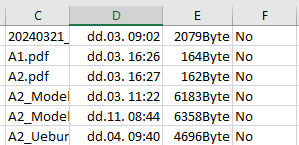
Explanation:
As in the previous example, the code searches for files with the .txt extension.
For the subsequent function calls, the full filename including the path is stored in fullFileName.
- The function FileDateTime() returns the date and time of the last modification of the file.
- The well-known function FileLen() retrieves the file size in bytes.
- The function GetAttr() obtains the file or directory attributes. It returns a number containing all attributes combined as bits. To check for a specific attribute, you perform a bitwise comparison with the And operator.
If the result of the comparison is greater than zero, the attribute is present.
In this example, the code checks whether the file (or directory) is read-only by comparing against the constant vbReadOnly.
Other useful constants include:
- vbHidden: The file is hidden.
- vbSystem: The file is a system file.
- vbDirectory: It is a directory.
- vbArchive: The file has been changed since the last backup.
Searching and Listing Files in Excel VBA
The Dir() function can be used both for searching files and for processing a list of files. In the first example, it is used to check whether a file named test.txt exists in the folder where the application resides:
Sub SearchFile()
    Dim filePath As String
    filePath = "C:\Users\POPOLY\Desktop\Person.txt"
    If Dir(filePath) <> "" Then
        MsgBox "File Person.txt found"
    Else
        MsgBox "File Person.txt not found"
    End If
End Sub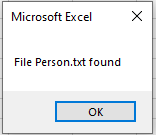
Explanation:
The Dir() function returns the name of a file that matches the specified search pattern. You can use wildcards such as ? (for a single character) or * (for multiple characters).
In this example, a specific filename is searched for without any wildcards. The return value is either the filename (if it exists) or an empty string (if the file does not exist).
The second example demonstrates how to list all files matching a certain pattern:
Sub ListFiles()
    Dim fileName As String
    Dim output As String
    Dim folderPath As String
    folderPath = "C:\Users\POPOLY\Desktop\"
    fileName = Dir(folderPath & "*.txt")
    output = ""
    Do While fileName <> ""
        output = output & vbCrLf & fileName
        fileName = Dir
    Loop
    If output = "" Then
        MsgBox "Aucun fichier .txt trouvé."
    Else
        MsgBox "Fichiers trouvés :" & output
    End If
End Sub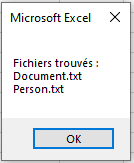
Explanation:
Initially, the Dir() function is called with a parameter specifying the search pattern — here, all files with the .txt extension. The name of the first file matching this pattern is stored in the variable fileName.
Then, a loop begins. If a file was found, the variable fileName is not empty, so the loop executes.
Each found filename is concatenated to an output string variable.
Inside the loop, Dir() is called again without any parameter. This instructs the function to continue searching for the next file matching the original pattern.
The loop continues until all files matching the pattern have been retrieved.
Finally, all collected filenames are displayed in a message box.
Writing a Record at an Arbitrary Position in Excel VBA
The following program stores a record at any specified position within a random access file. You can either overwrite an existing record or append a new one. It is important to ensure that a valid record number is provided:
Sub WriteRandomRecord()
    Dim fullFileName As String
    Dim recordNumber As Integer
    Dim totalRecords As Integer
    Dim Px As Person
    Dim i As Integer
    ThisWorkbook.Worksheets("Sheet1").Activate
    On Error GoTo ErrorHandler
    ' Store data from the worksheet into a variable of user-defined type "Person"
    Px.FirstName = Cells(17, 1).Value
    Px.LastName = Cells(17, 2).Value
    Px.City = Cells(17, 3).Value
    Px.BirthDate = Cells(17, 4).Value
    Px.Salary = Cells(17, 5).Value
    ' Determine the current number of records in the file
    fullFileName = ThisWorkbook.Path & "C:\Users\POPOLY\Desktop\Person.txt"
    totalRecords = FileLen(fullFileName) / Len(Px)
    ' Validate the record number entered by the user
    recordNumber = Cells(16, 1).Value
    If recordNumber < 1 Then recordNumber = 1
    If recordNumber > totalRecords + 1 Then recordNumber = totalRecords + 1
    ' Open the file for random access writing
    Open fullFileName For Random As #1 Len = Len(Px)
    ' Write the record at the specified position
    Put #1, recordNumber, Px
    ' Close the file
    Close #1
    Exit Sub
ErrorHandler:
    MsgBox Err.Description
End Sub
Explanation:
The contents of a record from the Excel worksheet are stored in a variable of the user-defined data type.
The size of the file and the number of existing records are calculated. The maximum valid record number for writing is the current number of records plus one. If the record number equals this maximum, the record will be appended to the end of the file.
The Put statement writes the record into the file at the specified position.
Reading a Record at an Arbitrary Position in Excel VBA
The following program reads a specific record from a random access file. It is important to ensure that only the number of an existing record can be specified:

Type Person
    FirstName As String * 20
    LastName As String * 20
    City As String * 20
    BirthDate As Date
    Salary As Single
End Type
Sub ReadRandomRecord()
    Dim fullFileName As String
    Dim recordNumber As Integer
    Dim totalRecords As Integer
    Dim Px As Person
    Dim i As Integer
    ThisWorkbook.Worksheets("Sheet1").Activate
    On Error GoTo ErrorHandler
    ' Determine the number of records in the file
    fullFileName = ThisWorkbook.Path & "C:\Users\POPOLY\Desktop\Person.txt"
    totalRecords = FileLen(fullFileName) / Len(Px)
    ' Get the desired record number from the worksheet
    recordNumber = Cells(16, 1).Value
    ' Validate the record number within the valid range
    If recordNumber < 1 Then recordNumber = 1
    If recordNumber > totalRecords Then recordNumber = totalRecords
    ' Open the file for random access reading
    Open fullFileName For Random As #1 Len = Len(Px)
    ' Read the specified record into Px
    Get #1, recordNumber, Px
    ' Close the file
    Close #1
    ' Output the record's fields to the worksheet
    Cells(17, 1).Value = Trim(Px.FirstName)
    Cells(17, 2).Value = Trim(Px.LastName)
    Cells(17, 3).Value = Trim(Px.City)
    Cells(17, 4).Value = CDate(Px.BirthDate)
    Cells(17, 5).Value = Round(CDbl(Px.Salary), 2)
    Exit Sub
ErrorHandler:
    MsgBox Err.Description
End Sub
Explanation:
The function FileLen() returns the size of a file in bytes. Using this, the total number of records stored in the file can be calculated by dividing the file size by the length of one record.
The user inputs the number of the desired record in the Excel worksheet (e.g., cell A16). If the specified record number is too large or too small, it is adjusted to the nearest valid value (either the first or the last record).
The Get statement reads a record from the file, similar in operation to the Put statement:
- The first parameter is the file number.
- The second parameter specifies the position of the record in the file to be read.
- The third parameter is the user-defined type variable into which the data is read.
When outputting the data, small adjustments are made:
- For fixed-length strings, the Trim() function removes trailing spaces added during storage.
- The date is converted to a proper date format using CDate().
- The salary value is converted to a double with CDbl() and rounded to two decimal places.
Note that due to the limited precision of floating-point numbers, slight differences may appear in the stored or retrieved values. For example, a stored value of 4620.85 may sometimes read back as 4620.849999.
Creating a File with All Records in Excel VBA
The following program creates a file with random access. Three records are stored in this file. This file will serve as the basis for later reading or writing records at arbitrary positions:

Type Person
    FirstName As String * 20
    LastName As String * 20
    City As String * 20
    BirthDate As Date
    Salary As Single
End Type
Sub WriteAllRandomAccess()
    Dim P(1 To 3) As Person
    Dim i As Integer
    ThisWorkbook.Worksheets("Sheet2").Activate
    On Error GoTo ErrorHandler
    ' Store data in an array of the user-defined type "Person"
    For i = 1 To 3
        P(i).FirstName = Cells(i, 1).Value
        P(i).LastName = Cells(i, 2).Value
        P(i).City = Cells(i, 3).Value
        P(i).BirthDate = Cells(i, 4).Value
        P(i).Salary = Cells(i, 5).Value
    Next i
    ' Open the file for random access writing
    Open ThisWorkbook.Path & "C:\Users\POPOLY\Desktop\Person.txt" For Random As #1 Len = Len(P(1))
    ' Write all records into the file
    For i = 1 To 3
        Put #1, i, P(i)
    Next
    ' Close the file
    Close #1
    Exit Sub
ErrorHandler:
    MsgBox Err.Description
End Sub
Explanation:
The contents of the Excel table are stored in an array of variables of the user-defined data type.
The file randomAccess.txt is opened using the Random mode, which enables random access—both for writing and reading.
When opening a file in Random mode, you must specify the length of a single record after the Len keyword. This length can be determined using the Len() function. Besides string length, this function can also return the memory size of a variable.
The Put statement writes a record into the file:
- The first parameter is the file number.
- The second parameter specifies the record position within the file to write to.
- The third parameter is the user-defined type variable that is written.
You can open the created file in a text editor. You will notice that the fixed-length strings contain trailing spaces used for padding. All records are stored directly one after another continuously on a single line. The components of other data types (e.g., Date, Single) are not stored in a human-readable format (see Figure 9.7). This is normal and sufficient for reading and writing using this program.
Creating a Custom Data Type in Excel VBA
First, a suitable custom data type is created for this data:
Type Person
    FirstName As String * 20
    LastName As String * 20
    City As String * 20
    BirthDate As Date
    Salary As Single
End Type
The * 20 suffix for the String data type ensures that the associated variable is not a variable-length string, as we have seen before, but a fixed-length string. If a shorter value is assigned to such a variable, trailing spaces are automatically appended. If a longer value is assigned, excess characters at the end are truncated.
Fixed-length strings are now rarely used but are introduced here for this specific purpose.
All data types inside a user-defined data type must have a fixed memory size. The total length of a record of this type is 72 bytes, calculated as follows:
- Three fixed-length strings of 20 bytes each (total 60 bytes),
- One Single type of 4 bytes,
- One Date type of 8 bytes.
When opening a file with random access, the length of each record must be specified. For three records, the total file size would be 216 bytes (3 × 72 bytes).
Knowing the file size allows you to determine the number of records contained within the file.