Votre panier est actuellement vide !
Étiquette : financial-function
How to use the FIND function in Excel
Similar to the SEARCH function, the FIND function also locates the position of a substring within a string. However, unlike the SEARCH function, the FIND function is case-sensitive, meaning it distinguishes between uppercase and lowercase letters when searching for the exact text.
The syntax for the FIND function is:
=FIND(find_text; within_text; [start_num])- find_text: The text or substring you want to find.
- within_text: The text in which you want to search for the substring.
- start_num (optional): The position in the text where the search should begin. If omitted, the search starts from the first character.
Practical Example of the FIND Function
Example 1:
Find the position of « GROWTH » in cell B2 in the table below.
- Go to cell C2 and type:
=FIND(« GROWTH »; B2; 1) - Press Enter.

The position of « GROWTH » in cell B2 is 22.
How to use the SEARCH function in Excel
The SEARCH function is used to locate the position of a substring within a string. For example, it can find the position of the letter « S » in the word « JOURNALISM. » The SEARCH function is case-insensitive, meaning it does not distinguish between uppercase and lowercase letters.
The syntax for the SEARCH function is:
=SEARCH(find_text; within_text; [start_num])- find_text: The text or substring you want to find.
- within_text: The text in which you want to search for the substring.
- start_num (optional): The position in the text where the search should begin. If omitted, the search starts from the first character.
Practical Examples of the SEARCH Function
Example 1:
Search for the position of « T » in cell A1 in the table below.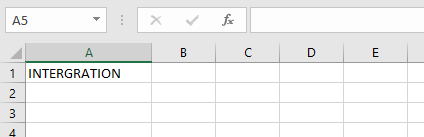
- Go to cell B2 and type:
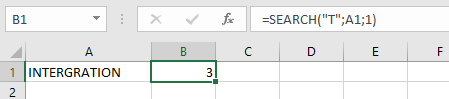
=SEARCH(« T »; A1; 1)
- Press Enter.
The position of « T » in cell A1 is 3.
Example 2:
Search for the position of « MAN » in cell C1 in the table below.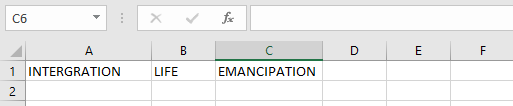
- Go to cell D2 and type:
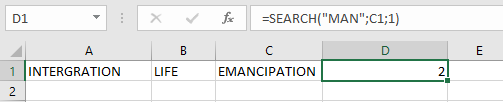
=SEARCH(« MAN »; C1; 1)S
- Press Enter.
The position of « MAN » in cell D1 is 2.
How to use the DDB function in Excel
The DDB function calculates the depreciation of an asset for a specific period using the double-declining balance method or another specified method by adjusting the factor argument. It uses the following arguments:
=DDB(cost; salvage; life; period; [factor])
- Cost (Required Argument): This is the initial cost of the asset.
- Salvage (Required Argument): This is the value of the asset at the end of its depreciation, also known as the salvage value.
- Life (Required Argument): This is the number of periods over which the asset depreciates, often referred to as the asset’s useful life.
- Period (Required Argument): This is the specific period for which the depreciation is calculated.
- Factor (Optional Argument): This is the rate at which the balance declines. If omitted, it defaults to 2 (double-declining balance method).
Using the DDB Function
Let’s calculate the depreciation of an asset with an initial cost of £300 000, a salvage value of £5 000 after 5 years, and a depreciation period of 2 years. We will use the DDB function with a factor of 1.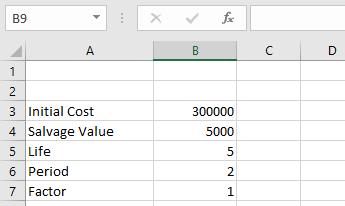
To calculate the depreciation using the DDB function:
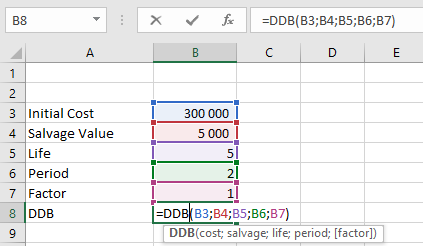
- Select an empty cell and enter the function with its arguments:
=DDB(B3; B4; B5; B6; B7)
(Where B3 = Cost, B4 = Salvage, B5 = Life, B6 = Period, B7 = Factor)
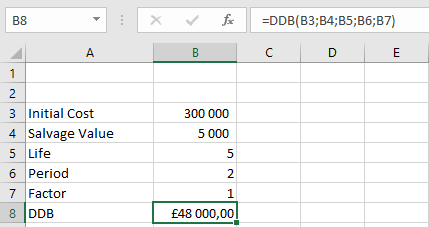
- Press Enter, and the depreciation value of the asset will be displayed as £48000,00, as shown in the table below.
Important Notes When Using the DDB Function
- A #VALUE! error occurs if any of the arguments provided are non-numeric.
- A #NUM! error occurs in the following cases:
- If the cost or salvage value is less than 0.
- If the life of the asset is less than or equal to zero.
- If the period argument is less than or equal to 0 or greater than the life value.
- If the factor argument is less than 1.
How to use the DB function in Excel
The DB function calculates the depreciation of an asset using the fixed declining balance method for a specified period. It utilizes the following arguments to perform its operations:
=DB(cost; salvage; life; period; [month])
- Cost (Required Argument): This is the initial cost of the asset.
- Salvage (Required Argument): This is the value of the asset at the end of its depreciation, also known as the salvage value.
- Life (Required Argument): This represents the number of periods over which the asset depreciates, often referred to as the asset’s useful life.
- Period (Required Argument): This is the specific period for which the depreciation is calculated.
- Month (Optional Argument): This indicates the number of months in the first year used for depreciation calculation. If omitted, the function defaults to 12 months.
Using the DB Function
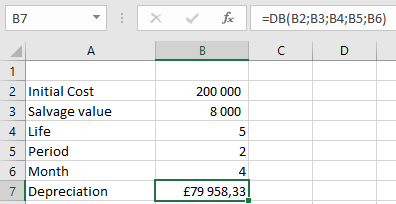
Let’s calculate the depreciation of an asset with an initial cost of £200 000, a salvage value of £8 000 after 5 years, and a depreciation period of 2 years with 4 months in the first year.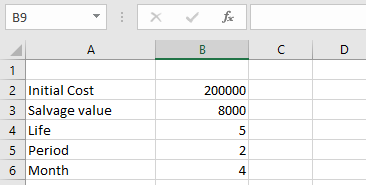
To find the depreciation value using the DB function:
- Select an empty cell and enter the function with its arguments:
=DB(B2; B3; B4; B5; B6)
(Where B2 = Cost, B3 = Salvage, B4 = Life, B5 = Period, B6 = Month)
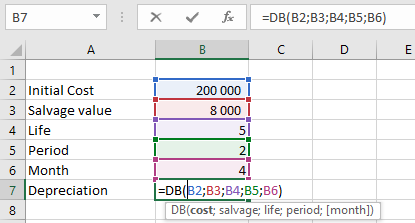
- Press Enter, and the depreciation value of the asset will be displayed as £79958,33, as shown in the table below.
Important Notes When Using the DB Function
- A #VALUE! error occurs if any of the arguments provided are non-numeric.
- A #NUM! error occurs in the following cases:
- If the cost or salvage value is less than zero.
- If the life or period argument is less than or equal to zero.
- If the month argument is less than or equal to zero or greater than 12.
- If the period argument is greater than the life argument and the month argument is omitted.
- If the period provided is greater than life + 1.
How to use the SYD FUNCTION in Excel
The SYD function is used to calculate the sum-of-years’ depreciation of an asset over a specific period within its useful life. This method focuses on the initial cost of the asset, its salvage value, and the number of periods over which the asset depreciates.
The SYD function uses the following syntax for its calculations:
=SYD(cost; salvage; life; per)
- Cost (Required Argument): This is the initial cost of the asset.
- Salvage (Required Argument): This is the value of the asset at the end of its useful life, also known as the salvage value.
- Life (Required Argument): This represents the total number of periods over which the asset depreciates, often referred to as the useful life of the asset.
- Per (Required Argument): This is the specific period for which the depreciation is being calculated.
USING THE SYD FUNCTION
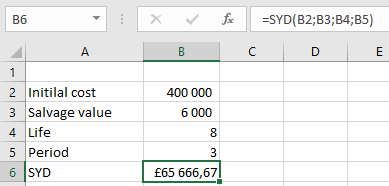
Let’s assume we want to calculate the depreciation of an asset with an initial cost of £400 000, a salvage value of £6 000, and a useful life of 8 years. We want to calculate the depreciation for the 3rd year.
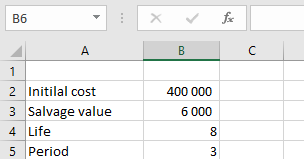
To calculate the sum-of-years’ depreciation:
- Select an empty cell and enter the function with its arguments:
=SYD(B2; B3; B4, B5)
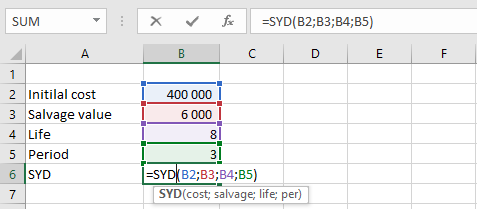
- Press Enter, and the depreciation value for the specified period will be calculated. In this example, the depreciation value is £65 666,67, as shown in the table below.
IMPORTANT NOTES WHEN USING THE SYD FUNCTION
- The life and per arguments must use the same units of time (e.g., days, months, or years).
- A #VALUE! error occurs if any of the arguments provided are non-numeric.
- A #NUM! error occurs in the following cases:
- If the salvage value is less than zero.
- If the life or per argument is less than or equal to zero.
- If the per argument is greater than the life argument.
How to use the SLN function in Excel
The SLN function is used to calculate the depreciation of an asset using the straight-line depreciation method for a single period. This method evenly spreads the cost of the asset over its useful life.
The SLN function uses the following syntax for its calculations:
=SLN(cost; salvage; life)
- Cost (Required Argument): This is the initial cost of the asset.
- Salvage (Required Argument): This is the value of the asset at the end of its useful life, also known as the salvage value.
- Life (Required Argument): This represents the number of periods over which the asset depreciates, often referred to as the useful life of the asset.
USING THE SLN FUNCTION
Using the table below, let’s calculate the depreciation of an asset with an initial cost of £55000, a salvage value of £8 500, and a useful life of 10 years.
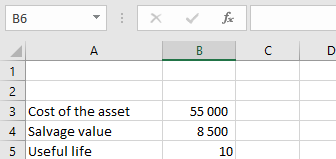
To calculate the depreciation:
- Select an empty cell and enter the function with its arguments:
=SLN(B3; B4; B5)
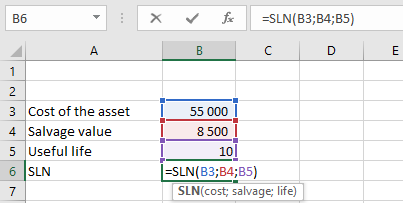
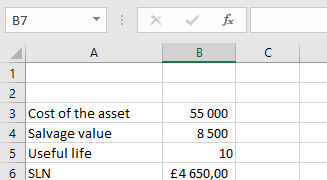
- Press Enter, and the depreciation value will be calculated. In this example, the depreciation value is £4 650,00, as shown in the table below.
IMPORTANT NOTES WHEN USING THE SLN FUNCTION
- A #DIV/0! error occurs if the life argument is equal to zero.
- A #VALUE! error occurs if any of the arguments provided are non-numeric.
How to use the PMT function in Excel
The PMT function is used to calculate the total payment required to repay a loan or investment with a fixed interest rate over a specified period. It is particularly useful for determining periodic payments for loans, mortgages, or investments.
The PMT function uses the following syntax for its calculations:
=PMT(rate; nper; pv; [fv]; [type])
- Rate (Required Argument): This is the interest rate for the loan or investment.
- Nper (Required Argument): This represents the total number of payments to be made over the lifetime of the loan or investment.
- Pv (Required Argument): This is the present value, or the total amount that a series of future payments is worth now. It is also referred to as the principal.
- Fv (Optional Argument): This is the future value or the cash balance you aim to achieve after the last payment is made. If omitted, it defaults to 0.
- Type (Optional Argument): This indicates when payments are due. If omitted, it defaults to 0, meaning payments are due at the end of the period. If 1 is used, payments are due at the beginning of the period.
USING THE PMT FUNCTION
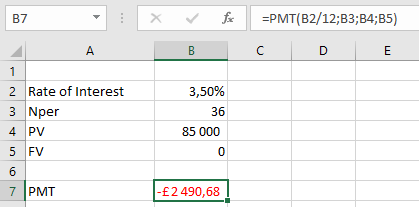
Using the table below, let’s assume we need to invest for three years to receive £85,000 with an annual interest rate of 3,5%. Payments will be made at the start of each month, and the future value is 0.

To calculate the PMT:
- Select an empty cell and enter the function with its arguments:
=PMT(B2/12; B3; B4; B5)

- Press Enter, and the payment amount will be calculated. In this example, the payment is -£2 490,87, as shown in the table below.
IMPORTANT NOTES WHEN USING THE PMT FUNCTION
- A #VALUE! error occurs if non-numeric arguments are provided.
- A #NUM! error occurs if the given interest rate is less than or equal to -1.
- A #NUM! error also occurs if the number of payment periods (nper) is 0.
- When calculating monthly or quarterly payments, ensure the annual interest rate is converted to a monthly or quarterly rate.
- To find the total amount paid over the duration of the loan, multiply the calculated PMT by the total number of payment periods (nper).
How to use the NPV function in Excel
The NPV function is used to calculate the net present value of an investment by utilizing a discount rate and a series of future cash flows. It helps determine the profitability of an investment by considering the time value of money.
The NPV function uses the following syntax for its calculations:
=NPV(rate, value1, [value2], …)
- Rate (Required Argument): This is the discount rate applied over the length of a period.
- Value1 (Required Argument): This represents the first value in a series of cash flows, which can include both payments (negative values) and income (positive values). Negative values indicate outgoing payments, while positive values indicate incoming payments.
- Value2 (Optional Argument): This represents additional values in the series of cash flows, following the same rules as Value1.
USING THE NPV FUNCTION
Using the table below, let’s calculate the net present value with the NPV function:
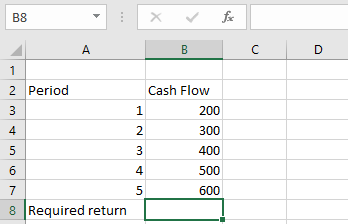
To calculate the net present value;
- Select an empty cell and enter the function with its arguments:
=NPV(B9; B3:B8)
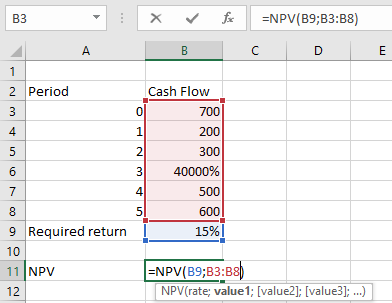
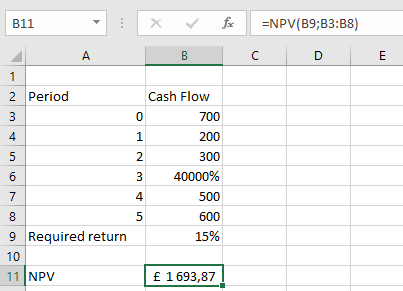
- Press Enter, and the net present value will be calculated. In this example, the net present value is £1 693,87, as shown in the table below.
IMPORTANT NOTES WHEN USING THE NPV FUNCTION
- All arguments must be numerical or functions that return numerical values. Any other form of input will result in an error.
- In the NPV function, only arrays containing numerical values are evaluated. All other values are ignored.
- The order of cash flow inputs is important and must be entered correctly.
- The NPV function assumes that payments are evenly spaced and occur at regular intervals.
- The NPV function is closely related to the IRR (Internal Rate of Return) function, as both are used to evaluate the profitability of investments.
How to use the FV function in Excel
The FV function is designed to calculate the future value of an investment or loan based on periodic, constant payments and a constant interest rate. It is commonly used to determine the value of an investment or loan at a future point in time.
The FV function uses the following syntax for its calculations:
=FV(rate, nper, pmt, [pv], [type])
- Rate (Required Argument): This is the interest rate per compounding period.
- Nper (Required Argument): This represents the total number of payment periods over the lifetime of the investment or loan.
- Pmt (Optional Argument): This indicates the payment made each period. If this argument is omitted, the pv (present value) argument must be provided.
- Pv (Optional Argument): This represents the present value of the investment or loan. If this argument is omitted, the pmt (payment) argument must be provided.
- Type (Optional Argument): This specifies whether payments are made at the beginning or end of the period. Entering 0 means payments are due at the end of the period, while 1 means payments are due at the beginning.
USING THE FV FUNCTION
Using the information in the table below, let’s calculate the future value with the FV function:
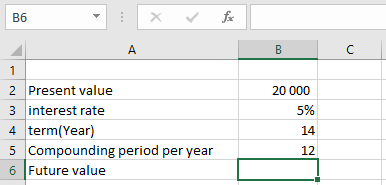
To find the future value of the table above using the FV function
- Select an empty cell and enter the function with its arguments:
=FV(B3/B5, B4*B5, 0, -B2)
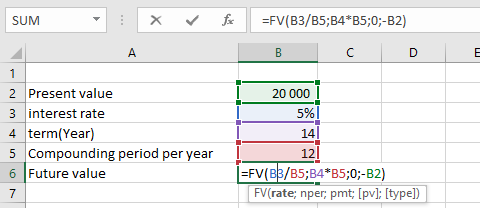
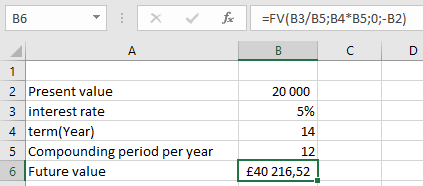
- Press Enter, and the future value will be calculated. In this example, the future value is £40 216,52, as shown in the table below.
IMPORTANT NOTES WHEN USING THE FV FUNCTION
- If non-numeric arguments are provided, the FV function will return a #VALUE! error.
- The payment value (pmt) will appear as a negative number when it represents cash going out of a business (e.g., loan payments or investments).
How to use the PV function in Excel
The PV function, which stands for Present Value, is designed to calculate the present value of an investment or loan based on a constant interest rate. It can be applied to scenarios involving periodic, constant payments, such as mortgages or other loans, or to determine the present value of a future investment goal.
The PV function uses the following syntax for its calculations:
=PV(rate, nper, pmt, [fv], [type])
– Rate (Required Argument): This represents the interest rate per compounding period. For example, a loan with a 14% annual interest rate and monthly payments would have a monthly interest rate of 1.2% (i.e., 14/12 = 1.2%).
– Nper (Required Argument): This is the total number of payment periods required to repay the loan. For instance, a 4-year loan with monthly payments would have 48 payment periods (4 x 12).
– Pmt (Required Argument): This is the fixed payment amount made each period, which remains constant throughout the investment or loan term.
– Fv (Optional Argument): This refers to the future value of the investment at the end of the payment period. If no value is provided, Excel defaults this to 0.
– Type (Optional Argument): This indicates whether payments are made at the beginning or end of the period. Entering 0 means payments are due at the end of the period, while 1 means payments are due at the beginning.
USING THE PV FUNCTION
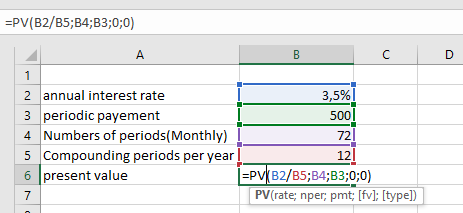
Consider the example of an annuity that makes periodic payments of $500,00 with an annual interest rate of 3,5%. The annuity makes monthly payments over a period of 6 years. To calculate the present value using the PV function, follow these steps:
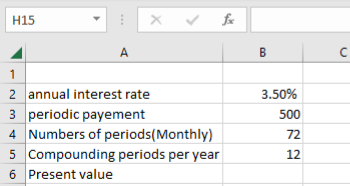
To find the present value of the table above using the PV function
- Select an empty cell and enter the function with its arguments:
=PV(B2/B5, B4, B3, 0, 0)
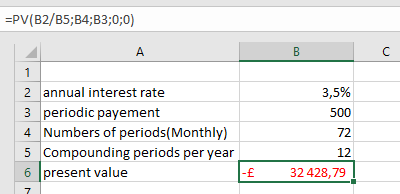
- Press **Enter**, and the present value will be calculated. In this example, the present value is **-£32 428,79**, as shown in the table below.
IMPORTANT NOTES WHEN USING THE PV FUNCTION
– If non-numeric arguments are provided, the PV function will return a `#VALUE!` error.
– The annual interest rate cannot be automatically converted to a periodic rate within the PV function. You must manually convert it before using the function