Votre panier est actuellement vide !
Étiquette : financial-function
How to use the INTRATE() function in Excel
Its calculates the equivalent annual interest rate (in arrears) for a discounted security (e.g., zero-coupon bond) with intra-year maturity.
Syntax
INTRATE(Settlement; Maturity; Investment; Repayment; [Basis])
Arguments
Argument Description Settlement (required) Purchase date of the security (time truncated). Maturity (required) Maturity/redemption date (time truncated). Investment (required) Purchase price (must be > 0). Repayment (required) Redemption value at maturity (must be > 0). Basis (optional) Day-count convention (see Table 15-2). Default: 0 (US 30/360). Error Handling
- #VALUE! → Invalid dates or non-numeric inputs.
- #NUMBER! → If:
- Investment ≤ 0 or Repayment ≤ 0.
- Basis < 0 or > 4.
- Settlement ≥ Maturity.
Background
- Anticipative vs. Arrears Yield:
- Anticipative (DISC): Interest deducted upfront (e.g., T-bills).
- Arrears (INTRATE): Interest paid at maturity (converted to annual equivalent).
- Formula:

- Comparison: Use to contrast with fixed-income securities paying periodic interest.
Example
Treasury Bill (T-Bill) Calculation
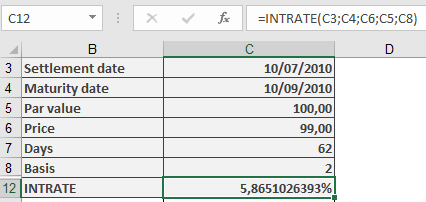
- Purchase Date: 10, 07, 2010
- Maturity: 10, 09, 2010
- Purchase Price (Investment): $99
- BASIS: 2
- Par Value: 100
=INTRATE(« 10/09/2010 », « 10/09/2010 », 99, 100, 2)
Result: 5.87% annual yield.
Key Notes
- No Compounding: Simple interest only.
- Inverse of DISC(): Converts discount rate to equivalent annual yield.
- Use Case: Compare short-term securities (e.g., commercial paper, T-bills).
How to use the FVSCHEDULE() function in Excel
Calculates the future value of an initial investment (Principal) after applying a series of variable compound interest rates over successive periods.
Syntax
FVSCHEDULE(Principal; Schedule)
Arguments
- Principal (required)
The initial investment amount. Must be a numeric value. - Schedule (required)
An array of interest rates for each period (e.g., {0.02, 0.03, 0.025}).- Can be a range reference (e.g., C2:C7) or a hardcoded array (e.g., {0.01, 0.02}).
- Non-numeric values → #VALUE! error.
- Empty cells → Treated as 0% interest for that period.
Key Features
- Variable Rates: Each period’s interest rate can differ (unlike FV(), which uses a fixed rate).
- Compound Interest: Interest earned in each period is reinvested.
Example
German Federal Savings Bonds (Type B)
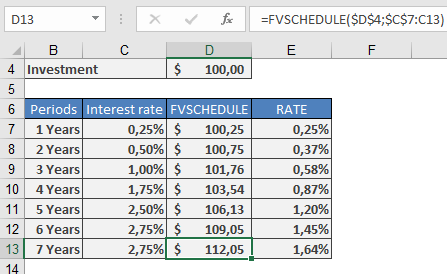
Scenario: A €100 bond with annual interest rates as follows:Year Interest Rate 2010–2011 0.25% 2011–2012 0.50% 2012–2013 1.00% 2013–2014 1.75% 2014–2015 2.50% 2015–2016 2.75% 2016–2017 2.75% Calculation:
=FVSCHEDULE(100; {0.0025; 0.005; 0.01; 0.0175; 0.025; 0.0275; 0.0275})
Result: €112.23 (future value after 7 years).
Practical Use Cases
- Savings Bonds: Calculate maturity value with fluctuating annual rates.
- Variable-Rate Investments: Project returns for funds with non-fixed yields.
- Loan Analysis: Estimate future debt under changing interest terms.
Comparison to FV()
Feature FVSCHEDULE() FV() Interest Rates Variable per period Fixed for all periods Compounding Automatic Requires manual adjustment Use Case Bonds, variable-rate accounts Fixed annuities, loans Notes
- Negative Rates: Supported (e.g., -0.01 for a 1% loss in a period).
- Zero Rates: Omit or use 0 (no growth for that period).
- Equivalent Fixed Rate: Use RATE() to find the constant rate yielding the same result.
- Principal (required)
How to use the FV() function in Excel
Calculates the future value of an investment or loan based on periodic, constant payments and a constant interest rate.
Syntax
FV(Rate; Nper; Pmt; [Pv]; [Type])
Arguments
- Rate (required)
The interest rate per period (e.g., 4.5% annual → 4.5%/12 for monthly). - Nper (required)
The total number of payment periods (e.g., 15 years × 12 months = 180). - Pmt (optional)
The regular payment per period (annuity). Use 0 if omitted.- Sign Convention:
- Negative (-): Cash outflow (e.g., deposits, loan payments).
- Positive (+): Cash inflow (e.g., withdrawals, dividends).
- Sign Convention:
- Pv (optional)
The present value (initial lump sum). Defaults to 0. - Type (optional)
- 0 (default): Payments at end of period (ordinary annuity).
- 1: Payments at start of period (annuity due).
Error Handling
- Ensure Rate, Nper, Pmt, and Pv are numeric to avoid #VALUE!.
- Nper must be ≥ 1.
Background
FV() solves the time value of money equation:

Examples
- Compound Interest (Lump Sum)
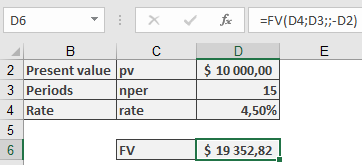
- Scenario: $10,000 invested at 4.5% annual interest for 15 years.
- Formula:
=FV(4.5%, 15, , -10000) → **$19,352.82**
-
- Note: Pv is negative (cash outflow).
- Loan Repayment (Residual Debt)
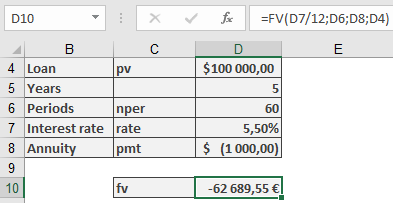
- Scenario: $100,000 loan at 5.5% annual interest, $1,000 monthly payments for 5 years.
- Formula:
=FV(5.5%/12, 5*12, -1000, 100000) → **$62,689.55** (remaining balance)
Key Notes
- Sign Convention: Payments out are negative; inflows are positive.
- Compounding: For loans, interest is typically nominal (e.g., monthly rate = annual rate/12).
- Annuity Types: Type=1 for payments at period start (e.g., leases).
- Rate (required)
How to use the EFFECT() function in Excel
Calculates the effective annual interest rate (compounded) from a nominal annual rate, accounting for intra-year compounding periods.
Syntax
EFFECT(Nominal_Interest; Periods)
Arguments
- Nominal_Interest (required)
The stated annual nominal interest rate (e.g., 0.05 for 5%). Must be > 0. - Periods (required)
The number of compounding periods per year (e.g., 12 for monthly). Must be ≥ 1 (decimal places truncated).
Error Handling
- #VALUE! if non-numeric inputs are provided.
- #NUMBER! if:
- Nominal_Interest ≤ 0.
- Periods < 1.
Background
- Nominal vs. Effective Rates:
- Nominal rates ignore compounding (e.g., 5% annual, paid monthly = 5%/12 per period).
- Effective rates reflect actual annual yield after compounding (e.g., 5% nominal → ~5.12% effective for monthly compounding).
- Formula:

Examples
- Savings Account
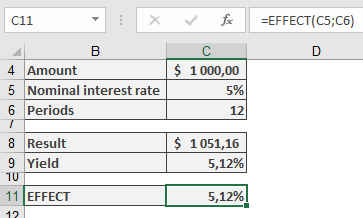
- Scenario: $1,000 deposited at 5% nominal interest, compounded monthly.
- Calculation:
=EFFECT(5%, 12) → Returns **5.12%**
-
- Verification:
- Monthly interest: 5%/12 = 0.4167%.
- Year-end balance: =FV(5%/12, 12, , -1000) = $1,051.16.
- Effective yield: (1051.16 / 1000) – 1 = 5.12%.
- Verification:
- Mortgage Loan
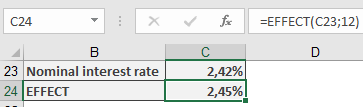
- Scenario: Bank offers 2.42% nominal rate, compounded monthly.
- Calculation:
=EFFECT(2.42%, 12) → Returns **2.45%** (matches advertised effective rate).
-
- Note: Banks may use alternative methods; exact matches may be coincidental.
Key Points
- Comparison Tool: Use to compare loans/investments with different compounding frequencies.
- Limitations: Assumes reinvestment at the same rate; does not account for fees or irregular payments.
- Nominal_Interest (required)
How to use the DURATION() function in Excel
This function calculates the Macauley Duration (named after its developer) of a fixed-interest security, representing the weighted average time until all cash flows (interest and principal) are received.
Syntax
DURATION(Settlement; Maturity; Nominal_Interest; Yield; Frequency; [Basis])
Arguments
- Settlement (required)
The date of purchase for the security. Time values are truncated. - Maturity (required)
The maturity date when the principal is repaid. Time values are truncated. - Nominal_Interest (required)
The annual coupon rate (e.g., 0.0325 for 3.25%). Must be ≥ 0. - Yield (required)
The annual yield to maturity (market discount rate). Must be ≥ 0. - Frequency (required)
Number of coupon payments per year:- 1 = Annual
- 2 = Semi-annual
- 4 = Quarterly
- Basis (optional)
Day-count convention. Defaults to 0 (US (NASD) 30/360).
Error Handling
- #VALUE! if dates or required numbers are invalid.
- #NUMBER! if negative values are entered for Nominal_Interest, Yield, or Frequency.
Background
Macauley Duration measures a bond’s interest rate sensitivity by calculating the weighted average time to receive all cash flows, discounted at the bond’s yield.
- Key Insight: Bonds with shorter durations are less sensitive to interest rate changes.
- Immunization: If duration matches the investment horizon, price and reinvestment risks offset each other.
Example
Comparison of Two Federal Securities (August 30, 2010)
Security Nominal Interest Maturity Price Yield Duration Federal Loan of 2005 3.25% July 4, 2015 109.040 1.31% 4.54 years Federal Medium-Term Bond Series 157 2.25% April 10, 2015 104.500 1.24% 4.40 years A calculation of the duration returns the following result:
Security Duration Federal loan of 2005 4.54 years Federal medium-term bond series 157 4.40 years The federal medium-term bond is preferable. However, the difference regarding the duration is very small. There is also another risk advantage for other debtors, and other terms as well as in regard to tax-related aspects (nominal interest must be reduced depending on the rate of taxation).
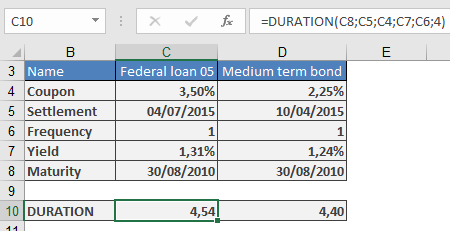
Interpretation:
- The medium-term bond (4.40 years) is preferable due to its shorter duration (lower risk).
- Limitations: Market conditions, credit risk, and tax implications may also influence decisions.
- Settlement (required)
How to use the DOLLARFR() function in Excel
Converts a decimal number into a fractional representation where the decimal portion is expressed as a numerator over a specified denominator.
Syntax
DOLLARFR(Number; Factor)
Arguments
- Number (required)
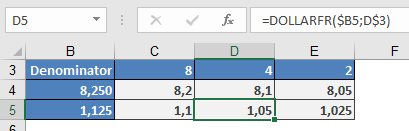
The decimal number to convert (e.g., 8.25 → 8¼). - Factor (required)
The denominator of the fraction (must be a positive integer).- Truncates decimals (e.g., Factor = 4.9 → 4).
- Errors:
- #DIV/0! if Factor = 0.
- #NUMBER! if Factor < 0.
Background
Historically, U.S. stock markets priced securities in fractions (e.g., ¼, ½, ⅛). This function reverts decimals to fractional notation for compatibility with legacy systems.
Example
Notes
- Formatting: The result displays as a decimal but represents a fraction (e.g., 8.1 = 8 + 1/4).
- Inverse Function: Use DOLLARDE() to convert fractional notation back to decimals.
- Precision: Truncates excess decimals (e.g., 1.13 with Factor = 8 → 1.1 = 1⅛).
- Number (required)
How to use the DOLLARDE() function in Excel
Converts a fractional number (expressed with a decimal numerator) into a decimal value by applying a specified denominator.
Syntax
DOLLARDE(Number; Factor)
Arguments
- Number (required)
The value whose decimal portion is treated as the numerator of a fraction.- Example: 1.1 with Factor = 2 → 1 + 1/2 = 1.5.
- Factor (required)
The denominator of the fraction. Must be a positive integer (decimal places are truncated).- If Factor ≤ 0, returns:
- #NUMBER! (for negative values).
- #DIV/0! (if zero).
- If Factor ≤ 0, returns:
Background
Historically, U.S. stock markets used fractional pricing (e.g., 1¼ dollars). This function standardizes such values into decimals for easier comparison.
- Common denominators: 2 (halves), 4 (quarters), 8 (eighths), 16 (sixteenths).
Example

Input (Number) Factor Interpretation Result (DOLLARDE) 1.1 2 1 + 1/2 = 1.5 1.5 1.1 4 1 + 1/4 = 1.25 1.25 1.1 8 1 + 1/8 ≈ 1.125 1.125 2.2 4 2 + 2/4 = 2.5 2.5 2.2 8 2 + 2/8 = 2.25 2.25 Notes
- Limitation: Decimals beyond the factor’s precision are ignored.
- Example: 1.12 with Factor = 8 → Only 1.1 is read as 1 + 1/8 (=1.125).
- Inverse Function: Use DOLLARFR() to convert decimals back to fractional notation.
- Number (required)
How to use the DISC() function in Excel
This function calculates the discount rate (anticipative interest rate) for a security based on its cash value, redemption value, and time to maturity (simple interest yield).
Syntax
DISC(Settlement; Maturity; Price; Repayment; [Basis])
Arguments
- Settlement (required)
The date when the security is purchased.- Must be a valid date; time values are truncated.
- Maturity (required)
The date when the security matures (redemption date).- Must be a valid date; time values are truncated.
- Price (required)
The purchase price per $100 face value of the security.- Must be a positive number.
- Repayment (required)
The redemption value per $100 face value at maturity.- Must be a positive number.
- Basis (optional)
The day-count convention used for interest calculation.- If omitted, defaults to 0 (US (NASD) 30/360).
Error Handling
- If invalid dates or non-numeric values are provided, #VALUE! is returned.
- If invalid numbers (e.g., negative prices) are entered, #NUMBER! is returned.
Background
The anticipative interest method calculates yield upfront (discounting from the future value), unlike traditional interest calculations (yield in arrears).
- Common in short-term securities (e.g., treasury bills, commercial paper).
- The formula for the discount rate is derived from:
Discount Rate=Repayment−PriceRepayment×Days in YearDays to MaturityDiscount Rate=RepaymentRepayment−Price×Days to MaturityDays in Year

- Relationship to RECEIVED():
DISC() and RECEIVED() are inverse functions, allowing conversion between anticipative and arrears interest rates.
Examples
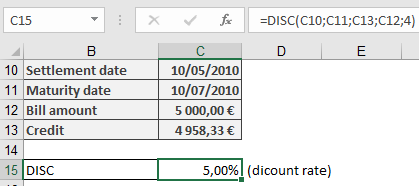
- Bill of Exchange Discounting
- Scenario: A $5,000 bill of exchange with 2 months to maturity is discounted at $4,958.33.
- Formula:
=DISC(« 10-May-2010 », « 10-Jul-2010 », 4958.33, 5000, 4)
-
- Result: 5% discount rate.
- Treasury Bond Yield
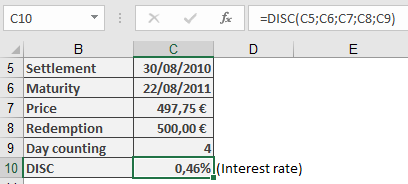
- Scenario: A German treasury bond (face value €500) priced at €497.75 with 1-year maturity.
- Formula:
=DISC(« 30-Aug-2010 », « 22-Aug-2011 », 497.75, 500, 4)
-
- Result: 0.46% annual discount rate.
Notes
- For tax or regulatory compliance, verify day-count conventions (Basis).
- Use YIELDDISC() or RECEIVED() for equivalent yield calculations.
- Settlement (required)
How to use the DDB() function in Excel
This function calculates depreciation amounts using a multiple-rate (accelerated) depreciation method.
Syntax
DDB(Purchase_Value; Residual_Value; Life; Period; [Factor])
Arguments
- Purchase_Value (required)
The purchase cost of an asset (net purchase price plus incidental expenses minus purchase cost reductions).- If a non-numeric value is provided, the #VALUE! error is returned.
- If a negative number is entered, the #NUMBER! error is returned.
- Residual_Value (required)
The value of the asset at the end of its depreciation period.- If a non-numeric value is provided, the #VALUE! error is returned.
- If a negative number is entered, the #NUMBER! error is returned.
- Life (required)
The number of periods over which the asset is depreciated.- Must be a positive integer.
- Period (required)
The specific period within the depreciation duration for which the depreciation amount is calculated.- Must be a positive integer not exceeding the value of Life.
- Factor (optional)
The multiplier applied to the straight-line depreciation rate (reciprocal of the depreciation duration).- If omitted, Excel uses a default value of 2 (double-declining balance method).
Background
Depreciation reflects the loss of an asset’s value over time and makes this loss visible. It should not be confused with wear-and-tear depreciation, which relates to the cost allocation of an asset as an operating expense from a tax perspective.
This method initially follows straight-line depreciation but applies an additional factor to the depreciation rate, making it a geometric (accelerated) depreciation.
- If the factor is 2, it is called the double-declining balance method.
- Higher factors result in faster depreciation in early periods.
Example
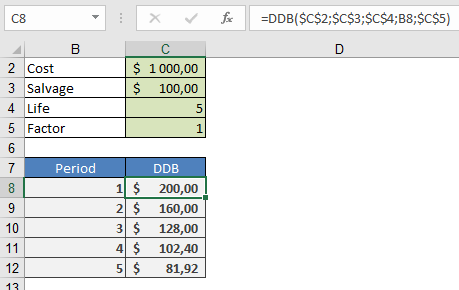
An asset with a purchase cost of $1,000.00 is depreciated over five years to a residual value of $100.00 using the double-declining balance method.
- The depreciation amount for each period can be calculated using DDB() and subtracted from the previous period’s book value.
- Alternatively, a custom depreciation schedule can be created, especially for tax-compliant methods, as built-in functions may not always apply.
- Purchase_Value (required)
How to use the DB() function in Excel
This function calculates the depreciation amounts for an asset using the declining balance (geometric-degressive) depreciation method, accounting for partial years (in complete months) in the first depreciation period.
Syntax
DB(Purchase_Value; Residual_Value; Life; Period; [Months])Arguments
- Purchase_Value (required)
The purchase cost of an asset (net purchase price plus incidental expenses minus purchase cost reductions).- If a non-numeric value is provided, the #VALUE! error is returned.
- If a negative number is entered, the #NUMBER! error is returned.
- Residual_Value (required)
The value of the asset at the end of its depreciation period.- If a non-numeric value is provided, the #VALUE! error is returned.
- If a negative number is entered, the #NUMBER! error is returned.
- Life (required)
The number of periods over which the asset is depreciated.- Must be a positive integer.
- Period (required)
The specific period within the depreciation duration for which the depreciation amount is calculated.- Must be a positive integer not exceeding the value of Life.
- Months (optional)
Specifies the duration of a partial period in the purchase year (in complete months).- If omitted, Excel assumes a full year (12 months).
Background
Depreciation reflects the loss of an asset’s value over time and makes this loss visible. It should not be confused with wear-and-tear depreciation, which relates to the cost allocation of an asset as an operating expense from a tax perspective.For the declining balance depreciation rate, the following formula applies:
Depreciation Rate=1−(Residual_ValuePurchase_Value)1LifeDepreciation Rate=1−(Purchase_ValueResidual_Value)Life1

This explains why a residual value of zero is impractical—depreciation would fully occur in the first year. In such cases, a residual value of $1,000.00 is typically assumed.
In Excel:
- Depreciation values are rounded to three decimal places.
- Each period’s depreciation is applied against the book value.
- The resulting depreciation amount reduces the book value for the next period.
- If the first period is shorter than a year, the depreciation rate is adjusted proportionally (divided by 12).
Example
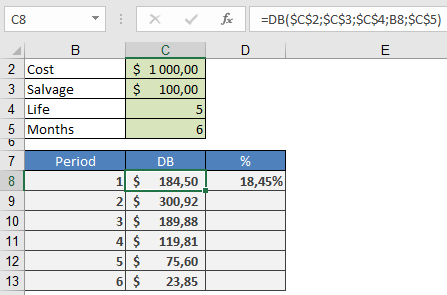
An asset with a purchase cost of $1,000.00 is depreciated over five years to a residual value of $100.00 using the declining balance method. The depreciation amount for each period can be calculated using DB() and subtracted from the previous period’s book value.Alternatively, a depreciation schedule can be created by applying the formulas described above to compute the first depreciation amount and subsequent values.
- Purchase_Value (required)