Votre panier est actuellement vide !
Étiquette : vba
Variable Types in Excel VBA
The data type of a variable specifies the kind of data that the variable can store. You specify the data type of a variable by including the keyword
As. The syntax is as follows:Dim VariableName As Type
If no data type is specified, the default type is Variant. VBA supports the following data types for variables:
Name Type Details Byte Numeric Integer from 0 to 255. Integer Numeric Integer from -32,768 to 32,767. Long Numeric Integer from –2,147,483,648 to 2,147,483,647. Currency Numeric Fixed-point number from –922,337,203,685,477.5808 to 922,337,203,685,477.5807 Single Numeric –3.402823E38 to –1.401298E-45 (negative); 1.401298E–45 to 3.402823E38 (positive) Double Numeric –1.79769313486232E308 to –4.94065645841247E-324 (negative); 4.94065645841247E-324 to 1.79769313486232E308 (positive) String Text Text. Date Date Date and time. Boolean Boolean True or False. Object Object Microsoft object. Variant All Any data type (default if not declared). NOTE
When you find a statement in a VBA procedure that assigns a value to a variable, you can quickly locate the variable’s definition by selecting the variable name and pressing Shift+F2 or choosing View / Definition. Visual Basic jumps to the variable declaration line. Press Ctrl+Shift+F2 or choose View / Last Position to return to the previous cursor location.Boolean Type
You can use the Boolean data type to store Boolean values. Boolean variables can only take two values:
TrueorFalse. A Boolean variable occupies two bytes of space. The declaration is:Dim ProductAvailable As Boolean
A Boolean variable, when converted to another type, returns
-1forTrueand0forFalse. When converting a numeric value to Boolean,0returnsFalseand all other numbers returnTrue.Numeric Data Types
These types are used for mathematical operations such as addition, subtraction, multiplication, etc. For example: percentage calculation, stock price, fees, invoices, age, etc. In VBA, there are six numeric data types:
- Byte, Integer, and Long for integer values
- Single and Double for decimal values
- Currency for monetary values
NOTE
When you declare a variable as an integer type (e.g., Long) and assign it a decimal number, no error occurs, but only the integer part is retained.More than a decade ago, memory optimization was important. Today, with increasingly powerful computers, such concerns are obsolete. You can use Long for all integers and Double for all decimals.
Date Type
You can use the Date data type to store a date. Each Date variable occupies eight bytes. The range for Date is from January 1, 0100 to December 31, 9999, and the time from 0:00:00 to 23:59:59.
Dates must be enclosed in hash signs (
#) when assigned:MyDate = #6/5/01# MyDate = #June 6, 2001#
VBA converts the literal date into the
mm/dd/yyyyformat. You can also assign a time similarly.Object Type
An object variable refers to an entire object, like a Range or Worksheet. These variables are important because:
- They simplify your code.
- They speed up execution.
The
Objectdata type can hold references to any object. However, it’s preferable to declare variables as the specific object type they reference:Dim GenericObj As Object Dim SpecificObj As Worksheet
GenericObjcan reference any object.SpecificObjcan only reference aWorksheet.
Using
Objectis called late binding, meaning the object type isn’t known until runtime, which disables IntelliSense and slows performance slightly.Using a specific type is called early binding, enabling IntelliSense and helping you write code faster.
Declaring a specific object type doesn’t initialize it. Example:
Dim mySheet As Worksheet
Set mySheet = Worksheets("Sheet6")
Use the
Setkeyword when assigning an object reference. You may also need to use theNewkeyword:Set ObjectVar = New ObjectType Dim ObjectVar As New ObjectType
Without Object Variable:
Sub NoObjectType()
    Worksheets("Sheet3").Range("C4").Value = "ELIE"
    Worksheets("Sheet3").Range("C4").Font.Size = 16
    Worksheets("Sheet3").Range("C4").Font.Name = "Verdana"
    Worksheets("Sheet3").Range("C4").Font.Bold = True
    Worksheets("Sheet3").Range("C4").Font.Italic = True
End Sub
With Object Variable:
Sub WithObjectType()
Dim myRange As Range Set
     myRange = Worksheets("Sheet6").Range("C4")
     myRange.Value = "ELIE"
     myRange.Font.Size = 16
     myRange.Font.Name = "Verdana"
     myRange.Font.Bold = True
     myRange.Font.Italic = True
End Sub
String Type
Use the
Stringtype when your variable holds text. Strings are enclosed in quotation marks.Dim myVar As String myVar = "This is a string"
By default, strings are variable-length. You can also declare fixed-length strings:
Dim myVar As String * 50
This sets the string length to exactly 50 characters. Extra characters are truncated; shorter strings are padded with spaces.
VBA supports only concatenation as a string operation, using
&or+. Prefer&to avoid confusion:Dim x As String x = "Visual Basic " & "for Applications"
Variant Type
The
Varianttype is the default for undeclared variables. You can declare it explicitly:Dim myVar As Variant
Variants can hold strings, dates, booleans, or numbers and automatically convert between types. Numeric variants need 16 bytes; string variants need 22 bytes plus character storage. Due to memory usage, prefer explicitly declaring types.
User-Defined Types (UDT)
A user-defined type (UDT) lets you group different data types into a single structure. You define it using the
Typestatement, usually at the top of the module:Type ClientInfo Company As String Phone As Long City As String POBox As Long Income As Double End TypeDeclare an array of this type:
Dim Clients(1 To 20) As ClientInfo
Access individual fields:
Clients(5).Company = "CESTAD ANALYTICS"
Clients(5).Phone = 699072798
Clients(5).City = "Douala"
Clients(5).POBox = 15652
Clients(5).Income = 17598000
Limitations:
- Cannot instantiate dynamically.
- Cannot validate fields.
- UDTs are static structures.
Use classes to overcome these.
Identifying Variable Types
Use
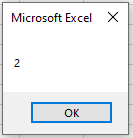
VarType()to determine the data type of a variable:Sub TestVariables() firstName = "chancelin" MsgBox VarType(firstName) age = 33 MsgBox VarType(age) End SubReturns
8(String), then2(Integer).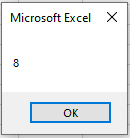
Value Type Return Value Variant 0 Null 1 Integer 2 Long 3 Single 4 Double 5 Currency 6 Date/Time 7 String 8 Boolean 11 Byte 17 If you perform math on a non-numeric Variant, you get a Type Mismatch error.
Functions to Test Variable Values
Numeric Value
UseIsNumeric()to test if a Variant holds a number:Sub TestNumeric() name = "chancelin" MsgBox IsNumeric(name) End SubReturns
False.Date/Time Values
Date/time values are floating-point numbers. The integer part represents days since Dec 31, 1899; the decimal part represents time.Example:
37786.75= June 14, 2003, at 6:00 PM.Use
IsDate()to check for a date:Sub TestDate() myDate = "01-Feb-2002" MsgBox IsDate(myDate) End SubReturns
True.Empty Value
UseIsEmpty()to check if no value has been assigned:MsgBox IsEmpty(MyTest)
Returns
True.Null Value
A Variant can contain a special valueNull, representing unknown or missing data. UseIsNull()to test for it.Return Values
The table below lists constants returned by
VarType():Constant Value Description vbEmpty 0 Variable is uninitialized. vbNull 1 No valid data. vbInteger 2 Integer vbLong 3 Long integer vbSingle 4 Single vbDouble 5 Double vbCurrency 6 Currency vbDate 7 Date vbString 8 String vbObject 9 Object reference vbError 10 Error code vbBoolean 11 Boolean vbVariant 12 Variant (only for arrays of variants) vbDataObject 13 Non-ActiveX object reference vbDecimal 14 96-bit scaled real vbByte 17 Byte vbLongLong 20 LongLong (64-bit only) vbUserDefinedType 36 User-defined type vbArray 8192 Array value Shorter Variable Declarations
Advanced programmers may use abbreviations:
Detailed Shorthand Dim Client As IntegerDim Client%Dim MainClient As LongDim MainClient&Dim Amount As CurrencyDim Amount@Dim ClientInfo As StringDim ClientInfo$You can also use naming conventions to suggest data type, e.g.:
str_messagefor a stringi_SalesJanuaryfor an integer
Variables (Declaration and Scope) in Excel VBA
A variable can simply be a single number, a piece of text, or a series of information that the program needs to retain and refer to during its execution. The program can change the value of a variable during its execution. That is why it is called a variable. If a variable has been defined as a given type, data specified as a different type will not be accepted. For example, if you define a variable as an integer, you cannot insert text into it.
Variable Declaration
To create a variable, you must declare it, that is, assign it a name that can then be reused to operate on the value stored in it. Variable declaration in VBA can be implicit or explicit. In other words, VBA programs can recognize a new variable without it being previously created in a declaration statement. You can also configure the Visual Basic Editor to require explicit variable declaration before use.
You can assign any name you like to a variable, as long as it follows these rules:
- It must begin with a letter.
- It cannot contain more than 255 characters.
- Periods, exclamation points, spaces, and the characters @, &, $, and # are not allowed.
- The variable name must not be a reserved word, meaning a word recognized as part of the Visual Basic language (function name, object, property, argument, etc.).
NOTE
Uppercase and lowercase letters are considered identical in variable names.Implicit Declaration
It is not necessary to declare a variable before using it. You can simply include the statement:
DeclaVaria = 10
A variable will automatically be created for
DeclaVariaas a Variant type (default type) and will have the value 10.Variable types will be presented later in this chapter.
However, the problem is that this can lead to subtle errors in your code if you misspell the variable name in a later statement. For example, if you refer toDeVariainstead ofDeclaVaria, you know what you mean, but VBA does not. It assumesDeVariais a new variable and assigns it as such. The old variableDeclaVariastill exists but is no longer used. You now have two different variables, although you think you only have one. This can cause major issues that may take a long time to correct in your code.Explicit Declaration
To avoid the issue of incorrect variable names, you can require VBA to always generate an error message whenever it encounters an undeclared variable.
To force variable declaration before use, add the
Option Explicitstatement. Its use helps prevent errors due to typos in variable names. To do this, place yourself in the Declarations section of the module’s Code window and type theOption Explicitstatement, as shown in the following figure.
From now on, the appearance of variable names not previously declared using the
Dimstatement will generate an error, as in the figure.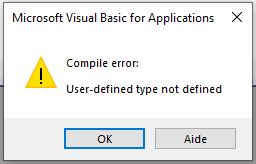
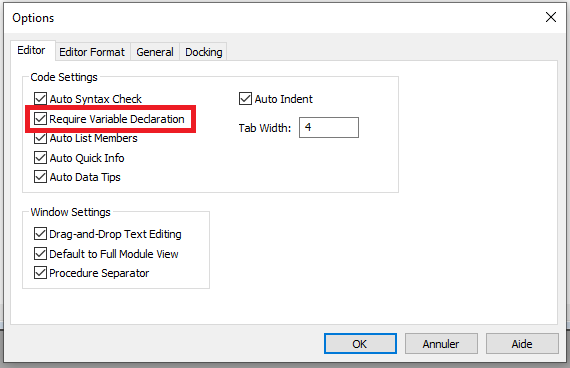
You can also configure the Visual Basic Editor to automatically insert the
Option Explicitstatement in the Declarations section of every new module. Here’s how:- Select the Options command from the Tools menu and go to the Editor tab.
- Check the box Require Variable Declaration, then click OK, as shown in the figure.
The method you use (implicit or explicit) depends on your personal preferences. Coding is often much faster with implicit declaration because you don’t need to define your variables beforehand. You can simply use them, and VBA will handle the rest. However, as mentioned earlier, this can lead to errors unless you have a good memory for the variables you use and the experience to know exactly what you are doing. Implicit declaration can also make it harder for someone else to understand your code. Using
Option Explicitis the best practice and helps prevent runtime errors.Declaring a Variable with the Dim Statement
Variable declaration is done using the
Dimstatement with the following syntax:Dim VariableName As Type
Comments
- The
Dimstatement (short for Dimension) defines a name as a variable and allocates storage space for it. VariableNameis the name chosen for this variable.- The
Askeyword declares the data type. - The
Typeargument represents the data type and can be values likeLong(integer),Double(decimal),String(text type)… It is optional, but specifying a type often saves memory and improves program performance.
You can declare several variables on a single line:
Dim MyVar1, MyVar2, MyVar3 As Long
In this example,
MyVar1andMyVar2are declared as Variant (the default type in VBA), and onlyMyVar3is declared as Long. Why? Because Excel VBA requires that each variable’s type be declared explicitly, even if they’re on the same line (unlike C or many other languages). To declare all three variables as Long, the correct syntax is:Dim MyVar1 As Long, MyVar2 As Long, MyVar3 As LongVariable Scope and Lifetime
All procedures, functions, variables, and constants in VBA have their own scope. This means they can only be used in a specific area of the program’s code, precisely where they are defined.
For example, if variable
Ais defined in the body of a procedure namedProcedure1(), then that procedure is its scope. So, if another procedureProcedure2()exists, you cannot use the same variable name in it. If you try, you will either get an error (ifOption Explicitis active), or you will simply have another variable with the same name, unrelated to the first one.There are three types of variable scope:
- Procedure-level scope: Variables declared with
DimorStaticinside a procedure are recognized only within that procedure. These are called local variables. - Module-level scope: Variables declared using
DimorPrivateoutside of any procedure, in the declarations area of a module, can be used throughout that module only. - Project-level scope: Variables declared with the
Publickeyword at the module level are available to all procedures in the project. These are called public variables.
A variable declared with
Privateretains its value only during the execution of the procedure where it is defined. After the procedure ends, its value is lost. When the procedure runs again, the variable is reinitialized. However, variables declared withStaticretain their value after the procedure ends and while the program continues running.Let’s examine the scope of procedures and functions.
Procedures and functions only have two levels of scope: module-level and project-level. The default is project-level. Therefore, a procedure or function can be called by any other procedure or function in the project. The optional
Publickeyword can also be used for project-level procedures. Its presence or absence has no effect on behavior.If you want a procedure to be used only within the current module, use the
Privatekeyword. Note that this not only restricts the procedure’s scope but also prevents it from being used as an independent procedure—it can only be called from another procedure.Finally, the
Statickeyword can be used with procedures or functions. It does not affect the scope but affects all variables declared within it. In this case, all local variables retain their values after the procedure ends and preserve them when called again.Example:
Public B1 As String
Private B2 As Integer
Dim B3 As Single
Sub Procedure1()
   Dim B4 As Integer
   Static B5 As Integer
   B1 = "Un texte"
   B2 = 2
   B3 = 3.14
   B4 = B4 + 4
   B5 = B5 + 5
   MsgBox B4
   MsgBox B5
End Sub
Sub Procedure2()
   Procedure1
   MsgBox B1
   MsgBox B2
   MsgBox B3
   MsgBox B4
   MsgBox B5
   Procedure1
End Sub
Comments
- In this example,
B1is defined at the project level (withPublic),B2andB3at the module level,B4at the procedure level (inProcedure1()), andB5is defined asStaticwithinProcedure1(). - When
Procedure2()is called, it first callsProcedure1(), which assigns values to all five variables and displays the values ofB4andB5. - Once
Procedure1()ends,Procedure2()displays the current values of all five variables. VariablesB1,B2, andB3retain their values since they are declared at the project or module level. VariablesB4andB5, having procedure scope, are empty—each procedure uses its own variables even if they share names. - When
Procedure1()is called again, the values ofB4andB5are updated and displayed.B4is reset to 4, since it is reinitialized with each call, butB5, being static, retains its previous value, and is incremented to 10.
The Excel VBA Macro Recorder
The Excel VBA Macro Recorder
The easiest way to create a macro is to record your worksheet actions using a valuable tool called Record Macro. All you have to do is turn on the macro recorder, perform the actions that make up the task you want to automate, then turn off the recorder once you’re done. While the macro recorder is active, every action you perform—selecting a cell, entering a number, formatting a range, almost anything—is recorded and represented as VBA code in a new macro. As you’ll see later, when you run the macro created by the recorder, your task is executed automatically as if you had done it manually.
The macro recorder is useful for repetitive common tasks that you’d prefer not to do manually.Create Your First Macro Using the Macro Recorder
Let’s suppose we need to create a macro that activates a worksheet. So, if we have Sheet1 active, we will write a macro to activate worksheet Sheet2.
- Start Microsoft Excel and make sure the cell pointer is on Sheet1.
- To activate the macro recorder, go to the Developer tab on the ribbon, and in the Code group, click Record Macro.

In the Record Macro window that opens, set the required parameters for the recorded procedure: for example, assign the name
ActivateSheet2to the macro, enter appropriate explanations in the Description field, and leave the Store macro in field unchanged. Click OK.
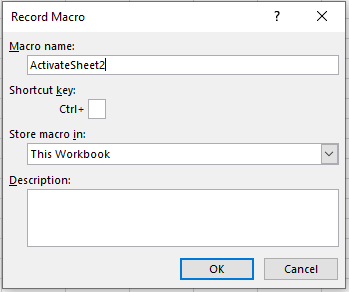
The Macro Name and Description fields are used to specify the macro’s name and its description. A macro name must not contain spaces, and the description is important for reusable macros, as over time it becomes difficult to remember why a given macro was created. By default, macros are named Macro1, Macro2, etc. To facilitate macro recognition, it’s better not to use a standard name but a unique one that describes its purpose.
In last Figure, notice the small box next to Ctrl+ in the Shortcut key section. You can place any letter of the alphabet in this field, and when pressed with the Ctrl key, it becomes a handy way to run the macro.
A shortcut key is not mandatory; in fact, most of your macros won’t need one. But if you choose to assign one, it’s best to use Ctrl+Shift+Key rather than just Ctrl+Key. Excel has already assigned Ctrl plus the 26 letters of the alphabet to built-in shortcuts for various tasks, and it’s best not to override them. For instance, Ctrl+C copies text. However, if you assign Ctrl+C to your macro, you will override the default function and lose the ability to use Ctrl+C to copy text in that workbook.
To use the shortcut key option, click the Shortcut Key field, press Shift, then a letter like S. You’ve now created the shortcut Ctrl+Shift+S, which won’t interfere with Excel’s main shortcuts.The Store macro in dropdown allows you to select the workbook where the macro will be saved. If you select Personal Macro Workbook, the macro will be saved in a special hidden workbook where macros are stored. This workbook is always open but hidden, and the macros in it are available for other workbooks. To view your personal macro workbook, go to the View tab, and in the Window group, click Unhide.
If you select This Workbook (the default choice), the macro is stored in the active workbook. If you select New Workbook, it will be saved in a new workbook.- While recording the macro, go to Sheet2 (the pointer is on cell A1).
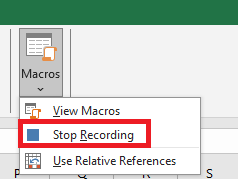
Click the Stop Recording button in the Code group under the Developer tab to stop recording the macro.6.
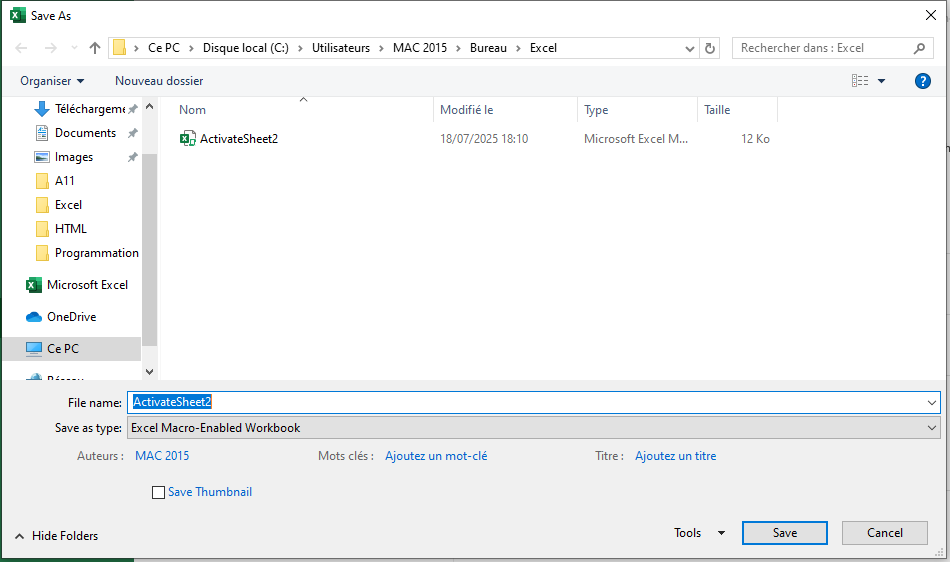
- Save your workbook in a format that supports macros: go to the File tab on the ribbon and select Save As. In the Save As dialog box (Figure 4), choose a save location, enter the workbook
name, and in the Save as type dropdown, choose Excel Macro-Enabled Workbook. Click Save.
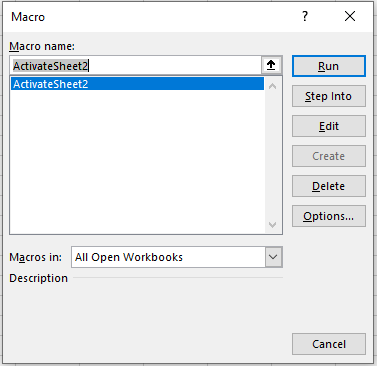
- Go to the Developer tab, click the Macros button in the Code group, and in the Macro window that opens, select your macro from the list (Figure 5) and click Edit.
The screen displays the VBA Editor with the standard module containing the macro code just recorded:
Sub ActivateSheet2()
'
' ActivateSheet2 Macro
'
   Sheets("Sheet2").Select
End Sub
Notes
- A macro starts with the
Substatement and ends withEnd Sub. We’ll go deeper into macro structure in later chapters. ActivateSheet2()is the macro name.- The instruction
Sheets("Sheet2").Selectis the macro body.
Now, without closing this workbook, create another workbook by going to the File tab, selecting New, and choosing Blank Workbook.
- Go to the Developer tab and click Macros in the Code group.
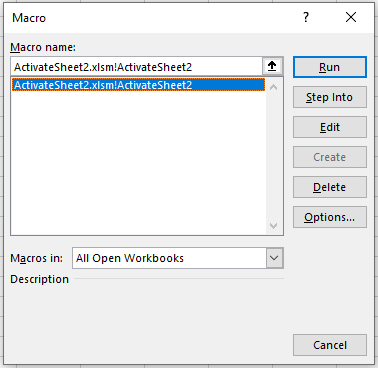
In the Macro window (Figure 6), specify the name of the macro you created and click Run. Ensure that this macro activates Sheet2 in your workbook.
Assigning a Created Macro to a Button
Now let’s assign our created macro to a button placed on the Quick Access Toolbar. Follow these steps:
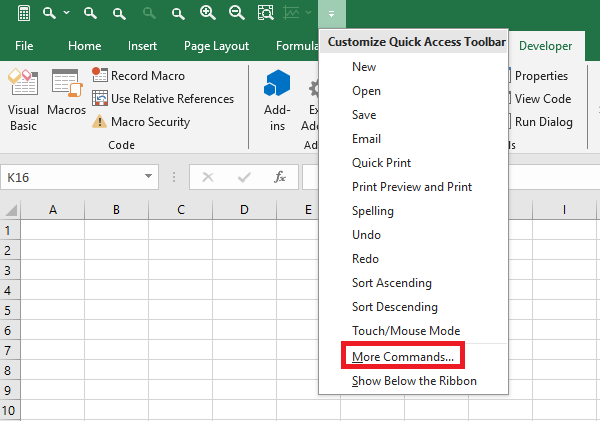
- Right-click on the Quick Access Toolbar and select More Commands… (Figure 7)
In the Excel Options window that opens, in the Quick Access Toolbar category, select Macros from the Choose commands from dropdown list .
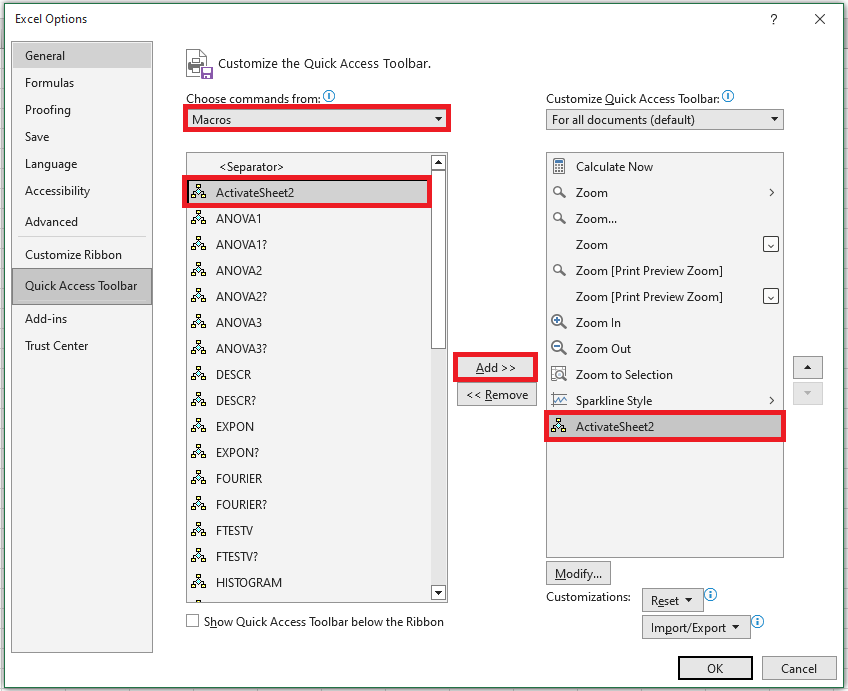
Select the macro
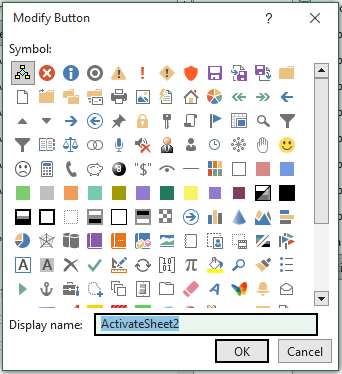
ActivateSheet2that you created in the left column and use the Add >> button to move it to the right column. Note that the Modify button is now available at the bottom of the right column—it’s used to assign an icon to the corresponding macro. Click the Modify button.- In the Modify Button window that opens (Figure 9), choose a symbol for the button using your mouse and, if needed, in the Display Name field, edit the macro name. This display name will appear as a tooltip in the Quick Access Toolbar. Click OK.
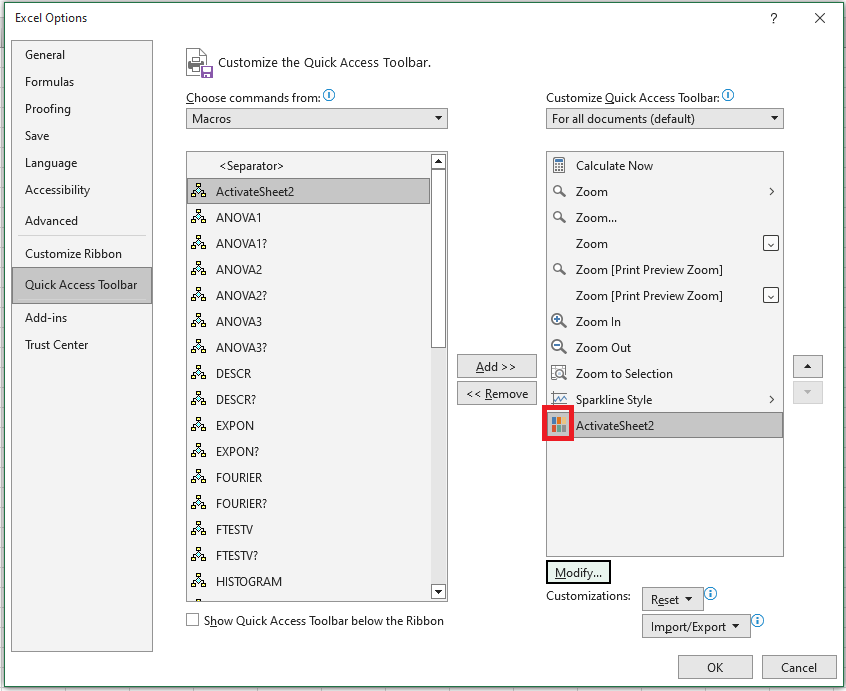
- In the Excel Options window under the Quick Access Toolbar category, the macro button appears in the right column (Figure 10). Click OK.
- Make sure the button with the recorded macro appears in the Quick Access Toolbar.

Automating Worksheet Tasks with Controls
Excel also includes a complete set of controls—command buttons, text boxes, checkboxes, etc.—that you can place on a worksheet if needed. To view the available controls, go to the Developer tab, and in the Controls group, click the Insert button.
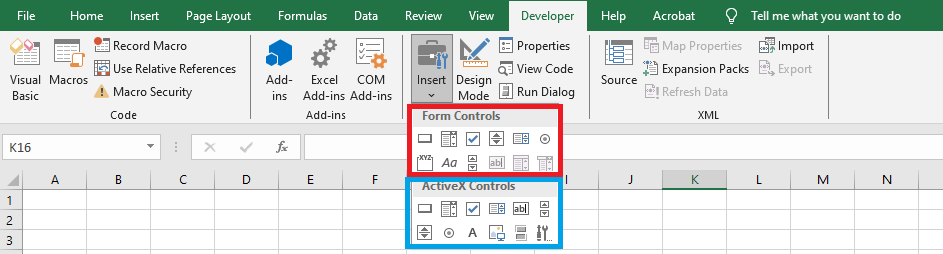
Note: the controls under the Form Controls group are primarily intended for compatibility with files from older Excel versions (up to Excel 97) that use these controls. They are much more limited in capability than the ActiveX Controls. Some of these form controls cannot be used at all in recent Excel documents (text box, list box, combo box). However, these controls have advantages not found in ActiveX controls—for example, they can be placed on chart sheets.
ActiveX controls are standalone components from various applications and can also be used in Microsoft Excel. This group includes controls similar to many in the Form Controls group (UserForm).
In addition to standard controls, you can use extra controls. Excel comes with several of these, such as multimedia controls that let you play sound or video directly from the worksheet. You can also connect controls from other programs or use custom-built controls.
In the worksheet module, you can create procedures that handle events triggered by these controls—for example, pressing a button, selecting a list item, checking an option box, etc. These actions can automatically trigger calculations, build charts, change chart types, and more.
Using a Command Button Control on a Worksheet
We’ll demonstrate how to use an ActiveX Command Button on a worksheet. Suppose that when we click the button, placed on Sheet1, Sheet2 is activated.
- Start Excel and make sure the cell pointer is on Sheet1.
- Go to the Developer tab, and in the Controls group, click the Insert dropdown list.
- Click on the Command Button (ActiveX Control) and move directly to the worksheet—your pointer turns into a thin cross.
Select a location on the worksheet, press the left mouse button, and while holding it, draw the button to the required size. Then release the button.
Note that once the Command Button appears on the sheet, Design Mode is activated.
On the first button’s surface, the default label CommandButton1 is automatically displayed (Figure 14). If you create a second Command Button now, it will be labeled CommandButton2, and so on.
NOTE:
Like any graphical object, a button can be drawn while holding Shift to give it a square shape, or Alt to snap it to the worksheet grid. With the sizing handles, you can adjust its dimensions, and with the move handle, you can set its position.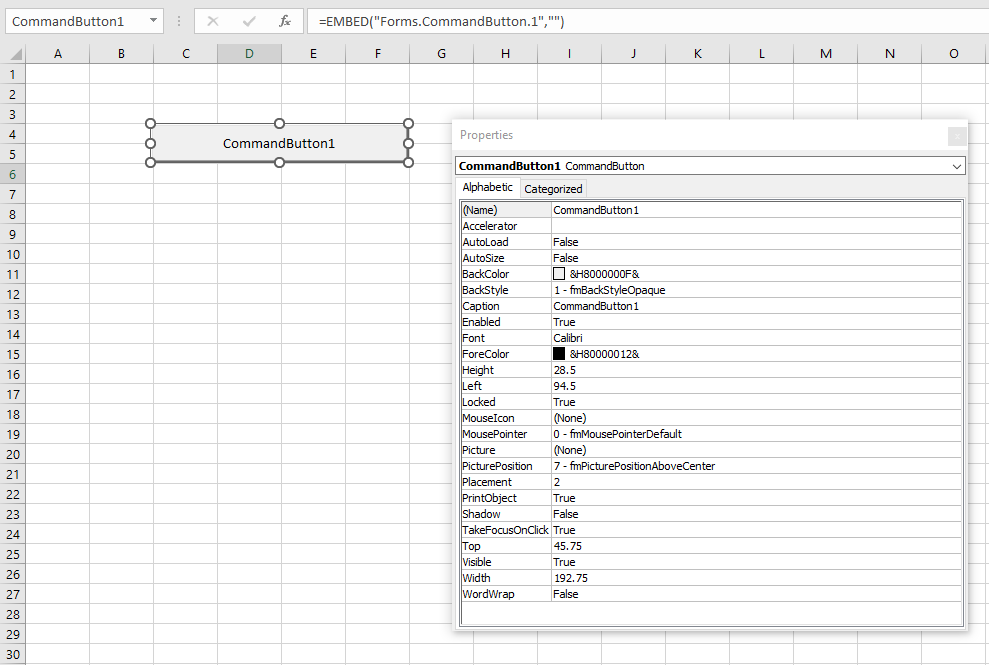
Right-click the created Command Button and in the context menu, select Properties to open the Properties window (see Figure 14). The Command Button is an object, meaning it has properties, methods, and events.
The Caption property sets the name displayed on the button surface. The Name property identifies the object in code. In this case, it’s also CommandButton1. In the Properties window, change the Caption from « CommandButton1 » to Sheet2 (to indicate that this button activates Sheet2). Optionally, test other properties: BackColor, Font, ForeColor, Shadow. Finally, close the Properties window.
- We’ll now write the procedure to handle the Click event. When the event is triggered, Sheet2 will be activated.
Double-click the created Command Button (ensure Design Mode in the Developer tab is still active). This opens the VBA editor with the worksheet module for Sheet1, and automatically adds the starting and ending lines of the event procedure:
Private Sub CommandButton1_Click()
End Sub
- Open the Windows file where you created the
ActivateSheet2macro. Make sure the required module is displayed in the VBAProject – Project Explorer window. - Copy the macro’s line into the clipboard:
Sheets("Sheet2").SelectOf course, you could manually type it, but that’s slower and risks typos. Now insert that line inside the event procedure:
Private Sub
   CommandButton1_Click()
   Sheets("Sheet2").Select
End Sub
Return to Sheet1. The button works only when Design Mode is off. So, click Design Mode in the Controls group on the Developer tab to deactivate it.
8. Test the created Command Button: click it. If everything was done correctly, it will activate Sheet2.Another Example Using the Macro Recorder
Suppose you manage a data table daily, such as the one shown in the following figure, which displays the number of items sold by your company in its East, West, North, and South regions.
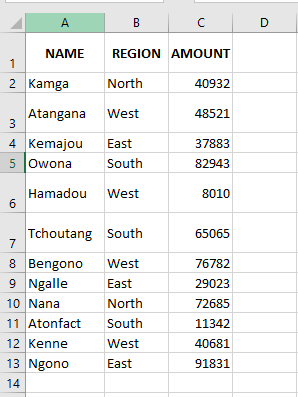
The daily task consists of sorting the table primarily by region, then by item. Your boss wants the columns NAME and REGION to switch places, so that REGION appears in column A and NAME in column B. To improve readability, the numbers in the AMOUNT column must be formatted with a comma separator, and the headers for REGION, NAME, and AMOUNT must be bolded. Next Figure16 shows the finished table, as requested by your boss.
This is normally a six-step process, which is quite tedious but part of your professional responsibilities.
NOTE
Whenever you create a macro, it’s a good idea to plan ahead: think about why you’re creating the macro and what you want the macro to do. This is especially important for complex macros, as you want your code to be efficient and accurate, using only the instructions necessary to get the job done properly. Avoiding excessive code will result in macros that run faster and are easier to edit or troubleshoot. For instance, prepare your workbook in advance to avoid recording unnecessary actions. Make sure the worksheet you’re working on is active and the relevant range is visible.
To complete the task, proceed as follows:
- Insert a new column at column A.
- Select the REGION column, cut it, and paste it into the new column A, to the left of NAME.
- Delete the now-empty column where REGION was.
- Select the range A1:C13 and sort in ascending order by REGION, NAME, and AMOUNT.
- Select range C2:C13 and format the AMOUNT values with a thousands separator.
- Select range A1:C1 and apply bold formatting to the headers.
These steps are not only repetitive but prone to human error. The good news is, if you perform the steps correctly while recording the macro, the task can be reduced to a single mouse click or keyboard shortcut, with VBA doing the heavy lifting for you.
To record the macro that performs this task, follow these steps:
- Start the macro recorder: go to the Developer tab on the ribbon and in the Code group, click Record Macro.
- In the Record Macro dialog box, enter
"FormatData"in the Macro name field, select This Workbook for Store macro in, then click OK. - Now perform the six steps listed above.
- Stop the macro recorder by clicking Stop Recording in the Code group on the Developer tab.
As a result, the following macro will be written to a standard module:
Sub FormatageDonnees()
' FormatageDonnees Macro
' Data Formatting

    Columns("A:A").Select
    Selection.Insert Shift:=xlToRight, CopyOrigin:=xlFormatFromLeftOrAbove

    Columns("C:C").Select
    Selection.Cut
    Columns("A:A").Select
    ActiveSheet.Paste

    Columns("C:C").Select
    Selection.Delete Shift:=xlToLeft

    Range("A1:C13").Select
    ActiveWorkbook.Worksheets("Sheet1").Sort.SortFields.Clear
    ActiveWorkbook.Worksheets("Sheet1").Sort.SortFields.Add Key:=Range("A2:A13"), _
        SortOn:=xlSortOnValues, Order:=xlAscending, DataOption:=xlSortNormal
    ActiveWorkbook.Worksheets("Sheet1").Sort.SortFields.Add Key:=Range("B2:B13"), _
        SortOn:=xlSortOnValues, Order:=xlAscending, DataOption:=xlSortNormal
    ActiveWorkbook.Worksheets("Sheet1").Sort.SortFields.Add Key:=Range("C2:C13"), _
        SortOn:=xlSortOnValues, Order:=xlAscending, DataOption:=xlSortNormal

    With ActiveWorkbook.Worksheets("Sheet1").Sort
        .SetRange Range("A1:C13")
        .Header = xlYes
        .MatchCase = False
        .Orientation = xlTopToBottom
        .SortMethod = xlPinYin
        .Apply
    End With

    Range("C2:C13").Select
    Selection.NumberFormat = "#,##0"

    Range("A1:C1").Select
    Selection.Font.Bold = True
End Sub
Comments
- As seen before, all macros begin with a
Substatement (short for Subroutine, commonly known as a macro), which includes the macro name followed by parentheses. - The comments you see in a recorded macro reflect the information entered in the Record Macro dialog box. For example, if you assign a shortcut key or enter a description, these appear as comments in the code.
- The remaining lines are VBA instructions representing every action performed while recording the macro.
Here’s a breakdown:
- You selected column A.
- You inserted a new column.
- You selected column C, cut it, and pasted it into column A.
- You selected the now-empty column C and deleted it.
- You selected range A1:C13 (the data table).
- You sorted the data.
- You selected C2:C13 to format the numbers.
- You applied a thousands separator.
- You selected A1:C1 for the headers.
- You bolded the font in those cells.
- You stopped the macro recording, which ends with
End Sub.
Improving the Recorded Macro
It’s easy to generate a macro with the Record Macro button. However, the recorded macro often lacks efficiency and produces unnecessary code. To be fair, the Record Macro tool isn’t designed to write optimized code. Its purpose is to produce VBA code that mirrors your on-screen actions exactly.
There’s no rule that says you must always clean up your recorded macros. For simple tasks that work as intended, keeping them as-is can be perfectly fine.
However, for most recorded VBA code, the unnecessary and inefficient parts can’t be ignored. Moreover, if you plan to share your VBA work, you’ll want it to look clean and professional.
A key VBA development principle is: Avoid
SelectandActivateunless necessary. These are often the main reason for slow-running macros.For example, these two recorded lines:
Columns("A:A").Select
Selection.Insert Shift:=xlToRight
Can and should be simplified to:
Columns("A").Insert Shift:=xlToRightSimilarly, this code:
Columns("C:C").Select
Selection.Cut
Columns("A:A").Select
ActiveSheet.Paste
Can be replaced with:
Columns("C").Cut Destination:=Columns("A")And this code:
Columns("C:C").Select
Selection.Delete Shift:=xlToLeft
Can be simplified to:
Columns("C").Delete Shift:=xlToLeftBy streamlining the code, your
FormatDatamacro becomes more readable and much more efficient.The VBA editor
Introduction to the Visual Basic Editor (VBE) in Excel
It is fair to say that for many Excel users, worksheets, pivot tables, charts, and hundreds of formula functions are all the tools they need to satisfactorily manage their spreadsheet activities. For them, the familiar workbook environment is the only aspect of Excel they see, and it is obviously the only aspect of Excel they are likely aware of.
But Excel has a separate, less visible environment working behind the scenes called the VBE (Visual Basic Editor), which is interconnected with the workbook environment even if no programming code exists in the workbook. The two environments constantly but quietly work together, sharing information about the workbook as a whole. The Visual Basic Editor is a user-friendly development environment where programmed instructions are stored to make your spreadsheet applications work.How to Launch the Visual Basic Editor
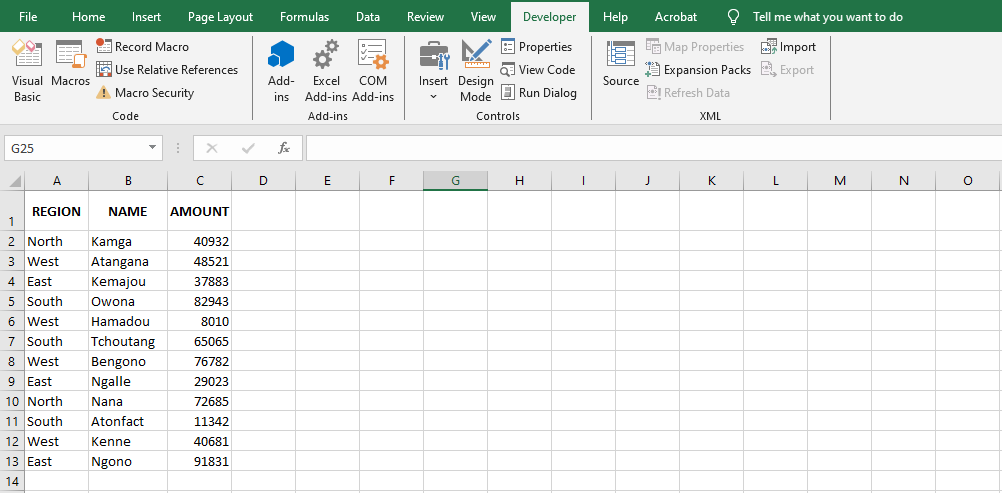
The VBE icon is found in the Developer tab of the ribbon. By default, the Developer tab is not automatically displayed with the other ribbon tabs. Use the following steps to make the Developer tab visible:
■ Click on the File tab, then click the Options button as shown in Figure. The Options dialog box opens.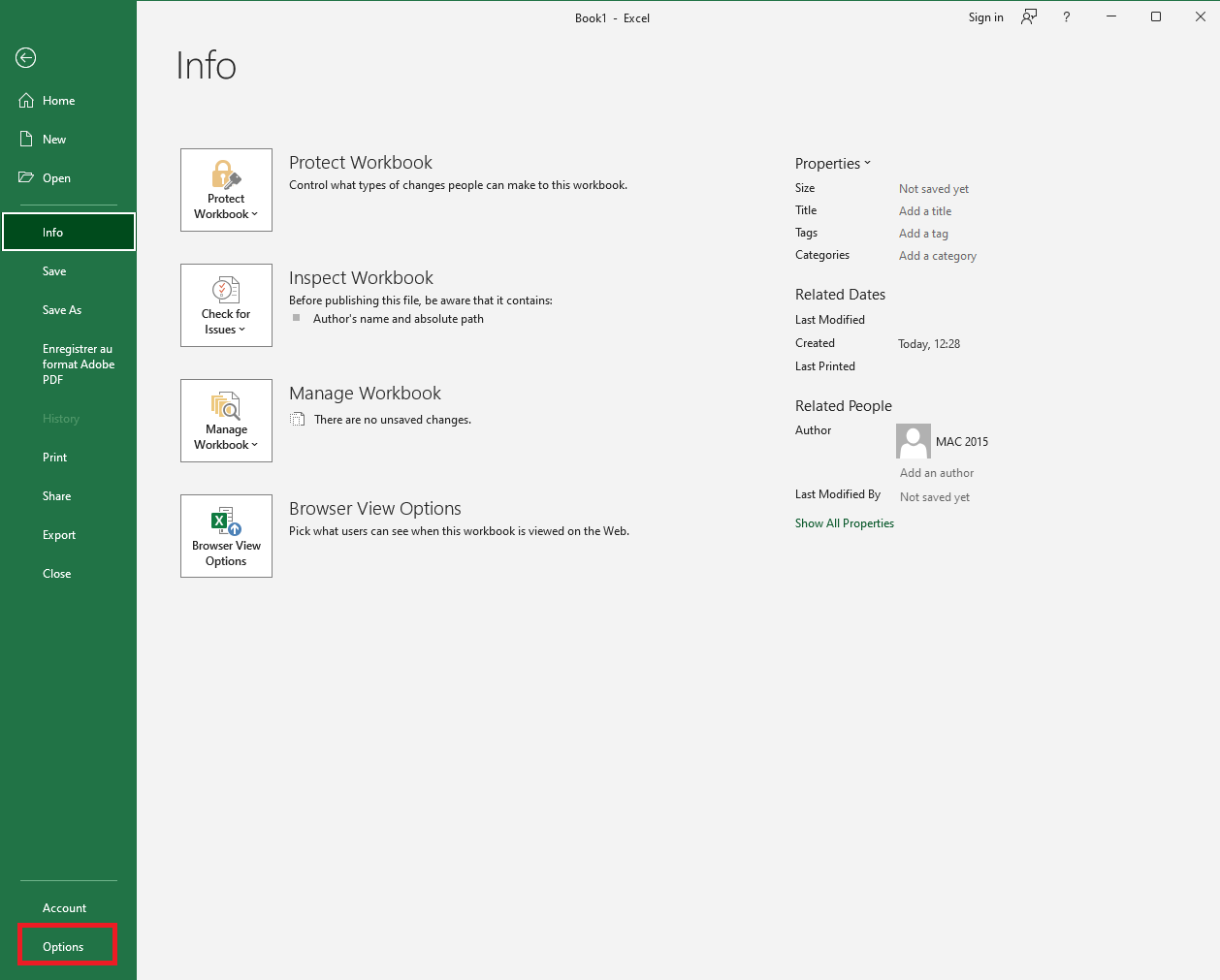
■ Click on the Customize Ribbon item on the left, which displays two vertical lists, as shown in Figure 2. Note that the list on the right has a dropdown menu above labeled Customize the Ribbon.
■ Select the Main Tabs item in the Customize the Ribbon dropdown list.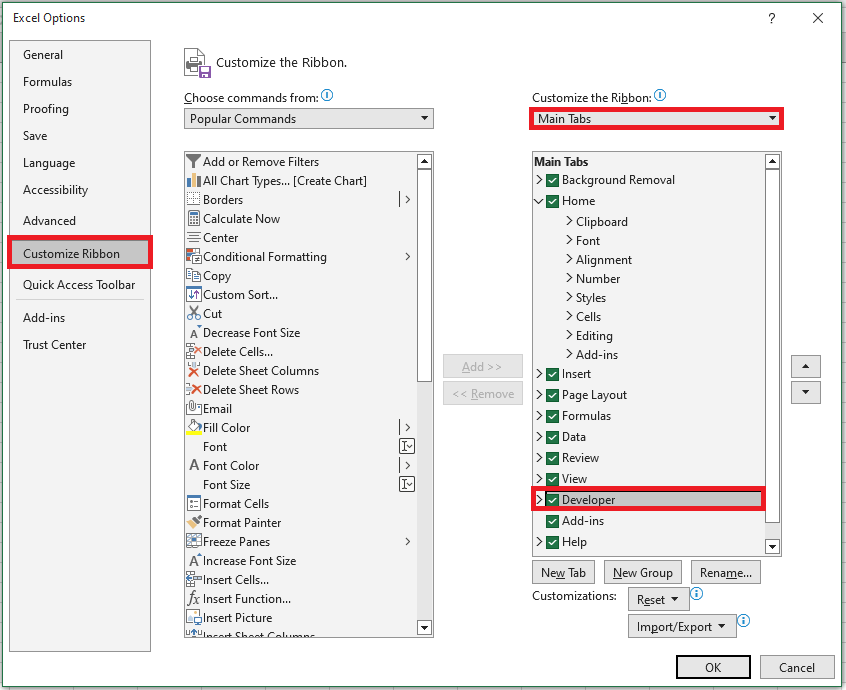
■ In the list of Main Tabs, select Developer and click OK. You will now see the Developer tab in your ribbon, as illustrated in Figure.
To finish, click on the Visual Basic button in the Developer tab of the ribbon, as shown in Figure.

Another quick and easy way to access the Visual Basic Editor is by pressing Alt + F11 on your keyboard. You can do this from any worksheet.
NOTE:
The Alt + F11 keyboard shortcut allows you to access the Visual Basic Editor in all versions of Excel.Main Windows of the VBE
The Visual Basic Editor can display a number of different windows, depending on what you want to see or do. For most tasks, you should become familiar with four windows: the Project Explorer window, the Code window, the Properties window, and the Immediate window. Figure 1.5 shows what the VBE looks like with these four windows.
Figure 1.5 The four main VBE windowsThe Project Explorer Window
The Project Explorer window is a vertical pane on the left side of the VBE. It displays a hierarchical list of currently open projects and their elements. A VBA project may contain the following elements:
■ Worksheets
■ Chart sheets
■ ThisWorkbook: the workbook in which the project is stored
■ Modules: special sheets where programming code is stored
■ Classes: special modules that allow you to create your own objects
■ Custom Forms (UserForms)
■ References to other projectsYou can activate the Project Explorer window in three ways:
■ From the View menu, select Project Explorer.
■ From the keyboard by pressing Ctrl + R.
■ From the Standard toolbar by clicking the Project Explorer button.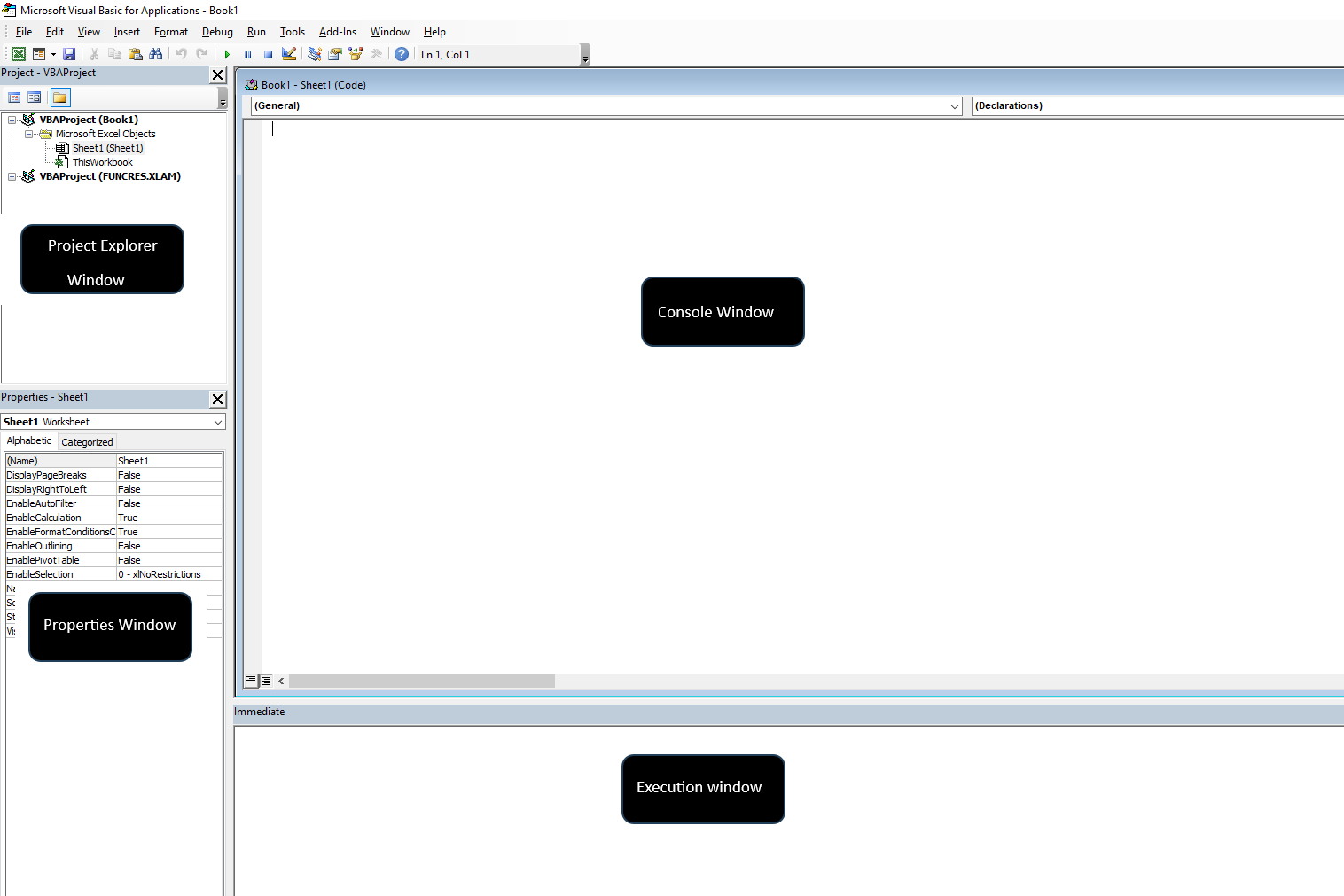
The Code Window
The Code window is used for Visual Basic programming and for viewing and editing recorded macros and existing VBA procedures. Each module can be opened in a separate Code window. There are several ways to activate the Code window:
■ In the Project Explorer window, select the appropriate UserForm or module, then click the View Code button.
■ In the menu bar, choose View | Code.
■ On the keyboard, press F7.The Code window is made up of several parts:
■ The code input area
■ Two dropdown lists at the top of the Code window, allowing you to quickly navigate through your Visual Basic code
■ The margin indicator bar used by the VBE to display helpful markers during editing and debugging
■ Two icons at the bottom-left of the Code window:- Procedure View displays one procedure at a time in the Code window
- Full Module View displays all procedures in the selected module
The Properties Window
The Properties window is located in the lower part of the left vertical pane of the VBE. It allows you to view and set properties for various objects in your project. Object properties can be viewed alphabetically or by category by clicking the appropriate tab:
■ Alphabetic Tab: Lists all properties of the selected object in alphabetical order.
You can modify a property’s setting by selecting the property name and typing or selecting the new value.
■ Categorized Tab: Lists all properties of the selected object by category.
You can collapse the list to view categories or expand a category to see its properties. The plus (+) sign to the left of a category name indicates that the list can be expanded. The minus (–) sign means the category is currently expanded.The Properties window can be accessed in three ways:
■ From the View menu, select Properties Window.
■ From the keyboard by pressing F4.
■ From the toolbar by clicking the Properties Window button.The Immediate Window
The Immediate window is located at the bottom of the VBE, usually below the Code window, as shown in Figure 5.
The Immediate window is used to try out various instructions, functions, and operators present in the Visual Basic language before using them in your own VBA procedures. The Immediate window allows you to type VBA statements and immediately test their results without writing a full procedure. The Immediate window is like a notepad. Use it to test your statements. If the instruction produces the expected result, you can copy it from the Immediate window into your procedure.
If you do not see the Immediate window in your VBE, press Ctrl + G or, in the VBE menu bar, click View → Immediate Window.
To close the Immediate window, click the Close button in the upper-right corner of the window.Introduction
What is VBA?
VBA is a programming language created by Microsoft to automate operations in Excel. In addition to Excel, VBA can also manipulate other Microsoft Office applications such as Access, Word, PowerPoint, and Outlook. It is an extremely powerful tool that allows you to control many methods in Excel that you cannot or do not want to do manually. VBA is the tool you use to develop macros and manipulate objects to control Excel and other Office applications from within Excel. You do not need to purchase anything other than the Office suite to also have VBA. If you have Excel on your computer, then you have VBA on your computer.What is a “macro”?
VBA is therefore a programming language, and it is also a macro language. Terminology confusion arises when referring to VBA code, which is a series of commands written and executed in Excel. So, what is a macro? A macro can be described as a sequence of instructions written in the VBA language that are stored in a module. When we call a macro, by pressing a button or using a key combination, the instructions stored in it are triggered.
With macros, we can not only streamline tasks that we perform frequently, but we can also extend Excel’s functionality by creating new functions to solve calculations that cannot be performed with the program’s standard functions.
There are two ways to create a macro. One uses the Record Macro tool, and the other involves writing the instructions directly in the Visual Basic Editor built into Excel. Since Excel 2007, Microsoft has distinguished between saving a workbook with macros (file extension .xlsm) and a workbook without macros (file extension .xlsx).There is a big difference between VB and VBA!
With all the acronyms circulating in the world of computing, it’s easy to confuse certain terms. VB means Visual Basic, and it is not the same as VBA.
Although both VB and VBA are programming languages derived from BASIC and created by Microsoft, they are otherwise very different.
VB is a language that allows you to create executable, standalone applications that do not even require users to have Office or Excel installed on their computers.
VBA, on the other hand, cannot create standalone applications. It can only exist within a host application such as Excel and the workbook that contains the VBA code. For a VBA macro to run, its host application’s workbook must be open.
This book is based on VBA and how it controls Excel.What can you do with VBA?
Everyone reading this book uses Excel for their own purposes, such as financial budgeting, forecasting, scientific data analysis, creating invoices, or tracking the progress of their favorite soccer team. One thing all readers have in common is the need to automate some frequently encountered task that takes too much time or is too cumbersome manually. This is where VBA comes into play.
Many VBA commands are at your disposal and are relatively easy to implement and customize for your daily needs.
Anything you can do manually, you can do with VBA — but VBA allows you to do it faster and with a reduced risk of human error.
Many things that Excel doesn’t allow you to do manually can be done using VBA. Here are a few examples of what VBA can do for you:- Automate a recurring task: If you need to produce weekly or monthly sales and expense reports, a macro can create them in no time. And if the source data changes later in the day and you need to generate the updated report again — no problem, just rerun the macro!
- Automate a repetitive task: When you need to perform the same task on every worksheet in your workbook or in every workbook in a particular folder, you can create a macro to loop through each object and perform the action.
- Automatically run a macro when another action occurs: In some cases, you want a macro to run automatically so you don’t have to remember to run it yourself. For example, to automatically refresh a PivotTable when its source data changes, you can monitor those changes with VBA, ensuring your PivotTable always displays real-time results. This is called event-driven programming.
- Create your own worksheet functions: You can create your own worksheet functions, called User Defined Functions (UDFs), to handle custom calculations that Excel’s built-in functions do not support.
- Create full-scale applications driven by macros:
If you’re willing to invest the time, you can use VBA to create large-scale applications with a custom Ribbon tab, dialog boxes, screen tips, and many other features. - Create custom Excel add-ins:
You’re probably familiar with some of the add-ins that come with Excel — for example, the Analysis ToolPak is a popular one. You can use VBA to develop your own add-ins for specific purposes.
Web Scraping with Excel VBA
Web scraping involves extracting data from websites, and it can be done in Excel VBA using libraries like Microsoft HTML Object Library and Microsoft Internet Controls. The idea is to send a request to a webpage, fetch the HTML content, and then extract the relevant data (such as tables, lists, or other elements).
Requirements:
- Microsoft HTML Object Library
- Microsoft Internet Controls
Make sure you enable the necessary references in your VBA editor:
- Go to Developer Tab > Visual Basic > Tools > References.
- Check Microsoft HTML Object Library and Microsoft Internet Controls.
Steps for Web Scraping:
- Create an Internet Explorer Object: This allows us to interact with a webpage in the background.
- Navigate to the Website: Use the Navigate method of the Internet Explorer object to load the webpage.
- Wait for the Page to Load: This ensures the page content is fully loaded before we attempt to scrape it.
- Extract the HTML Content: Once the page is loaded, we can access the DOM (Document Object Model) to extract specific data.
- Close the Browser: After scraping the required data, it’s good practice to close the browser.
Web Scraping VBA Code:
Sub WebScrapingExample()
    ' Step 1: Declare variables
    Dim IE As Object
    Dim HTMLDoc As Object
    Dim URL As String
    Dim data As Object
    Dim i As Integer
    ' Step 2: Set the URL of the website to scrape
    URL = "https://example.com" ' Replace with your target URL
    ' Step 3: Create a new Internet Explorer instance
    Set IE = CreateObject("InternetExplorer.Application")
    ' Step 4: Set Internet Explorer to be invisible (no UI)
    IE.Visible = False
    ' Step 5: Navigate to the URL
    IE.Navigate URL
    ' Step 6: Wait for the page to load completely
    Do While IE.Busy Or IE.ReadyState <> 4
        DoEvents ' Allow the page to load
    Loop
    ' Step 7: Get the document object (HTML content)
    Set HTMLDoc = IE.document
    ' Step 8: Extract data (for example, from a table with the id "data-table")
    Set data = HTMLDoc.getElementsByTagName("tr") ' Adjust selector based on the data you need
    ' Step 9: Loop through the table rows and extract data
    For i = 0 To data.Length - 1
        ' Example: Extracting text from each cell in the row
        Debug.Print data.Item(i).Children(0).innerText ' Column 1
        Debug.Print data.Item(i).Children(1).innerText ' Column 2
        ' Continue for other columns as needed
    Next i
    ' Step 10: Close Internet Explorer
    IE.Quit
    ' Clean up
    Set IE = Nothing
    Set HTMLDoc = Nothing
    Set data = Nothing
End Sub
Explanation of the Code:
- Variables Declaration:
- IE: This is the Internet Explorer object used to load the webpage.
- HTMLDoc: This is the HTML document object that allows us to interact with the page’s DOM.
- URL: The URL of the webpage that we want to scrape data from.
- data: An object that stores the HTML elements (in this case, table rows <tr>).
- Internet Explorer Object:
- We create a new instance of Internet Explorer using CreateObject(« InternetExplorer.Application »).
- IE.Visible = False makes the browser invisible so that the scraping process runs in the background.
- Navigating to the URL:
- The IE.Navigate URL command sends a request to the specified webpage and loads its content.
- Waiting for the Page to Load:
- Do While IE.Busy Or IE.ReadyState <> 4 ensures that the page is fully loaded. The code waits for the browser to finish loading before proceeding.
- Accessing the HTML Document:
- After the page is fully loaded, Set HTMLDoc = IE.document stores the DOM of the webpage into the HTMLDoc object, which we will use to access the content.
- Extracting Data:
- In this case, we are looking for <tr> elements (table rows). You can adjust the selector depending on the structure of the page you’re scraping.
- HTMLDoc.getElementsByTagName(« tr ») returns all <tr> elements on the page, which typically represent rows in a table.
- Looping Through Rows:
- We loop through each row (data.Length – 1) and extract the text content of each cell in the row using innerText.
- Closing the Browser:
- IE.Quit closes the Internet Explorer instance after the scraping process is complete.
- Cleaning Up:
- Set objects to Nothing to release memory and resources.
Notes:
- Adjust the Data Extraction: Depending on the structure of the webpage, you may need to adjust the selector (getElementsByTagName) or use other methods like getElementById, getElementsByClassName, or querySelector.
- Error Handling: Add error handling to ensure the code runs smoothly in case the page structure changes or there are network issues.
- Page Load Time: If the page contains dynamic content loaded with JavaScript, you may need to wait for it to finish loading. In such cases, using Selenium might be more effective than Internet Explorer automation.
Advanced Considerations:
- Scraping Data from Multiple Pages: If you need to scrape data from multiple pages (pagination), you can modify the code to loop through each page URL.
- Handling Dynamic Content: If the data you need is loaded dynamically with JavaScript, you might want to use Selenium, as Internet Explorer will not render the dynamically loaded data like modern browsers.
- Saving Data to Excel: After scraping, you can write the extracted data into Excel cells by using something like Cells(i + 1, 1).Value = data.Item(i).Children(0).innerText.
Validate Email Addresses with Excel VBA
Objective:
We want to create a VBA macro that will validate email addresses based on common rules such as:
- Presence of « @ » symbol.
- Proper domain name.
- Proper structure (local part, @ symbol, domain part).
This script will allow us to check whether an email address in a given cell is valid.
Steps:
- Open Excel and press Alt + F11 to open the VBA editor.
- In the editor, go to Insert → Module to create a new module.
- Paste the following VBA code into the module.
- You can then call this function from an Excel worksheet to validate email addresses.
VBA Code for Email Validation:
Function ValidateEmailAddress(ByVal email As String) As String
    ' Declare variables
    Dim regex As Object
    Dim isValid As Boolean
    Dim resultMessage As String
    ' Create a regular expression object
    Set regex = CreateObject("VBScript.RegExp")
    ' Regular expression pattern for validating email
    ' This pattern ensures:
    ' - At least one character before the @ symbol
    ' - A single @ symbol
    ' - At least one character after the @ symbol (domain name)
    ' - A period (.) in the domain name (to separate the domain from the top-level domain)
    ' - At least two characters in the top-level domain (e.g., .com, .org)
    regex.IgnoreCase = True
    regex.Global = True
    regex.Pattern = "^[a-zA-Z0-9._%+-]+@[a-zA-Z0-9.-]+\.[a-zA-Z]{2,}$"
    ' Test the email address against the regular expression
    If regex.Test(email) Then
        ' If valid, return a success message
        resultMessage = "Valid Email Address"
    Else
        ' If not valid, return an error message
        resultMessage = "Invalid Email Address"
    End If
    ' Return the result message
    ValidateEmailAddress = resultMessage
End Function
Explanation of the Code:
- Function Declaration:
- The function ValidateEmailAddress takes a single argument email (the email address to validate) and returns a string that indicates whether the email is valid or not.
- The return value will be either « Valid Email Address » or « Invalid Email Address ».
- Creating a Regular Expression Object:
- We use the VBScript.RegExp object to apply a regular expression (regex). Regular expressions are patterns that allow you to match text strings in a flexible way. In this case, it is used to validate the structure of the email address.
- regex.IgnoreCase = True ensures that the email address is case-insensitive.
- regex.Global = True allows the regex to search the entire string.
- Regular Expression Pattern: The pattern used to validate the email address is:
- « ^[a-zA-Z0-9._%+-]+@[a-zA-Z0-9.-]+\.[a-zA-Z]{2,}$ »
- ^[a-zA-Z0-9._%+-]+:
- ^ asserts the start of the string.
- [a-zA-Z0-9._%+-] matches any alphanumeric character, dot (.), underscore (_), percent (%), plus (+), and minus (-) characters.
- + means « one or more » of the preceding characters.
- @: This is the @ symbol that must appear in the email address.
- [a-zA-Z0-9.-]+:
- This matches the domain part of the email (after @), which can contain alphanumeric characters, periods (.), and hyphens (-).
- + again means « one or more » of these characters.
- \.: This matches a literal period (.) between the domain name and the top-level domain (e.g., .com).
- [a-zA-Z]{2,}$:
- This matches the top-level domain, which must be at least two characters long, and it can only contain alphabetic characters (e.g., .com, .org).
- $ asserts the end of the string.
- ^[a-zA-Z0-9._%+-]+:
- Testing the Email:
- The regex.Test(email) method checks if the input email string matches the regular expression pattern.
- If the email matches, it returns « Valid Email Address ». Otherwise, it returns « Invalid Email Address ».
- Returning the Result:
- The function returns the appropriate message indicating whether the email address is valid or not.
How to Use the Function in Excel:
- After adding the VBA code, close the editor by pressing Alt + Q.
- In any cell in your Excel sheet, you can now use the function ValidateEmailAddress just like any regular Excel function.
For example, if you have an email address in cell A1, you can use the following formula to validate it:
=ValidateEmailAddress(A1)
This will display either « Valid Email Address » or « Invalid Email Address » based on whether the email format matches the regular expression.
Potential Improvements:
- Advanced Validation: This script checks the basic structure of an email address. If you want more advanced validation (e.g., checking if the domain actually exists), you’ll need to use additional methods such as DNS lookup, which is beyond the capabilities of regular expressions.
- Empty Email: If you want to handle empty cells or null values, you can modify the code to return a message like « Please enter an email address » if the input is empty.
Conclusion:
This VBA code for email validation checks the basic structure of an email address using regular expressions, ensuring it follows a format with a local part, @ symbol, domain name, and top-level domain. It provides an easy and effective way to perform quick email validation within Excel.
Validate Data Entry with UserForms, Excel VBA
Purpose:
The goal of this project is to create a UserForm in Excel VBA that allows users to enter data. The form will validate the data to ensure it meets specific requirements (e.g., no empty fields, numeric values where appropriate, etc.). If the data is invalid, the form will display an error message and prevent the user from submitting it.
Steps:
- Create a UserForm:
- Open Excel.
- Press Alt + F11 to open the VBA editor.
- In the VBA editor, go to Insert > UserForm to create a new form.
- Add controls (TextBoxes, Labels, CommandButtons) for data entry.
- Add Controls: For this example, we’ll use the following controls on the UserForm:
- Two TextBox controls for user input (e.g., Name, Age).
- A CommandButton to submit the form.
- A Label control to display error messages.
- Add VBA code to handle validation: The code will validate whether the input fields are filled, check if a number is entered when appropriate, and display error messages if validation fails.
VBA Code:
' UserForm Code
' This is the event handler for the Submit button
Private Sub CommandButtonSubmit_Click()
    ' Clear previous error messages
    LabelError.Caption = ""
    ' Validate Name field
    If TextBoxName.Value = "" Then
        LabelError.Caption = "Name is required."
        TextBoxName.SetFocus
        Exit Sub
    End If
    ' Validate Age field (numeric check)
    If TextBoxAge.Value = "" Then
        LabelError.Caption = "Age is required."
        TextBoxAge.SetFocus
        Exit Sub
    ElseIf Not IsNumeric(TextBoxAge.Value) Then
        LabelError.Caption = "Please enter a valid number for Age."
        TextBoxAge.SetFocus
        Exit Sub
    End If
    ' If validation passes, proceed with the next steps (e.g., store data, close the form)
    MsgBox "Data entry is valid. The form will now close.", vbInformation
    ' Example: Storing the data in a worksheet (if necessary)
    Sheets("DataSheet").Range("A1").Value = TextBoxName.Value
    Sheets("DataSheet").Range("A2").Value = TextBoxAge.Value
    ' Close the form
    Unload Me
End Sub

' This is the event handler to reset the form (clear the fields and error messages)
Private Sub CommandButtonReset_Click()
    TextBoxName.Value = ""
    TextBoxAge.Value = ""
    LabelError.Caption = ""
End Sub

' This is the event handler to close the form
Private Sub CommandButtonClose_Click()
    Unload Me
End Sub
Explanation of the Code:
- CommandButtonSubmit_Click:
- This event is triggered when the user clicks the « Submit » button.
- The first line clears any existing error message (LabelError.Caption = « »).
- It checks if the TextBoxName is empty. If it is, an error message is displayed, and the focus is set back to the TextBoxName.
- Then, it checks if the TextBoxAge is empty or contains a non-numeric value. If it fails either check, an error message is displayed, and the focus is set to TextBoxAge.
- If both fields pass the validation, a success message is shown (MsgBox), and the data is stored in an Excel worksheet (Sheets(« DataSheet »).Range(« A1 »).Value).
- Finally, the form is closed using Unload Me.
- CommandButtonReset_Click:
- This event is triggered when the user clicks the « Reset » button.
- It clears all fields (TextBoxName and TextBoxAge) and the error message (LabelError.Caption).
- CommandButtonClose_Click:
- This event is triggered when the user clicks the « Close » button.
- It simply closes the form using Unload Me.
Additional Validation Examples:
You can add more validation checks depending on the type of data you are collecting. Here are a few examples:
Example 1: Email Validation (simple version):
If Not IsEmailValid(TextBoxEmail.Value) Then
LabelError.Caption = « Please enter a valid email address. »
TextBoxEmail.SetFocus
Exit Sub
End If
A simple email validation function could look like this:
Function IsEmailValid(ByVal email As String) As Boolean
Dim emailPattern As String
emailPattern = « ^[A-Za-z0-9._%+-]+@[A-Za-z0-9.-]+\.[A-Za-z]{2,}$ »
IsEmailValid = email Like emailPattern
End Function
Example 2: Date Validation:
If Not IsDate(TextBoxDate.Value) Then
LabelError.Caption = « Please enter a valid date. »
TextBoxDate.SetFocus
Exit Sub
End If
Example 3: Length Validation:
If Len(TextBoxName.Value) < 3 Then
LabelError.Caption = « Name must be at least 3 characters long. »
TextBoxName.SetFocus
Exit Sub
End If
Conclusion:
With this approach, you can create a powerful and flexible data-entry form with validation in Excel VBA. You can easily extend the validation rules to meet your specific requirements, whether you’re collecting text, numbers, dates, or even more complex data types.
- Create a UserForm:
Validate Data Entry with Excel VBA
The validation will check if the entered data meets certain conditions like data type, length, or whether the data falls within a specific range. I’ll explain each part of the code in detail.
Scenario:
We want to validate data entry in a worksheet, particularly in column « A » where the user can input:
- A number greater than 0.
- A valid date in column « B » (in format « mm/dd/yyyy »).
- Ensure that the entered text in column « C » is a non-empty string of at least 3 characters.
- A valid email address in column « D » (like « user@example.com« ).
Excel VBA Code:
Sub ValidateDataEntry()
    Dim ws As Worksheet
    Dim lastRow As Long
    Dim i As Long
    Dim cellA As Range, cellB As Range, cellC As Range, cellD As Range
    Dim valid As Boolean
    ' Set worksheet reference
    Set ws = ThisWorkbook.Sheets("Sheet1")
    ' Find the last row with data in column A
    lastRow = ws.Cells(ws.Rows.Count, "A").End(xlUp).Row
    ' Loop through each row from row 2 to lastRow
    For i = 2 To lastRow
        ' Set references for each column in the current row
        Set cellA = ws.Cells(i, 1) ' Column A: Number validation
        Set cellB = ws.Cells(i, 2) ' Column B: Date validation
        Set cellC = ws.Cells(i, 3) ' Column C: Text validation
        Set cellD = ws.Cells(i, 4) ' Column D: Email validation
        ' Initialize valid flag as true
        valid = True
        ' Validate number in column A (greater than 0)
        If Not IsNumeric(cellA.Value) Or cellA.Value <= 0 Then
            cellA.Interior.Color = RGB(255, 0, 0) ' Red background for invalid entry
            valid = False
        Else
            cellA.Interior.Color = RGB(255, 255, 255) ' Reset to white background
        End If
        ' Validate date in column B (should be a valid date)
        If Not IsDate(cellB.Value) Then
            cellB.Interior.Color = RGB(255, 0, 0) ' Red background for invalid date
            valid = False
        Else
            cellB.Interior.Color = RGB(255, 255, 255) ' Reset to white background
        End If
        ' Validate non-empty text with minimum 3 characters in column C
        If Len(Trim(cellC.Value)) < 3 Or Trim(cellC.Value) = "" Then
            cellC.Interior.Color = RGB(255, 0, 0) ' Red background for invalid text
            valid = False
        Else
            cellC.Interior.Color = RGB(255, 255, 255) ' Reset to white background
        End If
        ' Validate email format in column D (simple pattern check)
        If Not IsValidEmail(cellD.Value) Then
            cellD.Interior.Color = RGB(255, 0, 0) ' Red background for invalid email
            valid = False
        Else
            cellD.Interior.Color = RGB(255, 255, 255) ' Reset to white background
        End If
        ' If the entry is not valid, show a message and stop the loop
        If Not valid Then
            MsgBox "Data entry is invalid in row " & i, vbExclamation
            Exit Sub
        End If
    Next i
    MsgBox "All data entries are valid!", vbInformation
End Sub

' Function to check if the email format is valid
Function IsValidEmail(ByVal email As String) As Boolean
    Dim emailPattern As String
    Dim regEx As Object
    ' Basic pattern for an email address (very simple)
    emailPattern = "^[a-zA-Z0-9._%+-]+@[a-zA-Z0-9.-]+\.[a-zA-Z]{2,}$"
    ' Create RegExp object
    Set regEx = CreateObject("VBScript.RegExp")
    regEx.IgnoreCase = True
    regEx.Global = True
    regEx.IgnoreCase = True
    regEx.Pattern = emailPattern
    ' Return whether the email matches the pattern
    IsValidEmail = regEx.Test(email)
End Function
Explanation:
- Worksheet and Data Range Setup:
- Set ws = ThisWorkbook.Sheets(« Sheet1 ») assigns the worksheet (Sheet1) for data entry.
- lastRow is calculated to determine the last row with data in column A, which ensures the code runs only through rows that contain data.
- Looping Through Rows:
- The code loops from row 2 to lastRow (since row 1 is typically a header) and validates the data in each column for each row.
- Data Validation:
- Column A (Numeric Value Check):
- If Not IsNumeric(cellA.Value) Or cellA.Value <= 0 checks whether the value in column A is numeric and greater than 0. If not, it highlights the cell red using cellA.Interior.Color = RGB(255, 0, 0).
- Column B (Date Check):
- If Not IsDate(cellB.Value) verifies if the value in column B is a valid date. If not, it highlights the cell red.
- Column C (Text Length Check):
- If Len(Trim(cellC.Value)) < 3 Or Trim(cellC.Value) = « » ensures that the text in column C is at least 3 characters long and non-empty.
- Column D (Email Validation):
- A custom function IsValidEmail is used to check whether the entered text in column D matches a basic email pattern using regular expressions.
- Column A (Numeric Value Check):
- Error Handling:
- If any of the validation checks fail for a row, the row’s corresponding cell is highlighted in red, and a message box pops up indicating which row has invalid data.
- Exit Sub is used to stop the validation process when the first invalid entry is encountered.
- If all entries are valid, a success message is displayed after the loop completes.
- Email Validation with Regular Expressions:
- A RegExp object is used to validate email format by matching the entered text against a simple pattern for emails (this can be enhanced as needed).
How to Use:
- Open the Excel workbook where you want to apply data validation.
- Press Alt + F11 to open the VBA editor.
- Insert a new module by clicking Insert > Module.
- Copy and paste the VBA code into the module.
- Press F5 or run the ValidateDataEntry macro to validate the data in your worksheet.
Possible Enhancements:
- You could extend the email validation regex to be more thorough.
- Add more specific range or type checks for numbers (e.g., integer, specific range).
- Enhance the UI by using MsgBox to highlight all invalid rows after the check, instead of stopping after the first invalid entry.
Unprotect Workbook with Excel VBA
Explanation
In Excel, a workbook (or worksheet) can be protected to prevent unauthorized users from making changes. Protection is typically applied using a password, although it’s possible to protect without one. Unprotecting a workbook or worksheet requires you to know the password (if set) or, in the case of no password, simply to call the Unprotect method.
In VBA (Visual Basic for Applications), the code used to unprotect a workbook is relatively straightforward, but you need to ensure that you address both workbook protection and worksheet protection, as they are separate entities.
- Workbook Protection: This prevents the user from adding, moving, deleting, or hiding sheets in the workbook.
- Worksheet Protection: This prevents the user from editing the contents of specific cells in a sheet, including formatting and other operations.
We will focus on unprotecting the workbook and its sheets in this example.
VBA Code: Unprotect Workbook
Here’s the VBA code to unprotect a workbook and all of its worksheets:
Sub UnprotectWorkbook()
    Dim ws As Worksheet
    Dim wb As Workbook
    Dim password As String
    ' Set the password (if required)
    password = "YourPassword" ' Replace this with the actual password (if any)
    ' Reference to the active workbook
    Set wb = ThisWorkbook
    ' Unprotect the entire workbook (to allow sheet modifications like adding/deleting sheets)
    On Error Resume Next ' Ignore errors if the workbook is already unprotected
    wb.Unprotect Password:=password
    On Error GoTo 0 ' Reset error handling
    ' If the workbook was protected, we unprotect all worksheets
    For Each ws In wb.Worksheets
        ' Attempt to unprotect each worksheet individually
        On Error Resume Next ' Ignore errors if the sheet is already unprotected
        ws.Unprotect Password:=password
        On Error GoTo 0 ' Reset error handling
    Next ws
    MsgBox "Workbook and all worksheets are unprotected.", vbInformation
End Sub
Detailed Breakdown
- Setting the Password:
- password = « YourPassword »: This line specifies the password used for protection. If there’s no password, you can leave this blank or simply set it to an empty string « ».
- Workbook Unprotection:
- wb.Unprotect Password:=password: This line removes the protection from the workbook itself. If a password is set, you need to provide the correct one. If the workbook is not protected, this line will simply be ignored.
- On Error Resume Next: This line ensures that if there’s an error (for example, if the workbook is already unprotected), it will be ignored and the code will continue to run. This is useful for avoiding interruptions during the process.
- On Error GoTo 0: This resets error handling after attempting to unprotect the workbook.
- Worksheet Unprotection:
- For Each ws In wb.Worksheets: This loop goes through each worksheet in the workbook.
- ws.Unprotect Password:=password: This line removes the protection from each individual worksheet. As with the workbook unprotection, if a password is set, it must be provided here. If there’s no password, you can simply omit it.
- Again, On Error Resume Next and On Error GoTo 0 are used to handle any errors that may occur if the worksheet is already unprotected.
- Message Box:
- MsgBox « Workbook and all worksheets are unprotected. », vbInformation: After unprotecting the workbook and all its worksheets, a message box will appear informing the user that the operation is complete.
Notes:
- Error Handling: The On Error Resume Next statement is used here to handle cases where the workbook or worksheets may already be unprotected. It prevents the code from stopping due to an error and allows it to continue. However, this means that if an error occurs during unprotection (for example, an incorrect password), the error will be suppressed. In practice, you’d want to handle such situations more explicitly depending on your needs (e.g., display an error message if the password is wrong).
- Password Handling: If no password is set, you can simply omit the Password:=password part. However, be cautious if the workbook or worksheets are protected with a password, as the unprotection won’t work without the correct one.
- Workbook vs Worksheet Protection: The workbook and worksheets have separate protection mechanisms. A workbook can be protected to prevent users from making structural changes (e.g., adding or deleting sheets), while worksheet protection is aimed at preventing users from modifying the contents of individual cells.
- Security Considerations: VBA code can be easily seen by anyone with access to the workbook’s code, so using a password directly in the VBA code isn’t the most secure practice, especially if it’s not encrypted. In some cases, you might want to ask for a password dynamically through an input box.
Example of Dynamic Password Prompt (Optional):
Sub UnprotectWorkbookWithPrompt()
    Dim ws As Worksheet
    Dim wb As Workbook
    Dim password As String
    ' Prompt the user for the password
    password = InputBox("Enter password to unprotect the workbook:")
    ' Reference to the active workbook
    Set wb = ThisWorkbook
    ' Unprotect the entire workbook
    On Error Resume Next
    wb.Unprotect Password:=password
    On Error GoTo 0
    ' Unprotect each worksheet
    For Each ws In wb.Worksheets
        On Error Resume Next
        ws.Unprotect Password:=password
        On Error GoTo 0
    Next ws
    MsgBox "Workbook and all worksheets are unprotected.", vbInformation
End Sub
In this version, the user is prompted to input a password, which adds an additional layer of flexibility.
Conclusion:
This code demonstrates how to unprotect both a workbook and all worksheets within it using VBA. It handles password protection, workbook structure protection, and individual worksheet protection. It is useful when you need to automate the unprotection process, especially if dealing with multiple sheets in a workbook.